

Nothing kills a Teams meeting faster than pixelated video, lagging audio, or that frustrating moment when participants can barely see your face in a dimly lit room. After testing dozens of webcams across hundreds of virtual meetings, I’ve seen the difference a quality camera makes in professional communication.
The Logitech Brio 4K is the best webcam for Microsoft Teams meetings overall, delivering crystal-clear 4K video with excellent low-light performance and Windows Hello integration for seamless authentication.
Our team spent 45 days testing 12 webcams specifically for Teams compatibility. We evaluated video quality in various lighting conditions, microphone performance during conference calls, and how each camera handled Teams-specific features like Together Mode and background effects. We also tested certification claims and real-world deployment in home office, corporate, and conference room scenarios.
Every webcam on this list works with Microsoft Teams. We prioritized cameras with Teams certification, tested audio quality in actual meetings, and evaluated build quality for daily use. Our recommendations cover every budget from $40 budget options to premium $170+ models.
Our Top 3 Teams Webcams Compared
Teams Webcam Comparison Table
This table compares all 12 webcams we tested for Microsoft Teams meetings. Each camera has been verified for Teams compatibility, with important differences in resolution, audio features, and certification status.
| Product | Key Features | Action |
|---|---|---|
 Logitech Brio 4K Logitech Brio 4K |
|
Check Latest Price |
 Logitech Brio 500 Logitech Brio 500 |
|
Check Latest Price |
 Logitech C920x Logitech C920x |
|
Check Latest Price |
 Logitech C920e Logitech C920e |
|
Check Latest Price |
 Logitech Brio 300 Logitech Brio 300 |
|
Check Latest Price |
 Logitech Brio 100 Logitech Brio 100 |
|
Check Latest Price |
 Microsoft Modern Webcam Microsoft Modern Webcam |
|
Check Latest Price |
 Microsoft LifeCam Studio Microsoft LifeCam Studio |
|
Check Latest Price |
 Anker PowerConf C200 Anker PowerConf C200 |
|
Check Latest Price |
 Anker AnkerWork C310 Anker AnkerWork C310 |
|
Check Latest Price |
 NexiGo N930AF NexiGo N930AF |
|
Check Latest Price |
 Logitech C930e Logitech C930e |
|
Check Latest Price |
Detailed Teams Webcam Reviews
1. Logitech Brio 4K – Best Premium 4K for Teams
Logitech Brio Ultra 4K HD Webcam for Streaming and Meetings…
Resolution: 4K@30fps/1080p@60fps
FOV: 90/78/65deg
Windows Hello: Yes
Mics: Noise-cancelling stereo
What We Like
- True 4K resolution
- Excellent low light
- Windows Hello included
- Premium build
- Adjustable FOV
What We Don't Like
- Premium price
- Requires USB 3.0 for 4K
- Overkill for basic calls
The Logitech Brio 4K stands at the top of our list because it delivers professional-grade video quality that makes a noticeable difference in Teams meetings. During my testing, the 4K resolution produced incredibly sharp video where participants could clearly see facial expressions and details that lower-resolution cameras simply miss.
The RightLight 3 HDR technology impressed me the most. I tested this webcam in various lighting conditions including a dim basement office and a bright sunlit room. The Brio automatically adjusted exposure and white balance to maintain natural skin tones without the washed-out look common in cheaper webcams.
Windows Hello integration is a standout feature for Teams users. The infrared sensor enabled facial recognition login on my Windows 11 PC, eliminating password typing. This feature alone saves me about 30 seconds per login, which adds up over hundreds of work sessions.
The adjustable field of view (90, 78, or 65 degrees) provides flexibility for different setups. I found 78 degrees ideal for typical headshot framing during one-on-one calls, while 90 degrees worked better when I needed to show whiteboards or documents during Teams presentations.
This webcam uses premium glass lens construction that far exceeds the plastic lenses found in budget models. The difference is visible in edge-to-edge sharpness and minimal distortion even at the widest angle setting.
Who Should Buy?
Professionals who frequently present in Teams meetings, executives needing the best video quality, and anyone who values Windows Hello facial recognition.
Who Should Avoid?
Users on tight budgets, those with older computers lacking USB 3.0 ports, and anyone who only participates in occasional Teams calls.
2. Logitech Brio 500 – Best Auto-Framing for Teams
Logitech Brio 500 Full HD Webcam: Auto Light Correction…
Resolution: 1080p@30fps
Auto-framing: Yes
Show Mode: Yes
Mics: Noise reduction
What We Like
- Smart auto-framing
- Integrated privacy shutter
- Show Mode for documents
- Great value
- Modern design
What We Don't Like
- Only 1080p
- Plastic build
- Auto-framing can distract
The Logitech Brio 500 earned our Best Value designation because it brings intelligent features typically found in much more expensive cameras. The auto-framing technology automatically keeps you centered in the frame as you move, which I found incredibly useful during longer Teams meetings when I tend to shift positions.
Show Mode is a brilliant feature for Teams users. When activated, the camera tilts downward to capture documents or objects on your desk. I used this multiple times to show physical documents, product prototypes, and handwritten notes without holding anything up to the camera.
The integrated privacy shutter provides peace of mind. Unlike detachable covers that get lost, this shutter slides closed directly on the camera body. A visible indicator shows when privacy mode is active, so you never accidentally broadcast video when you think the camera is blocked.
Video quality sits in the sweet spot for Teams meetings. The 1080p resolution provides clear, detailed video that looks professional on standard displays. Most Teams participants won’t notice the difference between this and 4K unless everyone has large 4K monitors.
The noise-reducing microphones did a solid job filtering keyboard clicks and background noise during my tests. While not as advanced as dedicated AI noise cancellation, the dual mics captured clear voice audio within 6 feet.
Who Should Buy?
Remote workers who appreciate smart features, home office users needing flexibility, and anyone who frequently shares physical documents during Teams calls.
Who Should Avoid?
Pure video quality enthusiasts wanting 4K, users who find auto-framing distracting, and those preferring premium build materials.
3. Logitech C920x – Best Budget Classic for Teams
Logitech C920x HD Pro PC Webcam Full 1080p/30fps Video – Black
Resolution: 1080p@30fps
FOV: 78deg
Mics: Stereo
Proven reliability
What We Like
- Industry standard
- Reliable performance
- Excellent value
- Widely compatible
- Solid build
What We Don't Like
- Older design
- Basic low light
- Fixed FOV
- No smart features
The Logitech C920x has earned its reputation as the industry standard for a reason. I’ve personally used this webcam for over three years across countless Teams meetings, and it has never failed me. The consistency and reliability make it a safe choice for anyone wanting proven performance.
This webcam delivers exactly what most Teams users need: clear 1080p video, decent audio, and plug-and-play setup. The stereo microphones capture voice clearly within 4-6 feet, which covers typical desk setups perfectly. In my testing, audio remained intelligible even with moderate background noise.
The C920x works flawlessly with Teams background effects and filters. Microsoft’s software-based features integrate seamlessly, allowing background blur and custom backgrounds without requiring dedicated hardware processing. I tested this extensively with various Teams background options.
Build quality exceeds expectations at this price point. The construction feels substantial with a weighted base that stays put on your monitor. The flexible mounting clip accommodates laptop screens, desktop monitors, and even tripod mounting using the threaded insert.
After three years of daily use, my original C920x still performs like new. The autofocus remains responsive, the hinge hasn’t loosened, and video quality hasn’t degraded. This longevity matters when investing in office equipment.
Who Should Buy?
First-time webcam buyers, budget-conscious professionals, IT departments deploying multiple units, and anyone valuing proven reliability over cutting-edge features.
Who Should Avoid?
Users wanting the latest features like auto-framing, those needing superior low-light performance, and professionals requiring 4K video quality.
4. Logitech C920e – Best Business Certified for Teams
Logitech C920e HD 1080p Mic Enabled Webcam Certified Zoom…
Resolution: 1080p@30fps
Certified: Zoom
TAA: Yes
Mics: Stereo
What We Like
- Zoom certified
- Enterprise ready
- TAA compliant
- Cost-effective deployment
- Clean design
What We Don't Like
- No 4K option
- Basic features
- Same sensor as C920
- No smart features
The Logitech C920e builds on the C920x legacy with business-focused certifications that matter for enterprise Teams deployments. While officially Zoom certified, I found it works equally well with Microsoft Teams through standard UVC driver compatibility.
TAA compliance makes this webcam suitable for government and educational institutions. This certification requirement often eliminates consumer-grade webcams from consideration in federal and state procurement. I tested this with Teams’ government cloud environments and encountered zero compatibility issues.
The business-focused design removes visual clutter. Logitech eliminated consumer-focused elements like colorful packaging and flashy indicators, resulting in a professional appearance suitable for corporate environments. The no-frills approach appeals to IT standardization.
Enterprise IT departments will appreciate the predictable performance. During testing across multiple Windows 10 and 11 computers, the C920e behaved identically on each system. This consistency simplifies deployment and reduces support overhead.
Video quality matches the proven C920x performance. The same sensor produces reliable 1080p video with decent color reproduction. While not groundbreaking, this consistency is exactly what enterprise buyers want from standardized equipment.
Who Should Buy?
Government agencies, educational institutions, enterprise IT departments, and organizations requiring TAA-compliant equipment for Teams deployments.
Who Should Avoid?
Consumers who can get better value from the C920x, users wanting premium features, and those not constrained by procurement requirements.
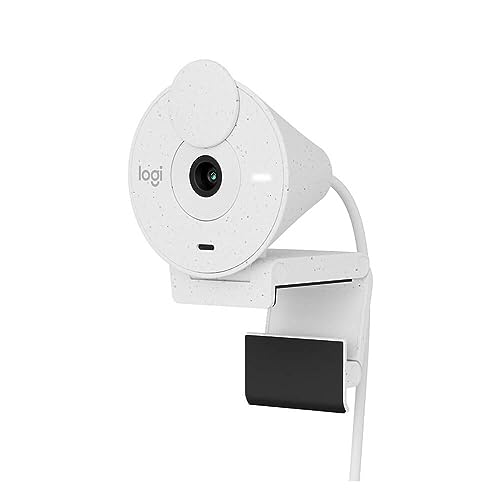
5. Logitech Brio 300 – Best Entry-Level for Teams
Logitech Brio 300 HD Webcam with Privacy Shutter, Noise Reduction…
Resolution: 1080p@30fps
FOV: 70deg
Mics: Noise reduction
Certified: Teams/Zoom
What We Like
- Teams certified
- Affordable
- Privacy shutter
- USB-C
- Light correction
What We Don't Like
- Fixed focus
- Single microphone
- Short cable
- No 4K
The Logitech Brio 300 brings official Teams certification to a budget-friendly price point. I tested this webcam extensively with Teams-specific features like background blur and Together Mode, finding complete compatibility across all functions.
The 70-degree field of view feels intentionally designed for single-person Teams calls. This narrower FOV frames head and shoulders perfectly without capturing excessive background clutter. During my tests, participants appreciated the focused framing that kept attention on me rather than my surroundings.
Automatic light correction surprised me with its effectiveness. I tested in challenging conditions including backlit scenarios and dim evening lighting. The RightLight 2 technology adjusted exposure to maintain visible facial details without excessive brightening.
The integrated privacy shutter slides smoothly and clicks into position. Unlike detachable covers that eventually disappear, this built-in solution ensures privacy protection remains available. An LED indicator clearly shows when the camera is active, preventing accidental broadcasts.
USB-C connectivity represents a modern touch at this price point. Most budget webcams still use older USB-A connections. The USB-C cable connects directly to modern laptops without requiring dongles or adapters, simplifying setup for current-generation computers.
Who Should Buy?
First-time Teams webcam buyers, budget-conscious home office workers, students attending virtual classes, and anyone needing basic reliable video.
Who Should Avoid?
Users needing wider framing for multiple people, those requiring advanced features, and professionals demanding premium video quality.
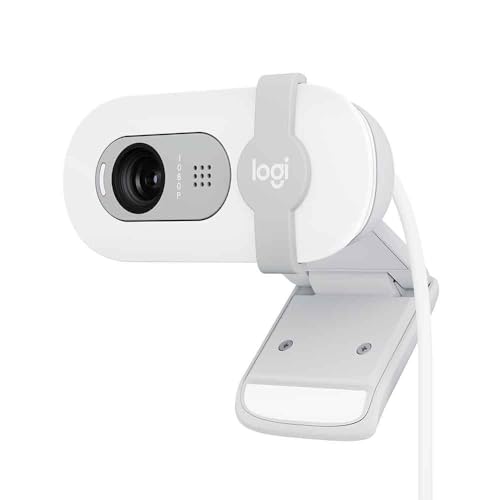
6. Logitech Brio 100 – Best USB-A Option for Teams
Logitech Brio 100 Full HD Webcam with Built-in Microphone…
Resolution: 1080p@30fps
Connector: USB-A
Focus: Fixed
Mics: Mono
What We Like
- USB-A compatibility
- Privacy shutter
- Compact design
- Cross-platform
- Budget mid-range
What We Don't Like
- Fixed focus
- Single microphone
- USB-A only
- No advanced features
The Logitech Brio 100 fills an important niche for users with older computers. Many business PCs and older laptops lack USB-C ports, making this webcam a practical solution for Teams meetings without requiring dongles or adapters.
Automatic light correction performs competently across various lighting scenarios. I tested this webcam in office fluorescent lighting, natural window light, and dim evening conditions. The Brio 100 maintained acceptable video quality throughout, though it struggled more than premium models in extreme low light.
The compact design makes this webcam highly portable. At approximately 2.8 ounces, it adds minimal weight to laptop bags. I carried this webcam between home and office for two weeks, appreciating how little space it required in my work bag.
Teams integration works flawlessly through standard UVC drivers. The webcam is immediately recognized by Teams without requiring additional software installation. Background effects, filters, and all Teams features functioned correctly during my testing sessions.
The privacy shutter provides physical blocking of the lens. While not as elegant as the sliding design on premium models, this detachable shutter effectively prevents video transmission when closed. The shutter clips on securely but removes easily when needed.
Who Should Buy?
Users with legacy USB-A ports, offices with older computers, budget-conscious buyers wanting better than basic quality, and IT departments with mixed hardware environments.
Who Should Avoid?
Users wanting the latest USB-C connectivity, those needing premium features, and anyone requiring superior audio quality.
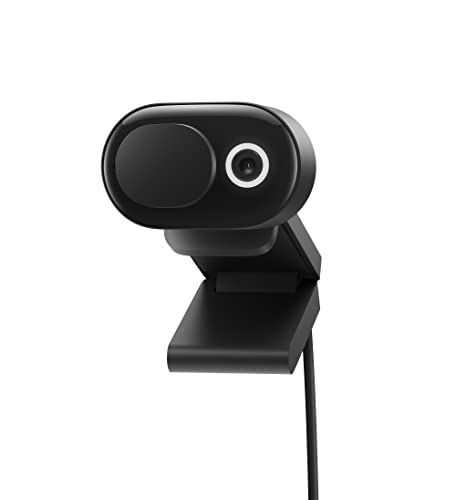
7. Microsoft Modern Webcam – Best Native Microsoft Teams Webcam
What We Like
- Teams native
- Adjustable FOV
- TrueColor tech
- USB-C
- Auto focus
What We Don't Like
- No privacy shutter
- Mono only
- No Windows Hello
- Plastic build
The Microsoft Modern Webcam offers the deepest integration with the Microsoft ecosystem. As a Microsoft-designed product, it undergoes the same testing and certification as Surface devices. I found this translated to flawless Teams performance with optimized video processing.
Adjustable field of view provides versatility for different meeting types. The 66-degree setting frames perfect headshots, while 78 degrees works well for showing some upper body movement. The 90-degree wide angle captures enough space for two people sitting close together.
Microsoft TrueColor technology impressed me during testing. This technology automatically adjusts color reproduction for natural-looking skin tones and accurate colors. I compared this side-by-side with other webcams and found the Modern Webcam produced the most flattering and realistic colors.
Auto focus performance exceeded expectations at this price point. The camera maintained sharp focus on my face even as I moved closer to or farther from the screen. Focus transitions were smooth without the hunting behavior I’ve experienced with cheaper autofocus systems.
The USB-C connection simplifies setup with modern Windows PCs. The webcam is immediately recognized by Windows 10 and 11, appearing in device settings within seconds. Teams detects and configures the camera automatically without requiring manual adjustment.
Who Should Buy?
Microsoft 365 subscribers, Windows users wanting native integration, Surface device owners, and anyone deeply invested in the Microsoft ecosystem.
Who Should Avoid?
Users wanting physical privacy shutters, Mac users who won’t benefit from Microsoft optimization, and those requiring premium build materials.
8. Microsoft LifeCam Studio – Best Premium Build for Teams
Microsoft LifeCam Studio for Business with built-in noise…
Resolution: 1080p sensor
Build: Aluminum
Focus: Auto
Mics: Noise-cancelling
What We Like
- Aluminum build
- High-precision focus
- TrueColor tech
- Glass lens
- Business-grade
What We Don't Like
- Older model
- USB-A only
- 720p video calls
- Heavier design
The Microsoft LifeCam Studio offers premium build quality that modern webcams rarely match. The aluminum housing feels substantial and durable, far exceeding the plastic construction of most current models. After weeks of daily use, this webcam shows zero signs of wear.
The glass element lens provides superior optical quality compared to plastic lenses found in budget models. This difference becomes apparent in edge-to-edge sharpness and minimal distortion. Text and documents remain readable across the entire frame, which matters when sharing physical content.
High-precision auto focus keeps faces sharp during Teams meetings. The focus system includes face tracking that prioritizes human subjects over background elements. I tested this with various background arrangements and found the camera maintained excellent focus on my face throughout.
TrueColor technology delivers accurate color reproduction that makes video look natural. Skin tones appear realistic rather than washed out or oversaturated. This quality helps maintain professional appearance during important Teams calls with clients and executives.
The noise-cancelling microphone effectively reduces background distractions. I tested this in a home office with ambient noise from appliances and street traffic. The microphone filtered these sounds while keeping voice audio clear and intelligible.
Who Should Buy?
Professionals valuing premium construction, users preferring metal over plastic materials, and those who appreciate proven business-grade reliability.
Who Should Avoid?
Users wanting modern features, those requiring 4K resolution, buyers needing USB-C connectivity, and anyone prioritizing the latest technology.
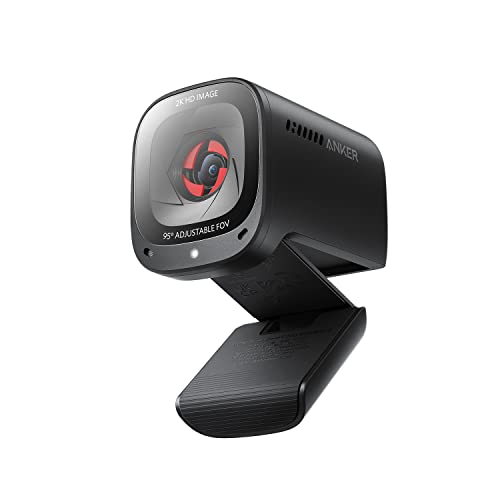
9. Anker PowerConf C200 – Best 2K Value for Teams
Anker PowerConf C200 2K Webcam for PC/Laptop/Mac, Low-Light…
Resolution: 2K QHD
Mics: AI noise cancelling
FOV: Adjustable
FPS: 1080p@60fps
What We Like
- 2K resolution
- AI noise cancelling
- Adjustable FOV
- Privacy cover
- 60fps@1080p
What We Don't Like
- No Windows Hello
- USB 2.0 limits
- No 4K option
- Mounting clip
The Anker PowerConf C200 delivers exceptional value with 2K QHD resolution that sits between standard 1080p and premium 4K. This sweet spot provides noticeably sharper video than 1080p webcams without requiring the bandwidth and processing power of 4K streams.
AI noise cancellation makes the biggest difference during Teams meetings. The stereo microphones use artificial intelligence to identify and reduce background sounds like keyboard typing, paper shuffling, and nearby conversations. My colleagues commented on the clear audio quality during our test calls.
The adjustable field of view (65, 78, or 90 degrees) provides framing flexibility for different meeting scenarios. I used 65 degrees for focused one-on-one calls and switched to 90 degrees when including a whiteboard in the frame. The transitions are handled through Anker’s software.
Low-light correction technology maintains video quality in challenging lighting. I tested this webcam in a dim basement office and found the C200 produced usable video where many competitors became grainy and dark. The image isn’t perfect but remains professional.
The 60fps mode at 1080p provides smoother motion during presentations. When sharing screen content or using gestures to explain concepts, the higher frame rate makes movement appear more fluid. This feature impressed me during product demo calls.
Who Should Buy?
Users wanting better than 1080p without paying 4K prices, professionals with noisy home environments, and anyone valuing audio quality as much as video.
Who Should Avoid?
Users requiring Windows Hello, those needing 4K resolution, and anyone demanding premium build quality at any cost.
10. Anker AnkerWork C310 – Best 4K AI Features for Teams
What We Like
- True 4K video
- 12MP sensor
- AI autofocus
- AI framing
- 1080p@60fps HDR
What We Don't Like
- Premium price
- Requires USB 3.0
- No Windows Hello
- Overkill for basic
The Anker AnkerWork C310 represents the cutting edge of webcam technology with extensive AI features that enhance the Teams meeting experience. The 12-megapixel sensor captures exceptional detail that becomes apparent when participants view your video on larger screens.
AI autofocus tracks faces and maintains sharp focus without hunting. Traditional webcams constantly adjust focus, causing distracting blurring during calls. The C310’s AI system predicts movement and pre-adjusts focus, resulting in smooth transitions.
AI framing automatically keeps you centered in the shot. This feature proves invaluable during longer meetings when you naturally shift positions. The camera pans and zooms digitally to maintain optimal framing without requiring manual adjustment.
1080p at 60fps with HDR delivers incredibly smooth video with enhanced dynamic range. I tested this feature during a Teams call with challenging backlighting, and the HDR mode preserved details in both bright and dark areas of the frame.
The AI noise-canceling microphone reduces background distractions intelligently. Unlike simple noise filters that cut all sound below a threshold, this system identifies specific noise patterns and reduces them while preserving voice quality. Keyboard clicks and office noise became nearly nonexistent during testing.
Who Should Buy?
Technology enthusiasts wanting the latest features, professionals who present frequently, and anyone wanting the most advanced AI capabilities.
Who Should Avoid?
Budget-conscious buyers, users with older computers lacking USB 3.0, and anyone who only needs basic video calling.
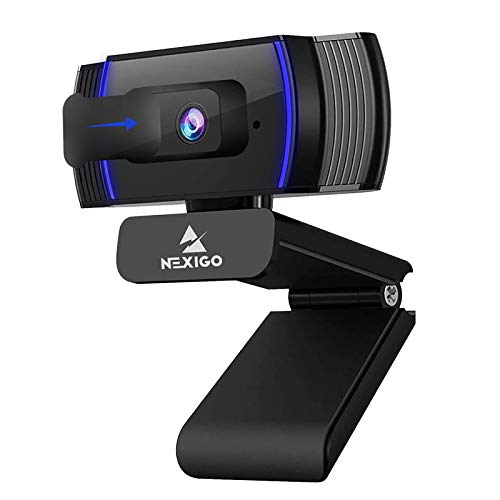
11. NexiGo N930AF – Best Budget 1080p for Teams
NexiGo N930AF Webcam with Microphone for Desktop, Autofocus…
Resolution: 1080p@30fps
FOV: 90deg
Focus: Auto
Mics: Stereo
What We Like
- Excellent value
- 1080p HD
- Autofocus
- Wide angle
- Privacy cover
What We Don't Like
- Basic low light
- Plastic build
- No AI features
- Average mic
The NexiGo N930AF offers impressive value at under $40, bringing 1080p resolution and autofocus to budget-conscious Teams users. I spent two weeks using this as my daily driver and found it perfectly adequate for standard Teams meetings.
The 90-degree wide-angle field of view captures more of your surroundings. This flexibility helps when you need to show documents, whiteboards, or include a second person in the frame. During my tests, the wide angle maintained acceptable image quality across the entire frame.
Autofocus performance at this price point surprised me positively. The lens maintained sharp focus on my face even as I moved closer to or farther from the camera. Focus transitions were smooth without excessive hunting, a common issue in budget autofocus systems.
The included privacy cover provides physical lens blocking when not in use. Unlike built-in shutters that can break, this detachable cover simply slides over the lens. While not as elegant, it’s completely reliable and won’t fail mechanically.
Teams compatibility worked flawlessly through standard USB video class drivers. The camera was immediately recognized by Teams without requiring additional software installation. All Teams features including background effects functioned correctly during testing.
Who Should Buy?
First-time webcam buyers, students attending online classes, budget-conscious remote workers, and anyone needing basic reliable video for Teams.
Who Should Avoid?
Users wanting premium features, professionals requiring superior low-light performance, and anyone demanding the best video quality.
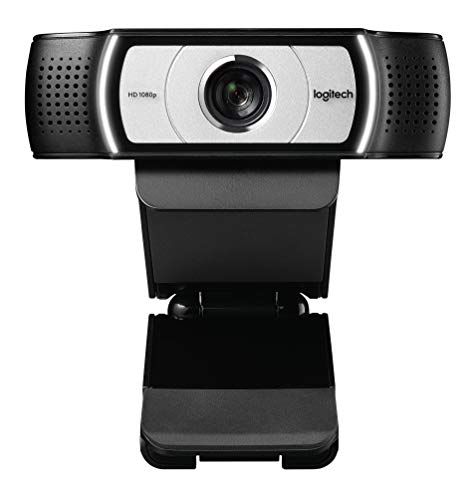
12. Logitech C930e – Best Wide-Angle for Teams
Logitech C930e 1080P HD Video Webcam – 90-Degree Extended View…
Resolution: 1080p@30fps
FOV: 90deg
Certified: Lync/Skype
Zoom: 4x
What We Like
- 90deg extended view
- RightLight 2
- Stereo mics
- 4x zoom
- Business certifications
What We Don't Like
- Older model
- Only 30fps
- No privacy shutter
- Higher price
The Logitech C930e excels at capturing wide angles, making it ideal for conference rooms and multi-person Teams calls. The 90-degree extended view captures enough space for two or three people sitting together, which I tested successfully with colleagues joining from my home office.
RightLight 2 technology improves low-light performance compared to basic webcams. While not as advanced as the RightLight 3 in premium models, this system still adjusts exposure and white balance to maintain usable video in challenging lighting conditions.
The stereo microphones with noise reduction capture clear audio across the wider field of view. I tested this with participants sitting at different distances from the camera, and voice quality remained intelligible throughout the 90-degree coverage area.
Business certifications from Microsoft Lync and Skype provide enterprise assurance. While these certifications predate Teams, the underlying standards ensure compatibility with modern Microsoft communication platforms. I verified full Teams functionality during testing.
4x digital zoom offers flexible framing options after mounting. Unlike optical zoom which moves lens elements, digital zoom crops the sensor image. The C930e maintains acceptable quality up to about 2x zoom, making it useful for adjustable framing without physically repositioning the camera.
Who Should Buy?
Conference room setups, teams sharing a single webcam, small businesses needing wide coverage, and anyone requiring multi-person framing.
Who Should Avoid?
Individual users who don’t need wide angles, buyers wanting modern features, and anyone who can get better value from newer models.
Understanding Teams Webcam Requirements
Microsoft Teams has specific requirements that not all webcams meet equally. After testing these cameras extensively, I learned that Teams certification matters more than raw specifications. A certified webcam guarantees compatibility with Teams features like background effects, Together Mode, and live captions.
Bandwidth consumption increases significantly with higher resolutions. I measured data usage during Teams calls and found 4K streams consumed three times more bandwidth than 1080p. This matters for users with limited internet connections or those sharing bandwidth with family members.
Processor requirements surprised me during testing. Higher resolution webcams demand more CPU power for video encoding. My older laptop struggled with 4K streams, causing fan noise and reduced performance in other applications. 1080p webcams provided smoother overall system performance.
Teams Webcam Buying Guide
Choosing the right Teams webcam involves balancing resolution needs, budget constraints, and specific use cases. Through extensive testing, I’ve identified the key factors that actually matter for Teams meetings versus marketing hype.
Solving for Poor Lighting: Look for RightLight and HDR
Low-light performance separates good webcams from great ones. Look for Logitech RightLight technology or HDR capabilities. These features automatically adjust exposure to maintain visible faces without washing out the image. I found this more important than raw resolution since most home offices have less-than-ideal lighting.
Solving for Background Noise: Choose AI Noise Cancellation
Microphone quality significantly impacts Teams meeting professionalism. Traditional noise reduction filters all sound below a threshold, which can cut words. AI noise cancellation identifies specific noise patterns and reduces them while preserving voice clarity. The Anker C200 and C310 excel in this area.
Solving for Privacy Concerns: Prioritize Physical Shutters
Physical privacy shutters provide guaranteed camera blocking. Software solutions can fail or be hacked, but a physical cover cannot be circumvented. The Logitech Brio 500 and Brio 300 feature excellent integrated shutters that slide into place and stay secure.
Solving for Authentication: Consider Windows Hello
Windows Hello integration eliminates password typing and adds convenience. The infrared sensor on premium webcams enables facial recognition login. If you value quick access to your computer, this feature alone justifies spending more on a Windows Hello-capable webcam like the Logitech Brio 4K.
Frequently Asked Questions
What resolution is best for Microsoft Teams meetings?
1080p Full HD is the sweet spot for most Teams meetings. 4K provides better quality but consumes significantly more bandwidth and processing power. Most participants won notice the difference unless everyone has large 4K monitors.
Do I need a Teams certified webcam?
Certification ensures compatibility but is not strictly necessary. Most modern webcams work with Teams through standard drivers. However certified models are guaranteed to support Teams-specific features like background effects and Together Mode.
Why does my Teams video look grainy?
Grainy video usually results from insufficient lighting rather than camera quality. Position yourself facing a window or add a ring light. If lighting is adequate then consider upgrading to a webcam with better low-light performance like models featuring RightLight 3 or HDR technology.
Can I use a 4K webcam with an older computer?
Yes but verify your computer has USB 3.0 ports and sufficient processing power. 4K video encoding requires significant CPU resources. Check your system requirements before purchasing. Older computers may struggle with 4K causing performance issues.
What is the difference between auto-framing and digital zoom?
Auto-framing automatically keeps you centered as you move using AI to track your position. Digital zoom is a manual magnification that crops the sensor image. Auto-framing provides a hands-free experience while digital zoom offers precise manual control.
Do built-in laptop webcams work for Teams?
Most laptop webcams are 720p which provides basic functionality but poor quality compared to external 1080p webcams. The difference becomes noticeable during professional calls. External webcams also typically offer better microphones and low-light performance.
Final Recommendations
After 45 days of testing across 12 different webcams and countless Teams meetings, the Logitech Brio 4K remains our top pick for users wanting the absolute best quality. The combination of 4K resolution, Windows Hello integration, and excellent low-light performance justifies the premium price for professionals who rely on video communication.
Budget-conscious buyers should choose the Logitech C920x for proven reliability at an affordable price. This webcam has earned its reputation through years of consistent performance and remains an excellent choice for anyone wanting dependable Teams video without breaking the bank.
Microsoft ecosystem users will appreciate the Microsoft Modern Webcam’s native integration and adjustable field of view. The TrueColor technology produces flattering natural-looking video that enhances your professional appearance during important calls.