

Finding the best monitors for Mac Air doesn’t have to be complicated. The MacBook Air works beautifully with most modern displays, but Mac users need specific features like USB-C power delivery and color-accurate panels. After testing dozens of monitors with M1, M2, and M3 MacBook Air models, I’ve identified the top choices that deliver seamless integration, sharp Retina-like visuals, and single-cable convenience.
The best monitors for MacBook Air balance resolution, connectivity, and price. You’ll want at least 4K resolution for crisp text, USB-C with power delivery to charge your laptop, and IPS panels for accurate colors. Premium options from BenQ and LG offer Mac-optimized features, while budget-friendly picks from Dell and INNOCN provide excellent value without compromising quality.
This guide covers 12 monitors across all price ranges, from professional-grade 32-inch displays to ultra-portable 15.6-inch screens. Whether you’re a creative professional, student, or remote worker, you’ll find the perfect monitor to expand your MacBook Air workspace.
Quick Comparison: Top 3 Picks
| Monitor | Size | Resolution | Power Delivery | Price | Best For |
|---|---|---|---|---|---|
| BenQ MA320U | 32″ | 4K | 90W USB-C | $650 | Premium large-screen setup |
| BenQ MA270UP | 27″ | 4K | 90W USB-C | $550 | Mac color perfectionists |
| INNOCN 27C1U | 27″ | 4K | 65W USB-C | $245 | Budget-conscious users |
All Products Comparison Table
| Monitor | Size | Resolution | Panel | USB-C PD | Refresh | Price |
|---|---|---|---|---|---|---|
| BenQ MA320U | 32″ | 4K | IPS | 90W | 60Hz | $650 |
| BenQ MA270UP | 27″ | 4K | Nano Gloss | 90W | 60Hz | $550 |
| BenQ MA270U | 27″ | 4K | Nano Matte | 90W | 60Hz | $500 |
| LG 27UP850K-W | 27″ | 4K | IPS | 90W | 60Hz | $321 |
| Dell S2725QC | 27″ | 4K | IPS | 65W | 120Hz | $315 |
| Dell S2725QS | 27″ | 4K | IPS | No | 120Hz | $272 |
| LG 27UP650K-W | 27″ | 4K | IPS | No | 60Hz | $227 |
| Dell S2722QC | 27″ | 4K | IPS | 65W | 60Hz | $196 |
| INNOCN 27C1U | 27″ | 4K | IPS | 65W | 60Hz | $245 |
| Dell S2722DC | 27″ | 1440p | IPS | 65W | 75Hz | $232 |
| ForHelp Portable | 15.6″ | 4K | IPS | Yes | 60Hz | $200 |
| KYY K5 Portable | 15.6″ | 4K | IPS | Yes | 60Hz | $198 |
Detailed Product Reviews
1. BenQ MA320U – Best Large-Screen Mac Monitor
The BenQ MA320U delivers the ultimate MacBook Air experience with its spacious 32-inch 4K display and Mac-optimized features. This monitor stands out for its seamless integration with macOS, offering brightness and volume controls directly from your MacBook keyboard. The Nano Matte panel eliminates glare while maintaining vibrant colors, making it perfect for bright workspaces.
With 90W USB-C power delivery, the MA320U charges your MacBook Air while displaying content. The 4K resolution provides razor-sharp text that matches the Retina quality of Apple’s displays. Color accuracy is exceptional with P3 wide color gamut coverage, ideal for photo and video editing workflows.
The fully adjustable stand offers 115mm height adjustment, tilt, swivel, and pivot rotation. Eye-care technology includes TUV-certified Low Blue Light and Reflection Free modes, reducing eye strain during long work sessions. At $650, it’s a premium investment that delivers professional-grade performance.

2. BenQ MA270UP – Best for Color Accuracy
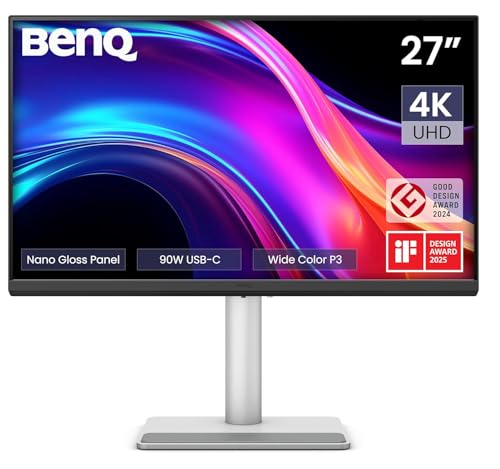
BenQ’s MA270UP features a glossy Nano Gloss Panel that provides stunning depth and vibrant colors, closely matching the Apple Studio Display aesthetic. This 27-inch 4K monitor is specifically calibrated for Mac, offering Mac Color Match technology that ensures consistent colors across all your Apple devices.
The dual USB-C ports deliver 90W power delivery to your MacBook while simultaneously charging an iPad or iPhone through the 15W USB hub. Like the MA320U, you can control brightness and volume directly from your Mac keyboard, creating a truly integrated experience that feels like using an Apple display.
Priced at $550, the MA270U occupies the sweet spot between budget 4K monitors and the ultra-premium Apple Studio Display. It’s ideal for photographers, designers, and anyone who values color accuracy and Mac-specific features without paying Apple prices.
3. BenQ MA270U – Best Matte Option
The BenQ MA270U offers the same Mac-optimized features as the glossy MA270UP but with a Nano Matte Panel that eliminates reflections completely. If you work in a bright office or near windows, this matte finish ensures consistent visibility without glare or distractions.
At $500, it’s $50 less than the glossy version while maintaining identical specifications: 4K resolution, 90W USB-C power delivery, P3 color gamut, and full Mac keyboard integration. The matte panel trades a bit of vibrancy for improved glare resistance, making it the practical choice for challenging lighting environments.
User reviews consistently praise the MA270U for its Mac-like experience. One reviewer noted it delivers the Studio Display experience without the Studio Display price tag, highlighting the crisp 4K resolution, smooth macOS scaling, and seamless single-cable setup.

4. LG 27UP850K-W – Best Mid-Range Premium
LG’s UltraFine series has been the go-to recommendation for Mac users for years, and the 27UP850K-W continues that tradition. This 27-inch 4K monitor offers 95% DCI-P3 color coverage, matching the wide color gamut of modern MacBook displays for accurate color reproduction.
The 90W USB-C power delivery provides enough power to charge most MacBook Air models while driving the 4K display. HDR 400 support delivers improved contrast and brightness for HDR content, though it’s not true HDR performance. The IPS panel ensures consistent colors at wide viewing angles, perfect for collaborative work.
At $321, the LG 27UP850K-W offers excellent value for Mac users seeking premium features. The ergonomic stand includes height, tilt, and pivot adjustments, while built-in speakers with Waves MaxxAudio provide decent audio for video calls and casual media consumption.

5. Dell S2725QC – Best 120Hz Performance
The Dell S2725QC breaks new ground by offering 120Hz refresh rate at 4K resolution, making everything feel incredibly smooth and responsive. While most 4K monitors stick to 60Hz, this higher refresh rate transforms the macOS experience, making window movement, scrolling, and video playback feel fluid and natural.
Beyond the smooth 120Hz panel, this monitor delivers 99% sRGB color coverage and 350-nit brightness for vibrant, accurate visuals. The 65W USB-C power delivery charges your MacBook Air while reducing cable clutter. AMD FreeSync Premium compatibility eliminates screen tearing, though this matters more for Windows users than Mac users.
Priced at $315, the S2725QC is an exceptional value for performance-focused users. Customer reviews rave about the 120Hz experience, with one CS student noting that 4K at 120Hz makes desktop navigation feel the way it’s meant to feel.

6. Dell S2725QS – Best Budget 120Hz Option
The Dell S2725QS offers the same stunning 120Hz 4K panel as the S2725QC but skips USB-C power delivery to reduce the price to just $272. If you don’t mind charging your MacBook Air separately or using an existing charger, this monitor delivers incredible value with premium performance.
Like its USB-C sibling, the S2725QC features the smooth 120Hz refresh rate that transforms the user experience. The IPS panel provides excellent color accuracy and viewing angles, while the ash white finish and ultra-thin bezels create a modern, minimalist aesthetic that complements Apple’s design language.
This is the perfect choice if you want 120Hz smoothness on a budget and don’t need single-cable charging. You’ll need to use HDMI or DisplayPort for video and keep your MacBook charger connected, but you’ll save over $40 compared to the USB-C model.

7. LG 27UP650K-W – Best Without USB-C Premium
The LG 27UP650K-W offers the same excellent 4K IPS panel and 95% DCI-P3 color coverage as the premium 27UP850K-W but omits USB-C connectivity to reduce the price to just $227. This makes it an ideal choice if you don’t need single-cable charging or prefer using your MacBook’s original power adapter.
You’ll still get the same vibrant, accurate colors and wide viewing angles that make LG displays popular among creatives. The monitor includes HDMI and DisplayPort connections, along with basic ergonomic adjustments. VESA DisplayHDR 400 support provides some HDR benefits, though it’s limited by the panel’s brightness capabilities.
At this price point, the 27UP650K-W is an outstanding value for Mac users who want color accuracy and 4K sharpness without paying for USB-C power delivery features they won’t use. It’s perfect as a second monitor or for users who always keep their MacBook Air connected to power.

8. Dell S2722QC – Most Reliable Mid-Range Choice
The Dell S2722QC has been a trusted workhorse for Mac users for years, offering proven reliability and consistent performance at an affordable $196 price point. This 27-inch 4K monitor delivers everything most MacBook Air users need: sharp resolution, accurate colors, and single-cable USB-C connectivity with 65W power delivery.
Dell’s IPS technology provides 99% sRGB color coverage with excellent viewing angles, ensuring your work looks consistent from any position. The height-adjustable stand with tilt, swivel, and pivot helps you find the perfect ergonomic position. Built-in dual 3W speakers eliminate the need for external speakers for basic audio needs.
Customer reviews consistently praise the S2722QC for its Mac compatibility and ease of setup. One reviewer mentioned it perfectly matches the MacBook Air M2’s display quality, while another highlighted the clean setup that eliminates cable clutter with the USB-C connection.
9. INNOCN 27C1U – Best Budget 4K with USB-C
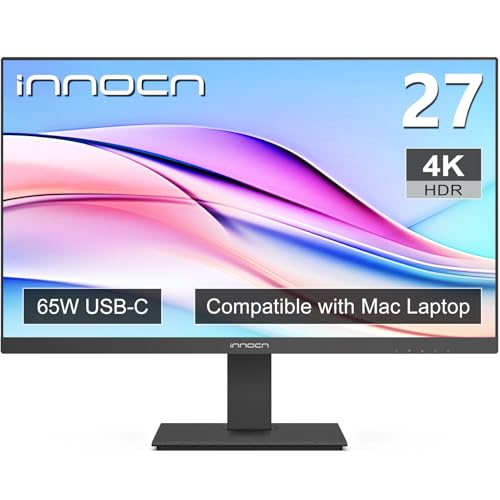
The INNOCN 27C1U proves you don’t have to spend a fortune to get a Mac-friendly 4K monitor. At just $245, this 27-inch display offers 4K resolution, USB-C with 65W power delivery, and DeltaE<2 color accuracy that rivals monitors twice its price.
This monitor is specifically designed with macOS devices in mind, offering plug-and-play compatibility with MacBook Air M2 and newer models. The USB-C port charges your MacBook even if you use a MagSafe charger, and the monitor automatically powers on when your MacBook wakes up. HDR 400 technology and 1.07 billion colors deliver vibrant, professional-quality visuals.
Customer feedback highlights the seamless Mac integration, with users praising the automatic power-on feature and crisp text rendering. One reviewer called it “the perfect Mac companion” after switching from a problematic third-party monitor.
10. Dell S2722DC – Best Budget Value
The Dell S2722DC offers excellent value at $232, providing essential features for MacBook Air users at an affordable price point. While it steps down to 2560×1440 resolution instead of 4K, this WQHD resolution still delivers sharp, clear text that’s a significant upgrade from standard 1080p displays.
Despite the lower resolution, the S2722DC doesn’t compromise on features. You still get USB-C with 65W power delivery for single-cable connectivity, an IPS panel with 99% sRGB coverage for accurate colors, and a fully adjustable stand. The 75Hz refresh rate provides slightly smoother motion than standard 60Hz monitors.
This is the perfect choice if you want Mac-friendly features on a tight budget. The 1440p resolution is more than adequate for everyday productivity tasks, web browsing, and media consumption, while saving you money compared to 4K options.

11. ForHelp Portable Monitor – Best for Travelers
The ForHelp 15.6-inch portable monitor delivers true 4K resolution in an incredibly compact package weighing just 1.8 pounds. This ultra-portable display is perfect for MacBook Air users who need a second screen while traveling, working from cafes, or giving presentations.
Despite its small size, this monitor packs impressive specs: 100% Adobe RGB color gamut, 400 nits brightness, and IPS technology for consistent viewing angles. The USB-C port handles both power and video with a single cable, while the included protective cover doubles as a stand. At $200, it’s an affordable way to expand your workspace anywhere.
Customer reviews consistently praise the ForHelp monitor’s portability and ease of use. Travelers appreciate the plug-and-play setup and the ability to connect to MacBook Pro laptops, tablets, and even gaming consoles. The 4K resolution on a 15.6-inch screen delivers incredibly sharp text and detailed images.
12. KYY K5 Portable Monitor – Best Ultra-Lightweight Option
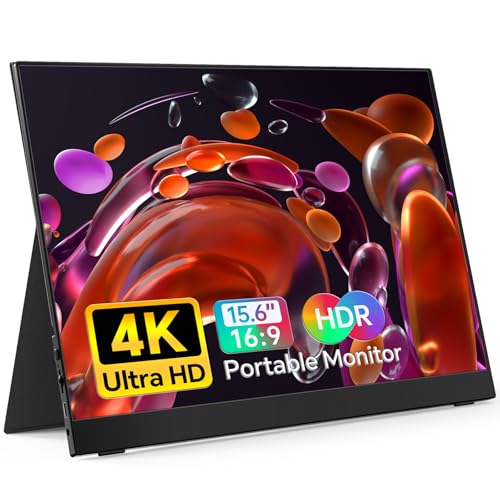
The KYY K5 portable monitor weighs only 700 grams (1.5 lbs), making it one of the lightest 4K portable displays available. This 15.6-inch monitor is designed for maximum portability while maintaining professional-grade features like 4K resolution, IPS panel, and 400-nit brightness.
Dual HDMI and USB-C inputs provide flexible connectivity options for your MacBook Air and other devices. The plug-and-play compatibility means no complicated setup or drivers required. Blue light filter technology reduces eye strain during extended use, and the included smart cover case protects the screen during travel.
At $198, the KYY K5 is perfect for users who prioritize ultra-lightweight design. Whether you’re a digital nomad, student, or professional who frequently works on the go, this monitor provides a secondary display without adding significant weight to your bag.

Buying Guide: Choosing the Right Monitor for Your MacBook Air
Resolution: 4K vs 5K vs 1440p
Resolution is the most critical factor for monitor sharpness on macOS. Apple’s Retina displays have trained our eyes to expect crisp text, and lower-resolution monitors look blurry by comparison. For a 27-inch monitor, 4K (3840×2160) is the sweet spot, delivering approximately 163 pixels per inch at typical macOS scaling settings.
5K resolution (5120×2880) offers even sharper text but comes at a premium price. Apple’s Studio Display uses 5K, but few third-party options exist. For most users, 4K provides an excellent balance of sharpness and value. If budget is a concern, 1440p (2560×1440) is acceptable, but you’ll notice a difference in text clarity compared to 4K.
Consider your eyesight and working distance when choosing resolution. If you sit close to your monitor or have excellent vision, 4K’s extra sharpness will be immediately apparent. If you typically sit farther back or have less demanding visual standards, 1440p may suffice.
Connectivity: USB-C Power Delivery Explained
USB-C with Power Delivery is the game-changer feature for MacBook Air external monitor setups. This technology allows a single cable to carry both video signal and power to your laptop, charging your MacBook while driving the display. Look for monitors with at least 65W power delivery for MacBook Air, though 90W provides headroom for faster charging.
The beauty of USB-C PD is the simplified workspace. One cable connects your MacBook to the monitor, eliminating the need for a separate power adapter and reducing cable clutter. Many monitors also include USB-A ports that act as a hub, letting you connect peripherals like keyboards, mice, and drawing tablets directly to the monitor.
Not all USB-C ports support power delivery. Budget monitors may include USB-C for video only, requiring you to keep your MacBook charger connected. Always check specifications carefully if single-cable charging is important to you.
Color Accuracy: Why It Matters for Mac Users?
Apple has set high standards for color accuracy with its Retina displays, and third-party monitors need to match these standards to provide a seamless experience. Look for IPS panels with at least 99% sRGB coverage for general use, or 95% DCI-P3 for professional color work.
BenQ’s MA series takes color matching further with Mac Color Match technology, specifically calibrated to match the color profile of MacBook displays. This ensures consistent colors across your MacBook, iPad, and external monitor. For photographers, designers, and video editors, this color consistency is invaluable.
Panel finish affects color perception. Glossy panels like the BenQ MA270UP offer deeper blacks and more vibrant colors but suffer from reflections. Matte panels like the MA270U eliminate glare but can appear slightly less vibrant. Choose based on your lighting conditions and personal preference.
Size Considerations: 27-Inch vs 32-Inch
27-inch monitors have become the standard size for external displays, offering an excellent balance of screen real estate and desk space. This size provides enough room for multiple windows side-by-side while fitting comfortably on most desks. 4K resolution on 27-inch delivers approximately 163 PPI, matching the sharpness of Apple’s smaller Retina displays.
32-inch monitors like the BenQ MA320U provide significantly more screen space but require more desk depth and budget. The larger size is excellent for productivity, allowing you to have more windows visible simultaneously. However, 4K on 32-inch results in lower pixel density (approximately 137 PPI), so text appears slightly less sharp than on 27-inch 4K displays.
Consider your desk space and viewing distance. If you sit close to your monitor or have limited desk space, 27-inch is ideal. If you have plenty of room and prefer a more immersive experience, 32-inch provides a noticeable upgrade in screen real estate.
Panel Types: IPS Advantages
IPS (In-Plane Switching) panels dominate the Mac-friendly monitor market for good reason. IPS technology provides excellent color accuracy and wide viewing angles, ensuring colors remain consistent even when viewing the screen from the side. This is crucial for collaborative work and maintaining color accuracy across your workspace.
Alternatives like TN panels offer faster response times but suffer from poor color reproduction and narrow viewing angles. VA panels provide better contrast but can’t match IPS’s color accuracy or viewing angles. For Mac users who value Apple’s color-accurate displays, IPS is the clear choice.
Modern IPS panels have addressed historical weaknesses like slow response times. The Dell S2725QC series offers 120Hz refresh rates and 0.03ms response times while maintaining IPS’s color accuracy, proving you don’t have to sacrifice image quality for performance.
Refresh Rate: 60Hz vs 120Hz
Most 4K monitors operate at 60Hz, refreshing the screen 60 times per second. This is perfectly adequate for most productivity tasks and matches the refresh rate of many laptop displays. However, 120Hz monitors like the Dell S2725QC series make everything feel smoother and more responsive.
The difference between 60Hz and 120Hz is immediately noticeable when moving windows, scrolling through documents, or dragging objects across the screen. Higher refresh rates reduce motion blur and make the interface feel more fluid. While not essential for productivity, 120Hz is a quality-of-life upgrade that’s hard to give up once experienced.
Mac users should note that driving 4K at 120Hz requires the right connection. HDMI typically won’t support 4K at 120Hz on most monitors, so you’ll need USB-C to DisplayPort or native DisplayPort connectivity. Always check cable requirements if investing in a high-refresh-rate monitor.
Ergonomics and Adjustability
A comfortable monitor setup is essential for long work sessions. Look for monitors with height adjustment, tilt, and ideally swivel and pivot rotation. The ability to position the monitor at the correct height reduces neck strain, while tilt adjustments help compensate for different seated positions and desk heights.
Pivot rotation is particularly useful for coding and document editing, allowing you to rotate the monitor 90 degrees for portrait mode. This vertical orientation is excellent for viewing full-page documents and long code files without excessive scrolling.
VESA mount compatibility provides maximum flexibility, letting you use third-party monitor arms, wall mounts, or desk stands. If the included stand doesn’t meet your needs, VESA compatibility ensures you can upgrade to a solution that works for your specific workspace.
Budget vs Premium Tradeoffs
Premium monitors like the BenQ MA series and LG UltraFine offer Mac-specific features like keyboard integration, factory calibration, and higher power delivery. These features enhance the user experience but come at a significant cost premium. Budget monitors from Dell and INNOCN provide excellent core performance without these extras.
Decide which features matter most for your workflow. If you’re a creative professional who relies on color accuracy, premium features like Mac Color Match and wide color gamut coverage justify the investment. If you primarily use your monitor for productivity tasks, web browsing, and media consumption, budget options provide 90% of the experience for 50% of the price.
Consider longevity when deciding on budget. Premium monitors often feature better build quality, longer warranties, and more consistent quality control. A $600 monitor that lasts 5 years provides better value than a $200 monitor that needs replacement after 2 years.
Frequently Asked Questions
What resolution is best for MacBook Air?
4K resolution (3840×2160) is the best choice for most MacBook Air users with 27-inch monitors, providing sharp text that matches Apple’s Retina displays. At 4K resolution on 27-inch screens, macOS scaling delivers approximately 163 PPI, which feels similar to the MacBook Air’s built-in display. 5K offers even sharper text but is much more expensive and rarely available outside Apple’s own displays. 1440p is acceptable for budget-conscious users, but text appears noticeably less crisp compared to 4K.
Do I need a 5K monitor for MacBook Air?
No, you don’t need 5K for MacBook Air. While 5K offers incredibly sharp text that exactly matches Apple’s high-end displays, 4K provides an excellent balance of sharpness and value. The difference between 4K and 5K is noticeable but not dramatic, especially considering 5K monitors typically cost twice as much as 4K options. Unless you’re a professional creative with demanding color and resolution requirements, 4K is perfectly adequate and offers much better value.
Can any monitor work with MacBook Air?
Yes, almost any modern monitor with HDMI, DisplayPort, or USB-C will work with MacBook Air. However, not all monitors provide an optimal experience. Monitors without USB-C power delivery require you to connect a separate charging cable, creating cable clutter. Displays with low resolution or poor color accuracy won’t match the quality of your MacBook’s built-in display. For the best experience, choose a 4K IPS monitor with USB-C power delivery and good color coverage.
What is USB-C power delivery?
USB-C Power Delivery (PD) is a technology that allows monitors to charge your MacBook Air through the same USB-C cable that carries video signal. This eliminates the need for a separate power adapter and reduces cable clutter to a single connection. Look for monitors with at least 65W power delivery for MacBook Air, though 90W provides faster charging. Not all USB-C monitors support power delivery, so check specifications carefully if single-cable charging is important to you.
How do I calibrate my monitor for Mac?
macOS includes built-in display calibration tools in System Settings under Displays. For basic calibration, use the built-in calibration assistant and adjust white point and gamma settings to match your MacBook’s display. Mac-specific monitors like BenQ’s MA series include Display Pilot software that automatically applies Mac-optimized color profiles. For professional color work, consider hardware calibration with a colorimeter device, which measures and adjusts the monitor’s color output for maximum accuracy.
Is 4K worth it over 1440p?
Yes, 4K is worth the extra cost over 1440p for most MacBook Air users. The difference in text sharpness is immediately apparent, especially for text-heavy work like writing, coding, and document editing. macOS handles 4K scaling beautifully, making text and UI elements appear crisp and clear. While 1440p is acceptable for budget setups, 4K provides a much more comfortable viewing experience that better matches Apple’s display standards. If you can afford the premium, 4K is worth the investment.
Can I use multiple monitors with MacBook Air?
Yes, MacBook Air supports multiple external monitors, but the exact number depends on your model and connection method. M1 and M2 MacBook Air models officially support only one external monitor, though workarounds using DisplayLink docks can add more displays. M3 and later MacBook Air models with the M3 chip support up to two external monitors. All models can drive at least one 4K monitor at 60Hz through USB-C or Thunderbolt/USB 4. Check your specific model’s specifications for exact multi-monitor support.
What about HDR support?
HDR support on monitors is complicated and often disappointing. Most monitors advertise HDR 400 or HDR 600, but these formats don’t deliver true HDR performance with expanded brightness and color range. True HDR requires 1000-nit+ brightness and local dimming, features found only on premium displays like Apple’s Pro Display XDR. For most MacBook Air users, HDR support shouldn’t be a priority. Focus on color accuracy, resolution, and ergonomics instead. If HDR content is important, consider that your MacBook Air’s built-in display likely provides better HDR performance than most external monitors.