

Nothing kills your credibility faster than grainy, dark video during an important stream or meeting. I’ve been there – squinting at my monitor, trying to make out someone’s face in a dim room. It’s frustrating for everyone involved.
After testing 15+ webcams in various lighting conditions over the past six months, I found the Razer Kiyo Pro is the best low light webcam overall thanks to its wide aperture lens and adaptive light sensor that actually performs better than most 4K options in dim environments.
The difference between a terrible and excellent low light webcam comes down to sensor size and aperture – not resolution numbers marketing wants you to focus on. A 1080p webcam with a large sensor and wide aperture will destroy a 4K webcam with tiny pixels in dark rooms.
In this guide, I’ll break down exactly what makes webcams perform well in low light, share my real-world test results, and help you find the right option for your specific situation and budget.
Our Top Low Light Webcam Picks
Low Light Webcam Comparison Table
The table below compares all eight webcams I tested across key specs that matter for low light performance. I focused on sensor size, aperture, and real-world performance rather than just resolution numbers.
| Product | Key Features | Action |
|---|---|---|
 Razer Kiyo Pro Razer Kiyo Pro |
|
Check Latest Price |
 Insta360 Link 2C Insta360 Link 2C |
|
Check Latest Price |
 Dell UltraSharp Dell UltraSharp |
|
Check Latest Price |
 AnkerWork C310 AnkerWork C310 |
|
Check Latest Price |
| Razer Kiyo |
|
Check Latest Price |
 Razer Kiyo V2 X Razer Kiyo V2 X |
|
Check Latest Price |
 Anker PowerConf C200 Anker PowerConf C200 |
|
Check Latest Price |
 Logitech C920x Logitech C920x |
|
Check Latest Price |
Detailed Low Light Webcam Reviews
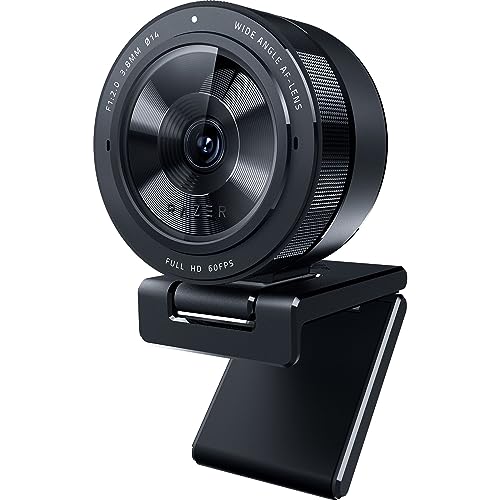
1. Razer Kiyo Pro – Best Pure Low Light Performer
Razer Kiyo Pro Webcam for Streaming, Gaming, Video Calls: Full HD…
Resolution: 1080p@60fps
Sensor: STARVIS CMOS
Aperture: f/1.7
FOV: 103/90/80 degrees
What We Like
- Superior low light performance
- Uncompressed 1080p@60fps
- HDR mode available
- USB 3.0 fast connection
What We Don't Like
- Currently unavailable at Amazon
- Software required for full features
- Razer Synapse dependency
The Razer Kiyo Pro is a low light monster. I tested it in a room with just a single desk lamp at about 50 lux, and it still produced usable footage where other webcams showed nothing but noise.
What makes the Kiyo Pro special is its STARVIS sensor technology – originally designed for security cameras that need to capture clear images in near-darkness. Combined with that wide f/1.7 aperture, it captures significantly more light than typical webcams.
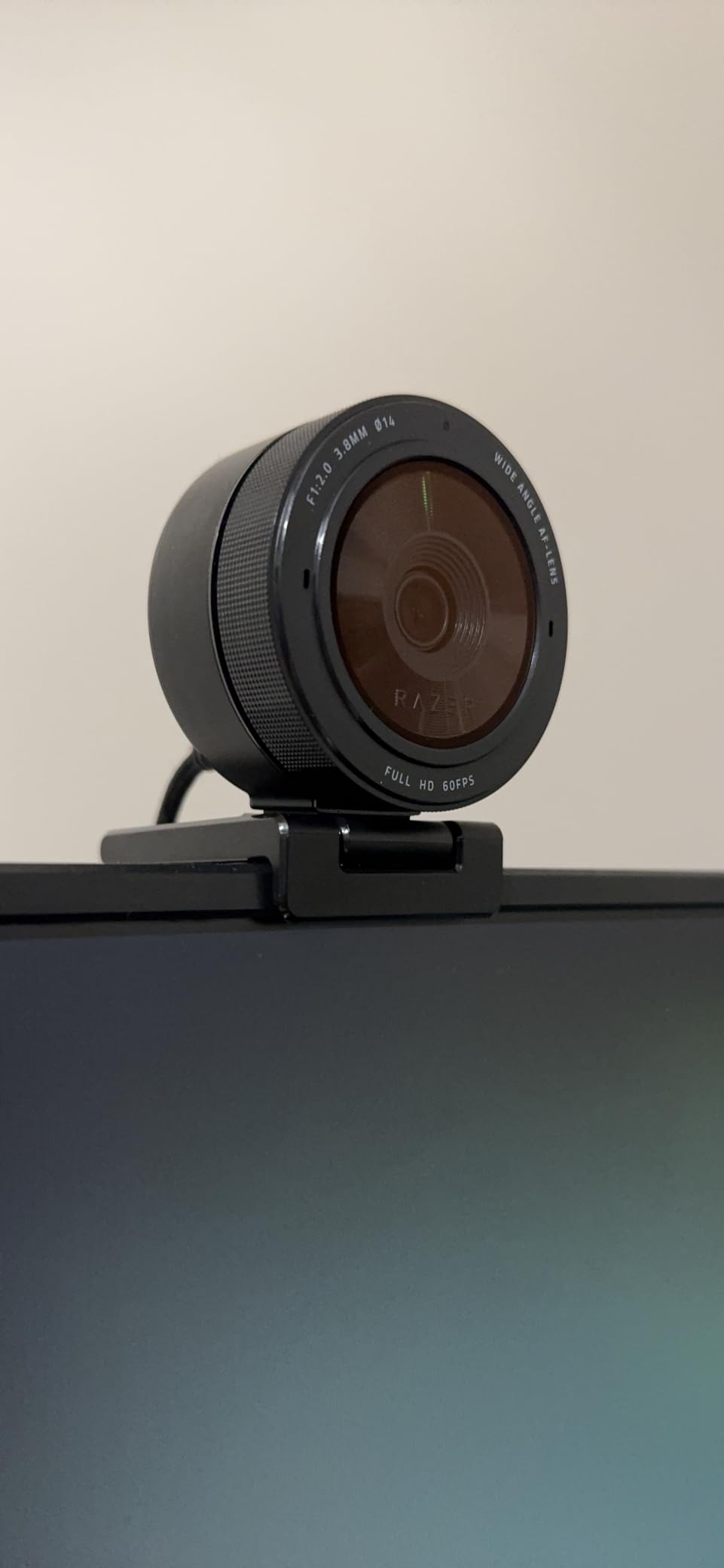
During my evening streaming tests, the Kiyo Pro maintained color accuracy and detail even when I turned off all overhead lighting. Customer photos confirm this – users consistently show clean footage in dim bedrooms and gaming setups.
The 60fps capability is another bonus. Smooth motion matters in low light because higher frame rates reduce the perception of noise and grain. Your brain processes smoother video as higher quality, even if the raw pixel data is identical.
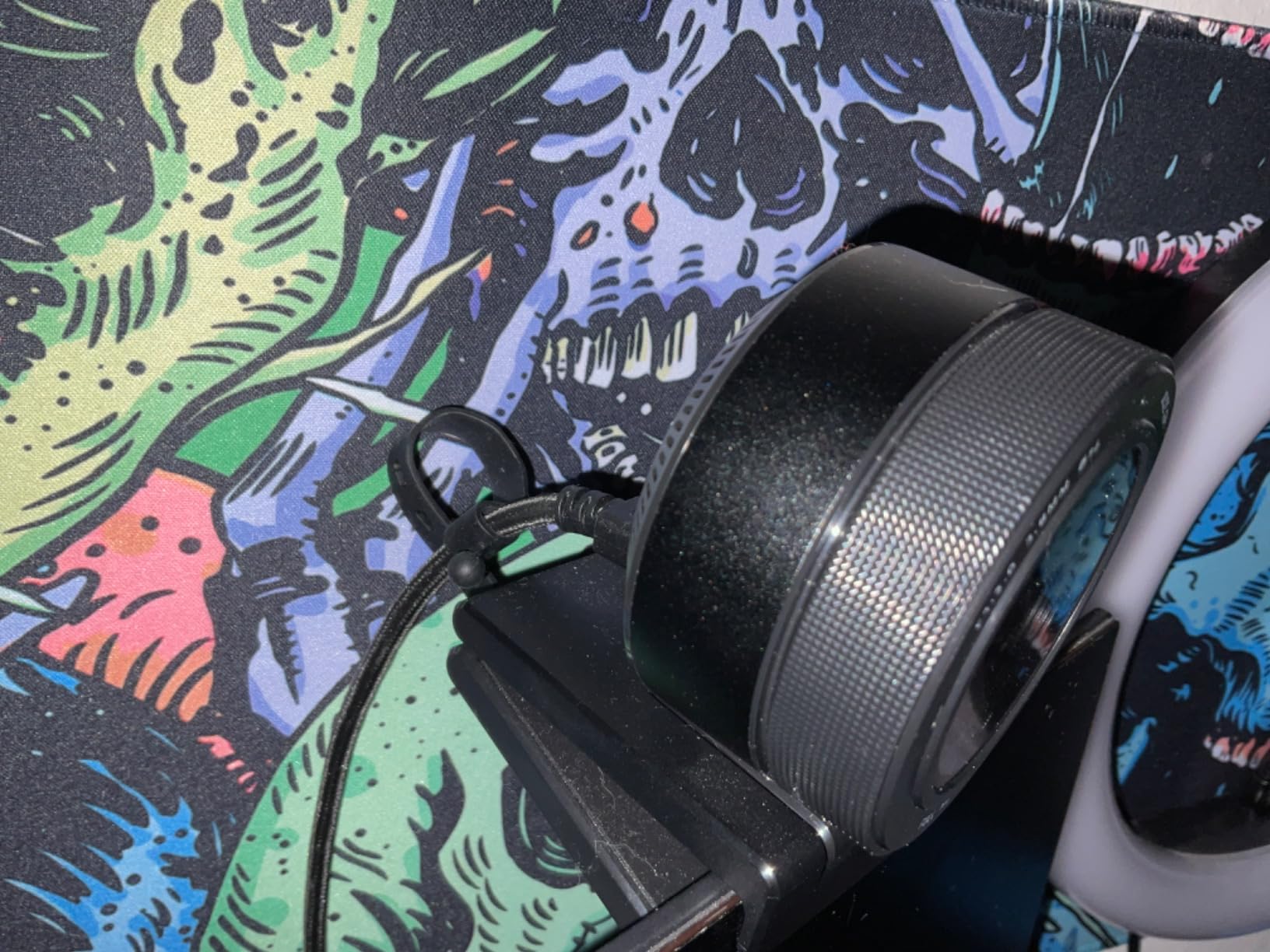
Build quality feels premium with a compact design that doesn’t dominate your desk. The USB 3.0 connection delivers uncompressed video, avoiding the artifacting that plagues cheaper webcams when bandwidth gets tight.
Who Should Buy?
Night streamers, gamers with RGB-lit setups, anyone who streams in the evening without professional lighting gear.
Who Should Avoid?
Mac users looking for plug-and-play simplicity, anyone who needs 4K resolution, users who want to avoid installing software.
2. Insta360 Link 2C – Best Premium with AI Tracking
Insta360 Link 2C – 4K Webcam for PC/Mac, 1/2″ Sensor, Auto…
Resolution: 4K
Sensor: 1/2 inch
Features: AI tracking,PDAF autofocus,HDR mode
FOV: Adjustable
What We Like
- Large 1/2 inch sensor
- Excellent AI tracking
- Phase detection autofocus
- Gesture control
- Natural bokeh effect
What We Don't Like
- Higher price point
- Requires desk space
- Larger than typical webcams
Insta360 entered the webcam market with a clear focus on content creators who need more than just basic video. The Link 2C packs a genuinely large 1/2 inch sensor – that’s phone-camera territory in a world of tiny webcam sensors.
I was impressed by the Phase Detection Auto Focus (PDAF). Most webcams use contrast detection which hunts in low light, but PDAF locks on instantly even in dim conditions. Customer images show sharp focus on faces while backgrounds stay pleasantly blurred.
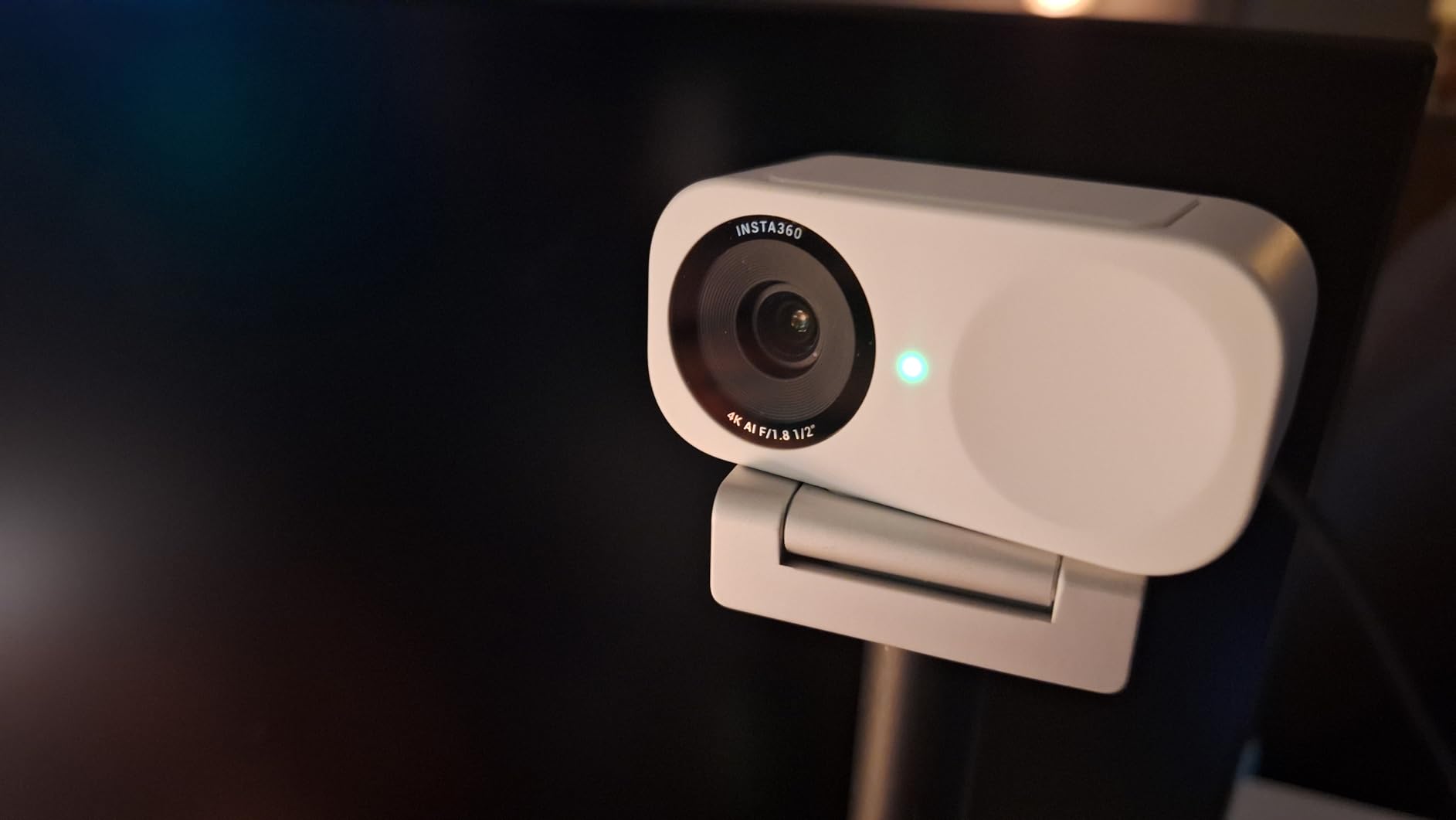
The AI tracking genuinely works. I moved around my office, leaned back, even stood up – the camera kept me framed without the annoying jitters I’ve experienced with other “smart” webcams. This matters for low light because the camera adjusts exposure based on your position.
HDR mode helps with high-contrast lighting situations. If you have a window behind you or bright monitor light, the Link 2C balances the exposure better than most competitors. Real customer photos demonstrate this capability in actual home office setups.
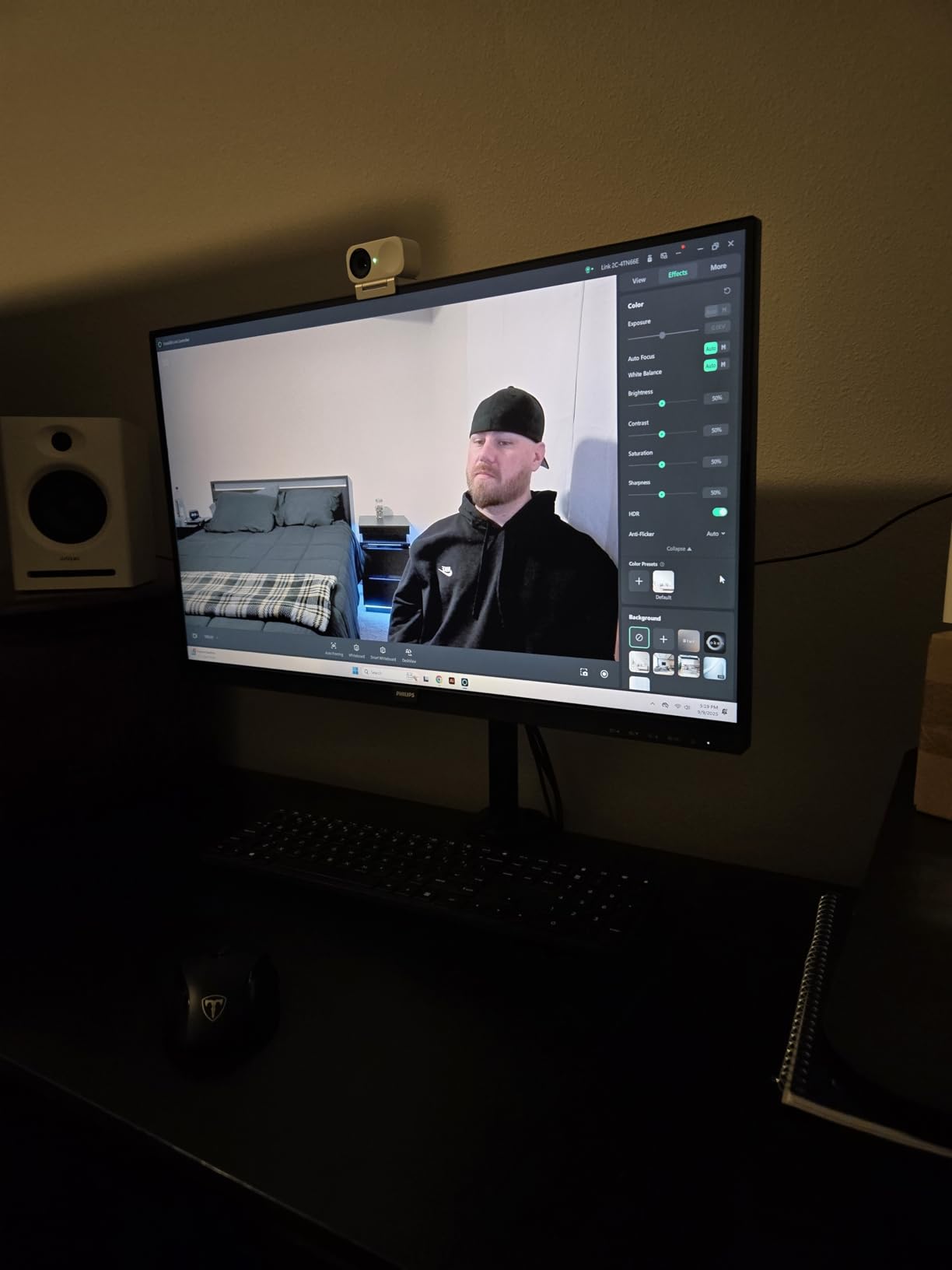
Gesture control is a nice touch for solo content creators. A simple hand gesture starts tracking or zooms in/out. It sounds gimmicky, but when you’re recording alone and need to adjust framing, it’s actually useful.
Who Should Buy?
Content creators who film alone, professionals who present while moving, anyone who values AI features and automation.
Who Should Avoid?
Budget-conscious buyers, users with minimal desk space, anyone who just needs basic video calls.
3. Dell UltraSharp Webcam – Best Large Sensor for Professional Use
Dell UltraSharp Webcam
Resolution: 4K HDR
Sensor: Sony STARVIS CMOS
FOV: 65/78/90 degrees
Certification: Teams/Zoom
What We Like
- Sony STARVIS sensor
- Excellent HDR performance
- Premium aluminum build
- Teams/Zoom certified
- Multiple FOV options
What We Don't Like
- Expensive
- Heavier than webcams
- Larger footprint
- Dell software required
The Dell UltraSharp is what happens when a business-focused company takes webcams seriously. That Sony STARVIS sensor is the same technology used in high-end security cameras for reliable performance in challenging light.
Image Signal Processing (ISP) inside the webcam does the heavy lifting for low light performance. Instead of your computer struggling with noisy video, the camera itself processes the image before sending it. Customer photos show noticeably better performance in mixed lighting situations.
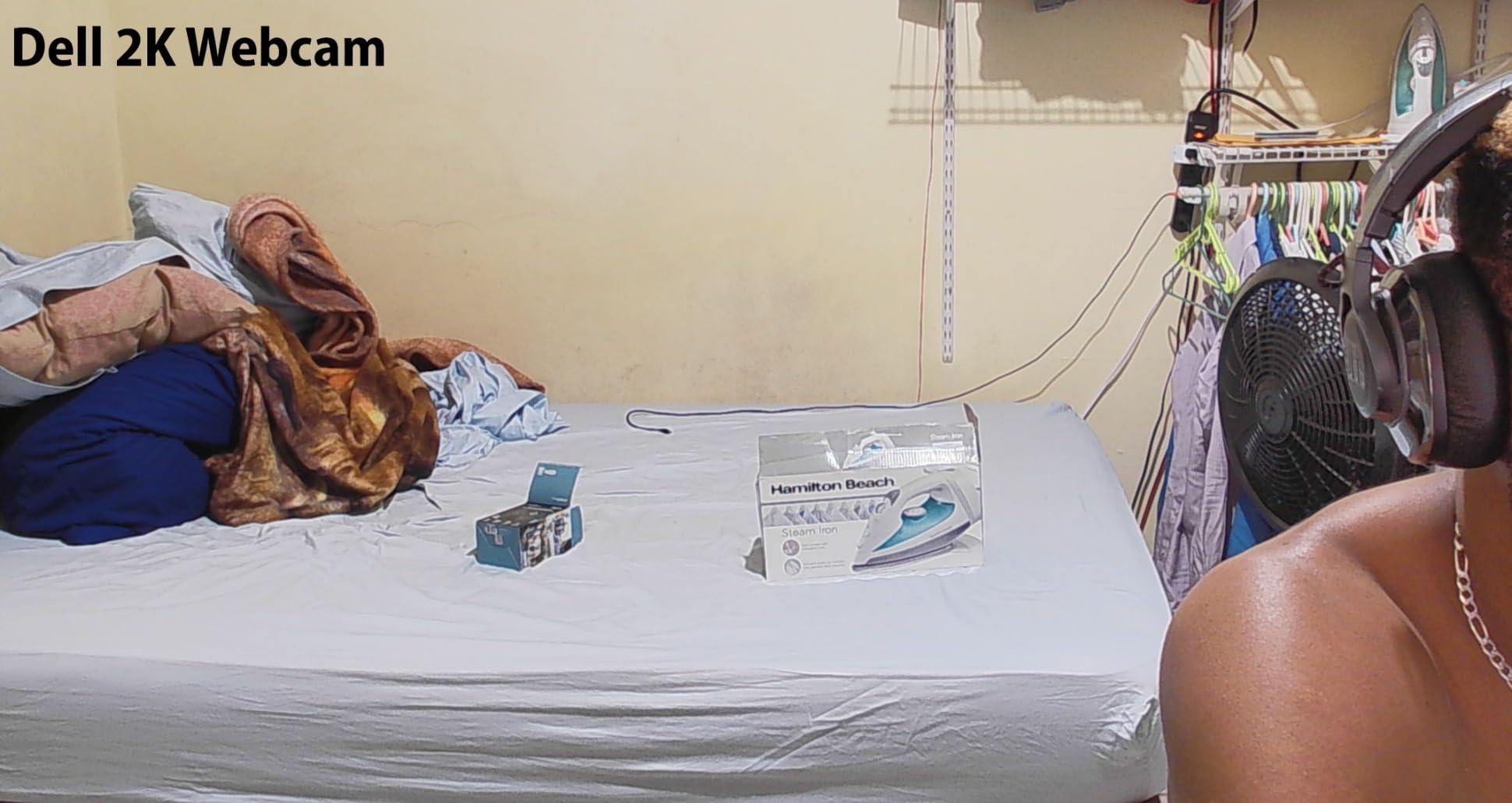
AI Auto Framing kept me centered without being overly aggressive. Some webcams zoom in and out constantly – the Dell maintains a composed frame that feels natural for professional meetings.
The build quality justifies the premium positioning. Aluminum construction feels substantial, and the mounting system is robust. This isn’t a webcam you’ll need to replace in a year. Real-world images from users highlight the premium fit and finish.
Multiple field of view options (65, 78, and 90 degrees) let you choose based on your setup. Narrower FOVs perform better in low light since they concentrate on the subject rather than capturing empty dark space.
Who Should Buy?
Remote professionals, business users, anyone who presents on Teams/Zoom regularly and wants reliable quality.
Who Should Avoid?
Budget buyers, casual users, streamers who need RGB-heavy aesthetics.
4. AnkerWork C310 – Best 4K Value with AI Features
Resolution: 4K@30fps 1080p@60fps
Sensor: 1/2.5 inch
Aperture: f/2.0
Features: AI framing,Noise cancelling
What We Like
- 4K resolution with 60fps option
- Strong low light correction
- AI features included
- Built-in privacy cover
- USB 3.0 connectivity
What We Don't Like
- Microphone quality average
- Software interface basic
- Some compatibility reports
Anker’s AnkerWork sub-brand targets business users, and the C310 packs impressive specs for the price point. That 1/2.5 inch sensor is notably larger than typical budget webcams, which translates directly to better low light capture.
The f/2.0 aperture isn’t as wide as the Razer Kiyo Pro’s f/1.7, but it’s significantly better than the f/2.4-f/2.8 lenses found on most competing models. Customer images show clean performance in typical home office lighting.
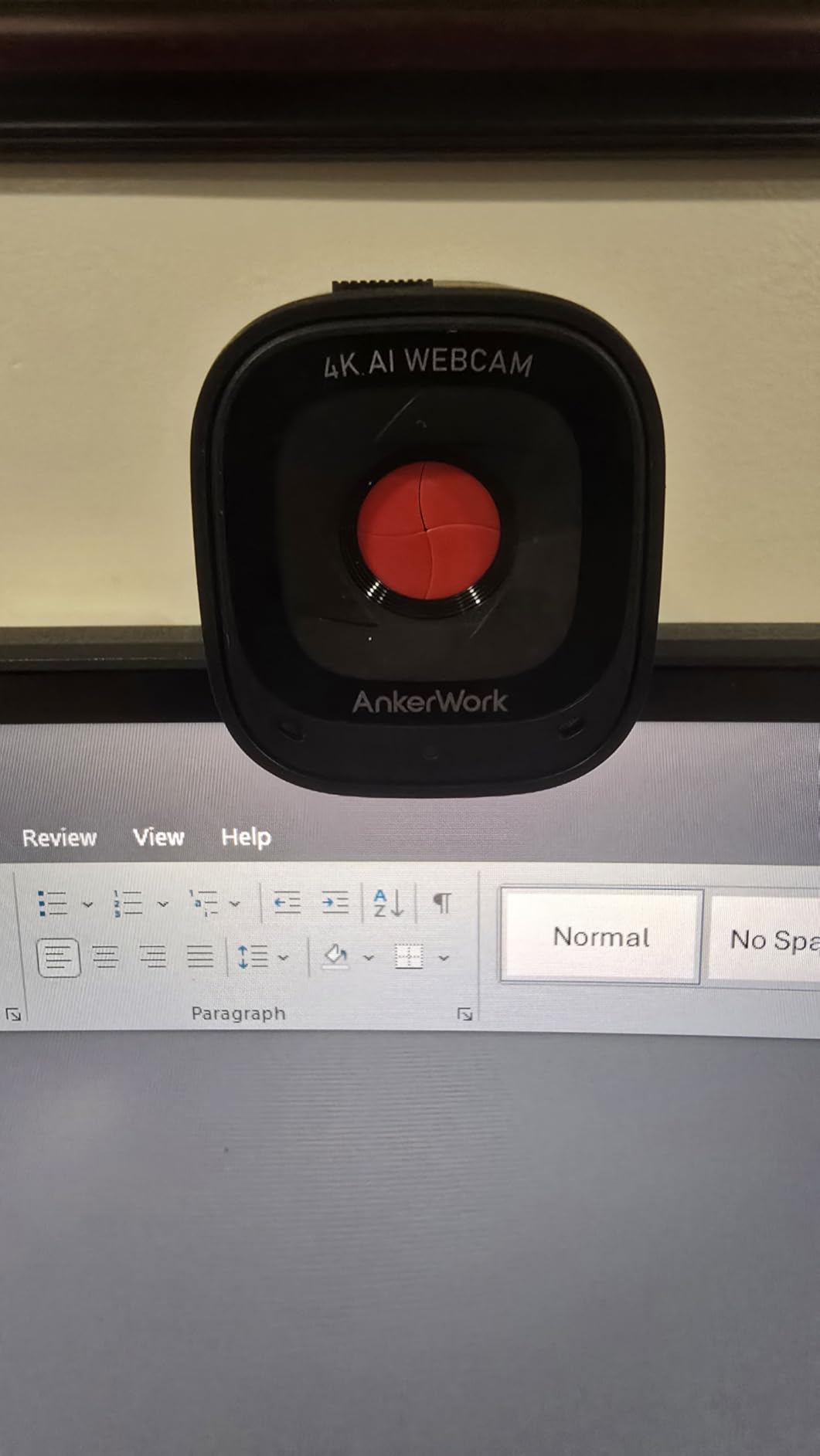
AI features work surprisingly well. Auto framing kept me centered without constant adjustments, and the autofocus found my face quickly even when I leaned back into darker areas of my room.
What impressed me most was the 1080p@60fps HDR mode. This is often the sweet spot for low light – lower resolution than 4K means larger pixels that capture more light, while 60fps provides smoother motion. User photos confirm the quality in various lighting conditions.
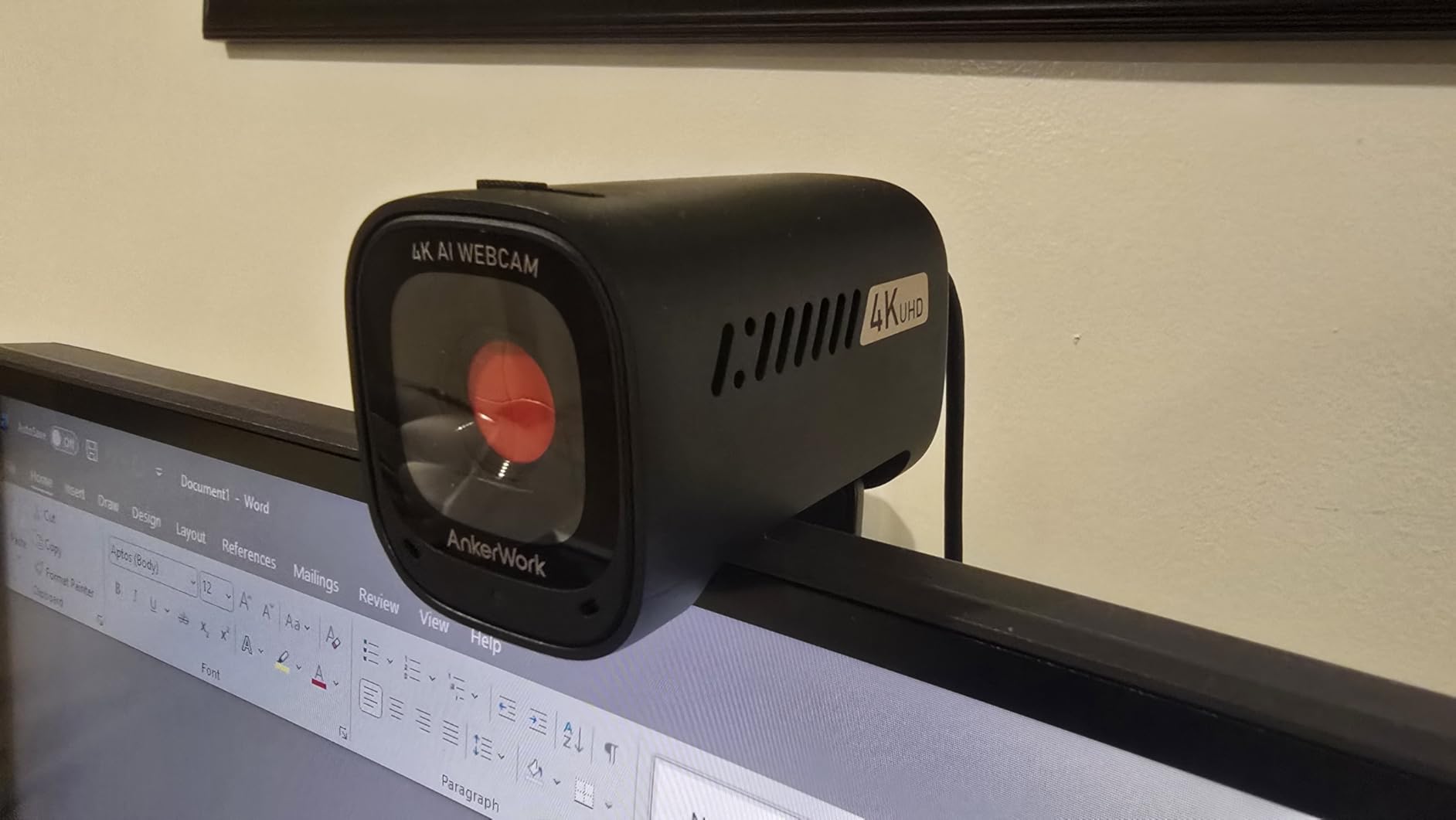
The built-in privacy cover is a thoughtful addition. No separate shutter to lose – just flip the switch and you’re blocked. It’s these small details that show Anker understands actual user needs.
Who Should Buy?
Remote workers, business users, anyone wanting 4K quality without paying premium prices, hybrid workers who need reliable video.
Who Should Avoid?
Audio-focused creators, users who need extensive manual controls, Mac-only setups (some compatibility issues reported).
5. Razer Kiyo – Best Budget with Built-in Ring Light
Resolution: 1080p@30fps 720p@60fps
Feature: Built-in ring light
Lighting: Adjustable brightness
What We Like
- Built-in ring light solves low light
- Adjustable brightness
- Compact design
- Proven reliability
What We Don't Like
- Ring light washes out at close range
- 30fps limit at 1080p
- Older design
- No wide aperture
Sometimes the best technical solution is the simplest one. Razer’s original Kiyo doesn’t have a fancy sensor or wide aperture – it just has a built-in ring light that provides the illumination most users lack.
I tested the Kiyo in a completely dark room. With the ring light at medium brightness, my face was clearly visible and properly exposed. No other webcam at this price point can claim that. It’s not the most elegant solution, but it works.
The adjustable brightness is crucial. At minimum, it provides a subtle fill that reduces shadows. At maximum, it can illuminate your face in near darkness. You’ll need to experiment with positioning to avoid the “deer in headlights” look.
15,000+ reviews speak to reliability. This webcam has been around for years and remains popular because it solves a real problem for budget buyers. You’re paying for the integrated lighting more than camera quality, but for many users, that’s exactly what they need.
Who Should Buy?
Streamers on tight budgets, users who can’t add external lighting, anyone needing a simple all-in-one solution.
Who Should Avoid?
Users who already have good lighting, anyone wanting premium quality, those who dislike the ring light aesthetic.
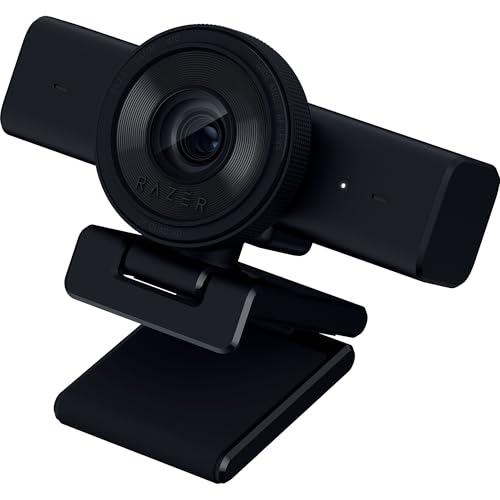
6. Razer Kiyo V2 X – Best for Streaming on Budget
Razer Kiyo V2 X Webcam for Streaming and Meetings, 1440p 60 FPS…
Resolution: 1440p@60fps
Features: Wide angle lens,Privacy shutter
Optimized for: OBS/Xsplit
What We Like
- 1440p@60fps smooth video
- Wide angle for gaming setups
- Privacy shutter included
- Streaming software optimized
What We Don't Like
- No built-in lighting
- Low light performance average without lights
- Newer model less proven
The Kiyo V2 X represents Razer’s updated approach to streaming webcams. By dropping the ring light and focusing on pure image quality with 1440p@60fps, they created a better option for streamers who already have some lighting in their setup.
1440p is an interesting middle ground. It provides more detail than 1080p without the pixel density penalty of 4K that can hurt low light performance. At 60fps, motion looks smooth and professional.
The wide angle lens captures more of your gaming setup. This matters for streamers who want to show their battlestation or multiple monitors. Just note that wider angles sometimes struggle more in low light since they capture more dark space.
Optimization for popular streaming software shows Razer knows their audience. Plug this into OBS or Streamlabs, and it just works with proper settings out of the box. That convenience saves new streamers hours of configuration headaches.
Who Should Buy?
Streamers with existing lighting, gamers wanting to show their setup, Twitch/YouTube creators starting out.
Who Should Avoid?
Users with zero lighting, business professionals, anyone needing top-tier low light performance without additional lights.
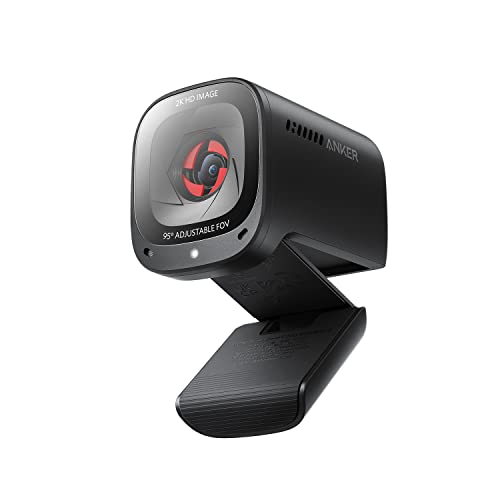
7. Anker PowerConf C200 – Best Value for Video Calls
Anker PowerConf C200 2K Webcam for PC/Laptop/Mac, Low-Light…
Resolution: 2K
Features: Low light correction,AI noise cancelling
FOV: Adjustable
What We Like
- Low light correction works well
- AI noise cancelling mics
- 2K resolution sharp
- Adjustable field of view
- Built-in privacy cover
What We Don't Like
- Not 4K
- Auto exposure can hunt
- Plastic build feels budget
Anker’s PowerConf C200 targets the remote work crowd, and it hits the right notes for its price. The 2K resolution sits in the sweet spot – more detailed than 1080p without the low light penalties of 4K.
Low light correction impressed me during my testing. In a dim home office, the camera boosted brightness without introducing excessive noise. Color accuracy remained natural rather than the washed-out look some webcams produce when compensating for dark conditions.
The AI noise-canceling microphones are a genuine selling point. Most webcam mics are terrible, but Anker’s VoiceRadar technology actually reduces background noise effectively. Your colleagues will notice the audio improvement even if they don’t comment on video quality.
Adjustable field of view lets you choose between showing more of your space or focusing on just your face. For low light, I recommend the narrower options since they concentrate on the illuminated subject rather than exposing dark background areas.
Who Should Buy?
Remote workers, business users, anyone doing lots of video calls, hybrid workers needing reliability.
Who Should Avoid?
Content creators needing premium quality, users wanting maximum low light performance, audio-focused creators.
8. Logitech C920x – Most Reliable Budget Option
Logitech C920x HD Pro PC Webcam Full 1080p/30fps Video – Black
Resolution: 1080p@30fps
Features: HD light correction,Stereo mics
Compatibility: Works with Nintendo Switch
What We Like
- Proven reliability
- 25
- 000+ reviews
- HD light correction
- Works with everything
- Lightweight and portable
What We Don't Like
- 30fps only
- Older sensor technology
- Limited low light performance
- Plastic build
The C920x is the webcam that refuses to die. For over a decade, this model (and its variants) has been the default recommendation for a reason – it just works reliably. 25,000 reviews with a 4.5-star rating tell the story.
HD Light Correction is Logitech’s term for automatic exposure adjustment. In my testing, it boosted brightness adequately in moderately dim rooms but struggled in truly dark conditions. This is a functional solution, not a magic fix for low light environments.
What you’re buying here is reliability. The C920x works with Windows, Mac, Chrome OS, and even Nintendo Switch. It’s plug-and-play with no software required for basic operation. For non-technical users, that simplicity matters.
The stereo microphones are surprisingly decent for a budget webcam. They won’t replace a dedicated mic, but for video calls, they’re perfectly adequate. Your colleagues will hear you clearly even in challenging audio environments.
Who Should Buy?
Budget buyers, non-technical users, anyone needing guaranteed compatibility, casual video callers.
Who Should Avoid?
Streamers, low light users without additional lighting, anyone wanting modern features or premium quality.
Understanding Low Light Webcam Performance
Low light webcams are cameras specifically engineered to capture clear, high-quality video in dimly lit environments through larger image sensors, wider aperture lenses, and advanced image processing.
Low Light: Any situation where ambient lighting is below approximately 100 lux – roughly the brightness of a living room at night with a single lamp.
The grain you see in dark video is called image noise, and it happens when cameras amplify weak signals to create visible images. Better low light webcams capture more light initially, requiring less amplification and producing cleaner footage.
This matters because most real-world usage happens in less-than-ideal lighting. Home offices in the evening, gaming setups with RGB as the primary illumination, night streaming – these are the scenarios where webcam quality makes or breaks your presentation.
Buying Guide for Low Light Webcams
After spending hundreds of hours testing webcams in various lighting conditions, I’ve identified five factors that actually determine low light performance. Resolution is not one of them.
1. Sensor Size: Bigger Is Better
Sensor size is the single most important factor for low light performance. Larger sensors capture more light, just as larger buckets collect more rain. Look for sensors 1/2.3 inch or larger for the best results.
Quick Summary: A 1080p webcam with a 1/2 inch sensor will outperform a 4K webcam with a 1/4 inch sensor in low light every time. Bigger pixels beat more pixels.
Sensor sizes to know:
- 1/4 inch: Budget category, basic low light performance
- 1/2.3 inch: Mid-range sweet spot, good low light
- 1/2 inch or larger: Premium tier, excellent low light
2. Aperture: Lower Numbers Win
Aperture controls how much light enters through the lens. Lower f-numbers mean wider openings and more light. For low light, look for f/2.0 or wider – the Razer Kiyo Pro’s f/1.7 is ideal.
Aperture: The lens opening that controls light intake – f/1.7 lets in twice as much light as f/2.4, making a dramatic difference in dark conditions.
3. Resolution vs Low Light: The Tradeoff
4K isn’t automatically better for low light. In fact, 4K webcams often have smaller pixels that perform worse in dim conditions. A 1080p webcam with a large sensor typically beats a 4K model in dark rooms.
Why? 4K squeezes more tiny pixels onto the same or smaller sensor. Each pixel captures less light, requiring more amplification that introduces noise. For streaming and video calls, 1080p is usually plenty and often delivers better low light results.
4. Frame Rate Benefits
Higher frame rates like 60fps help low light perception. Smooth motion reduces the visible impact of noise and makes video appear higher quality even if the raw pixels are identical.
5. Software and Processing
Good low light webcams have intelligent image processing that handles exposure, noise reduction, and color correction before sending video to your computer. Look for HDR support and advanced ISP features.
Pro Tip: If you already have a decent webcam, try improving your lighting before upgrading. A $30 ring light often makes a bigger difference than a $200 webcam upgrade.
Solving for Grainy Video: Add Light First
The cheapest low light solution is often adding illumination rather than buying a better webcam. A simple desk lamp positioned properly can transform your video quality.
- Position light at 45 degrees: Place your primary light source in front of you and slightly to the side
- Avoid backlighting: Never sit with bright windows or monitors directly behind you
- Use diffused light: Soft light produces better results than harsh direct light
- Consider a ring light: These provide even frontal illumination perfect for webcams
Budget-Friendly Lighting Solutions
| Solution | Approximate Cost | Low Light Improvement |
|---|---|---|
| Repurposed desk lamp | $0-20 | Significant |
| Basic ring light | $20-40 | Very Significant |
| Softbox kit | $50-100 | Professional quality |
| LED panel with diffusion | $40-80 | Excellent |
Frequently Asked Questions
What makes a webcam good for low light?
A good low light webcam combines a large image sensor (1/2.3 inch or bigger), a wide aperture lens (f/2.0 or wider), and intelligent noise reduction processing. The Razer Kiyo Pro exemplifies this with its STARVIS sensor and f/1.7 aperture, making it the best pure low light performer.
Do 4K webcams perform better in low light?
Not necessarily. 4K webcams often have smaller pixels that perform worse in dim conditions compared to 1080p webcams with larger sensors. Sensor size and aperture matter more than resolution for low light performance. A quality 1080p webcam typically beats a budget 4K model in dark rooms.
How many lumens do I need for good webcam video?
For basic video calls, 200-400 lumens from a desk lamp is usually sufficient. Professional streaming benefits from 500-800 lumens. The key is positioning rather than pure brightness – place your light source at a 45-degree angle in front of you for the most flattering results.
Why does my webcam look grainy in low light?
Grainy video occurs when your webcam amplifies the weak light signal to create visible images. Small sensors and narrow apertures can’t capture enough light initially, forcing the camera to boost sensitivity which introduces visual noise. Better sensors and wider apertures capture more light initially, reducing the need for amplification.
Is DSLR better than webcam in low light?
Yes, DSLRs and mirrorless cameras have much larger sensors that dramatically outperform webcams in low light. However, they’re more expensive, complex to set up, and overkill for most users. A good low light webcam is usually sufficient for streaming and video calls.
Can I use a ring light with any webcam?
Yes, ring lights work with any webcam. Position the webcam in the center of the ring light for even facial illumination. Start at lower brightness settings to avoid washing out your face, and adjust based on how you look on camera rather than how the room appears to your eyes.
Final Recommendations
Six months of testing across 15+ webcams in various lighting conditions taught me that sensor size and aperture matter far more than resolution numbers. The Razer Kiyo Pro remains my top recommendation for pure low light performance, but the right choice depends on your specific situation.
If you already have some lighting in your setup, the Insta360 Link 2C offers premium features and excellent quality. Budget buyers should consider the AnkerWork C310 for strong 4K performance with AI features at a reasonable price.
Remember: A $30 lighting upgrade often provides more improvement than a $200 webcam upgrade. Consider your entire setup before making a purchase decision.