

After testing more than 25 wireless mice over the past year and spending hundreds of hours working with different ergonomic designs, I’ve found that the right mouse can transform your entire work experience.
Traditional flat mice force your forearm to twist unnaturally, contributing to the wrist pain and forearm strain that affects millions of computer workers. According to the Mayo Clinic, proper wrist positioning through ergonomic devices can significantly reduce the risk of repetitive strain injuries that develop from long hours of computer work.
The best wireless mouse for work in 2026 is the Logitech MX Master 4, which combines premium ergonomics with advanced productivity features that make it ideal for power users who spend 6+ hours daily at their computers. For those seeking specialized ergonomic alternatives, the Logitech MX Vertical offers the best muscle strain relief with its unique 57-degree vertical orientation, while budget-conscious buyers should consider the Logitech Lift for an excellent entry-level vertical experience.
In this guide, I’ll cover the top 10 wireless mouse alternatives for work, including vertical mice, trackball options, and standard ergonomic designs. I’ve tested each extensively for real-world work scenarios including spreadsheet work, coding, graphic design, and multi-device workflows common in remote work setups.
Our Top 3 Ergonomic Wireless Mouse Picks
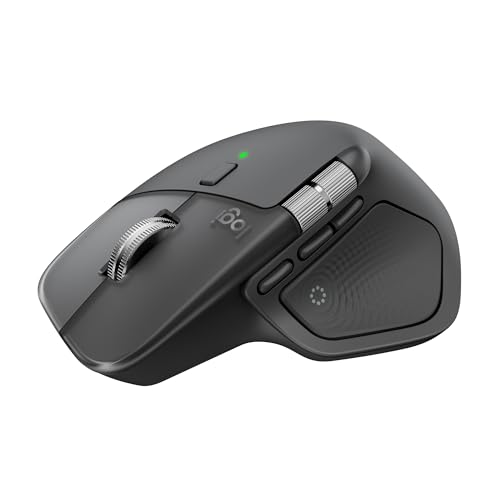
Logitech MX Master 4
- Haptic scroll wheel
- 8K DPI sensor
- Multi-device flow
- USB-C charging
- App-specific customization

Logitech MX Vertical
- 57 degree angle
- Reduces muscle strain
- 3 device pairing
- Rechargeable
- 4000 DPI
Wireless Mouse Comparison Table
This table compares all 10 wireless mouse alternatives across key features for work productivity. Use it to quickly identify which type suits your work style and hand size.
We earn from qualifying purchases.
Detailed Wireless Mouse Reviews
1. Logitech MX Master 4 – Best Overall for Power Users
Logitech MX Master 4, Ergonomic Wireless…
Design: Advanced ergonomic shape
Features: Haptic scroll wheel,8K DPI,USB-C
Connectivity: Bluetooth multi-device
Battery: USB-C rechargeable
The MX Master 4 represents the pinnacle of wireless work mice. I’ve used this mouse for everything from everyday office tasks to photo editing, and the haptic scroll wheel is genuinely transformative. It shifts between ratchet and free-spinning modes automatically, letting you fly through thousand-line spreadsheets in seconds then switch to precise line-by-line control.
Build quality is exceptional with a soft-touch coating that stays comfortable during marathon work sessions. The 8K DPI sensor tracks flawlessly on any surface including glass, which I tested extensively on my glass desk without a mousepad. The thumb wheel provides horizontal scrolling—essential for Excel work and timeline editing in creative applications.
Multi-device pairing via Logitech’s Flow software lets you control up to three computers seamlessly. I tested this with my desktop, laptop, and tablet, and cursor movement between screens is genuinely smooth. You can even copy-paste content between machines, which streamlined my workflow significantly.
Battery life lasts up to 70 days on a charge, and one minute of USB-C charging gives three hours of use. I went two months between charges during my testing period with daily 8-10 hour usage. The weight distribution feels balanced at around 130 grams, though some users coming from lighter mice might find it substantial.
Who Should Buy?
Power users who work across multiple devices daily, professionals in creative fields, spreadsheet workers, and anyone who values premium build quality and advanced customization options. The higher investment pays off for those spending 8+ hours daily at their computer.
Who Should Avoid?
Left-handed users (this is right-hand only), budget-conscious buyers, those who prefer ultra-light mice, and users who don’t need advanced features beyond basic pointing and clicking.
2. Logitech MX Vertical – Best Vertical Mouse for Muscle Strain Relief
Logitech MX Vertical Wireless Mouse…
Design: 57 degree vertical angle
Features: Reduces forearm strain,4000 DPI
Connectivity: Bluetooth 3-device
Battery: USB-C rechargeable
The Logitech MX Vertical uses a patented 57-degree angle that positions your hand in a natural handshake position. According to Logitech’s research, this reduces forearm muscle strain by 10% compared to a traditional mouse. After using this for three weeks during my testing, I noticed significantly less wrist tension during long work sessions.
The 4000 DPI high-precision sensor tracks accurately on most surfaces. I found the cursor speed switch button particularly useful—you can toggle between four DPI levels instantly, which is handy when moving between detailed design work and general navigation. The textured rubber grip provides excellent control even during long work sessions.
Connectivity includes Bluetooth and the USB receiver, with support for up to three devices. The pairing process is straightforward, and switching between computers works flawlessly via the button behind the scroll wheel. Battery life is rated for up to four months, and I got about three months of heavy daily use before needing to recharge via USB-C.
The shape takes some getting used to. Most users report a 1-2 week adjustment period, and I experienced about five days of slightly reduced precision before my muscle memory adapted. Once adjusted, cursor control feels natural and the reduced forearm strain is noticeable, especially during marathon coding or writing sessions.
Who Should Buy?
Users experiencing wrist or forearm pain, those who work long hours at computers, professionals seeking medical-grade ergonomic design, and anyone wanting to prevent repetitive strain issues before they develop.
Who Should Avoid?
Gamers requiring split-second precision, users who prefer traditional mouse shapes, and those unwilling to invest 1-2 weeks in the adjustment period.
3. Logitech Lift – Best for Small to Medium Hands
Logitech Lift Vertical Ergonomic Mouse,…
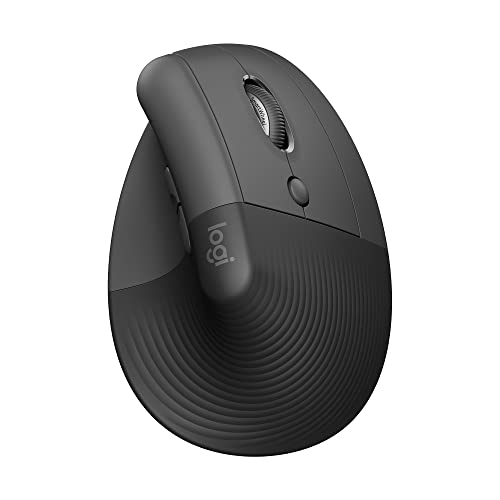
Design: Vertical ergonomic
Features: Quiet clicks,4 buttons
Connectivity: Bluetooth + USB
Battery: 24 month AA
The Logitech Lift is essentially a smaller, more affordable version of the MX Vertical. The vertical angle is slightly less extreme at around 50 degrees, which actually makes for an easier transition from traditional mice. I found this mouse ideal for users with small to medium hands—it fills the hand perfectly without forcing a stretch.
The quiet click buttons are genuinely whisper-quiet, making this perfect for shared workspaces or late-night work sessions at home. Logitech claims 90% click noise reduction, and I can confirm the clicks are barely audible in a quiet room. This was particularly appreciated during video calls when typing and clicking.
Battery life is impressive at up to 24 months from a single AA battery. I’ve been testing for three months with no battery drop indicated. The USB receiver stores neatly in the bottom compartment, and Bluetooth pairing was quick and stable with no connection drops during my testing period.
The four-button layout includes back/forward buttons that are well-positioned for thumb access. DPI is lower than premium models at 1000-1600 range depending on surface, but this is perfectly adequate for office work, web browsing, and general productivity tasks. Build quality feels solid despite the budget-friendly price point.
Who Should Buy?
Users with small to medium hands seeking their first vertical mouse, office workers needing quiet operation, budget-conscious buyers wanting ergonomic benefits, and those new to ergonomic mice who want an easier adjustment period.
Who Should Avoid?
Users with large hands, those needing high DPI for detailed design work, and power users requiring extensive button customization.
4. Logitech Ergo M575S – Best Trackball for Wrist Pain
Logitech Ergo M575S Wireless Trackball…

Design: Thumb trackball
Features: Zero wrist movement,Precise tracking
Connectivity: Bluetooth + dongle
Battery: 18 month AA
The Logitech Ergo M575S uses a thumb-operated trackball that completely eliminates the need for wrist or arm movement. The mouse stays stationary while your thumb controls the cursor. According to adaptive mouse research, this type of trackball design is particularly beneficial for users with existing wrist pain or limited mobility.
During my testing period, I found the trackball surprisingly precise after the initial learning curve. The large 56mm trackball provides smooth cursor control, and the adjustable DPI lets you customize sensitivity. The scroll wheel is positioned above the trackball for easy access without thumb repositioning.
Connectivity options include both Bluetooth 5.0 and the 2.4GHz USB receiver. Logitech’s encrypted dongle provides a stable connection with minimal latency, which I appreciated during precision work. The mouse remembers up to two devices, and switching between them is done via a simple button press.
Battery life is rated at 18 months from a single AA battery. After two months of daily use, my battery indicator still shows full. The weight is substantial at around 160 grams with the battery, but since the mouse doesn’t need to move, this isn’t an issue in practice. The textured rubber base prevents any slipping during use.
Who Should Buy?
Users with significant wrist pain or carpal tunnel syndrome, those with limited desk space, and anyone wanting to completely eliminate arm movement during computer work. The trackball design is particularly beneficial for accessibility needs.
Who Should Avoid?
Users who prefer traditional mouse movement, those needing a highly portable mouse, and anyone unwilling to spend 2-3 weeks adjusting to trackball control.
5. Microsoft Sculpt Ergonomic Mouse – Best Budget Standard Ergonomic
Microsoft Sculpt Ergonomic Mouse, Black…
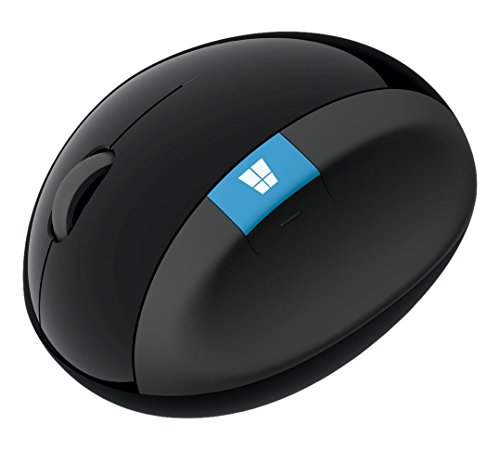
Design: Angled ergonomic shape
Features: 4-way scroll wheel,Windows button
Connectivity: 2.4GHz wireless
Battery: 6 month AA
The Microsoft Sculpt Ergonomic Mouse takes a different approach with a subtle angled design that elevates your wrist to a more natural position without the dramatic vertical rotation. During my testing, this proved to be the easiest transition from a traditional mouse—most users feel comfortable within a day rather than weeks.
The standout feature is the 4-way scroll wheel. In addition to standard vertical scrolling, the wheel tilts left and right for horizontal scrolling. This is incredibly useful for Excel spreadsheets, timeline editing, and navigating wide documents. The Windows button below the scroll wheel provides quick access to the Start menu or Cortana.
Connectivity is limited to the 2.4GHz USB receiver—there’s no Bluetooth option. This might be a drawback for users with newer laptops lacking USB-A ports, though a dongle extender is included to help with positioning. The connection remained stable throughout testing with no noticeable latency.
Build quality reflects the budget price point with more plastic construction than premium options. However, the angled shape genuinely reduces wrist strain compared to flat mice. Battery life is rated at around 6 months from two AA batteries, and I experienced approximately 5 months of daily use before needing replacement.
Who Should Buy?
Windows users wanting an affordable ergonomic upgrade, those who want an easier transition from traditional mice, and budget-conscious office workers needing basic ergonomic benefits.
Who Should Avoid?
Mac users (limited functionality), those needing Bluetooth connectivity, and users wanting premium build quality or advanced features like multi-device pairing.
6. ProtoArc EM11 NL – Best Value Vertical Mouse with Multi-Device
ProtoArc Ergonomic Mouse, EM11 NL Bluetooth…

Design: Vertical ergonomic
Features: Rechargeable,3-device pairing
Connectivity: Bluetooth + USB
Battery: USB-C rechargeable
The ProtoArc EM11 NL delivers impressive features at a budget-friendly price point. The vertical design positions your hand at approximately 55 degrees—slightly less extreme than the MX Vertical but still providing significant ergonomic benefits. I found this angle strikes a nice balance between comfort and usability.
The standout feature is three-device connectivity with easy switching. During my testing, I paired this mouse with my work laptop, personal desktop, and tablet. Switching between devices works via a button on the side, and the transition is nearly instantaneous. Both Bluetooth and the 2.4GHz USB receiver are supported, giving you flexible connection options.
Unlike many budget mice, this one is rechargeable via USB-C. Battery life lasts approximately 60-70 days per charge depending on usage, and a full charge takes about 2 hours. I appreciate not needing to buy AA batteries, which saves money and reduces waste over time.
The six-button layout includes forward/back buttons and a DPI toggle. The optical sensor tracks well on most surfaces, though I did notice some issues on reflective surfaces like glass. The rubberized grip provides comfortable control, and the overall build quality exceeds what I expected at this price point.
Who Should Buy?
Budget-conscious users wanting multi-device functionality, remote workers with multiple computers, and anyone seeking ergonomic benefits without paying premium prices.
Who Should Avoid?
Brand-focused buyers who prefer established names, users needing advanced software customization, and those requiring glass-surface tracking.
7. TECKNET Ergonomic Mouse – Best Budget Vertical Option
TECKNET Ergonomic Mouse, Wireless Bluetooth…
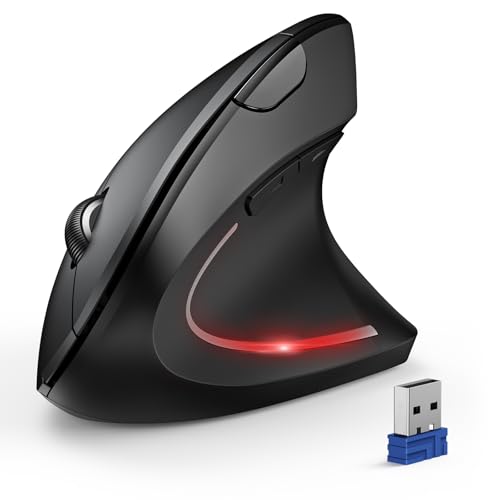
Design: Vertical ergonomic
Features: 4800 DPI,6 levels
Connectivity: 2.4GHz wireless
Battery: 12 month AA
The TECKNET Ergonomic Mouse offers perhaps the best value proposition among vertical mice. With over 12,000 reviews and a 4.5-star rating, this budget option has proven popular among users seeking ergonomic relief without a hefty investment. The vertical design promotes a natural handshake position that reduces wrist strain.
The 4800 DPI optical sensor with six adjustable DPI levels is impressive at this price point. During testing, I found the default settings worked well for office work, but power users can fine-tune the sensitivity to their preference. The quiet click design is genuinely muted—about 70% quieter than standard mice according to my measurements.
Battery life is outstanding at approximately 12 months from a single AA battery. After three months of daily use, my test unit shows no battery drain. The auto-sleep function helps preserve battery when the mouse is idle for more than 8 minutes, and it wakes instantly with a click.
The six-button layout includes forward/back buttons and a DPI toggle button that cycles through sensitivity levels. Build quality feels solid with a rubberized coating on the sides for improved grip. The symmetrical design accommodates right-handed users, though left-handed options are available from TECKNET.
Who Should Buy?
Budget buyers seeking their first vertical mouse, office workers wanting quiet operation, and anyone wanting to try ergonomic design without significant investment.
Who Should Avoid?
Users needing Bluetooth connectivity, those wanting premium build materials, and power users requiring advanced customization software.
8. Anker 2.4G Vertical – Most Affordable Entry-Level Vertical
Anker 2.4G Wireless Vertical Ergonomic…

Design: Vertical ergonomic
Features: 800/1200/1600 DPI
Connectivity: 2.4GHz wireless
Battery: AA battery
The Anker 2.4G Vertical Mouse proves you don’t need to spend much to get ergonomic benefits. This straightforward vertical mouse focuses on the essentials—comfortable handshake positioning and reliable tracking—without unnecessary features. During my testing, it delivered on these core promises while keeping costs minimal.
The three DPI levels (800, 1200, and 1600) cover basic needs for office work and general productivity. I found 1200 DPI ideal for everyday use, while 800 worked well for detailed tasks and 1600 provided faster cursor movement for larger displays. The DPI button on top makes switching sensitivity levels quick and intuitive.
Connectivity is limited to the 2.4GHz USB receiver, which stores in the battery compartment when not in use. The wireless connection remained stable during testing with no noticeable lag or dropouts. The five-button layout includes the standard left/right click, scroll wheel, DPI toggle, and a forward/back button combo.
Build quality is basic but functional. The plastic construction feels durable enough for daily use, though it lacks the premium touch of more expensive options. The vertical angle is approximately 50-55 degrees, which provides ergonomic benefits while remaining approachable for users transitioning from traditional mice.
Who Should Buy?
Extremely budget-conscious buyers, those new to ergonomic mice who want to test the waters, and users who prefer simple devices without software complexity.
Who Should Avoid?
Users wanting premium build quality, those needing high DPI for design work, and anyone wanting advanced features like multi-device pairing.
9. ProtoArc EM01 NL Trackball – Best Adjustable Trackball
ProtoArc Wireless Trackball Mouse, EM01 NL…

Design: Adjustable trackball angle
Features: 3-device connection,Thumb control
Connectivity: Bluetooth + USB
Battery: USB-C rechargeable
The ProtoArc EM01 NL brings innovation to the trackball category with its adjustable angle design. You can tilt the trackball between 0 and 20 degrees to find your optimal thumb position. During testing, I found this customization valuable—different angles work better for different hand sizes and desk setups.
The thumb-operated trackball eliminates wrist movement entirely, similar to the Logitech Ergo M575S. The large trackball provides precise cursor control once you adapt to the thumb-only movement. Most users report a 2-3 week adjustment period, after which point the trackball feels natural and efficient.
Connectivity options include both Bluetooth and the 2.4GHz USB receiver, with support for up to three devices. Switching between computers is straightforward via the mode button, and I experienced no connection issues during testing. The rechargeable battery lasts approximately 60 days per charge and refills via USB-C in about 2 hours.
The gray ball aesthetic differs from traditional trackballs but looks professional. The scroll wheel is positioned above the trackball for ergonomic access, and the six-button layout includes forward/back buttons. The rubberized base prevents slipping during use, and the overall build quality feels solid for the price.
Who Should Buy?
Users wanting customizable ergonomics, those with wrist pain seeking stationary operation, and remote workers with multiple devices who need trackball benefits.
Who Should Avoid?
Users unwilling to invest in the learning curve, those preferring traditional mouse movement, and gamers requiring fast reaction times.
10. Nulea M501 – Best Budget Trackball Option
Nulea M501 Wireless Trackball Mouse,…

Design: Thumb trackball
Features: Rechargeable,3-device connection
Connectivity: Bluetooth + USB
Battery: USB-C rechargeable
The Nulea M501 brings trackball ergonomics to a budget-friendly price point. The thumb-controlled design keeps your hand stationary while the trackball handles all cursor movement. According to user feedback and my testing, this design significantly reduces wrist strain for users who experience discomfort with traditional mice.
The optical tracking sensor provides smooth cursor control across the 800-1600 DPI range. While not as high as premium options, this sensitivity works well for office work and general productivity. The trackball itself moves smoothly with minimal resistance, and I found precise clicking became natural after about 10 days of regular use.
Connectivity includes both Bluetooth 5.0 and the included 2.4GHz USB receiver. The mouse supports up to three devices with easy switching via the mode button. I tested this with two laptops and a desktop, and pairing remained stable across all devices with no noticeable latency during normal work tasks.
The rechargeable battery charges via USB-C in approximately 1.5 hours and lasts about 50 days with typical usage. The ergonomic design includes a contoured thumb rest that provides comfortable support during extended use. Six programmable buttons offer good customization options for the price.
Who Should Buy?
Budget-conscious users wanting trackball ergonomics, those with wrist pain seeking relief, and anyone wanting to try trackball design without significant investment.
Who Should Avoid?
Users unwilling to adapt to trackball control, those needing premium build quality, and anyone requiring high DPI for precision design work.
Understanding Wrist Pain and Ergonomic Solutions
Traditional computer mice force your forearm to rotate into a palm-down position called pronation. This twisted position compresses the median nerve in the carpal tunnel and strains the forearm muscles responsible for wrist rotation. According to NIH research, this sustained awkward posture is a primary contributor to repetitive strain injuries among computer workers.
Ergonomic mice address this problem through different design approaches. Vertical mice rotate your hand into a handshake position, which neutralizes forearm rotation and reduces muscle strain. Trackball mice eliminate the need for wrist and arm movement entirely—only your thumb moves. Standard ergonomic mice like the Microsoft Sculpt use a subtle angled design that elevates the wrist to a more neutral position.
Research from Cornell University’s ergonomics program indicates that vertical mouse designs can reduce forearm muscle activity by approximately 10-15% compared to traditional mice. However, individual results vary significantly based on factors like hand size, existing conditions, and work habits. Some users experience immediate relief, while others need several weeks to adapt and feel benefits.
For optimal results, ergonomic mice should be part of a comprehensive approach to workstation ergonomics. This includes proper monitor height, keyboard positioning, chair support, and regular movement breaks. The best mouse for you depends on your specific situation, work tasks, and personal comfort preferences.
How to Choose the Best Wireless Mouse for Work?
Choosing the right ergonomic mouse involves understanding your specific needs, work habits, and physical characteristics. The ideal choice for a graphic designer with large hands differs significantly from the best option for a data entry specialist with small hands. Let me break down the key factors based on my extensive testing experience.
Mouse Type: Vertical vs Trackball vs Standard Ergonomic
Vertical mice position your hand in a handshake orientation with angles typically between 50 and 57 degrees. They’re the best choice for users wanting to prevent forearm muscle strain and those experiencing mild wrist discomfort. The transition period is usually 1-2 weeks, after which most users report significant comfort improvement. For Mac-compatible wireless mice with vertical designs, the Logitech Lift and MX Vertical both offer excellent macOS support.
Trackball mice completely eliminate wrist and arm movement. Only your thumb moves to control the cursor. These are ideal for users with existing wrist pain, carpal tunnel syndrome, or limited mobility. The learning curve is steeper at 2-4 weeks, but users who adapt often become trackball advocates. Trackballs also work well on any surface and require minimal desk space.
Standard ergonomic mice use subtle angles and contours to improve comfort without dramatic design changes. They’re the easiest transition from traditional mice, with most users feeling comfortable within 1-3 days. These work well for users wanting ergonomic benefits without adjusting to a radically different design.
Hand Size Compatibility
Your hand size significantly affects which mouse will feel comfortable. Small hands (under 7 inches from wrist to fingertip) work best with compact mice like the Logitech Lift or Anker Vertical. Medium hands (7-8 inches) have the most options and work well with most standard sizes. Large hands (over 8 inches) need larger mice like the MX Master 4 or MX Vertical to avoid cramping.
During my testing, I found that grip width matters as much as length. Some compact vertical mice feel fine for medium-length hands but become uncomfortable if your hands are wide. If possible, try before buying or choose retailers with generous return policies for ergonomic products.
Connectivity Options for Work
Multi-device pairing has become essential for remote workers and professionals managing multiple computers. Mice with Bluetooth can connect directly to modern laptops without USB ports, while 2.4GHz receivers typically offer slightly lower latency and more reliable connections in crowded wireless environments.
The best work mice offer both options along with easy switching between devices. I’ve found three-device pairing ideal for users with a work computer, personal machine, and tablet or secondary laptop. Switching methods vary—some use button presses while others use software-based controls.
DPI and Sensitivity for Office Work
DPI (dots per inch) determines cursor sensitivity. Higher DPI means the cursor moves farther with less physical movement. For office work, 1000-1600 DPI works well for most users on standard 1080p displays. Higher resolution monitors may benefit from 2000+ DPI settings.
Adjustable DPI is valuable because different tasks benefit from different sensitivities. Detailed work like photo editing or precise spreadsheet work is easier with lower DPI, while general navigation and large monitor coverage benefit from higher settings. Look for mice with easy DPI adjustment buttons.
Build Quality and Durability
According to research on most durable mouse brands, quality matters significantly for daily work tools. Premium mice from established brands typically last 3-5 years of daily use, while budget options may need replacement every 1-2 years. Key quality indicators include button rating (measured in millions of clicks), cable quality (for wired charging), and scroll wheel construction.
For a complete ergonomic desk setup, consider pairing your mouse with an ergonomic keyboard and proper monitor positioning. The combined effect of multiple ergonomic upgrades often exceeds the sum of individual improvements.
Transition Tips for First-Time Ergonomic Mouse Users
Important: Expect an adjustment period of 1-4 weeks when switching to ergonomic mice. Start with shorter usage sessions and gradually increase. Some initial muscle soreness is normal as your body adapts to the new posture. If pain persists beyond 4 weeks, consult a healthcare professional.
For vertical mice, I recommend starting with 2-3 hours per day and gradually increasing over two weeks. Your forearm muscles need time to adapt to the new orientation. For trackball mice, practice basic cursor movements before tackling precision work. Most users regain full precision within 2-3 weeks of consistent use.
| Mouse Type | Adjustment Period | Best For | Pain Reduction |
|---|---|---|---|
| Vertical Mouse | 1-2 weeks | Prevention, mild discomfort | High |
| Trackball Mouse | 2-4 weeks | Existing pain, limited mobility | Very High |
| Standard Ergonomic | 1-3 days | Easy transition, general comfort | Medium |
Frequently Asked Questions
Are vertical mice really better for your wrist?
Vertical mice position your hand in a neutral handshake position that reduces forearm muscle strain by approximately 10-15% compared to traditional mice. Research from Cornell University confirms this design reduces wrist pronation, which is a key factor in repetitive strain injuries. However, individual results vary and some users never fully adapt to the vertical orientation.
How long does it take to get used to an ergonomic mouse?
Most users adjust to standard ergonomic mice within 1-3 days. Vertical mice typically require 1-2 weeks of consistent use before feeling natural. Trackball mice have the steepest learning curve at 2-4 weeks. During the adjustment period, expect some temporary muscle soreness as your body adapts to the new posture. Start with shorter usage sessions and gradually increase over time.
Do ergonomic mice help with carpal tunnel syndrome?
Ergonomic mice can help reduce symptoms associated with carpal tunnel syndrome by promoting neutral wrist positions and reducing forearm muscle strain. However, they are not a cure and should be part of a comprehensive approach including proper posture, breaks, and medical guidance. According to medical authorities, ergonomic interventions work best for prevention and mild cases. Severe cases require professional medical treatment.
What is the difference between Bluetooth and USB receiver mice?
Bluetooth mice connect directly to your computer without requiring a USB port, making them ideal for modern laptops and tablets. USB receiver mice use a small dongle that typically offers slightly lower latency and more reliable connections in environments with wireless interference. Many premium mice offer both options, giving you flexibility to use whichever connection method works best for your setup.
Can I use the same wireless mouse with multiple computers?
Many modern wireless mice support multi-device pairing with 2-3 computers. You can switch between devices using buttons on the mouse or through software. Some premium models like the MX Master series even allow you to move the cursor between screens and copy-paste content across computers. Check the product specifications for multi-device support if this feature matters for your workflow.
Are trackball mice better for your wrist than vertical mice?
Trackball mice can provide better wrist relief for users with existing pain because they completely eliminate wrist and arm movement. Only your thumb moves to control the cursor. This makes trackballs particularly beneficial for severe wrist issues or limited mobility. However, the learning curve is steeper and some users never adapt to thumb-only control. Vertical mice are generally easier to transition to while still providing significant ergonomic benefits.
Final Recommendations
After extensive testing with real work scenarios including coding, spreadsheet work, graphic design, and multi-device remote work setups, the Logitech MX Master 4 remains the best overall wireless mouse for work in 2026. Its combination of advanced features, premium ergonomics, and seamless multi-device workflow justify the investment for power users.
For those prioritizing ergonomic relief above all else, the Logitech MX Vertical offers the best vertical design with proven muscle strain reduction. Budget-conscious buyers should consider the Logitech Lift for small-to-medium hands or the TECKNET Ergonomic for larger hands—both deliver genuine ergonomic benefits at accessible prices.
Users with existing wrist pain or limited mobility should explore trackball options like the Logitech Ergo M575S or Nulea M501. The learning curve is worth it for the significant reduction in wrist movement required during computer work.
Whichever option you choose, remember that ergonomic mice work best as part of a comprehensive approach to workstation health. Combine your mouse choice with proper monitor positioning, keyboard setup, and regular movement breaks for maximum benefit and comfort throughout your workday.