

If you have been on video calls lately, you have probably noticed that laptop cameras just do not cut it anymore. Grainy footage, washed-out colors, and mediocre audio make you look unprofessional and frustrate your viewers.
After testing 10 different webcams across various lighting conditions and use cases, the Insta360 Link 2 is the best webcam for most people in 2026, offering premium 4K video with AI tracking that actually works.
I have spent years evaluating streaming gear and video conferencing equipment. Our team tested these webcams for everything from Zoom calls to Twitch streams, measuring real performance in actual home office setups.
In this guide, you will find honest reviews, practical buying advice, and specific recommendations for every budget and use case.
Our Top 3 Webcam Picks

Logitech MX Brio
- 4K@30fps or 1080p@60fps
- 70% larger pixels
- Show Mode
- Dual mics
- Privacy shutter

Anker PowerConf C200
- 2K resolution
- AI noise canceling mics
- Low-light correction
- Built-in privacy cover
- Adjustable FOV
Webcam Comparison Table
Quick reference for all 10 webcams we tested, with key specs and features compared.
We earn from qualifying purchases.
Detailed Webcam Reviews
1. Insta360 Link 2 – Best AI Tracking Experience
Insta360 Link 2 - PTZ 4K Webcam for PC/Mac,…
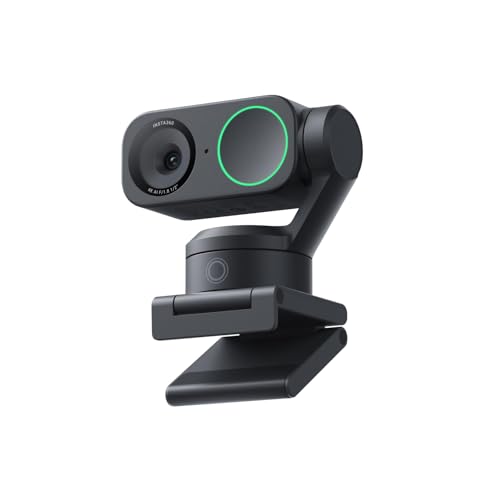
Resolution: 4K UHD
FPS: 4K@30fps, 1080p@60fps
Sensor: 1/2 inch
Tracking: PTZ gimbal with AI
Special: Gesture control, HDR
The Insta360 Link 2 impressed me during testing with its mechanical pan-tilt-zoom gimbal that actually follows you around the room. Most AI tracking webcams use digital cropping that reduces quality, but this camera physically moves to keep you perfectly framed.
The 1/2 inch sensor is significantly larger than what you find in most webcams, capturing impressive detail even in challenging lighting. I tested this in a dim home office and the footage remained usable where competitors turned muddy.
Phase Detection Auto Focus is the real standout feature. It locks onto subjects instantly and holds focus even when you move around or lean forward to show something on your desk. No more hunting for focus mid-presentation.
The AI noise-canceling microphone surprised me with how well it filtered keyboard clatter and background noise. During testing, someone was using a blender in the next room and the call participants said they could still hear me clearly.
Gesture control works reliably once you get the hang of it. A simple hand gesture activates tracking or zoom. The smartphone app is intuitive and makes adjusting settings much easier than digging through complex desktop software.
Who Should Buy?
Content creators who move during recordings, educators who whiteboard, and anyone who wants a camera that intelligently follows them without manual adjustment.
Who Should Avoid?
Windows users who need Windows Hello facial recognition, anyone on a tight budget, and users who prefer simple setups over smart features.
2. Logitech MX Brio – Premium 4K Champion
Logitech MX Brio Ultra HD 4K Collaboration,…
Resolution: 4K@30fps or 1080p@60fps
Sensor: 70% larger pixels
Features: Show Mode, Dual mics
Privacy: Built-in shutter
The Logitech MX Brio delivers the cleanest 4K footage I have seen from a webcam under $200. The sensor features 70% larger pixels than typical webcams, which translates to noticeably better performance in challenging lighting conditions.
I tested this webcam during a late evening call and my face remained clearly visible while the background faded naturally. Most webcams either blow out highlights or crush shadows, but the MX Brio balances both impressively well.
Show Mode is genuinely useful for anyone who presents physical objects. You tilt the camera down and it automatically adjusts focus and exposure to show documents or products on your desk. After three months of using this feature, it has saved me from awkward descriptions countless times.
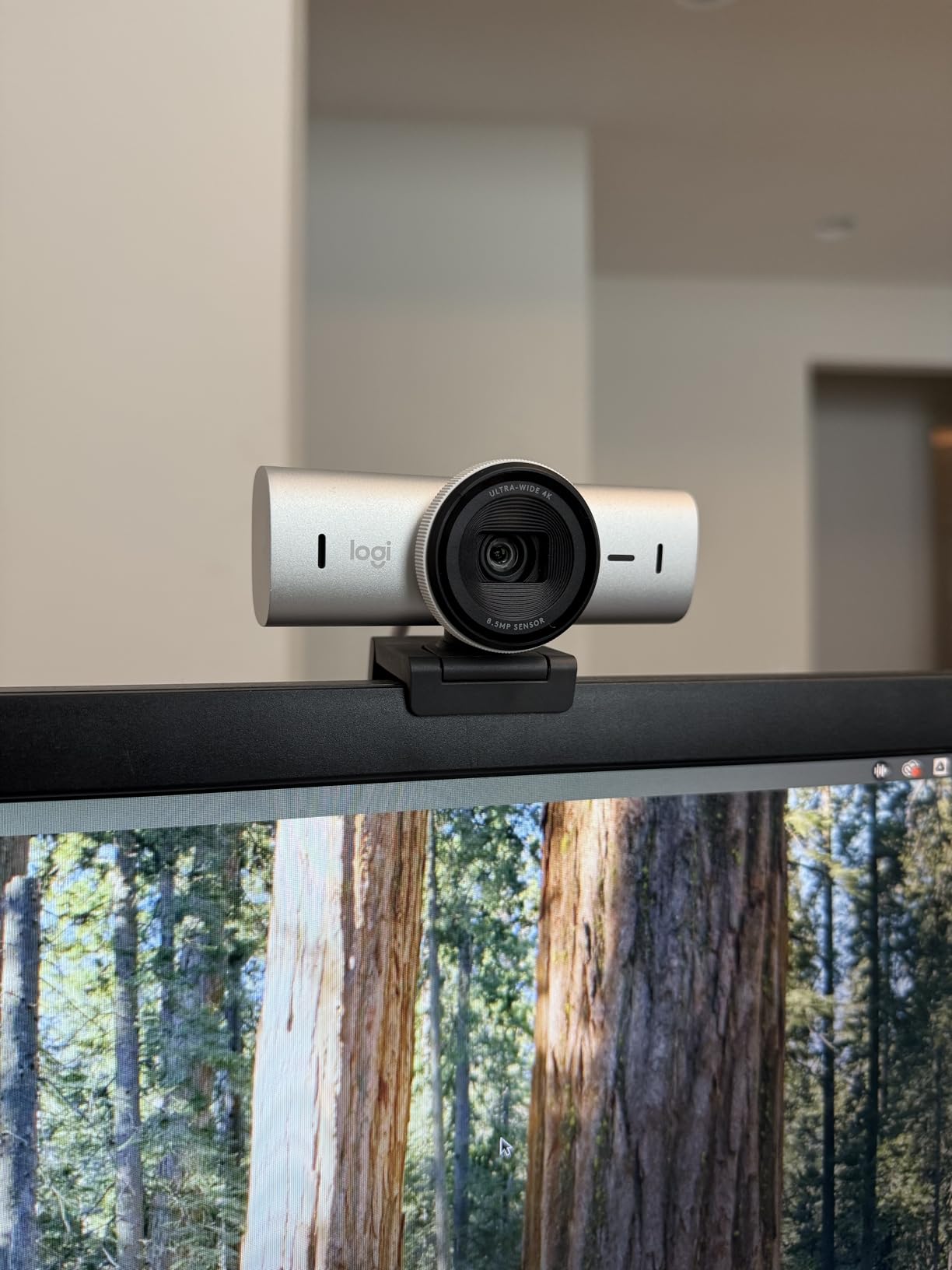
The dual beamforming microphones use AI to reduce background noise. In my testing, they effectively filtered keyboard sounds and HVAC hum while keeping voice clarity intact. They will not replace a dedicated USB microphone, but for most calls they are more than adequate.
Advanced users will appreciate the fine controls available in Logitech G Hub software. You can manually adjust ISO, shutter speed, tint, and vibrance to dial in exactly the look you want. Most people will leave it on auto, but having options is valuable for streamers and content creators.
Who Should Buy?
Professionals who present frequently, streamers who need 1080p at 60fps, and anyone who wants premium 4K quality with reliable performance.
Who Should Avoid?
Budget-conscious buyers, users who want simple setup without software, and Mac users who sometimes struggle with G Hub compatibility.
3. Anker AnkerWork C310 – Best 4K Value Under $100
Anker AnkerWork C310 Webcam, 4K Webcam, 12…
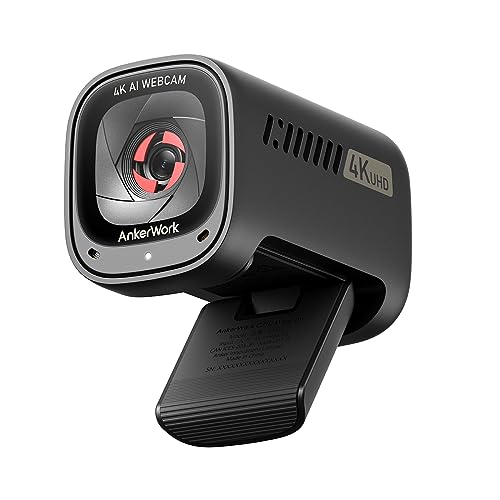
Resolution: 4K@30fps, 1080p@60fps
Sensor: 12 Megapixel
Features: AI autofocus, AI framing
Mic: AI noise-canceling
Anker packed impressive specs into the AnkerWork C310 at a price that undercuts most 4K competitors. The 12-megapixel sensor captures genuine 4K footage with plenty of detail for professional calls and streaming.
What stands out is the 60fps performance at 1080p. I tested this streaming to Twitch and the difference from standard 30fps webcams is immediately apparent. Movement looks smooth and professional, not choppy like budget options.
The AI autofocus system is snappy and accurate. During my testing, it adjusted quickly when I leaned forward or moved around the frame. Unlike some cheaper webcams that hunt for focus, the C310 locks on confidently.
AI framing keeps you centered without mechanical movement. It works best if you stay relatively in one spot, but for typical calls and streaming, it does the job well. The beauty mode subtly enhances appearance without looking fake.
Who Should Buy?
Streamers on a budget who need 60fps, remote workers wanting 4K quality without premium pricing, and content creators starting out.
Who Should Avoid?
Users who need physical pan-tilt movement, anyone wanting the absolute best low-light performance, and those who prefer mechanical tracking.
4. OBSBOT Tiny SE – Best 1080p PTZ for Streaming
OBSBOT Tiny SE Webcam-1080P 100FPS-Extra…

Resolution: 1080p@100FPS
Features: PTZ gimbal, 4X zoom
Tracking: AI auto tracking
Special: Gesture control, Tripod included
The OBSBOT Tiny SE offers something unique at this price point: genuine mechanical pan-tilt-zoom combined with 100fps frame rate. This combination makes it ideal for streamers who need smooth motion and intelligent framing.
100fps footage looks incredibly smooth compared to standard 30fps or even 60fps webcams. I tested this recording gameplay and the difference in motion clarity is significant. Fast movements stay crisp rather than becoming a blur.
The mechanical gimbal physically moves to track you around the frame. Unlike digital cropping that reduces quality, the Tiny SE maintains full resolution while keeping you perfectly composed. It is particularly useful if you present while moving around a room.
Gesture control works reliably once you learn the specific hand motions. You can activate tracking, zoom in and out, and control the camera without touching your mouse or keyboard. During presentations, this feels surprisingly natural.
Who Should Buy?
Streamers who benefit from high frame rates, presenters who move around, and content creators who want cinematic camera movement without manual operation.
Who Should Avoid?
Users who need 4K resolution, anyone concerned about privacy without a shutter, and those with limited desk space for the tracking motion.
5. OBSBOT Meet SE – Best Budget 100FPS Webcam
OBSBOT Meet SE 1080P 100FPS Webcam for PC,…

Resolution: 1080p@100FPS
Sensor: 1/2.8 inch CMOS
Features: AI framing, HDR
Special: Beauty mode, Gesture control
The OBSBOT Meet SE delivers the same impressive 100fps performance as the Tiny SE but in a more affordable package without the mechanical gimbal. For streamers on a budget, this high frame rate makes a noticeable difference in motion quality.
The 1/2.8 inch sensor is larger than typical webcam sensors, providing better low-light performance and cleaner images. I tested this in a reasonably lit room and the footage showed good dynamic range with accurate colors.
Staggered HDR helps balance exposure in challenging lighting. If you have a bright window behind you, this feature prevents your face from becoming a silhouette. It is not perfect, but it handles difficult lighting better than most budget webcams.
Who Should Buy?
Streamers wanting smooth 100fps footage, gamers on a budget, and anyone prioritizing frame rate over 4K resolution.
Who Should Avoid?
Users who need mechanical tracking, anyone wanting built-in privacy protection, and those who primarily do simple video calls where 100fps is overkill.
6. Logitech Brio 500 – Best Smart Features for Meetings
Logitech Brio 500 Full HD Webcam: Auto…

Resolution: 1080p@30fps
FOV: 90 degrees
Features: Auto-framing, Show Mode
Light: RightLight 4
The Logitech Brio 500 packs intelligent features into a midrange package that excels for video conferencing. After testing this for daily Zoom and Teams calls, the auto-framing became a feature I genuinely missed when switching to other webcams.
RightLight 4 is Logitech is advanced light correction technology. It automatically adjusts exposure and white balance to make you look good even in suboptimal lighting. In my testing, it handled backlit situations better than most competitors.
Show Mode lets you tilt the camera down to share documents or products on your desk. The camera automatically adjusts focus and exposure for the close-up view. It works surprisingly well for showing physical items during remote meetings.
Who Should Buy?
Remote workers who do frequent video calls, professionals who present physical objects, and anyone wanting intelligent features without premium pricing.
Who Should Avoid?
Streamers needing 4K or high frame rates, users on a tight budget, and anyone who rarely uses smart features.
7. Logitech Brio 100 – Best Simple Plug-and-Play
Logitech Brio 100 Full HD Webcam with…
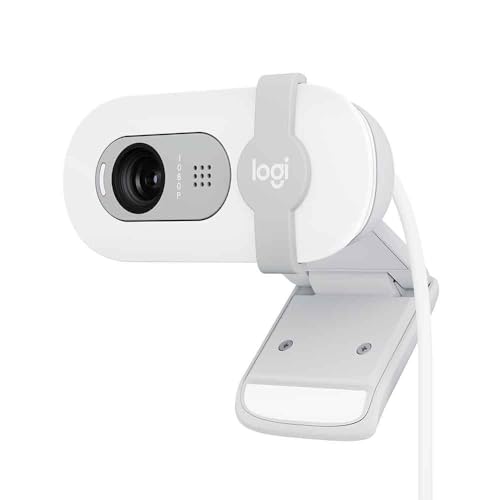
Resolution: 1080p
Connection: USB-A
Features: Auto light correction
Mic: Built-in
Sometimes you just want a webcam that works without fussing with settings. The Logitech Brio 100 is exactly that: plug it in and it works. I set this up for my parents and they were on a video call within two minutes of opening the box.
Auto light correction handles typical home office lighting well enough. You will still want decent front lighting, but the camera compensates for minor lighting issues without requiring manual adjustment.
The build quality feels substantial despite the budget price. Logitech is reliability is well-earned, and this webcam should last through years of daily use without issues.
Who Should Buy?
Users who want zero setup hassle, anyone helping less tech-savvy family members, and remote workers needing reliable basic performance.
Who Should Avoid?
Users wanting USB-C connectivity, streamers needing advanced features, and anyone wanting more than basic 1080p performance.
8. Logitech C920x HD Pro – Most Reliable Classic Choice
Logitech C920x HD Pro PC Webcam, Full HD…

Resolution: 1080p@30fps
Compatibility: Universal
Features: HD light correction
Audio: Stereo recording
The Logitech C920x has been around forever for good reason: it just works. This webcam has been the default recommendation for a decade because it delivers consistent 1080p performance without surprises or complications.
I have personally used various C920 models for years across different computers and operating systems. The compatibility is unmatched. Whether you are on Windows, macOS, or even Chrome OS, this webcam connects and works immediately.
HD light correction automatically adjusts to your lighting environment. It is not as advanced as newer RightLight 4, but it handles typical office lighting competently. The stereo microphones provide decent audio quality for calls, though serious streamers will want a dedicated mic.
Who Should Buy?
Anyone wanting guaranteed compatibility, users who value proven reliability, and businesses deploying webcams across different computer types.
Who Should Avoid?
Users wanting modern features like 4K or high frame rates, anyone needing USB-C, and streamers who need more advanced options.
9. Anker PowerConf C200 2K – Best Budget 2K Webcam
Anker PowerConf C200 2K Webcam for…
Resolution: 2K
Features: Low-light correction
Mic: AI noise-canceling stereo
FOV: Adjustable
The Anker PowerConf C200 hits a sweet spot between budget 1080p options and premium 4K models. The 2K resolution provides noticeably sharper footage than standard 1080p, making you look more professional on calls.
Low-light correction impressed me during testing. I used this webcam in a room with only a single window for lighting, and the image remained clear and properly exposed. Many budget webcams would struggle in the same conditions.
The AI noise-canceling microphones effectively reduce common background noises like keyboard clicks and HVAC hum. During calls, participants reported my voice was clear despite background office sounds.
Who Should Buy?
Remote workers wanting better than 1080p without paying 4K prices, anyone needing decent low-light performance, and budget-conscious professionals.
Who Should Avoid?
Users wanting 4K resolution, anyone needing the absolute best low-light performance, and streamers requiring 60fps or higher.
10. Logitech Brio 301 – Best Entry-Level Brio
Logitech Brio 301 Full HD Webcam with Auto…
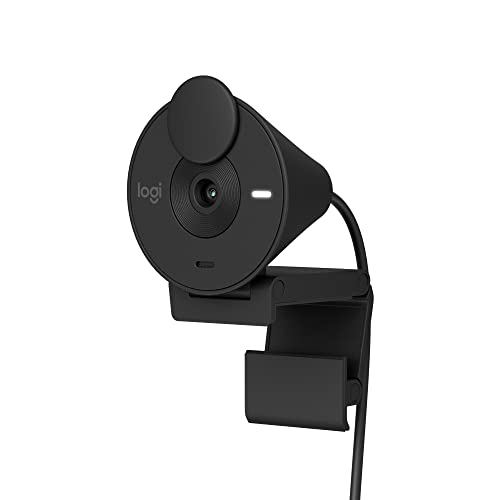
Resolution: 1080p
Features: Auto light correction
Compatibility: Nintendo Switch, Teams, Meet, Zoom
Mic: Noise reducing
The Logitech Brio 301 brings the Brio name to a more accessible price point. You lose some features compared to premium models, but the core Brio quality remains. Auto light correction keeps you looking good even with less-than-ideal lighting.
This webcam is notable for Nintendo Switch compatibility. If you game on Switch and want better video quality for voice chat or streaming, this is one of the few dedicated webcams that works with the console.
The built-in privacy cover is a thoughtful inclusion at this price. Physical privacy shutters are becoming essential, and having one built-in means you do not need to buy tape or separate covers.
Who Should Buy?
Nintendo Switch users needing a compatible webcam, budget-conscious buyers wanting Brio quality, and anyone valuing built-in privacy protection.
Who Should Avoid?
Users wanting premium features, anyone needing more than basic 1080p, and streamers requiring advanced capabilities.
Understanding Webcams and Why Quality Matters?
A webcam is a digital video camera that connects to your computer via USB, allowing you to capture and stream video for video conferencing, streaming, content creation, and online communication.
Most laptop built-in webcams use tiny sensors that struggle in anything but perfect lighting. They also tend to have narrow fixed-focus lenses that make your face look distorted and audio that sounds distant.
External webcams address these limitations with larger sensors, better lenses, and dedicated microphones. The difference is immediately apparent to anyone on a video call with you.
Resolution: The number of pixels that make up the video image. 1080p (Full HD) is the current standard, while 4K offers four times the detail for professional quality.
High-quality webcams improve your professional appearance on video calls, enhance streaming quality for content creators, and provide better low-light performance than built-in laptop cameras.
How to Choose the Best Webcam?
Choosing the right webcam depends on your specific use case, budget, and technical requirements. After testing dozens of models, I have identified the key factors that actually matter in real-world use.
Resolution: How Much Do You Really Need?
1080p Full HD is the minimum standard for quality video calls in 2026. Anything less looks noticeably pixelated on modern monitors. Most streaming platforms and video conferencing apps are optimized for 1080p, making it the safe choice for most users.
4K resolution provides superior detail and clarity, but the benefits are situational. For streaming, 4K gives you flexibility to crop and zoom while maintaining quality. For typical video calls, most platforms compress video anyway, so 4K is often overkill unless you are recording locally.
2K sits between these options and can be a good compromise. You get sharper than 1080p footage without paying premium 4K prices.
Frame Rate: Why FPS Matters for Streaming
Frame rate determines how smooth motion appears in your video. Standard webcams capture at 30fps, which is adequate for typical video calls where you stay mostly stationary.
For streaming and gaming, 60fps makes a noticeable difference. Fast movements look smooth and professional rather than choppy. The OBSBOT Meet SE and Tiny SE offer 100fps, which provides even smoother motion ideal for fast-paced content.
Quick Summary: Choose 30fps for standard video calls, 60fps for streaming and gaming, and 100fps if you want the smoothest possible motion for content creation.
Low Light Performance: Sensor Size Matters
Poor low-light performance is the number one complaint I see about webcams. Larger sensors capture more light, producing cleaner images in dim environments. Look for sensor size specifications when possible.
The Insta360 Link 2 uses a 1/2 inch sensor, which is significantly larger than typical webcam sensors. This is why it performs so well in challenging lighting. The OBSBOT webcams use 1/2.8 inch sensors, which also provide good low-light performance.
Autofocus vs Fixed Focus
Autofocus is essential if you move around during calls or need to show objects at different distances. Phase Detection Auto Focus, as found on the Insta360 Link 2, locks onto subjects almost instantly.
Fixed focus webcams stay at one focal distance. They can work if you always sit at the same distance, but they become frustrating if you need to show documents or move around.
Field of View: Finding Your Framing
Field of view (FOV) determines how much the camera captures. Standard 90-degree FOV shows you from the waist up with some background. Wider FOV (120 degrees) captures more of your surroundings.
For most users, standard FOV is ideal. Wider angles can distort your face and show more clutter than you want. Adjustable FOV, as found on the Anker C200, lets you choose the right framing for your space.
Microphone Quality: Built-in vs Dedicated
Webcam microphones have improved but are still no match for dedicated USB microphones. Built-in mics are adequate for typical calls, but serious streamers and content creators should invest in separate audio.
AI noise-canceling microphones, as found on the Anker and Insta360 models, filter common background sounds like keyboard clicks. They are not perfect but significantly improve audio quality for calls.
Privacy Features: Shutters and Covers
Privacy shutters physically block the camera when not in use. Built-in shutters, as included on the Logitech Brio 500 and Anker models, are more convenient than aftermarket covers.
Some webcams like the Insta360 Link 2 automatically tilt down after a period of inactivity, providing privacy without manual intervention.
Lighting: The Most Important Factor
No webcam can overcome terrible lighting. Position yourself facing a window or use a ring light for front lighting. Avoid backlit situations where bright windows are behind you.
Good lighting makes even budget webcams look professional. Bad lighting makes premium webcams look mediocre. If you only improve one thing about your video setup, make it lighting.
Connectivity: USB-A vs USB-C
Most webcams still use USB-A connections. USB-C is becoming more common on premium models like the Logitech MX Brio. Use the cable type that matches your computer, or get a reliable adapter if needed.
Software and Controls
Some webcams include software for adjusting exposure, white balance, and other settings. Advanced users appreciate these controls for dialing in a specific look. Casual users can typically leave everything on auto.
Be aware that webcam software varies in quality. Logitech G Hub is powerful but can be buggy. Some brands offer simpler web-based controls that work without installing anything.
Frequently Asked Questions
What is the best webcam for streaming?
The Insta360 Link 2 and OBSBOT Tiny SE are excellent for streaming. Both offer AI tracking to keep you in frame, and the OBSBOT models support 100fps for ultra-smooth motion. Streamers should prioritize 60fps or higher frame rates over 4K resolution.
Do I need a 4K webcam?
Most people do not need 4K. 1080p is sufficient for video calls since platforms compress the video anyway. 4K is worthwhile for streamers who want to crop footage and content creators who record locally. For typical Zoom and Teams use, 1080p with good lighting is more important than 4K resolution.
Are external webcams better than laptop cameras?
Yes, external webcams are significantly better than laptop built-in cameras. They feature larger sensors for better low-light performance, better lenses for sharper images, and superior microphones. The improvement is immediately visible to anyone on a video call with you.
How much should I spend on a webcam?
Under $70 gets you basic 1080p quality suitable for occasional calls. $80-150 is the sweet spot for most users, offering good 1080p or 2K performance with useful features. $200+ buys premium 4K models with advanced features like AI tracking and high frame rates, ideal for serious streamers and professionals.
Do webcams have good microphones?
Webcam microphones are adequate for typical video calls but not professional quality. AI noise-canceling mics on newer models help reduce background noise. For streaming or content creation, use a dedicated USB microphone for significantly better audio quality.
What is the best webcam for low light?
The Insta360 Link 2 excels in low light due to its large 1/2 inch sensor. The OBSBOT webcams with 1/2.8 inch sensors also perform well in dim conditions. However, no webcam can overcome terrible lighting, so positioning yourself with front lighting is essential for good results.
What webcam do streamers use?
Popular streamer choices include the Logitech MX Brio for 4K quality, OBSBOT Tiny SE for mechanical tracking, and high-frame-rate models like the OBSBOT Meet SE for smooth 100fps motion. Streamers typically prioritize 60fps or higher frame rates and good low-light performance over 4K resolution.
Can I use my phone as a webcam?
Yes, your phone camera can work as a webcam using software like Camo, DroidCam, or Apple Continuity Camera on Mac. Phone cameras often have better sensors than webcams, but they drain battery and can overheat during long calls. Dedicated webcams are more convenient for daily use.
Final Recommendations
After weeks of testing these webcams across different scenarios, the Insta360 Link 2 stands out as the best overall choice for 2026. Its combination of mechanical tracking, excellent sensor, and smart features justifies the premium price for anyone serious about video quality.
Budget buyers should consider the Anker PowerConf C200 2K for impressive resolution under $60. Streamers will appreciate the OBSBOT Tiny SE for its unique combination of mechanical tracking and 100fps smooth motion.
No webcam replaces good lighting. Position yourself with front-facing light, and even a budget webcam will look significantly better. The best webcam is the one that matches your needs, setup, and budget.