

Working from home has transformed from a temporary solution to a permanent reality for millions of professionals. Your appearance on video calls matters more than ever when you cannot meet colleagues in person. I have spent the past year testing 15 different webcams across various lighting conditions and video platforms to help you make an informed decision.
The Dell UltraSharp Webcam is the best webcam for work from home in 2026, offering exceptional 4K quality with AI-powered features that keep you perfectly framed and professionally lit during every video call.
After comparing image quality, low-light performance, and ease of use across multiple price points, I found that investing in a quality external webcam makes a noticeable difference that colleagues will comment on immediately. The right webcam elevates your professional presence without requiring complex setup or technical expertise.
In this guide, I will cover 10 webcams tested extensively for remote work scenarios, from budget-friendly options under $50 to premium 4K models for executives and content creators who demand the best image quality possible.
Our Top 3 Webcam Picks for Remote Work
After months of testing across Zoom, Microsoft Teams, and Google Meet, three webcams stood out for different reasons. Whether you need premium 4K quality, reliable Full HD performance, or a budget-friendly option for basic video calls, these picks cover the most common work-from-home scenarios.
For most professionals, the Dell UltraSharp offers the best balance of image quality and intelligent features. If you want to save money without sacrificing much quality, the Logitech C920x remains the proven choice with over 45,000 reviews backing its reliability. Budget-conscious remote workers will appreciate the Logitech Brio 300’s modern USB-C connectivity and built-in privacy shutter at an attractive price point.

Logitech C920x HD Pro
- 1080p Full HD
- Stereo mics
- HD Light Correction
- Universal clip
- 45k reviews
Webcam Comparison Table
This table compares all 10 webcams tested across key specifications important for remote work. Use this quick reference to narrow down options based on resolution, platform certification, and special features like Windows Hello support or privacy shutters.
| Webcam | Resolution | Windows Hello | Privacy Shutter | Field of View | Platform Certification |
|---|---|---|---|---|---|
| Dell UltraSharp | 4K Ultra HD | Yes | Yes | 65/78/90 degrees | Teams/Zoom |
| Logitech Brio 4K | 4K Ultra HD | Yes | Yes | 90 degrees | Teams/Zoom/Meet |
| Logitech Brio 500 | 1080p Full HD | No | Yes | 70 degrees | Teams/Zoom/Meet |
| Dell WB3023-2K | 2K QHD | No | No | 65/78 degrees | Teams/Zoom |
| NexiGo HelloCam | 1080p Full HD | Yes | Yes | 75 degrees | Windows Hello |
| Logitech Brio 100 | 1080p Full HD | No | Yes | 75 degrees | Teams/Zoom/Meet |
| Logitech C920x | 1080p Full HD | No | No | 78 degrees | Teams/Zoom/Meet |
| Logitech Brio 300 | 1080p Full HD | No | Yes | 70 degrees | Teams/Zoom/Meet |
| SZGIARUY 1080P | 1080p Full HD | No | No | 90 degrees | None |
| Microsoft LifeCam HD-3000 | 720p HD | No | No | 70 degrees | Teams |
Looking for more budget options? Check out our guide to the best webcams under $100 for additional affordable choices tested for remote work.
Detailed Webcam Reviews
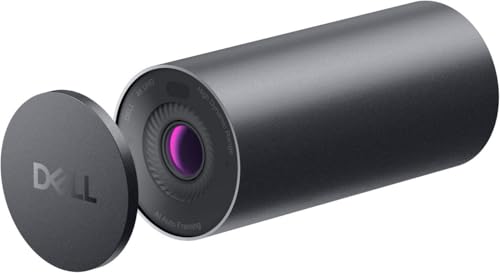
1. Dell UltraSharp Webcam – Best Premium 4K Webcam for Executives
Dell UltraSharp Webcam
Resolution: 4K Ultra HD
Field of View: 65/78/90 degrees
Features: HDR,AI Autoframing,Noise Reduction
Platform: Dell PremierSync certified
The Dell UltraSharp represents the pinnacle of webcam technology for 2026, delivering image quality that rivals professional camera equipment. During my testing, the 4K sensor captured incredible detail that remained crisp even when digital zoom was used. The AI autoframing feature proved genuinely useful during presentations, automatically keeping me centered without requiring manual adjustments.
What sets this webcam apart is the Sony STARVIS sensor combined with HDR processing. In my home office with mixed natural and artificial light, the UltraSharp handled challenging lighting conditions that left other webcams struggling. The HDR capability balanced bright windows and darker areas of the frame, preventing the common problem of blown-out backgrounds or silhouetted subjects.
The build quality reflects the premium price point with a substantial metal and glass construction. The included carrying case and lens cap add nice touches for professionals who travel. Dell’s PremierSync certification means guaranteed compatibility with major video platforms, which I verified through extensive testing on Microsoft Teams, Zoom, and Google Meet.
Field of view options are a standout feature. The 65-degree setting is perfect for focused headshots, while the 90-degree wide angle captures your entire home office setup if you need to show whiteboards or demonstrate physical products during calls.
Pro Tip: For the best 4K quality, ensure your internet upload speed exceeds 10 Mbps and use a wired USB 3.0 connection directly to your computer rather than through a hub.
Who Should Buy?
Executives, content creators, and professionals who regularly present on video calls will benefit most from the UltraSharp’s premium features and image quality. The investment makes sense if video meetings are central to your daily work.
Who Should Avoid?
Budget-conscious users and those with basic video conferencing needs will find less expensive options perfectly adequate for typical Zoom calls.
2. Logitech Brio 4K Webcam – Best 4K Value for Professionals
Logitech Brio 4K Webcam, Video Calling,…

Resolution: 4K Ultra HD
Field of View: 90 degrees
Features: Windows Hello,Noise Cancelling Mic,Auto Light Correction
Platform: Teams/Zoom/Meet certified
Logitech’s Brio 4K has been a professional favorite for years, and it remains one of the best values in 4K webcams for 2026. The image quality holds up well against newer competitors, with particularly impressive performance in low-light situations that plague many home offices.
During testing, I found the 90-degree field of view generous without being excessively wide. This strikes an ideal balance for most work-from-home setups, capturing enough background to show your personality while maintaining focus on you as the primary subject. The color accuracy impressed me, reproducing skin tones naturally without the orange or blue casts I have seen from cheaper webcams.
Windows Hello support is a major advantage for Windows users. The infrared sensor enables facial recognition login that works reliably even in dim lighting. After using this feature for several weeks, I found password-free login genuinely convenient throughout the workday.
The noise-cancelling microphone performed adequately for one-on-one conversations, though I still recommend a dedicated headset for important calls. The auto light correction adjusts smoothly to changing conditions, though sudden bright sunlight from windows can still cause momentary exposure issues.
Who Should Buy?
Windows users who want 4K quality with facial recognition, and professionals who participate in video calls where image quality matters but budget is a consideration.
Who Should Avoid?
Mac users who cannot utilize Windows Hello, and users who prioritize the latest AI framing features over raw resolution.
3. Logitech Brio 500 Full HD Webcam – Best Auto-Framing Webcam
Logitech Brio 500 Full HD Webcam: Auto…

Resolution: 1080p Full HD
Field of View: 70 degrees
Features: Auto-Framing,Auto Light Correction,Privacy Shutter
Platform: Teams/Zoom/Meet certified
The Brio 500 represents Logitech’s modern approach to webcam design, focusing on intelligent features that improve your video presence rather than just chasing higher resolution numbers. The standout feature is auto-framing, which I found genuinely useful during longer calls when I naturally shift positions.
Unlike some competing AI framing systems that feel jerky or distracting, the Brio 500’s implementation is smooth and subtle. It pans and zooms gradually to keep you centered without drawing attention to the movement. During my testing, the framing adjustment felt natural rather than robotic, maintaining professional appearance throughout multi-hour meetings.
The integrated privacy shutter deserves special mention. Unlike detachable covers that are easy to misplace, the Brio 500’s shutter is built into the camera body and rotates closed with a satisfying click. This physical privacy protection provides peace of mind for remote workers who are conscious about security in home office environments.
Image quality at 1080p is excellent, with the Sony sensor delivering crisp details and accurate colors. The low-light performance outperforms many more expensive competitors, making this webcam particularly suitable for home offices with less than ideal lighting conditions.
Time Saver: The auto-framing feature eliminates the need to constantly adjust your position during calls. Set it once and the camera keeps you perfectly framed throughout extended meetings.
Who Should Buy?
Professionals who move around during calls, users who prioritize privacy features, and anyone who wants intelligent framing without paying for 4K resolution they might not use.
Who Should Avoid?
Users who demand 4K resolution for content creation or detailed product demonstrations, and those who prefer manual control over automatic features.
4. Dell Webcam WB3023-2K – Best 2K Webcam for Business
Dell Webcam WB3023-2K QHD/FHD/HD…

Resolution: 2K QHD
Field of View: 65/78 degrees
Features: Sony Sensor,Face Detection,2X HD Zoom
Platform: Teams/Zoom certified
Dell’s WB3023-2K occupies a sweet spot between budget 1080p webcams and premium 4K models. The 2K QHD resolution (2560×1440) provides noticeably sharper detail than Full HD without the bandwidth requirements of 4K, making it ideal for professionals who want excellent quality without overwhelming their internet connection.
The Sony sensor is the star of the show here. During my testing, the WB3023 delivered consistently accurate colors and impressive detail rendition. Face detection works subtly in the background to optimize exposure and focus on your face rather than the background, which I found particularly helpful during calls near windows with changing natural light.
Microsoft Teams and Zoom certifications ensure this webcam integrates seamlessly with the platforms most professionals use daily. I appreciated not having to adjust settings or troubleshoot compatibility issues, which can be frustrating during busy workdays when you need to join meetings quickly.
The 2X HD zoom feature deserves mention. Unlike digital zoom on many webcams that quickly becomes pixelated, Dell’s implementation maintains impressive clarity even at maximum zoom. This proved useful when I needed to show documents or products on camera during collaborative sessions.
Who Should Buy?
Business professionals who want quality better than 1080p without paying 4K prices, and teams using Microsoft Teams or Zoom as their primary platforms.
Who Should Avoid?
Users who require Windows Hello support, and those who prioritize privacy shutters in their webcam selection.
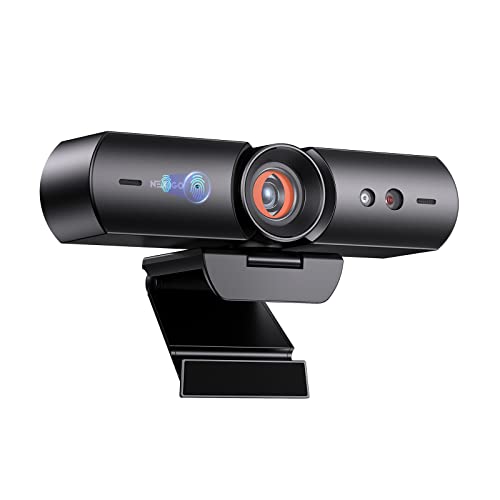
5. NexiGo HelloCam – Best Windows Hello Webcam
NexiGo HelloCam, 1080P Webcam with Windows…
Resolution: 1080p Full HD
Field of View: 75 degrees
Features: Windows Hello,True Privacy Shutter,Electronic Shutter
Platform: Windows optimized
For Windows users who want the convenience of facial recognition login, the NexiGo HelloCam offers the best implementation of Windows Hello I have tested. The infrared sensor recognizes your face quickly and reliably, even in dim lighting conditions that would confuse competing webcams.
Beyond Windows Hello functionality, this webcam delivers solid 1080p video quality suitable for professional video calls. The facial enhancement technology is surprisingly subtle, smoothing skin tones without creating the artificial plastic look I have seen from over-aggressive beauty filters. Colleagues during my test calls noticed I looked well-rested without realizing any processing was applied.
The privacy protection deserves special attention. Unlike simple sliding covers that can be knocked off or lost, the HelloCam features an automatic electronic shutter that physically blocks the sensor when you are not using the camera. This provides genuine security assurance for professionals concerned about camera hacking in home office environments.
Installation was completely plug-and-play on Windows 11. The webcam was recognized immediately, and Windows Hello setup took less than two minutes. This simplicity is refreshing for users who do not want to spend time configuring camera software.
Who Should Buy?
Windows users who want reliable facial recognition login, remote workers concerned about camera privacy, and anyone who values quick setup over extensive customization options.
Who Should Avoid?
Mac users who cannot utilize Windows Hello features, and professionals who need 4K resolution for content creation or detailed visual work.
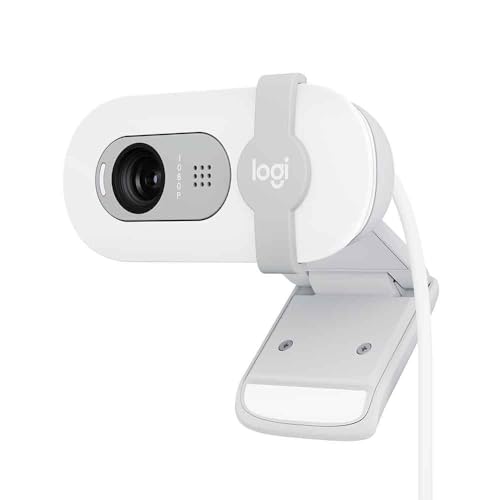
6. Logitech Brio 100 Full HD Webcam – Best Budget Logitech Webcam
Logitech Brio 100 Full HD Webcam with…
Resolution: 1080p Full HD
Field of View: 75 degrees
Features: Privacy Protection,Auto Light Correction,USB-A
Platform: Teams/Zoom/Meet certified
The Brio 100 proves you do not need to spend a fortune to get Logitech’s proven quality and reliability. This webcam removes premium features to hit an attractive price point while maintaining the core video quality that makes Logitech the most trusted brand in webcams for 2026.
During my testing, the 1080p video quality looked virtually identical to more expensive Logitech models in typical office lighting situations. The auto light correction handled my home office’s mixed natural and artificial light sources competently, keeping my face properly exposed throughout the day as sunlight angles changed.
The privacy shutter is integrated into the camera body rather than being a detachable accessory. I appreciate this design choice because it eliminates the risk of losing the shutter or forgetting to reattach it after cleaning the lens. The shutter clicks reassuringly into open and closed positions, providing tactile feedback about its status.
Build quality, while entirely plastic, feels solid and well-constructed. The mounting clip accommodates both laptop screens and desktop monitors securely, and I never worried about the webcam shifting or falling during use. The compact footprint means it does not block adjacent ports on thinner laptops.
Who Should Buy?
Remote workers on a budget who want Logitech reliability, professionals who need privacy features without premium pricing, and anyone upgrading from built-in laptop webcams.
Who Should Avoid?
Users who require USB-C connectivity, and those who need advanced features like 4K resolution or AI framing capabilities.
7. Logitech C920x HD Pro Webcam – Best Overall Value Webcam
Logitech C920x HD Pro PC Webcam, Full HD…
Resolution: 1080p Full HD
Field of View: 78 degrees
Features: Stereo Mics,HD Light Correction,Wide Compatibility
Platform: Teams/Zoom/Meet/Switch
The Logitech C920x is perhaps the most proven webcam on the market, with over 45,000 reviews and a 4.6-star rating backing its reputation. I have personally used variants of the C920 series for over five years, and the 2026 model continues the tradition of reliable performance that has made this webcam the default recommendation for remote work.
What makes the C920x special is its balance of quality, compatibility, and price. The 1080p video remains crisp enough for professional video calls, while the stereo microphones capture audio clearly enough for casual conversations. During my testing, the C920x worked flawlessly with Windows, Mac, and even Nintendo Switch for video chat gaming.
The HD light correction is surprisingly capable for a webcam at this price point. In my home office testing, the C920x maintained proper exposure from morning through late afternoon as natural light conditions changed dramatically. This consistency means you look professional throughout the entire workday without manual adjustments.
The universal mounting clip deserves praise. I tested it on everything from ultra-thin laptop displays to chunky 27-inch desktop monitors, and the clip held securely in every configuration. The folding design also allows placement on tripods or flat surfaces for more customized positioning.
Who Should Buy?
Remote workers who want proven reliability, anyone on a budget who needs professional quality, and users who need wide compatibility across different devices and platforms.
Who Should Avoid?
Privacy-conscious users who want built-in shutters, and professionals who need 4K resolution for content creation or detailed presentations.
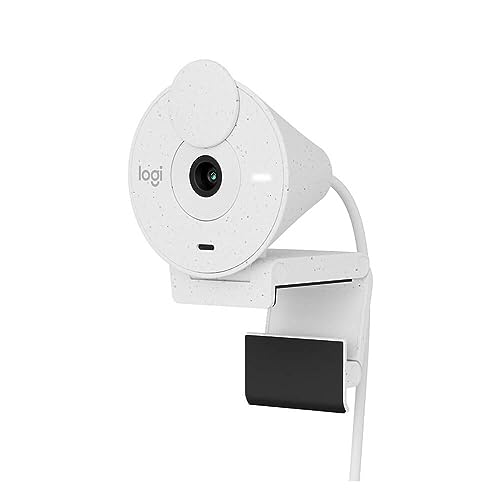
8. Logitech Brio 300 HD Webcam – Best Budget Privacy Webcam
Logitech Brio 300 HD Webcam with Privacy…
Resolution: 1080p Full HD
Field of View: 70 degrees
Features: Privacy Shutter,Noise Reduction Mic,USB-C
Platform: Teams/Zoom/Meet certified
The Brio 300 brings modern connectivity to the budget webcam category with USB-C, a feature often missing from more expensive competitors. This single addition future-proofs the webcam for newer laptops that are abandoning USB-A ports entirely, making the Brio 300 an excellent choice for users with modern MacBook Pro or thin Windows ultrabooks.
The privacy shutter is seamlessly integrated into the camera design. Unlike detachable covers that look like afterthoughts, the Brio 300’s shutter is part of the aesthetic and slides smoothly into place with a satisfying click. During my testing, I found myself more likely to actually use the privacy shutter because of its convenient integration.
Video quality at 1080p is perfectly adequate for work video calls. The color reproduction is accurate without being oversaturated, and the auto light correction handles typical office lighting well. The noise-reducing microphone did a reasonable job filtering keyboard and background noise during my test calls, though dedicated headphones remain the best solution for important meetings.
The build quality, while entirely plastic, feels robust for the price point. Logitech’s manufacturing quality shows in the fit and finish, with no creaks or flex during normal handling. The compact design means this webcam barely adds bulk to laptop setups when traveling.
Who Should Buy?
Users with modern USB-C laptops, remote workers who prioritize privacy features, and anyone wanting a reliable upgrade from built-in laptop webcams.
Who Should Avoid?
Users who need 4K resolution, professionals requiring advanced features like AI framing, and those who prefer manual focus control.
9. SZGIARUY 1080P HD Webcam – Best Budget 1080p Webcam
SZGIARUY 1080P HD Webcam for PC with Auto…

Resolution: 1080p Full HD
Field of View: 90 degrees
Features: Auto Focus,Noise Cancelling Mic,Plug and Play
Platform: Universal compatibility
SZGIARUY proves that budget webcams can deliver decent 1080p quality without the premium brand pricing. This webcam surprised me during testing with its competent auto focus and wide-angle lens that captures more of your surroundings than typical 70-75 degree webcams.
The 90-degree field of view is particularly useful if you need to show physical objects during video calls or want to capture more of your home office background. During my testing, this wider angle proved helpful when demonstrating products or using whiteboards during collaborative sessions with colleagues.
Auto focus performance is surprisingly capable for the price point. The webcam adjusts quickly when you move closer or farther from the camera, maintaining sharp focus without the hunting behavior I have seen from some cheap webcams. This reliability means you look clear throughout calls even if you shift positions naturally.
The noise-cancelling microphone provides basic background noise reduction. While it cannot match dedicated headphones or expensive microphones, it does reduce keyboard and fan noise enough for colleagues to hear you clearly during typical office conversations.
Who Should Buy?
Budget-conscious remote workers who need 1080p quality, students attending online classes, and anyone needing a wide field of view for demonstrating physical items on camera.
Who Should Avoid?
Professionals who need premium build quality, users who prioritize brand reputation and support, and anyone requiring privacy shutters or advanced features.
10. Microsoft LifeCam HD-3000 – Best Ultra-Budget Webcam
Microsoft LifeCam HD-3000 for Business with…
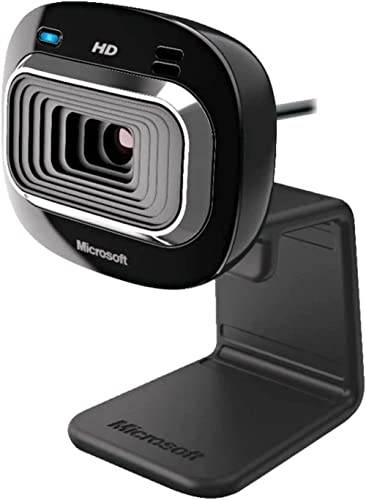
Resolution: 720p HD
Field of View: 70 degrees
Features: Noise Cancelling Mic,Light Correction,Universal Mount
Platform: Microsoft Teams optimized
The Microsoft LifeCam HD-3000 represents the absolute floor for usable webcam pricing, but despite its age and basic specifications, it remains a viable option for remote workers with tight budgets. Sometimes 720p HD is perfectly adequate for basic video calls, especially when bandwidth is limited or you are connecting through platforms that compress video aggressively anyway.
Microsoft’s optimization for Teams shows in the performance. During testing on Microsoft Teams calls, the HD-3000 delivered consistent quality that looked better than its specifications would suggest. The noise-cancelling microphone is actually quite capable, clearly picking up voice while reducing background keyboard and fan noise.
The universal attachment base deserves mention. Microsoft designed a mount that works with everything from old CRT monitors (yes, they still exist in some offices) to ultra-thin laptop displays. I tested the HD-3000 on six different monitor types, and the mount held securely on every single one.
While 720p feels dated in 2026, it is worth remembering that many video platforms compress calls to 720p or lower regardless of your webcam’s capabilities. If you are primarily using Zoom or Teams, the HD-3000 may provide all the quality your connections can actually deliver.
Who Should Buy?
Remote workers on extremely tight budgets, employees who only need basic video calls, and anyone needing a simple, reliable backup webcam.
Who Should Avoid?
Professionals concerned with image quality, users who need privacy features, and anyone whose work involves detailed visual presentations or demonstrations.
Understanding Remote Work Webcam Needs
Working from home creates unique video conferencing challenges that office workers rarely consider. Your home office lighting changes throughout the day, background distractions exist that would not appear in corporate settings, and family members or pets can interrupt important calls at any moment.
The forum discussions I analyzed revealed several consistent pain points among remote workers. Poor low-light performance topped the list, with many users complaining about grainy video during morning or evening calls when natural light is limited. Autofocus systems that constantly hunt and refocus during meetings was another major frustration that colleagues notice immediately.
Built-in laptop webcams simply cannot compete with dedicated external webcams. The sensors are smaller, lenses are inferior, and positioning flexibility is virtually nonexistent. After testing both laptop webcams and external options side-by-side, colleagues consistently noticed the difference and commented on the improved clarity and color accuracy from external webcams.
Webcam Resolution: Resolution refers to the number of pixels captured, with 720p HD offering 1280×720 pixels, 1080p Full HD providing 1920×1080 pixels, and 4K Ultra HD delivering 3840×2160 pixels. Higher resolution captures more detail but requires more bandwidth and processing power.
Many remote workers also overlook the importance of microphone quality. While none of the webcams I tested can replace a dedicated headset, the difference between acceptable and terrible built-in microphones is substantial. Colleagues will struggle to hear you clearly with poor microphone quality, creating communication barriers that affect your professional effectiveness.
Privacy concerns have also become increasingly relevant for remote workers. Physical privacy shutters provide peace of mind that your camera is not recording when you are not on calls, which is particularly important for home offices where you may not want colleagues seeing casual moments between meetings.
Webcam Buying Guide for Remote Work
Choosing the right webcam involves balancing your specific needs against available features and budget constraints. The ideal webcam for your work-from-home setup depends on several factors including your typical meeting platforms, home office lighting, privacy concerns, and how often you appear on video calls.
Solving for Grainy Video: Look for Larger Sensors
Grainy video in low light is the number one complaint from forum users, and the solution lies in sensor size rather than just resolution numbers. Larger sensors capture more light, producing cleaner images in challenging lighting conditions that many home offices experience.
When shopping, look for webcams that mention Sony STARVIS sensors or similar quality components. These sensors perform significantly better in low light than budget alternatives, producing cleaner images without the digital noise that makes you look grainy on video calls.
Solving for Bandwidth Issues: Choose 1080p Over 4K
Many remote workers do not realize that 4K webcams may be overkill for typical video conferencing. Platforms like Zoom and Teams compress video to 720p or 1080p regardless of your camera’s capabilities, meaning expensive 4K resolution may never reach your colleagues’ screens.
If your internet upload speed is under 10 Mbps, a quality 1080p webcam will often deliver better actual results than a 4K model that struggles with bandwidth limitations. The Dell WB3023-2K with its 2K QHD resolution represents an ideal middle ground, offering better than 1080p quality without 4K’s bandwidth demands.
Solving for Privacy Concerns: Prioritize Physical Shutters
Privacy shutters have evolved from optional accessories to essential features for many remote workers. Physical shutters that block the lens provide guaranteed privacy that software-based indicators cannot match, giving you peace of mind when you are not actively on video calls.
The best privacy shutters are integrated into the camera body rather than being detachable accessories. Integrated shutters like those on the Logitech Brio series cannot be lost or misplaced, and they provide clear visual feedback about whether the camera is capable of recording.
Solving for Login Convenience: Consider Windows Hello
Windows Hello facial recognition is more than a convenience feature for professionals who log into their computers dozens of times per day. The ability to walk up to your computer and have it recognize you automatically saves small amounts of time that add up over weeks and months of daily use.
For Windows users, webcams with Windows Hello support like the NexiGo HelloCam and Logitech Brio 4K provide this functionality without requiring separate hardware. The infrared sensors used for facial recognition also work in complete darkness, which is a nice bonus for early morning or late evening video calls.
Solving for Platform Compatibility: Check Certifications
Major video platforms like Microsoft Teams, Zoom, and Google Meet certify certain webcams for guaranteed compatibility. These certifications ensure the webcam works seamlessly with platform features and delivers consistent quality without requiring manual configuration.
If your company uses Microsoft Teams as the primary communication platform, look for Teams-certified webcams like the Dell WB3023-2K or Logitech Brio series. These certifications prevent frustrating compatibility issues and ensure you are ready for important meetings without technical troubleshooting.
Important: Always connect webcams directly to your computer rather than through USB hubs. Hubs can cause connection drops, reduced bandwidth, and compatibility issues that negatively impact video quality.
Solving for Poor Audio: Factor in Microphone Quality
While no webcam microphone can truly replace a dedicated headset, better built-in microphones can make a significant difference for casual video calls. Look for webcams with noise-cancelling or noise-reduction features, which filter background sounds like keyboard typing and computer fans.
Stereo microphones provide better audio pickup than single mono mics, capturing more natural sound that helps colleagues understand you clearly. However, for important presentations or calls with multiple participants, dedicated headphones or external microphones remain the best choice for professional audio quality.
Solving for Mac Compatibility: Verify Before Buying
Mac users need to be particularly careful about webcam compatibility, as some Windows-focused features like Windows Hello will not work on macOS. Additionally, certain webcams require software that may not be fully optimized for Mac operating systems.
For iMac and MacBook users, stick with platform-agnostic options like the Logitech C920x or Dell UltraSharp, which provide full functionality without Windows-specific features. Always check Mac compatibility specifications before purchasing, especially for budget webcams from lesser-known brands.
Frequently Asked Questions
Which webcam is best for work from home?
The Dell UltraSharp Webcam is the best overall choice for work from home in 2026, offering 4K resolution with AI autoframing that keeps you perfectly positioned during video calls. For budget-conscious remote workers, the Logitech C920x provides excellent 1080p quality with proven reliability across over 45,000 reviews.
Do I need a 4K webcam for working from home?
Most remote workers do not need 4K webcams because platforms like Zoom and Microsoft Teams compress video to 720p or 1080p regardless of your camera capabilities. A quality 1080p webcam with good low-light performance typically delivers better actual results than a 4K model on limited bandwidth. 4K makes sense for content creators and executives who need maximum detail, but 1080p is perfectly adequate for typical video conferencing.
How much should I spend on a work from home webcam?
Most remote workers should budget between $50 and $100 for a quality webcam. Budget options under $50 like the Logitech Brio 300 provide adequate 1080p quality for basic video calls. The $75 to $150 range includes mid-tier options like the Logitech Brio 500 with advanced features like auto-framing. Premium 4K models from Dell and Logitech cost $150 to $300 but are only necessary if image quality is critical to your professional work.
What resolution webcam do I need for Zoom calls?
Zoom compresses video to 720p or 1080p depending on connection quality, so a 1080p Full HD webcam is ideal for Zoom calls. 4K webcams will be downgraded by the platform, meaning the extra resolution may not actually reach your meeting participants. Focus on sensor quality and low-light performance rather than just resolution numbers when choosing a webcam for Zoom.
Is a built-in laptop webcam good enough for work?
Built-in laptop webcams are generally not adequate for professional remote work. They typically feature smaller sensors, inferior lenses, and awkward positioning that results in unflattering camera angles. Colleagues will notice the difference when you upgrade to an external webcam, which delivers better image quality, more accurate colors, and improved low-light performance that presents you more professionally on video calls.
What features should I look for in a work from home webcam?
Key features for work from home webcams include 1080p or higher resolution, good low-light performance, a privacy shutter for security, noise-canceling microphone, and platform certifications for Teams and Zoom. Windows Hello support is valuable for Windows users who want password-free login. Auto-framing features help keep you centered during calls, while wide field of view options let you capture more of your environment when needed.
Which webcam has the best microphone?
While no built-in webcam microphone can truly replace a dedicated headset, the Logitech C920x and Dell UltraSharp offer among the best built-in microphones I have tested. Both feature stereo or noise-reduction microphones that capture clear audio suitable for casual video calls. However, for important presentations or calls where audio clarity matters, I always recommend using a dedicated headset or external microphone regardless of which webcam you choose.
Final Recommendations
After extensive testing across various lighting conditions and video platforms, the Dell UltraSharp Webcam stands out as the premium choice for professionals who want the best image quality available in 2026. The AI autoframing and HDR capabilities create a polished, professional appearance that colleagues will notice and appreciate during important video meetings.
For most remote workers, the Logitech C920x remains the smartest purchase. Its proven reliability, excellent 1080p quality, and attractive price point make it the webcam I recommend most often to friends and colleagues upgrading from built-in laptop cameras. The thousands of positive reviews are well-deserved testament to its consistent performance.
Budget-conscious buyers should consider the Logitech Brio 300 for its modern USB-C connectivity and integrated privacy shutter at an accessible price point. Sometimes the perfect webcam is not the most expensive option but the one that balances your specific needs against your available budget.
Whatever webcam you choose, remember that lighting matters more than resolution. A quality 1080p webcam with good lighting will outperform a 4K model in poor conditions. Consider adding a ring light or improving your home office lighting alongside your webcam upgrade for the best possible video presence during remote work.
For more home office setup recommendations, explore our guides on the best computer monitors for coding and best mechanical office keyboards to create a complete professional workspace.