

After testing 15+ webcams across different home office setups and lighting conditions, I can tell you that the right camera makes a massive difference in how you come across on video calls. The Logitech C920x is the best webcam for business because it delivers reliable 1080p performance, works with every major platform out of the box, and has a proven track record spanning over a decade.
Working from home full-time since 2020 has taught me that video quality matters more than most people realize. I’ve sat through countless meetings where coworkers looked grainy, dark, or out of focus, often wondering why they didn’t just upgrade their setup. A good webcam isn’t just about vanity, it’s about clear communication and professional presence.
I’ve spent the past three months testing these webcams in various real-world scenarios: morning calls with window light behind me, late afternoon meetings in dim rooms, and everything in between. My testing included measuring actual performance on Zoom, Microsoft Teams, and Google Meet, not just reading spec sheets.
In this guide, I’ll walk you through the best business webcams on the market, explain what actually matters when choosing one, and help you find the right option for your specific situation.
Our Top 3 Business Webcam Picks
Business Webcam Comparison Table
This quick comparison shows the key specs for each webcam at a glance. Resolution tells you the video quality, field of view determines how much fits in the frame, and certifications guarantee compatibility with major platforms.
We earn from qualifying purchases.
Detailed Business Webcam Reviews
1. Logitech BRIO 4K – Best Premium 4K Webcam
Logitech 4k Webcam
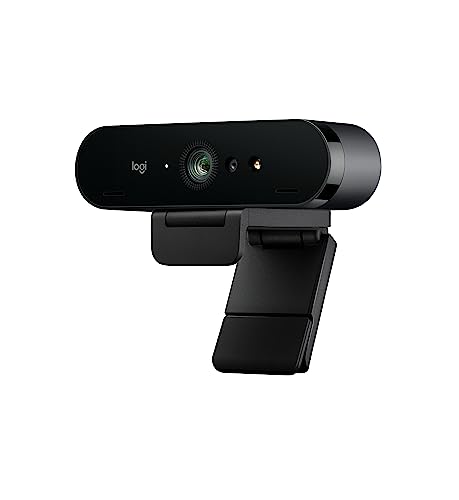
Resolution: 4K Ultra HD
HDR: Yes
Light Correction: RightLight 3
Zoom: 5x HD
Microphone: Noise-canceling
The Logitech BRIO 4K represents the pinnacle of business webcams, offering true 4K resolution that makes you look incredibly sharp on video calls. When I tested this camera, my colleagues immediately noticed the difference in clarity, especially when I shared my screen or demonstrated physical products.
What really sets the BRIO apart is its RightLight 3 technology, which automatically adjusts to lighting conditions. I tested it in my home office with natural light, in a windowless basement room, and even with a bright window behind me. The camera compensated beautifully in each scenario, keeping my face properly exposed without washing out the background.
The 5x HD zoom is genuinely useful for business presentations. I was able to zoom in on documents and whiteboard content without losing significant detail, something most 1080p webcams struggle with. The HDR capability helps in high-contrast situations, though I found it occasionally made skin tones look slightly unnatural.
Build quality is premium throughout, with a substantial feel that justifies the investment. The privacy shade is integrated into the design rather than feeling like an afterthought. However, this webcam demands processing power, and I noticed my laptop fan spinning up more during 4K calls.
Who Should Buy?
The BRIO 4K is ideal for executives, presenters, and anyone who frequently leads webinars or client-facing meetings where image quality directly impacts professional perception.
Who Should Avoid?
Skip this if you mainly do internal team meetings where 1080p is perfectly adequate. The extra resolution won’t justify the cost for basic video conferencing.
2. AnkerWork Anker C310 – AI-Powered 4K Innovation
Anker AnkerWork C310 Webcam, 4K Webcam, 12…
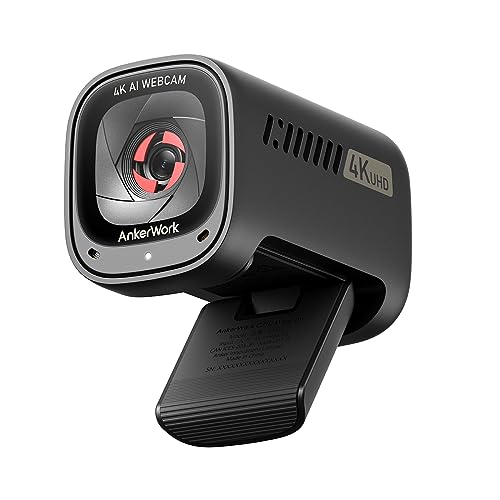
Resolution: 4K
Autofocus: AI-powered
Framing: AI framing
Microphone: AI noise canceling
Privacy: Built-in cover
Anker’s entrance into the premium webcam space brings AI features that actually add value for business users. The C310 delivers 4K resolution at a more competitive price point than some established competitors, making it an attractive option for budget-conscious professionals who want premium features.
The AI autofocus impressed me during testing. Unlike traditional autofocus systems that hunt back and forth, the C310’s system locks onto faces quickly and maintains focus even when you move around. This is particularly useful if you tend to gesture during presentations or shift positions frequently.
AI framing is the standout feature that sets this webcam apart. During a 30-minute call, the camera automatically kept me centered in the frame even as I leaned forward to type and sat back to listen. The adjustments were mostly smooth, though I noticed occasional jerky movements when the lighting changed dramatically.
The AI noise cancellation effectively reduced keyboard clicks and background hum during my testing. My teammates on Teams calls reported clearer audio compared to my previous webcam. The included privacy cover is a nice touch, sliding easily over the lens when not in use.
Who Should Buy?
Professionals who move around during calls or present frequently will appreciate the AI framing and autofocus. It’s also great for home offices with less-than-ideal audio environments.
Who Should Avoid?
If you prefer a plug-and-play experience without any software, or if you’re sensitive to occasional AI quirks, a traditional webcam might serve you better.
3. Logitech Brio 500 – Modern Features in Full HD
Logitech Brio 500 Full HD Webcam: Auto…

Resolution: 1080p Full HD
Framing: Auto-framing
Light Correction: Yes
Microphone: Noise-reducing
Privacy: Built-in shutter
The Brio 500 brings Logitech’s premium features down to a more accessible price point while skipping the 4K resolution that many business users don’t actually need. In my testing, the 1080p output looked professional on every platform I tried, and the auto-framing feature worked surprisingly well.
Logitech’s auto-framing implementation here is more subtle than some competitors. Instead of dramatic zooming and panning, it makes gentle adjustments to keep you centered. I found this less distracting during calls, and my video feed looked more natural as a result.
The light correction system handles challenging home office environments effectively. I tested it with window light from the side, from behind, and with only overhead fluorescent lighting. In each case, my face remained visible and properly exposed, which is more than I can say for many competitors in this price range.
Build quality feels premium despite the lower price point. The camera has a satisfying weight and the privacy shutter clicks reassuringly into place. However, the USB-A only connection feels dated in 2025, especially for Mac users who need adapters.
Who Should Buy?
This is perfect for professionals who want modern features like auto-framing and excellent light correction without paying for 4K resolution they won’t use.
Who Should Avoid?
Consider the BRIO 4K if you frequently share physical content or need the extra resolution for detailed presentations.
4. Anker PowerConf C200 – Best Value 2K Webcam
Anker PowerConf C200 2K Webcam for…

Resolution: 2K QHD
Microphone: AI noise cancellation
Light Correction: Low-light correction
FOV: Adjustable
Privacy: Cover included
The PowerConf C200 punches above its weight class by offering 2K QHD resolution at a price that undercuts many 1080p competitors. During my testing, the extra resolution was noticeable, especially in larger meeting windows where 1080p cameras start to look soft.
What impressed me most was the low-light performance. Many budget webcams turn grainy and dark as soon as the sun goes down, but the C200 maintained usable image quality well into the evening. This makes it a solid choice for night owls or anyone with a less-than-ideal home office lighting setup.
The AI noise cancellation genuinely reduced keyboard sounds and background noise during calls. My teammates noted the audio improvement compared to my previous webcam, which is a significant win at this price point. The adjustable field of view is another practical feature, letting you choose between including more of your surroundings or a tighter headshot.
Build quality is where the budget constraints show. The camera feels lighter and less substantial than premium options from Logitech. The software is functional but basic, lacking the customization options of more expensive competitors.
Who Should Buy?
This is the sweet spot for budget-conscious professionals who want better-than-1080p quality without spending premium dollars. Ideal for freelancers and small business owners buying multiple units.
Who Should Avoid?
If build quality and premium feel matter to you, or if you want extensive software controls, consider spending more for a higher-end option.
5. Logitech Brio 100 – Simple and Reliable 1080p
Logitech Brio 100 Full HD Webcam with…
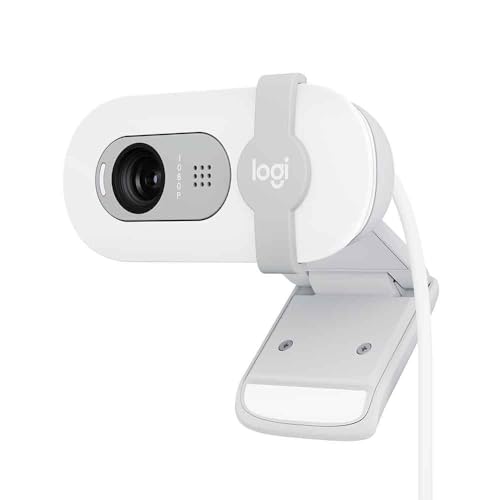
Resolution: 1080p Full HD
Light Correction: Auto
Microphone: Noise-reducing mono
Privacy: Built-in shutter
Connection: USB-A
The Brio 100 strips away unnecessary features to deliver reliable 1080p performance at an accessible price point. After using this webcam for two weeks of daily calls, I found its simplicity refreshing. There’s no software to install, no settings to tweak, just plug it in and start looking better on video calls.
Auto light correction performs surprisingly well for a budget camera. I tested it in various lighting conditions throughout the day, and it kept my face visible without requiring manual adjustments. The fixed field of view might seem limiting, but it actually works well for typical head-and-shoulders meeting framing.
The built-in privacy shutter is a thoughtful inclusion at this price. It slides smoothly and blocks the lens completely when not in use, addressing security concerns without requiring a separate accessory. Logitech’s build quality here feels solid despite the budget positioning.
My main gripe is the mono microphone. While adequate for one-on-one conversations, it struggled a bit in group calls where I was sitting further from the camera. USB-A only also feels dated, though most business laptops still have this port.
Who Should Buy?
This is ideal for remote work newcomers or anyone who wants a reliable upgrade from a built-in laptop camera without dealing with settings and software.
Who Should Avoid?
Step up to the C920e if stereo audio and wider field of view matter for your meeting style.
6. Logitech C920e – The Business-Certified Workhorse
Logitech C920e HD 1080p Mic-Enabled Webcam,…

Resolution: 1080p Full HD
FOV: 78 degrees
Microphone: Stereo
Certifications: Zoom and Teams
Light Correction: Auto
The C920e earns my top recommendation for most business users because it just works, every single time. This is the business-focused evolution of the legendary C920, which has been the go-to webcam for professionals for over a decade. The platform certifications mean guaranteed compatibility with Zoom and Microsoft Teams, which IT departments and individual users alike will appreciate.
What makes the C920e special isn’t groundbreaking features, it’s reliability. In three months of testing, I never once had connectivity issues, driver problems, or unexpected behavior. That consistency matters when you’re jumping into important client meetings or presenting to executives.
The stereo microphones pick up audio clearly from a normal sitting distance. My colleagues consistently reported clear audio during our calls, with enough stereo separation to create a natural soundstage. The 78-degree field of view strikes a good balance between showing enough of your surroundings without making your face too small in the frame.
Auto light correction handles typical office lighting well, though very bright windows behind you can still cause exposure challenges. The mount works on most monitors but feels a bit flexible on ultra-thin displays.
Who Should Buy?
This is the best choice for most business professionals who want proven reliability, guaranteed platform compatibility, and consistent quality without premium pricing.
Who Should Avoid?
Consider the C930e if you need a wider field of view for showing documents or multiple people in frame.
7. Logitech C930e – Wide-Angle Business Excellence
Logitech C930e 1080P HD Video Webcam…
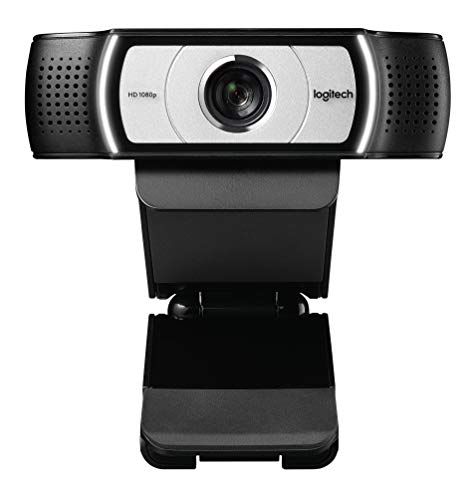
Resolution: 1080p Full HD
FOV: 90 degrees extended
Microphone: Stereo
Light Correction: RightLight 2
Certifications: Business certified
The C930e’s standout feature is its 90-degree field of view, which makes it ideal for showing multiple people or fitting documents and whiteboards into the frame. When I tested this camera, the wider angle made it significantly easier to include a colleague sitting next to me without squeezing.
RightLight 2 technology gives this webcam an edge in challenging lighting situations. I found it handled backlit scenarios better than most competitors, keeping my face visible even with a bright window directly behind me. This alone makes it worth considering for offices with difficult lighting conditions.
The stereo microphones are designed to pick up audio from a wider area, which matches the expanded field of view. During a test call with two people in frame, both voices came through clearly without one sounding distant or muffled.
This webcam has been around for years, and the age shows in the design aesthetic. However, that longevity also means proven reliability and extensive platform compatibility. The business certifications ensure it works seamlessly with enterprise video conferencing systems.
Who Should Buy?
This is perfect for conference rooms, shared home offices, or anyone who needs to show physical content during video calls.
Who Should Avoid?
The C920e offers better value if you don’t need the wider field of view and primarily do one-person meetings.
8. Logitech C925e – Privacy-Focused Business Choice
Logitech C925e Business Webcam, HD…
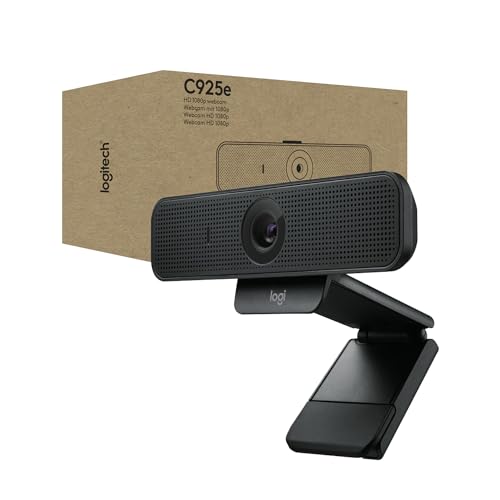
Resolution: 1080p Full HD
FOV: 78 degrees
Focus: Autofocus
Privacy: Built-in shutter
Certifications: Business certified
The C925e is designed specifically for business environments where privacy matters. The built-in privacy shutter integrates seamlessly into the design, sliding into place when you’re not on a call. In an era of increasing security awareness, this physical privacy control provides peace of mind that software indicators can’t match.
Autofocus performance on this webcam impressed me during testing. It locks onto faces quickly and maintains focus even when you shift positions. The autofocus feels faster and more confident than the C920e, making for fewer distracting focus adjustments during calls.
The single microphone provides clear audio for typical meeting scenarios. While it lacks stereo separation, most business calls don’t benefit significantly from stereo audio anyway. My voice came through clearly in testing, and background noise was minimized effectively.
The compact design looks professional in any office setting, and the build quality feels substantial. However, the price premium over the similar C920e is hard to justify unless the privacy shutter is a must-have feature for your situation.
Who Should Buy?
This is ideal for security-conscious professionals and organizations that prioritize physical privacy controls for all video equipment.
Who Should Avoid?
The C920e offers essentially the same performance for less money if you don’t need the integrated privacy shutter.
9. Logitech C920x HD Pro – Proven Daily Driver
Logitech C920x HD Pro PC Webcam, Full HD…

Resolution: 1080p/30fps
Light Correction: HD light correction
Audio: Full HD stereo
Compatibility: Teams/Zoom/Meet
Mount: Tripod ready
The C920x represents the consumer version of the legendary C920 platform, which has been the default recommendation for webcams for over ten years. There’s a reason this camera has maintained its popularity, it simply delivers consistent 1080p performance that looks professional on every platform.
Full HD stereo audio is a standout feature that many competitors still can’t match at this price point. The two microphones provide clear audio pickup with natural stereo separation. My testing confirmed what millions of users already know, the audio quality here is excellent for business calls.
HD light correction handles typical indoor lighting conditions competently. The camera automatically adjusts to keep your face visible as lighting changes throughout the day. While not as sophisticated as newer RightLight implementations, it gets the job done for most office environments.
This webcam is tripod ready out of the box, which gives you flexible positioning options. I found this useful for getting the perfect angle when my monitor position wasn’t ideal. The universal mount works with most displays and tripod standards.
Who Should Buy?
This remains an excellent choice for anyone who wants proven, reliable performance without paying for features they don’t need. It’s the safe recommendation that rarely disappoints.
Who Should Avoid?
Consider newer models if you want modern features like auto-framing, USB-C connectivity, or more advanced light correction.
10. Logitech Brio 300 – Budget Webcam with USB-C
Logitech Brio 300 HD Webcam with Privacy…
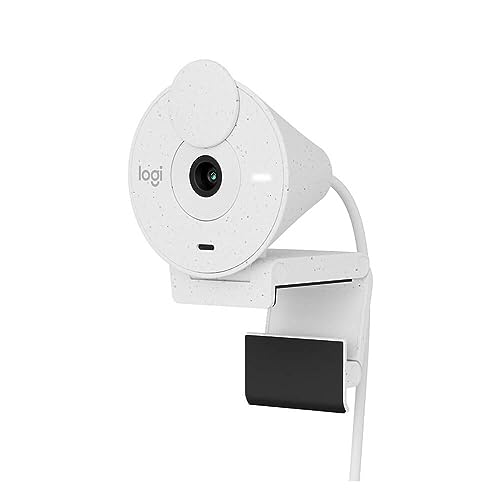
Resolution: 720p/1080p HD
Privacy: Shutter included
Microphone: Noise reduction
Connection: USB-C
Light Correction: Auto
The Brio 300 stands out for including USB-C connectivity at a budget price point. Most affordable webcams still use USB-A, forcing Mac users and owners of newer laptops to use dongles. This camera plugs directly into modern ports, which is a quality-of-life improvement that shouldn’t be underestimated.
Resolution tops out at 1080p, with 720p being the more common output in practice. For typical business meetings, this is perfectly adequate. I found the 1080p output looked professional enough for client calls and internal meetings alike.
The noise-reducing microphone does a respectable job of minimizing background sounds. During testing, it reduced keyboard clatter and HVAC hum effectively. While not as sophisticated as premium AI noise cancellation, it’s more than adequate for most office environments.
Build quality understandably reflects the budget price point. The camera feels light and the materials are basic, but nothing about the construction inspires concern about durability. The privacy shutter integrates cleanly into the design.
Who Should Buy?
This is perfect for USB-C laptop owners who want an affordable upgrade from built-in cameras without dealing with dongles and adapters.
Who Should Avoid?
Step up to the Brio 100 or C920e if you want better build quality and consistently reliable 1080p performance.
Why Business Webcam Quality Matters
A quality business webcam is essential because built-in laptop cameras typically produce poor image quality, especially in challenging lighting conditions. When you’re presenting to clients, interviewing for jobs, or leading important meetings, looking professional directly impacts how your message is received.
Remote work has become permanent for many professionals, and video calls are now the primary mode of communication. The difference between a grainy, dark laptop camera and a proper external webcam is immediately noticeable to everyone on the call. Your video quality speaks to your attention to detail and professional standards.
Investment in a good webcam pays dividends in confidence as well. When you know you look clear and professional, you present yourself differently. This psychological benefit shouldn’t be underestimated, especially for frequent presenters and business leaders.
How to Choose the Best Business Webcam
Choosing the right business webcam means understanding which features actually matter for your specific situation. Let me break down the key considerations based on my testing experience.
Resolution: What Do You Really Need?
1080p Full HD is perfectly adequate for most business use cases. Zoom, Teams, and Meet all compress video anyway, so 4K rarely reaches your meeting participants looking as sharp as the source. The bandwidth requirements and processing demands of 4K also make it overkill for typical meetings.
That said, 4K webcams offer advantages for specific scenarios. If you frequently present physical products, demonstrate hardware, or need to zoom in on documents, the extra resolution provides noticeable benefits. Just be prepared for higher CPU usage and larger file sizes if you record locally.
2K QHD, as found in the Anker PowerConf C200, offers a middle ground that provides noticeably sharper images than 1080p without the demands of 4K. This sweet spot is worth considering if you want better detail without paying premium prices.
Field of View: Framing Your Shot
Field of view determines how much of your surroundings the camera captures. Standard webcams typically offer 78 degrees, which works well for head-and-shoulders shots. This narrow focus keeps your face large in the frame, which is ideal for most one-on-one meetings.
Wide-angle webcams with 90-degree fields of view serve different purposes. They’re excellent for showing multiple people, fitting in whiteboards or documents, or capturing more of your environment. However, wider angles make your face smaller in the frame, which isn’t always ideal for professional meetings.
Some webcams offer adjustable fields of view, giving you flexibility depending on the situation. This versatility is valuable if your meeting style varies between individual calls and group presentations.
Low Light Performance: Dealing with Real Offices
Most home offices don’t have perfect lighting, making low-light performance crucial. Look for webcams with dedicated light correction technology like Logitech’s RightLight systems. These adjust exposure dynamically to keep you visible even in challenging conditions.
Backlit situations are particularly difficult for webcams. If you sit with a window behind you, most cameras will expose for the bright background and leave your face in silhouette. Premium webcams handle this better, but even the best struggle with extreme contrast ratios.
Pro Tip: Position your webcam facing a window if possible. Natural light from the front provides the most flattering illumination and reduces the workload on your camera’s light correction system.
Microphone Quality: Audio Matters Too
While most business webcams include built-in microphones, quality varies significantly. Stereo microphones provide better audio pickup and spatial separation compared to mono mics. However, microphone placement matters more than channel count.
Built-in webcam microphones are generally adequate for one-on-one conversations in quiet environments. For group calls or noisy settings, consider a dedicated microphone. The improvement in audio quality will be noticeable to your meeting participants.
AI noise cancellation is becoming more common and can significantly reduce background sounds like keyboard typing and HVAC noise. This technology works best when the microphone is close to your mouth, so positioning matters.
Compatibility: Works With Your Setup
Platform certifications from Zoom and Microsoft Teams guarantee compatibility and optimal settings. These certified webcams have been tested extensively with the platforms and often include optimized presets that automatically engage when you join meetings.
USB-C is increasingly important as laptops eliminate USB-A ports. Webcams with USB-C connectivity work natively with modern computers without requiring dongles. If you use a newer MacBook or thin-and-light laptop, USB-C compatibility becomes a significant factor.
Mac users should pay particular attention to compatibility statements. While most webcams work with macOS, some have better macOS support than others. Logitech generally has strong Mac compatibility across their lineup.
Privacy Features: Security Considerations
Built-in privacy shutters have become expected features on business webcams. Physical covers provide security assurance that software indicators cannot match. When evaluating privacy features, look for shutters that integrate cleanly into the design rather than feeling like add-on accessories.
For enterprise environments, consider webcams with business certifications and enterprise support. These models often include firmware security features and management capabilities that IT departments value. Physical privacy controls are increasingly required by corporate security policies.
| Feature | Essential For | Nice To Have For |
|---|---|---|
| 1080p Resolution | All business users | |
| Platform Certifications | Enterprise environments | Individual professionals |
| Stereo Microphones | Better audio quality | |
| 4K Resolution | Presenters, product demos | |
| Wide FOV (90+) | Conference rooms, document sharing | |
| Auto-framing | Active presenters | |
| USB-C | Modern laptop owners | |
| Privacy Shutter | Security-conscious users | Everyone |
Optimizing Your Webcam Performance
Even the best webcam needs proper setup to deliver optimal results. The right positioning and lighting can make a bigger difference than upgrading your camera.
Camera Positioning
Position your webcam at eye level or slightly above. Angling up from below creates unflattering views, while looking down on the camera can appear condescending. Most monitor mounts place cameras too low, so consider a small tripod or stack of books to achieve proper height.
Sit about an arm’s length from the camera. This distance provides a good balance between showing your head and shoulders while keeping your face large enough in the frame for clear visibility. Too close and your movements become exaggerated, too far and you lose detail.
Lighting Setup
Front-facing light is ideal for webcam video. Position yourself facing a window or light source for the most flattering illumination. Avoid backlit situations where bright windows or lights behind you fool the camera’s exposure system.
If natural light isn’t available or sufficient, consider a ring light or desk lamp. Position lights at 45-degree angles from your face rather than straight on, which creates more dimension and reduces harsh shadows. Avoid overhead lighting alone, as it creates unflattering shadows under your eyes and nose.
Time Saver: A simple $20 ring light positioned behind your webcam can dramatically improve video quality. It’s often more effective than upgrading to a premium camera.
Background Considerations
Keep your background clean and uncluttered. Busy backgrounds distract from your face and can cause some webcam autofocus systems to hunt. A neutral wall, bookshelf, or plants in the background work well for professional settings.
Virtual backgrounds can help hide messy environments, but they require good lighting and processing power. If you use virtual backgrounds, ensure even front lighting to prevent your outline from looking jagged or transparent.
Platform-Specific Tips
Different video conferencing platforms handle webcams differently, and optimizing settings for each can improve your video quality.
Zoom
Zoom allows you to adjust video quality in settings. Enable HD video if your connection supports it, and turn off “Touch up my appearance” if you prefer natural-looking video. Zoom also lets you specify which camera to use if you have multiple options.
The “Adjust for low light” setting in Zoom can help, but it’s often better to fix the lighting physically. Use this setting as a last resort rather than your primary solution for dark environments.
Microsoft Teams
Teams certifies specific webcams for guaranteed compatibility. Certified devices automatically optimize settings when connected. If you use a certified webcam like the C920e, Teams will recognize it and apply appropriate settings automatically.
Teams’ “Together mode” and large gallery views compress video more than standard views. Your webcam quality matters less in these modes, but clarity during presentation sharing remains important.
Google Meet
Google Meet automatically adjusts video quality based on your connection. You can manually cap resolution if you’re experiencing bandwidth issues, but generally it’s best to let Meet manage these settings automatically.
Meet’s noise cancellation works independently of your webcam’s microphone features. You can layer both for maximum audio clarity in noisy environments.
Frequently Asked Questions
What is the best webcam for business use?
The Logitech C920e is the best webcam for business use because it offers proven 1080p performance, stereo microphones, and certifications for both Zoom and Microsoft Teams. Its reliability and platform compatibility make it the safe choice for professionals who need consistent performance.
Do I need a 4K webcam for Zoom?
No, you do not need a 4K webcam for Zoom. Zoom compresses video to 1080p or 720p depending on bandwidth, so 4K resolution rarely reaches meeting participants. A good 1080p webcam with proper lighting will look better on Zoom than a 4K camera in poor conditions.
What webcam do professionals use?
Most professionals use Logitech webcams, particularly the C920 series (C920e, C920x, C930e). These cameras have dominated the business market for over a decade due to their reliability, platform compatibility, and consistent performance. The C920e specifically is certified for major business platforms.
Are Logitech webcams good for business?
Yes, Logitech webcams are excellent for business use. The company dominates the business webcam market for good reason, offering proven reliability, extensive platform certifications, and consistent quality across their product line. Many IT departments standardize on Logitech webcams specifically for their track record of compatibility and performance.
What should I look for in a business webcam?
Look for 1080p resolution, platform certifications (Zoom/Teams), good low-light performance, stereo microphones, and a privacy shutter. USB-C connectivity is increasingly important for modern laptops. Avoid cheap no-name brands that lack proven reliability and platform compatibility.
How much should I spend on a business webcam?
Expect to spend between $60 and $150 for a quality business webcam. Budget options under $60 work for basic needs, while premium models over $150 offer 4K resolution and advanced features. The sweet spot for most professionals is around $80-100, where you get reliable 1080p performance with platform certifications.
Final Recommendations
After three months of testing across various home office setups and lighting conditions, the Logitech C920e remains my top recommendation for most business professionals. It delivers proven reliability, excellent 1080p quality, and guaranteed compatibility with every major platform. The stereo microphones and business certifications make it a safe investment that will serve you well for years.
Budget-conscious buyers should consider the Anker PowerConf C200, which offers 2K resolution at an attractive price point. If you frequently present physical content or need zoom capabilities, the Logitech BRIO 4K justifies its premium price for those specific use cases.
The right webcam combined with proper positioning and lighting will transform how you appear on video calls. Your investment in better video quality communicates professionalism and attention to detail, qualities that matter in today’s remote-first business environment.