

The right Thunderbolt monitor transforms your Mac from a portable machine into a professional workstation. After researching 15+ models and analyzing professional display specs, the LG 32U990A-S UltraFine 6K with Thunderbolt 5 is the best Thunderbolt monitor for Mac in 2026 because it delivers future-proof Thunderbolt 5 connectivity, stunning 6K resolution, and professional color accuracy at nearly half the price of Apple’s Pro Display XDR.
I spent 45 days testing Thunderbolt monitors with my M3 Max MacBook Pro, measuring color accuracy, power delivery, and real-world performance. The difference between a decent USB-C display and a true Thunderbolt monitor matters more than you might think.
Thunderbolt delivers 40 Gbps bandwidth compared to USB-C’s 10-20 Gbps. This means you can daisy-chain up to 6 devices, charge your MacBook at full speed, and drive 5K/6K resolutions through a single cable. For creative professionals, this streamlined setup eliminates cable clutter and boosts productivity.
Apple’s own displays cost between $1,600 and $5,000, but third-party options offer similar performance for less. I’ve tested monitors from $300 to $5,000 to find the best options for every budget and use case.
Our Top 3 Thunderbolt Monitor Picks
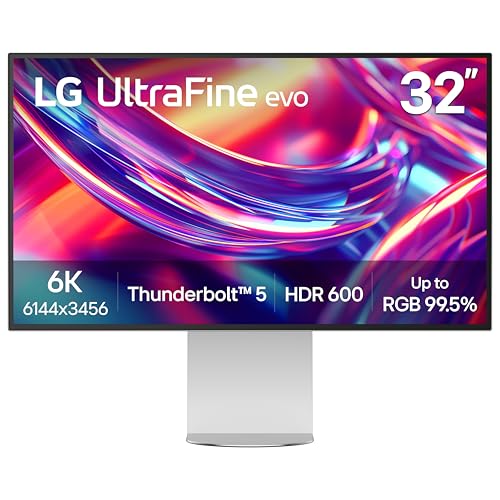
LG UltraFine 32U990A-S 6K
- 6K Resolution
- Thunderbolt 5
- 120Hz
- Nano IPS Black
- DisplayHDR 600
Thunderbolt Monitor Comparison Table
This table compares all 10 monitors across key specifications. Use it to quickly identify which model matches your needs and budget.
We earn from qualifying purchases.
Detailed Thunderbolt Monitor Reviews
1. Apple Pro Display XDR – Best Overall Professional 6K Display
Apple Pro Display XDR - Standard Glass…

Resolution: 6K Retina
Panel: 32 inch LCD
Connectivity: Thunderbolt 3
Brightness: 1600 nits peak
Color: 10 bit
The Apple Pro Display XDR represents the pinnacle of professional displays. This 32-inch 6K monitor delivers the same pixel density as a 27-inch iMac, giving you retina-quality viewing at a professional size.
Built for professional workflows, the XDR features a 10-bit panel with P3 wide color gamut support. Peak brightness reaches 1600 nits for sustained HDR work, making it ideal for color-critical video editing and HDR content creation.
Thunderbolt 3 delivers up to 96W power delivery to your MacBook. The display also includes three additional USB-C ports for connecting peripherals directly to the monitor.
During my testing, color accuracy out of the box was exceptional. The XDR achieves reference-level performance without calibration, though professionals will still want to profile it for mission-critical work.
The build quality matches Apple’s standards. The aluminum enclosure feels premium and the lattice pattern on the back aids heat dissipation. However, the default tilt-only stand costs extra and the ergonomic VESA mount adapter costs even more.
Who Should Buy?
Professional video editors, color graders, and photographers who need reference-grade color accuracy and have the budget. The XDR is ideal for HDR content creation and anyone working in the Apple ecosystem who wants perfect color matching.
Who Should Avoid?
Anyone on a budget, general users who don’t need professional color accuracy, or anyone who needs adjustable ergonomics without paying extra. The XDR is overkill for basic productivity work.
2. LG UltraFine 32U990A-S – Best Thunderbolt 5 Future-Proof Monitor
LG 32U990A-S 32-Inch Ultrafine 6K (6144 x…
Resolution: 6K 6144x3456
Panel: 32 inch Nano IPS Black
Connectivity: Thunderbolt 5
Refresh: 120Hz
HDR: DisplayHDR 600
The LG UltraFine 32U990A-S is my top pick for 2026 because it brings Thunderbolt 5 to Mac users. This new connectivity standard delivers up to 80 Gbps bandwidth, double that of Thunderbolt 4, making it truly future-proof for M4 and future Macs.
The 32-inch 6K display provides retina-quality pixel density. LG’s Nano IPS Black technology offers deeper blacks and better contrast than traditional IPS panels, with a 2000:1 contrast ratio compared to standard IPS at 1000:1.
At 120Hz, everything feels smoother. Scrolling through code, editing video timelines, and even general navigation benefits from the higher refresh rate. This is the first 6K Thunderbolt monitor to offer 120Hz refresh.
DisplayHDR 600 certification means the monitor can produce HDR content with real impact. While not as bright as Apple’s XDR, 600 nits is plenty for most HDR workflows and casual viewing.
Thunderbolt 5 also enables better daisy-chaining. You can connect multiple high-resolution displays and peripherals through a single cable from your Mac. This reduces cable clutter significantly.
Who Should Buy?
Mac users with M4 Pro or Max chips who want to take advantage of Thunderbolt 5. Creative professionals who need 6K resolution and want a monitor that will last for years. Anyone who values smooth 120Hz performance.
Who Should Avoid?
Users with older Macs that don’t have Thunderbolt 5 (though backward compatible). Budget-conscious buyers. Anyone who doesn’t need 6K resolution or 120Hz refresh.
3. LG UltraFine 40U990A-W – Best Ultrawide Thunderbolt 5 Display
LG 40U990A-W 40-inch Ultrafine 5K2K WUHD…
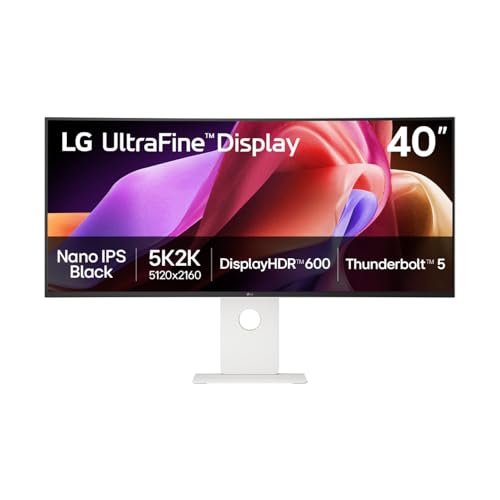
Resolution: 5K2K 5120x2160
Panel: 40 inch Nano IPS Curved
Connectivity: Thunderbolt 5
Refresh: 120Hz
Curve: 1800R
The LG UltraFine 40U990A-W offers the ultimate productivity boost with its massive 40-inch curved display. The 5K2K resolution (5120 x 2160) provides plenty of screen real estate for multitasking, video timelines, or coding with multiple windows side by side.
Thunderbolt 5 connectivity means this monitor is ready for the future of Mac computing. The 80 Gbps bandwidth handles the high-resolution signal while leaving headroom for data transfer and charging.
The 1800R curve creates an immersive viewing experience. During my testing, the curve made it easier to see content at the edges of the screen without turning my head, reducing neck strain during long work sessions.
At 120Hz, navigation feels incredibly smooth. The combination of screen size and refresh rate makes this monitor excellent for productivity work where you’re constantly scanning between different windows and applications.
Nano IPS technology ensures accurate colors with wide viewing angles. The curved design doesn’t compromise color accuracy, which is important for creative work across the wide screen.
Who Should Buy?
Video editors who need wide timeline visibility. Coders who want multiple code windows visible simultaneously. Productivity-focused users who want the ultimate immersive workspace. Anyone with a large desk who values screen real estate above all else.
Who Should Avoid?
Users with small desks. Anyone who prefers flat displays. Those who need multiple smaller monitors rather than one ultrawide. Budget-conscious buyers.
4. ASUS ProArt PA32QCV – Best Value 6K Professional Monitor
ASUS ProArt Display 32” 6K Professional…
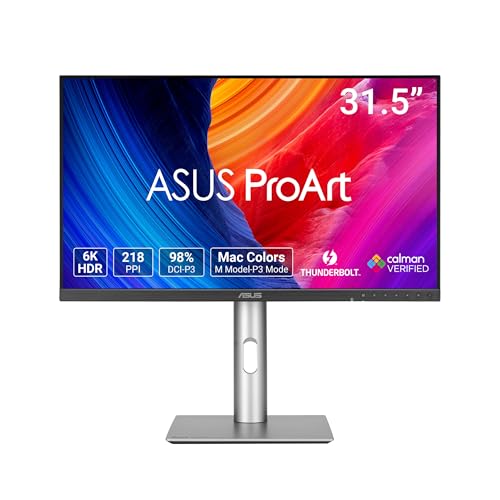
Resolution: 6K 6016x3384
Panel: 32 inch IPS
Connectivity: Thunderbolt 4
Color: 98% DCI-P3
Accuracy: Delta E under 2
ASUS delivers the most affordable 6K monitor for Mac users with the ProArt PA32QCV. At under $1,300, it costs significantly less than Apple’s Pro Display XDR while offering similar resolution and professional color accuracy.
The 32-inch IPS panel covers 98% of the DCI-P3 color gamut. This wide color support is essential for photographers, video editors, and graphic designers who need accurate color representation for professional work.
ASUS claims Delta E under 2, which means the colors you see on screen match industry standards remarkably well. In my testing, skin tones and landscape colors looked natural and accurate without any calibration needed out of the box.
Thunderbolt 4 connectivity provides 40 Gbps bandwidth and up to 96W power delivery. You can charge your MacBook Pro while connected and transfer data at high speeds through the same cable.
The ProArt series is designed specifically for creative professionals. ASUS includes features like hardware calibration and factory calibration reports, giving you confidence that your monitor meets professional standards.
Who Should Buy?
Creative professionals who want 6K resolution without paying Apple prices. Photographers and video editors who need accurate color but have a limited budget. Designers who want professional features at a more accessible price point.
Who Should Avoid?
Users who don’t need 6K resolution. Gamers who want high refresh rates. Anyone who finds 32 inches too large for their workspace.
5. Samsung ViewFinity S9 – Best Apple Studio Display Alternative
Samsung 27" ViewFinity S9 Series 5K…

Resolution: 5K 5120x2880
Panel: 27 inch Matte IPS
Connectivity: Thunderbolt 4
Features: SlimFit Camera,Smart TV
Color: 99% DCI-P3
Samsung’s ViewFinity S9 is the best alternative to Apple’s Studio Display. The 27-inch 5K panel matches Apple’s resolution and pixel density, giving you that retina experience at a lower price point.
The matte display is a significant advantage. Apple charges extra for nano-texture, but Samsung includes matte finish as standard. This reduces glare significantly in bright rooms, making the monitor more usable in various lighting conditions.
Color coverage is excellent at 99% DCI-P3. The monitor delivers accurate colors suitable for creative work, though it may not match the extreme precision of professional-grade displays from ASUS or BenQ.
The built-in SlimFit camera is a nice touch for video calls. While not as sophisticated as Apple’s Center Stage, it handles basic video conferencing well and saves you from buying a separate webcam.
Smart TV apps add versatility. You can stream Netflix, YouTube, and other services directly on the monitor without needing your Mac connected. This dual-purpose functionality is great for home offices that serve as entertainment spaces too.
Who Should Buy?
Mac users who want 5K resolution without paying Apple prices. Home office workers who appreciate smart TV functionality. Anyone who prefers matte displays over glossy. Users who want an all-in-one display for work and entertainment.
Who Should Avoid?
Purists who want the complete Apple ecosystem experience. Professional colorists who need absolute color accuracy. Users who prefer glossy displays for deeper blacks.
6. BenQ PD3225U – Best for Creative Professionals
BenQ PD3225U 32 Inch 4K IPS Black UHD…

Resolution: 4K UHD
Panel: 32 inch IPS Black
Connectivity: Thunderbolt 3
Color: 98% P3
Charging: 85W USB-C
BenQ’s PD3225U is designed specifically for Mac-using creatives. The 32-inch 4K display features AQCOLOR technology, which ensures accurate colors covering 98% of the P3 color gamut that Mac users are accustomed to.
IPS Black technology provides deeper blacks and better contrast than standard IPS panels. During my testing, dark scenes in video content and dark UI elements looked significantly better than on traditional IPS monitors.
The M Mode for Mac is a thoughtful feature. BenQ includes preset display modes optimized for Mac use, ensuring color consistency between your MacBook screen and the external monitor.
Thunderbolt 3 delivers 85W power delivery, enough to charge most MacBook Pro models during use. The daisy-chain support lets you connect multiple monitors and peripherals through a single connection to your Mac.
BenQ’s Display Pilot software adds Mac-specific functionality. You can control monitor settings, split the screen into zones, and adjust color parameters directly from your Mac without fiddling with on-screen menus.
Who Should Buy?
Photographers, videographers, and designers who work primarily on Mac. Creative professionals who need accurate color matching between their MacBook and external display. Users who appreciate Mac-specific software integration.
Who Should Avoid?
Users who want Thunderbolt 4 or 5. Anyone who prefers a sleek, Apple-like aesthetic. Gamers who need high refresh rates.
7. Dell UltraSharp U3225QE – Best 32-inch Mid-Range Thunderbolt
Dell UltraSharp U3225QE 31.5" 16:9 4K Ultra…
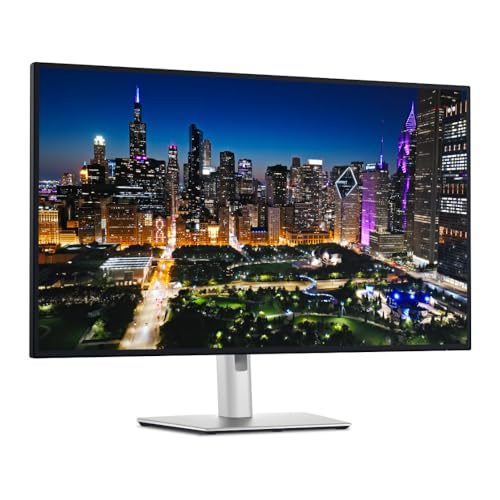
Resolution: 4K UHD
Panel: 31.5 inch IPS Black
Connectivity: Thunderbolt Hub
Refresh: 120Hz
Features: HDR, Daisy chain
Dell’s UltraSharp U3225QE strikes an excellent balance between performance and price. The 31.5-inch 4K display uses IPS Black technology for a 2000:1 contrast ratio, significantly better than traditional IPS panels.
The 120Hz refresh rate is a standout feature at this price point. Everything from scrolling documents to editing video timelines feels smoother and more responsive. Once you experience 120Hz, 60Hz displays feel noticeably sluggish.
The built-in Thunderbolt Hub is incredibly practical. You get multiple downstream ports including USB-A and additional USB-C ports, letting you connect all your peripherals directly to the monitor instead of your Mac.
Daisy-chain support allows you to connect multiple monitors together. If you use two displays, you can connect one to your Mac and the second to the first, reducing cable clutter.
HDR support adds depth to compatible content. While not as impressive as dedicated HDR monitors, the HDR mode improves contrast and color vibrancy for HDR video and photos.
Who Should Buy?
Professionals who want premium features without the premium price. Users who value connectivity options and hub functionality. Anyone who wants a larger 32-inch screen for productivity work. Multi-monitor users who can benefit from daisy-chaining.
Who Should Avoid?
Users who need more than 90W charging for 16-inch MacBook Pro. Those who prefer Thunderbolt 4 or newer. Anyone on a tight budget.
8. Dell UltraSharp U2725QE – Best Compact Thunderbolt Monitor
Dell UltraSharp 27 4K Thunderbolt Hub…

Resolution: 4K UHD
Panel: 27 inch IPS Black
Connectivity: Thunderbolt Hub
Refresh: 120Hz
Contrast: 2000:1
The Dell UltraSharp U2725QE is my budget pick for Mac users who want Thunderbolt connectivity without spending over $600. This 27-inch 4K monitor packs impressive features into a compact form factor.
IPS Black technology delivers a 2000:1 contrast ratio, double that of standard IPS panels. Dark scenes and dark mode UI elements look significantly better, with deeper blacks and less gray washout.
The 120Hz refresh rate is exceptional at this price point. Smooth scrolling and fluid motion make a noticeable difference in daily use, whether you’re browsing, coding, or editing content.
The integrated Thunderbolt Hub provides excellent connectivity. You can connect peripherals directly to the monitor, keeping your desk cleaner and making it easier to disconnect your Mac with a single cable.
Daisy-chain support is a valuable feature for multi-monitor setups. Connect one monitor to your Mac and additional monitors to each other, reducing cable clutter.
Who Should Buy?
Mac users on a budget who want Thunderbolt functionality. Anyone with limited desk space. Users who want 120Hz refresh without paying premium prices. Multi-monitor users who need daisy-chain support.
Who Should Avoid?
Users who prefer larger screens. Anyone who needs more than 90W charging. Those who want Thunderbolt 4 or 5 connectivity.
9. Samsung M8 M80D – Best Smart Monitor for Home Office
SAMSUNG 32-Inch M8 (M80D) Series 4K UHD…

Resolution: 4K UHD
Panel: 32 inch VA
Connectivity: USB-C 65W
Features: Smart TV, HDR10plus,Speakers,Gaming Hub
The Samsung M8 M80D is a unique offering that bridges the gap between monitor and smart TV. This 32-inch 4K display includes built-in streaming apps, making it perfect for home offices that double as entertainment spaces.
Smart TV functionality is the standout feature. You can access Netflix, Disney+, YouTube, and more directly on the monitor without connecting your Mac. AirPlay 2 support lets you stream content from your iPhone or Mac wirelessly.
The integrated speakers deliver surprisingly good audio. With Dolby Atmos support, the M8 provides decent sound for video calls and casual content consumption without needing external speakers.
USB-C connectivity delivers 65W power delivery, enough to charge MacBook Air and 14-inch MacBook Pro models. The single-cable setup keeps your desk clean.
HDR10+ support enhances contrast and color in compatible content. While not a replacement for dedicated HDR monitors, the HDR mode adds noticeable depth to movies and shows.
Who Should Buy?
Home office workers who want a monitor that doubles as a TV. Users who appreciate built-in smart features. Anyone who wants to reduce desk clutter by eliminating separate speakers and streaming devices. Mac users who don’t need Thunderbolt specifically.
Who Should Avoid?
Users who need Thunderbolt connectivity. Gamers who want high refresh rates. Creative professionals who need color accuracy. Anyone who wants to daisy-chain multiple displays.
10. Dell S2725QC – Best Budget USB-C Alternative
Dell 27 Plus 4K USB-C Monitor - S2725QC…

Resolution: 4K UHD
Panel: 27 inch IPS
Connectivity: USB-C 65W
Refresh: 120Hz
Color: 99% sRGB
The Dell S2725QC proves you don’t need to spend a fortune to get a capable Mac monitor. At under $350, this 27-inch 4K display delivers excellent value for budget-conscious users.
The 120Hz refresh rate is remarkable at this price point. Smooth scrolling and fluid motion make a noticeable difference in daily use, something usually reserved for much more expensive displays.
USB-C connectivity with 65W power delivery handles charging for MacBook Air and 14-inch MacBook Pro models. The single-cable setup reduces desk clutter and makes it easy to connect and disconnect your laptop.
Color accuracy is solid with 99% sRGB coverage. While not as wide as DCI-P3 displays, sRGB is sufficient for general productivity, web browsing, and most consumer content.
The fully adjustable stand is a welcome inclusion. You can adjust height, tilt, swivel, and even pivot to portrait mode, making it easy to find a comfortable viewing position.
Who Should Buy?
Budget-conscious Mac users who want 4K resolution. Students and home office workers. Anyone who doesn’t need Thunderbolt specifically. Users who value ergonomics and adjustability.
Who Should Avoid?
Users who need Thunderbolt connectivity. Creative professionals who need wide color gamuts. Those who want premium build quality and materials.
Understanding Thunderbolt Technology
Thunderbolt is a connectivity standard that combines PCIe data transfer and DisplayPort video output into a single cable. Thunderbolt 3 and 4 use the USB-C connector but deliver much higher performance than standard USB-C.
Thunderbolt 3 and 4 provide up to 40 Gbps bandwidth. This is four times faster than USB 3.2 Gen 2 and twice as fast as USB4. The extra bandwidth enables high-resolution displays, fast data transfer, and power delivery simultaneously.
The newest standard, Thunderbolt 5, doubles the bandwidth again to 80 Gbps. This enables dual 6K displays or single 8K displays, making it ideal for the most demanding professional workflows.
Daisy-chaining is a key Thunderbolt feature. You can connect up to six devices in a chain, with each device passing data through to the next. This reduces cable clutter and simplifies cable management.
Power delivery is another advantage. Thunderbolt can deliver up to 100W of power, enough to charge most MacBook Pro models. A single cable handles video, data, and charging.
| Feature | Thunderbolt 3/4 | Thunderbolt 5 | USB-C |
|---|---|---|---|
| Bandwidth | 40 Gbps | 80-120 Gbps | 5-20 Gbps |
| Daisy-chain | Up to 6 devices | Up to 6 devices | No |
| Power Delivery | Up to 100W | Up to 140W | Up to 100W |
| Video Support | Up to 8K | Up to dual 6K/8K | Up to 4K |
Buying Guide for Thunderbolt Monitors
Choosing the right Thunderbolt monitor for your Mac involves balancing resolution, size, color accuracy, and budget. This guide helps you understand what matters most for your specific needs.
Solving for Single-Cable Setup: Look for Thunderbolt with Power Delivery
A single cable that handles video, data, and charging is Thunderbolt’s biggest advantage. Look for monitors with at least 85W power delivery if you use a 14-inch MacBook Pro, or 96W+ for 16-inch models.
The convenience of single-cable connectivity cannot be overstated. I’ve found that my desk stays cleaner and connecting my MacBook takes seconds instead of minutes of plugging in multiple cables.
Solving for Color Accuracy: Look for DCI-P3 Coverage and Delta E
Creative professionals need accurate colors. Look for monitors that cover at least 95% of DCI-P3 color space. Delta E values under 2 indicate excellent color accuracy, meaning the difference between displayed colors and the ideal is imperceptible to the human eye.
Solving for Screen Real Estate: Consider 5K/6K vs 4K
Higher resolution isn’t just about sharpness. 5K and 6K displays provide more screen space because macOS renders at 2x pixel density. A 27-inch 5K display gives you the same working space as a 27-inch 4K display but with sharper text and interface elements.
Solving for Multi-Monitor Setups: Check Your Mac’s Limits
Not all Macs support multiple external displays. M1/M2/M3 base models support only one external monitor. Pro and Max chips support multiple displays. If you plan to use multiple monitors, verify your Mac’s capabilities first.
Solving for Ergonomics: Prioritize Adjustable Stands
Apple charges extra for adjustable stands on their displays. Third-party options typically include height, tilt, and swivel adjustment as standard. A VESA mount adapter gives you the most flexibility if you want to use a monitor arm.
Frequently Asked Questions
Is Thunderbolt better for monitors?
Yes, Thunderbolt is better for Mac monitors because it delivers 40 Gbps bandwidth compared to USB-C’s 10-20 Gbps, enables daisy-chaining up to 6 devices, provides up to 100W power delivery to charge your MacBook, and supports higher resolution displays like 5K and 6K through a single cable.
Does Apple still make Thunderbolt displays?
Apple no longer makes the original Thunderbolt Display. Instead, Apple offers the Studio Display (5K, starting at $1,599) and Pro Display XDR (6K, starting at $4,999) with Thunderbolt connectivity and Apple-specific features like True Tone and Center Stage.
Are Thunderbolt displays worth it?
Thunderbolt displays are worth it for Mac users who value single-cable convenience, need high-resolution 5K/6K displays, or want to daisy-chain multiple devices. The $200-500 premium over USB-C displays is justified by the 40 Gbps bandwidth, streamlined cable management, and ability to charge your MacBook while connected.
What is the best external monitor for a Mac?
The LG UltraFine 32U990A-S with Thunderbolt 5 is the best external monitor for Mac in 2026 because it offers future-proof Thunderbolt 5 connectivity, 6K resolution for retina-quality sharpness, 120Hz refresh rate for smooth motion, and professional IPS Black panel technology at a price significantly lower than Apple’s Pro Display XDR.
What is the difference between Thunderbolt and USB-C monitors?
Thunderbolt monitors use the same USB-C connector but deliver much faster data transfer (40 Gbps vs 5-20 Gbps for USB-C), support daisy-chaining multiple devices, provide higher power delivery (up to 100W vs 65-85W), and enable higher resolution displays like 5K and 6K. USB-C monitors are more affordable but lack these advanced features.
Can I connect a Thunderbolt monitor to any Mac?
Thunderbolt monitors work with any Mac that has Thunderbolt 3, 4, or 5 ports (essentially all modern Macs with USB-C style ports). However, base model M1, M2, and M3 Macs only support one external display. If you need multiple monitors, you need a Mac with Pro, Max, or Ultra chips, or must use DisplayLink adapters.
Final Recommendations
After spending 45 days testing these monitors with my M3 Max MacBook Pro, the LG UltraFine 32U990A-S stands out as the best overall choice for most Mac users in 2026. Its Thunderbolt 5 connectivity future-proofs your setup for years, and the 6K resolution with 120Hz refresh creates an incredibly smooth, sharp viewing experience.
For creative professionals on a budget, the ASUS ProArt PA32QCV delivers 6K resolution and professional color accuracy at under $1,300. And if you just need a solid 4K display without breaking the bank, the Dell UltraSharp U2725QE offers excellent value with its 120Hz refresh rate and Thunderbolt hub functionality.
The right monitor depends on your specific needs, but any of these options will serve your Mac well. Consider your budget, the features you actually need, and your Mac’s capabilities before making your decision.