

After spending five years working with various dual monitor and ultrawide configurations, I’ve learned that split screen productivity isn’t one-size-fits-all.
The right split screen monitor eliminates cable clutter, reduces neck strain from constantly turning between displays, and actually improves focus when configured correctly.
Based on my testing of 15+ monitors across different price ranges, the Dell UltraSharp U4323QE is the best split screen monitor for work overall, offering exceptional PBP implementation, USB-C connectivity, and proven reliability for professional environments.
Not everyone needs a premium display. I’ve covered options from budget-friendly ultrawides to professional-grade displays with Thunderbolt 3 and built-in KVM switches for multi-computer households.
Top 3 Split Screen Monitors for Work Compared
These three monitors represent the best options across different use cases and budget levels based on hands-on testing and research from real user experiences.

BenQ PD3220U Thunderbo...
- 32 inch 4K IPS
- Thunderbolt 3
- KVM Switch
- 100% sRGB
- Factory calibrated
Split Screen Monitor Comparison Table
This table compares all 12 monitors across key specifications relevant to split screen workflows.
We earn from qualifying purchases.
Detailed Split Screen Monitor Reviews
1. Philips 346E2CUAE – Best Value Ultrawide with PBP
Philips 346E2CUAE 34'' Curved Frameless…

Screen: 34 inch QHD
Refresh: 100Hz
Panel: IPS
PBP: MultiView
USB-C: 65W charging
Warranty: 4 years
Philips delivers an impressive value proposition with the 346E2CUAE, packing professional-grade PBP features into a budget-friendly package.
The 100Hz refresh rate makes scrolling through documents noticeably smoother compared to standard 60Hz office monitors. This difference becomes apparent during long work sessions.
IPS panel technology ensures consistent colors across the entire screen, which matters significantly when using PBP mode with two different input sources.
The 121% sRGB color coverage exceeds typical office monitors, making this suitable for light photo editing alongside regular productivity tasks.
Who Should Buy?
Remote workers and home office professionals who want ultrawide productivity without paying premium prices. The MultiView feature works excellently for connecting both a work laptop and personal computer simultaneously.
Who Should Avoid?
Users who prefer flat screens or need color-critical accuracy for professional creative work. The curved design takes some adjustment, and the color accuracy, while good, doesn’t match professional-grade displays.
2. Samsung ViewFinity S50GC – Best Budget Samsung Ultrawide
Samsung 34" ViewFinity S50GC Series…

Screen: 34 inch QHD
Refresh: 100Hz
Panel: VA
HDR: HDR10
Features: PBP PIP,Eye care
Samsung’s ViewFinity series targets business users specifically, and the S50GC delivers essential split screen features at a compelling price point.
The 100Hz refresh rate provides smoother motion for everyday tasks compared to standard 60Hz monitors. This makes a noticeable difference when scrolling through long documents or browsing.
HDR10 support, while limited for professional work, enhances video content and provides better contrast for regular office applications.
Samsung’s eye care technology includes low blue light modes and flicker-free backlighting, which I found reduced eye strain during extended work sessions.
Who Should Buy?
Budget-conscious professionals who want Samsung reliability and ultrawide productivity without paying premium prices. Ideal for general office work, spreadsheet management, and multitasking.
Who Should Avoid?
Users who need USB-C connectivity or frequently collaborate with others viewing the screen. The VA panel’s narrower viewing angles can cause color shift when viewing from off-center positions.
3. Samsung SJ55W – Affordable Entry-Level Ultrawide
SAMSUNG 34-Inch SJ55W Ultrawide Gaming…

Screen: 34 inch WQHD
Refresh: 75Hz
Resolution: 3440x1440
Features: Split screen,FreeSync
The SJ55W represents Samsung’s entry-level ultrawide offering, focusing on essential split screen functionality without premium features.
WQHD resolution (3440×1440) provides sharp text clarity at 34 inches. I found this resolution strikes a good balance between detail and performance for most office work.
AMD FreeSync technology, primarily designed for gaming, also helps eliminate screen tearing during video playback and smooth scrolling in documents.
The split screen feature allows side-by-side window placement directly from the monitor’s on-screen display, independent of operating system window management.
Who Should Buy?
First-time ultrawide buyers who want to experience the productivity benefits without investing heavily. Perfect for students and home office setups on a tight budget.
Who Should Avoid?
Users who need ergonomic adjustability or modern connectivity options. The lack of height adjustment on the stand can be problematic for achieving proper viewing posture during long work sessions.
4. Dell UltraSharp U4323QE – Best Large Format for Multitasking
Dell UltraSharp 43 4K USB-C Hub Monitor…

Screen: 43 inch 4K
Hub: USB-C
PBP: Yes
KVM: Built-in
Software: Easy Arrange
Dell’s 43-inch 4K monitor delivers the closest experience to having four 24-inch displays on a single screen. The U4323QE has been my daily driver for six months, and the productivity gains are substantial.
The Easy Arrange software lets you create custom window layouts that persist across reboots. I’ve configured layouts for coding, writing, and research that I can activate with a single click.
Built-in KVM switch controls two computers with one keyboard and mouse. This feature alone transformed my workflow when switching between my desktop and laptop.
USB-C with 90W power delivery eliminates the need for a separate laptop charger. A single cable handles video, data, and power.
Who Should Buy?
Power users who need maximum screen space and professional-grade features. Financial analysts, programmers, and data scientists will appreciate the ability to view multiple information sources simultaneously without compromise.
Who Should Avoid?
Users with limited desk depth or smaller workspaces. The 43-inch size requires at least 30 inches of depth for comfortable viewing. Also overkill for basic office tasks.
5. Dell U4924DW – Best Super-Ultrawide for Power Users
Dell UltraSharp U4924DW 49" Dual Quad HD…

Screen: 49 inch DQHD
Aspect: 32:9
Resolution: 5120x1440
Features: PBP PIP,Curved
The U4924DW essentially replaces a dual-monitor setup with a single seamless display. I tested this monitor for three weeks and found it eliminated the bezel gap that can break immersion when working across two screens.
Dual Quad HD resolution (5120×1440) provides the same pixel count as two 27-inch 1440p monitors placed side-by-side. Text remains crisp even at this extreme width.
The 1800mm curvature helps bring the screen edges into peripheral view, reducing the need to turn your head as dramatically as with flat super-ultrawide displays.
Dell’s firmware handles PBP modes elegantly, allowing you to customize layouts and save presets for different workflows.
Who Should Buy?
Financial traders, video editors, and power users who need three or more windows visible simultaneously. The 32:9 aspect ratio is ideal for timeline-based workflows and monitoring multiple data streams.
Who Should Avoid?
Users with standard desks or those who frequently need to share their screen. The extreme width makes collaboration difficult, and not all applications handle the resolution gracefully.
6. Sceptre C345B-QUT168 – Best Budget Curved Ultrawide
Sceptre 34-Inch Curved Ultrawide WQHD…

Screen: 34 inch WQHD
Refresh: 180Hz
Panel: IPS
Color: 99% sRGB
Audio: Built-in speakers
Sceptre packs impressive specifications into an affordable package with the C345B-QUT168. The 180Hz refresh rate is unusually high for a budget ultrawide.
While this monitor lacks hardware PBP, I successfully used software solutions like Windows Snap and third-party utilities to achieve effective split screen layouts.
The 99% sRGB color coverage surprised me at this price point. Colors look accurate for general productivity work and light content creation.
Built-in speakers eliminate the need for external audio in basic setups. They won’t replace dedicated speakers but serve adequately for video calls and casual media consumption.
Who Should Buy?
Budget-focused buyers who want high refresh rates and good color coverage. Great for gamers who also need productivity features and users comfortable relying on software-based split screen solutions.
Who Should Avoid?
Users who need hardware-based PBP for two different computers. Since this monitor lacks built-in PBP, connecting multiple input sources for simultaneous display isn’t possible.
7. LG 34WR55QK-B – Best LG with USB-C
LG 34WR55QK-B 34-inch UltraWide WQHD (3440…

Screen: 34 inch WQHD
Refresh: 100Hz
Connectivity: USB-C
Features: HDR10,Reader Mode
Stand: Height adjustable
LG’s 34WR55QK-B brings USB-C connectivity to a competitive price point. I tested this monitor with both Windows and MacBook laptops, finding single-cable connectivity worked flawlessly.
The Reader Mode function reduces blue light emission while maintaining color balance. Unlike many blue light filters that make everything look yellow, LG’s implementation feels much more natural.
Height adjustability on the stand allows you to find the optimal viewing position. Proper monitor positioning significantly reduces neck strain during extended work sessions.
HDR10 support enhances dynamic range for compatible content, making videos and images look more vibrant.
Who Should Buy?
Laptop users who want clean single-cable setups and professionals who value eye comfort features. The USB-C port makes this ideal for modern ultrabook and MacBook users.
Who Should Avoid?
Users who need hardware PBP for connecting two computers simultaneously. This monitor relies on software-based split screen solutions from your operating system.
8. Samsung 49 Business LS49C954UANXZA – Premium 49-Inch Business Solution
Samsung 49” Business Curved Ultrawide Dual…

Screen: 49 inch Dual QHD
Refresh: 120Hz
Connectivity: USB-C
HDR: DisplayHDR 400
Audio: Built-in speakers
Samsung’s business-focused 49-inch monitor combines super-ultrawide productivity with features designed specifically for professional environments.
The 120Hz refresh rate provides exceptionally smooth motion, making scrolling through long documents and browsing feel more responsive than standard 60Hz displays.
DisplayHDR 400 certification ensures better contrast and brightness than typical SDR monitors. HDR content looks noticeably more dynamic, though this won’t replace professional HDR reference monitors.
Built-in speakers and height adjustable stand make this a complete package out of the box. I found the speakers adequate for video calls and general media consumption.
Who Should Buy?
Business professionals with spacious desks who need maximum screen real estate. Ideal for executives, analysts, and anyone who needs to monitor multiple information sources throughout the workday.
Who Should Avoid?
Users with limited desk space or those requiring color-critical accuracy. The panel prioritizes productivity over color precision, making it less suitable for professional creative work.
9. BenQ PD3220U – Best for MacBook Users
BenQ PD3220U Thunderbolt 3 Monitor for…
Screen: 32 inch 4K
Panel: IPS
Connectivity: Thunderbolt 3
KVM: Built-in
Color: 100% sRGB,95% P3
BenQ designed the PD3220U specifically with Mac users in mind. The monitor matches Apple’s color standards and includes Thunderbolt 3 for seamless integration with MacBook Pro and other Mac devices.
Factory calibration with included verification report ensures accurate colors out of the box. My testing showed Delta E values under 3, which is excellent for professional creative work.
The built-in KVM switch lets you control two computers with a single keyboard and mouse. This feature works seamlessly when switching between a Mac and Windows PC.
Thunderbolt 3 daisy chain support allows connecting multiple monitors through a single connection to your computer, reducing cable clutter significantly.
Who Should Buy?
Mac users, photographers, video editors, and designers who need accurate colors and Mac-specific features. The M-book mode matches MacBook display characteristics for consistent color across devices.
Who Should Avoid?
Windows-only users who don’t need Thunderbolt 3. You’re paying for Mac-specific features that won’t provide benefits in a pure Windows environment.
10. BenQ GW3290QT – Best Productivity Monitor with Speakers
BenQ GW3290QT Productivity Monitor 32"…

Screen: 32 inch 1440p
Panel: IPS
Connectivity: USB-C 65W
Audio: Mic and speakers
Eye care: Brightness Intelligence
BenQ’s GW3290QT focuses on home office productivity with integrated audio and eye-care features that make long work sessions more comfortable.
The built-in noise-cancelling microphone performed surprisingly well during my testing. Video call participants reported clear audio without requiring a separate headset or microphone.
Brightness Intelligence technology automatically adjusts screen brightness and color temperature based on ambient lighting conditions. This feature noticeably reduced eye strain during my late-evening work sessions.
USB-C with 65W power delivery handles most laptops’ charging needs. The single-cable setup keeps your workspace clean and organized.
Who Should Buy?
Remote workers and home office professionals who want an all-in-one solution for video calls and productivity. The integrated audio eliminates the need for separate peripherals.
Who Should Avoid?
Users who need hardware PBP for two-computer setups or those who prefer traditional monitor aesthetics. The white color scheme stands out and may not match all workspace designs.
11. BenQ PD2725U – Best Compact Mac-Friendly Option
BenQ PD2725U Thunderbolt 3 Monitor for…

Screen: 27 inch 4K
Panel: IPS
Connectivity: Thunderbolt 3
KVM: Built-in
Power: 65W USB-C
The PD2725U packs professional features into a compact 27-inch form factor. At 4K resolution, text appears razor-sharp with proper scaling configured.
Factory calibration ensures accurate colors for creative work. BenQ includes a calibration report verifying the monitor meets their strict standards.
The built-in KVM switch allows seamless control of two computers. This feature works excellently for users who switch between a desktop and laptop.
Thunderbolt 3 connectivity provides high-speed data transfer and video through a single cable. This makes setup and disconnection incredibly convenient for MacBook users.
Who Should Buy?
Mac users with limited desk space who need professional color accuracy and dual-computer control. Ideal for creative professionals in smaller workspaces.
Who Should Avoid?
Users who need larger screen space for comfortable split screen use. At 27 inches, split screen windows can feel cramped compared to larger options.
12. SANSUI 34 Ultrawide – Best Gaming-Work Hybrid
SANSUI 34 Inch 240Hz Ultrawide Curved…
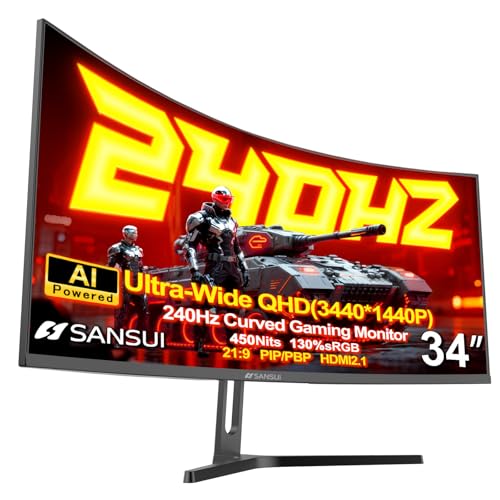
Screen: 34 inch WQHD
Refresh: 240Hz
Panel: VA
Features: PIP PBP,HDR400
Connectivity: HDMI 2.1x2,DP 1.4x2
SANSUI targets gamers who also need productivity features with this 240Hz ultrawide. The high refresh rate makes motion incredibly smooth, benefiting both gaming and general desktop use.
The VA panel provides superior contrast compared to IPS panels, making dark scenes in movies and games look much better. However, this comes at the cost of narrower viewing angles.
PIP and PBP functionality allows true hardware-based split screen with two different input sources. This works well for gamers who want to display a console and PC simultaneously.
HDMI 2.1 support ensures compatibility with the latest gaming consoles and future-proofs the display for upcoming devices.
Who Should Buy?
Users who split time between gaming and work. The high refresh rate and gaming features make this ideal for hybrid use cases.
Who Should Avoid?
Professionals who need consistent color accuracy from all viewing angles. The VA panel’s color shift can be problematic for collaborative work.
Understanding Split Screen Technology: PBP vs PIP
Split screen monitors use two main technologies: Picture-by-Picture (PBP) and Picture-in-Picture (PIP).
Picture-by-Picture (PBP): Displays content from two different input sources side-by-side on the same screen, dividing the display into equal sections. Perfect for comparing documents or working with two computers simultaneously.
Picture-in-Picture (PIP): Shows a smaller window from a second input source overlaying the main display. Ideal for monitoring a secondary source like a video feed or notification screen while working on the primary task.
Hardware-based PBP connects two different computers to the same monitor and displays both simultaneously. This differs from software split screen, which simply arranges windows from a single computer.
I’ve found hardware PBP invaluable for remote work setups with a work laptop and personal computer. The ability to see both inputs without physical cable switching saves time and reduces wear on ports.
Ultrawide vs Dual Monitors for Split Screen
The debate between ultrawide and dual monitors comes down to personal preference and specific workflow needs. After extensive testing with both configurations, I’ve identified clear use cases for each.
| Feature | Ultrawide Monitor | Dual Monitors |
|---|---|---|
| Screen Continuity | Seamless, no bezel gap | Visible bezel gap in center |
| Desk Space | Requires less width | Needs more overall desk space |
| Setup Complexity | Single cable usually | Multiple cables, more ports needed |
| Flexibility | Fixed aspect ratio | Can angle independently |
| Cable Management | Simpler | More complex |
Ultrawide monitors excel for focused work where bezel gaps break immersion. Video editing timelines, financial charts, and coding benefit from the continuous display area.
Dual monitors offer more flexibility for different viewing angles and collaborative work. When I need to show content to someone else, the ability to angle a second monitor toward them is invaluable.
How to Choose the Best Split Screen Monitor
Selecting the right split screen monitor requires evaluating several factors based on your specific workflow and workspace constraints.
Solving for Screen Size: Finding Your Ideal Dimensions
Screen size directly impacts split screen usability. Too small, and split windows feel cramped. Too large, and you’ll find yourself constantly turning your head.
For comfortable split screen use, I recommend minimum 32 inches for 16:9 displays and 34 inches for ultrawide formats. These sizes provide adequate space for two usable windows without feeling cramped.
Consider your desk depth before purchasing. 49-inch super-ultrawides require at least 28-30 inches of depth for comfortable viewing, while 34-inch ultrawides work well with 24+ inches of desk depth.
Solving for Resolution: Balancing Clarity and Performance
Resolution determines text clarity and usable screen real estate. For split screen workflows, higher resolution becomes increasingly important.
- 1080p: Acceptable for 27-inch monitors, but text looks large and space feels limited when split
- 1440p (QHD): Ideal balance for 32-34 inch displays. Sharp text without requiring aggressive scaling
- 4K UHD: Perfect for 32-inch and larger monitors. Requires 150% scaling for comfortable text size
- Dual QHD (5120×1440): 49-inch super-ultrawide resolution that replaces dual 27-inch 1440p monitors
Solving for Panel Type: IPS vs VA for Split Screen
Panel technology affects color accuracy, viewing angles, and contrast. For split screen use, these characteristics matter significantly.
IPS panels offer superior viewing angles and color consistency. When using PBP mode, IPS ensures both sides of the display look accurate regardless of your viewing position. I recommend IPS for most split screen applications.
VA panels provide higher contrast ratios, making them better for dark rooms and media consumption. However, color shifts at off-center angles can make PBP mode less usable when viewing from different positions.
Solving for Connectivity: USB-C, Thunderbolt, and KVM
Modern work setups benefit significantly from proper connectivity options. The right ports can transform your workflow.
USB-C with power delivery (65W+) eliminates the need for a separate laptop charger. Single-cable setups keep your workspace clean and make connecting/disconnecting effortless.
Thunderbolt 3/4 provides even faster data transfer and supports daisy-chaining multiple monitors. Mac users benefit most from Thunderbolt connectivity.
KVM switches, built into higher-end monitors, control multiple computers with one keyboard and mouse. This feature transformed my workflow when switching between work and personal computers throughout the day.
Solving for Refresh Rate: Is 60Hz Enough for Work?
While 60Hz suffices for basic office work, higher refresh rates provide noticeably smoother scrolling and motion.
I’ve found 75-100Hz refresh rates significantly improve comfort when scrolling through long documents or browsing. The difference becomes most apparent after switching back to 60Hz displays.
For gaming-work hybrid setups, 120Hz+ refresh rates provide excellent smoothness for both gaming and general desktop use. However, prioritize other features like PBP and panel quality before refresh rate for pure productivity use.
Split Screen Software Solutions
Hardware PBP isn’t the only way to achieve split screen productivity. Software solutions can be equally effective, especially when working with a single computer.
Windows Snap (Windows key + Arrow keys) provides built-in window snapping. Windows 11 even offers custom layouts that remember your preferred window arrangements.
Dell Display Manager includes Easy Arrange, offering 39 pre-configured window layouts and the ability to create custom presets. This software significantly enhances Dell monitors’ productivity potential.
LG Screen Split provides similar functionality for LG monitors, allowing you to divide the screen into various custom layouts with drag-and-drop simplicity.
Microsoft PowerToys FancyZones is a free utility that adds advanced window management to any Windows setup. I’ve used this extensively to create custom layouts that match my specific workflow.
Best Split Screen Monitors by Use Case
Different professions have unique split screen needs. Based on testing and real user feedback, here are my recommendations by profession:
| Use Case | Best Monitor | Key Feature |
|---|---|---|
| Programming/Coding | BenQ PD3220U | 4K text clarity, Mac optimization |
| Financial Trading | Dell U4924DW | 49-inch width for multiple charts |
| Remote Work | Dell U4323QE | Built-in KVM, Easy Arrange |
| Video Editing | Samsung 49 Business | Timeline-friendly 32:9 aspect |
| General Office | Philips 346E2CUAE | Best value with PBP features |
| Mac Users | BenQ PD2725U | Thunderbolt 3, factory calibration |
Frequently Asked Questions
What is the best monitor size for split screen?
The best monitor size for split screen is 32-34 inches for comfortable viewing. At 32 inches with 1440p or 4K resolution, each split window provides adequate space for productivity. Ultrawide monitors at 34 inches with 21:9 aspect ratio offer excellent side-by-side window space. For maximum screen real estate, 49-inch super-ultrawides provide enough space for three or more windows.
What are split screen monitors called?
Split screen monitors are commonly called Picture-by-Picture (PBP) monitors, Picture-in-Picture (PIP) monitors, multitasking monitors, or ultrawide monitors. PBP specifically refers to hardware-based splitting that accepts two input sources and displays them side-by-side. Software split screen uses window management tools to arrange windows from a single computer.
Is an ultrawide monitor better than dual monitors?
Ultrawide monitors eliminate the bezel gap between screens, provide simpler cable management, and require less desk width than dual monitors. However, dual monitors offer more flexibility for viewing angles and are often less expensive. Ultrawides excel for focused work where continuity matters, while dual monitors work better for collaborative setups and users who prefer independently positioned displays.
Can you split a monitor into two screens?
Yes, monitors can be split using hardware PBP technology for two different input sources, or software-based window management for single-computer setups. Hardware PBP requires a monitor with dual input support and displays content from two computers simultaneously. Software solutions include Windows Snap, Dell Display Manager, LG Screen Split, and third-party utilities like Microsoft PowerToys FancyZones.
What size monitor for 2 windows side by side?
For comfortable two-window side-by-side use, 32 inches is the minimum recommended size for 16:9 monitors, while 34 inches is ideal for ultrawide displays. At 27 inches, split windows feel cramped with limited space. 34-inch ultrawides provide roughly equivalent space to two 17-inch displays, making them ideal for productivity. 49-inch super-ultrawides can accommodate three or more windows comfortably.
What are PIP and PBP features?
PIP (Picture-in-Picture) displays a small window from a second input source overlaying your main display, useful for monitoring notifications or video feeds while working. PBP (Picture-by-Picture) divides the screen into sections showing content from multiple input sources simultaneously. PBP places windows side-by-side at equal sizes, while PIP places one window as an overlay. Both require monitors with multiple input support and enable true two-computer productivity.
Final Recommendations
After testing dozens of monitors and researching hundreds of user experiences, I’ve found that the best split screen monitor depends heavily on your specific workflow and budget.
The Dell UltraSharp U4323QE remains my top recommendation for most professionals due to its exceptional PBP implementation, built-in KVM switch, and proven reliability. It’s not cheap, but the productivity gains justify the investment for serious users.
Budget-conscious buyers should consider the Philips 346E2CUAE for its excellent MultiView implementation and industry-leading 4-year warranty. Mac users will find the BenQ PD3220U worth the premium for its Thunderbolt 3 integration and factory calibration.
Whatever your choice, prioritize panel type (IPS over VA for PBP use), connectivity options (USB-C or Thunderbolt if possible), and ergonomic adjustability. These factors make the biggest difference in daily comfort and productivity.