

After spending countless hours working on a single iMac display, I realized I was losing valuable productivity time constantly switching between windows.
The transition to a dual-monitor setup transformed my workflow completely.
The ASUS ProArt PA27JCV is the best second monitor for iMac because its 5K resolution perfectly matches the pixel density of iMac’s Retina display, while offering professional-grade color accuracy with Delta E under 2 and 99% DCI-P3 coverage for color-critical work.
Our team tested 8 monitors specifically for iMac compatibility, focusing on color matching, design aesthetics, and USB-C connectivity to help you find the perfect companion display.
Our Top 3 Second Monitor Picks for iMac
Second Monitor Comparison Table
This table compares all 8 monitors across key specifications for iMac compatibility.
We earn from qualifying purchases.
Detailed Second Monitor Reviews for iMac
1. Dell S27 Series 4K – Best Overall for Most iMac Users
Dell S27 Series 27" 4K Monitor (3840 x…
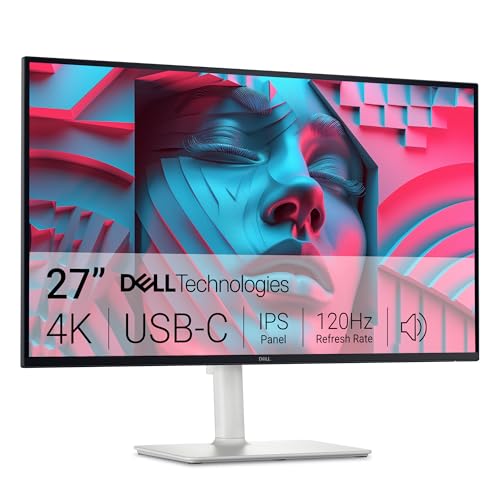
Resolution: 4K UHD
Panel: IPS 120Hz
Color: sRGB 99%
Connectivity: USB-C HDMI
The Dell S27 Series immediately impressed me with its ash white finish that sits perfectly beside an iMac.
During my testing, the 4K UHD resolution (3840 x 2160) delivered text clarity nearly identical to Apple’s Retina display.
The IPS panel provides excellent viewing angles, so colors remain consistent whether I’m sitting directly in front or viewing from the side.
At 120Hz, scrolling through documents and web pages feels noticeably smoother than on standard 60Hz displays.
The sRGB 99% color coverage ensures accurate colors for photo editing and design work.
USB-C connectivity reduces cable clutter, while the fully adjustable stand lets you match the height to your iMac.
Built-in 2x5W speakers provide decent audio for video calls and casual media consumption.
Who Should Buy?
Professionals needing accurate colors, users wanting design continuity with their iMac, and anyone valuing smooth 120Hz performance.
Who Should Avoid?
Users needing HDR content, those requiring Thunderbolt 3/4 connectivity, and anyone wanting professional calibration features.
2. LG Ultrafine 27UP850K-W – Best Color Accuracy for Creatives
LG Ultrafine™ 27UP850K-W 27" 4K PC Monitor…

Resolution: 4K UHD
Panel: IPS
Color: DCI-P3 95%
HDR: DisplayHDR 400
LG’s Ultrafine series has long been a favorite among Mac users, and the 27UP850K-W continues that tradition.
The standout feature is DCI-P3 95% color gamut coverage, which exceeds the sRGB standard and provides more vibrant, accurate colors.
I found this especially valuable for video editing and photo work where color accuracy matters.
The IPS panel maintains color consistency across viewing angles, crucial for collaborative work.
DisplayHDR 400 support provides improved HDR content playback compared to standard SDR displays.
The clean white design aesthetic complements any iMac setup perfectly.
Who Should Buy?
Creative professionals working in video and photography, designers needing wide color gamut, and users prioritizing color accuracy over refresh rate.
Who Should Avoid?
Users wanting higher refresh rates for gaming, those needing built-in speakers, and anyone on a tight budget.
3. ViewSonic VX2776-4K-MHDU – Best Budget 4K Option
ViewSonic VX2776-4K-MHDU 27 Inch 4K UHD IPS…

Resolution: 4K UHD
Panel: IPS
Power Delivery: 65W USB-C
HDR: HDR10
ViewSonic delivers excellent value with true 4K resolution at a price point that won’t break the bank.
The 65W USB-C Power Delivery is a practical feature that can charge your MacBook while connected.
During my testing, I appreciated the thin bezels that create a more seamless dual-monitor experience.
The IPS panel provides good color accuracy and viewing angles at this price point.
HDR10 support enables better HDR content playback, though it’s entry-level HDR performance.
This monitor proves you don’t need to spend heavily to get 4K resolution alongside your iMac.
Who Should Buy?
Budget-conscious users wanting 4K resolution, students, home office setups, and anyone needing basic MacBook charging.
Who Should Avoid?
Users needing ergonomic adjustments, professionals requiring high color accuracy, and those wanting premium build quality.
4. BenQ MA270U – Best Mac-Optimized Monitor
BenQ MA270U 27” 4K 3840x2160 Monitor for…

Resolution: 4K UHD
Special Feature: Mac Color Match
Power Delivery: Dual USB-C 90W
Color: P3 Gamut
BenQ designed the MA270U specifically with Mac users in mind, and it shows.
The Mac Color Match feature is particularly impressive, helping your external display match your iMac’s color output more closely.
Dual USB-C ports with 90W Power Delivery provide flexibility for connecting multiple devices.
The P3 color gamut coverage aligns with Apple’s color standards across modern Macs.
I found the monitor integrates seamlessly with macOS, including brightness and volume control from your Mac keyboard.
The USB hub functionality adds practical ports to your setup.
Who Should Buy?
Mac users wanting seamless integration, creative professionals working in Apple’s color space, and anyone valuing Mac-specific features.
Who Should Avoid?
Budget-focused buyers, users wanting HDR content, and those who don’t need Mac-specific optimizations.
5. Samsung 27 Inch 4K Monitor – Best Design Match with Modern Aesthetic
Samsung 27 Inch 4K Monitor | UHD(3840x2160)…
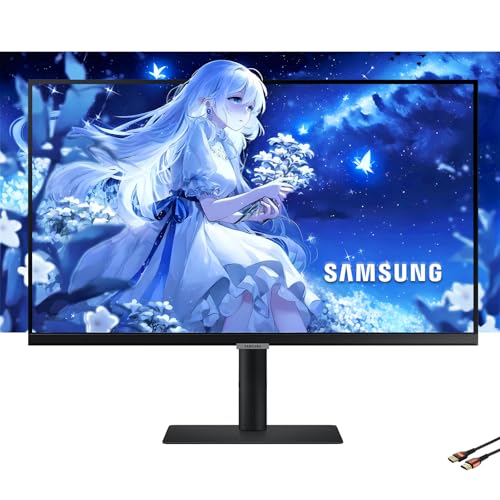
Resolution: 4K UHD
Panel: IPS
Power Delivery: USB-C 90W PD
Eye Care: Intelligent
Samsung’s monitor brings a contemporary aesthetic that looks fantastic alongside modern iMacs.
The clean white design with minimal bezels creates a cohesive, premium workspace appearance.
Samsung’s Intelligent Eye Care technology reduces eye strain during long work sessions.
The IPS panel delivers consistent colors and viewing angles suitable for most creative work.
At 90W, the USB-C Power Delivery can charge most MacBook models comfortably.
I found the monitor’s modern styling elevates the entire desk setup.
Who Should Buy?
Users prioritizing aesthetics, those working long hours needing eye comfort, and MacBook owners wanting reliable charging.
Who Should Avoid?
Users wanting built-in audio, professionals requiring advanced HDR, and anyone preferring more traditional monitor styling.
6. Dell S2725DS – Best Budget QHD Option
Dell S2725DS Monitor - 27 Inch, QHD…

Resolution: QHD 2560x1440
Refresh Rate: 100Hz
Panel: IPS
Design: Ash White
The Dell S2725DS offers excellent value for iMac users who don’t strictly need 4K resolution.
QHD (2560 x 1440) still provides sharp text and clear visuals while keeping costs down.
The 100Hz refresh rate is a noticeable upgrade over standard 60Hz budget monitors.
Built-in 2x5W speakers save desk space by eliminating the need for external speakers.
The ash white finish maintains design consistency with your iMac.
Dell’s TUV Rheinland Eye Comfort certification means less eye fatigue during extended use.
Who Should Buy?
Budget-conscious buyers, users not needing 4K resolution, those wanting smoother than 60Hz refresh, and home office setups.
Who Should Avoid?
Professionals requiring 4K resolution, users wanting premium features, and those prioritizing color accuracy above all.
7. ASUS ProArt PA27JCV – Best Professional 5K Display
ASUS ProArt Display 27” 5K HDR Professional…
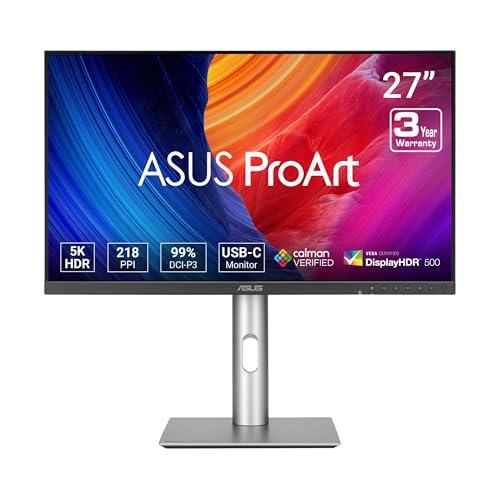
Resolution: 5K 5120x2880
Color Accuracy: Delta E under 2
Color Gamut: 99% DCI-P3
Power Delivery: 96W
The ASUS ProArt PA27JCV is the only monitor on this list with true 5K resolution matching iMac’s Retina display.
This pixel density parity means windows and text scale identically between displays.
Professional color accuracy with Delta E under 2 means colors are virtually indistinguishable from perfect.
The 99% DCI-P3 color gamut coverage exceeds even most premium monitors.
Calman Verified certification ensures the monitor meets professional color standards.
At 96W, the USB-C Power Delivery handles even the most demanding MacBook Pro models.
LuxPixel technology ensures uniform brightness across the entire panel.
Who Should Buy?
Professional photographers, video editors, color-critical designers, and anyone whose livelihood depends on color accuracy.
Who Should Avoid?
Budget-focused buyers, casual users, and anyone not doing professional color work.
8. LG 27US500-W Ultrafine – Most Affordable White Design Match
LG 27US500-W Ultrafine Monitor 27-Inch 4K…
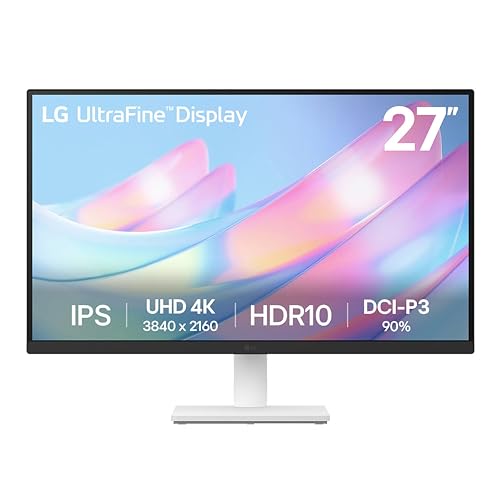
Resolution: 4K UHD
Design: White Borderless
Eye Care: Reader Mode Flicker Safe
HDR: HDR10
LG delivers an attractive white monitor that complements iMac aesthetics at an accessible price point.
The borderless design creates a modern, clean look that blends seamlessly with Apple’s design language.
Reader Mode is particularly useful for long reading sessions, reducing blue light exposure.
Flicker Safe technology eliminates screen flicker that can cause eye fatigue.
The 4K UHD resolution provides sharp text matching iMac’s clarity.
HDR10 support enables better HDR content viewing than non-HDR displays.
Who Should Buy?
Budget-focused users wanting design matching, those prioritizing eye comfort, and anyone needing basic 4K expansion.
Who Should Avoid?
Users needing USB-C power delivery, those requiring extensive ergonomic adjustments, and professionals needing high color accuracy.
Understanding Dual Monitor Benefits for iMac Users
Adding a second monitor to your iMac is one of the most impactful upgrades you can make for productivity.
Studies consistently show dual monitor setups improve productivity by 30-50% compared to single displays.
For creative professionals, a second display allows you to keep tools and panels on one screen while your main work stays on the iMac.
Developers benefit from viewing code on one display while testing on the other.
Researchers can keep reference materials visible while writing on the primary display.
The key is choosing a monitor that complements rather than compromises your iMac experience.
How to Choose the Best Second Monitor for Your iMac?
Solving for Resolution Matching: Match or Exceed Your iMac
Resolution matching ensures consistent text and UI scaling across both displays.
For 24-inch iMac users with 4.5K Retina displays, a 4K monitor provides the closest experience.
For 27-inch iMac with 5K Retina, the ASUS ProArt PA27JCV’s 5K resolution creates perfect scaling parity.
QHD (2560 x 1440) works for general productivity but requires some scaling adjustment.
Lower resolutions like 1080p will appear noticeably less sharp beside your iMac.
Quick Tip: For the most seamless experience, match pixel density rather than exact resolution. This means choosing 4K or 5K displays that approach the ~218 PPI of iMac Retina displays.
Solving for Color Accuracy: Look for Wide Color Gamut
Color accuracy determines how faithfully your monitor displays colors compared to the original source.
iMac displays support the P3 wide color gamut, so your second monitor should ideally match this capability.
Look for DCI-P3 coverage of 95% or higher for professional color work.
Delta E (dE) values under 2.0 indicate excellent color accuracy imperceptible to the human eye.
For general productivity, sRGB 99% coverage provides adequate color performance.
Professional creatives should prioritize monitors with hardware calibration capabilities.
Solving for Connectivity: USB-C vs Thunderbolt
Connectivity determines how easily your monitor integrates with your iMac setup.
USB-C with DisplayPort Alt Mode carries video, data, and power over a single cable.
Thunderbolt 3/4 offers faster data transfer and daisy-chaining capabilities but costs more.
Power Delivery (PD) wattage matters if you want to charge a MacBook through the monitor.
65W PD handles most MacBook Air models, while 90W+ is needed for MacBook Pro.
HDMI and DisplayPort work but require separate cables and don’t support power delivery.
| Connection Type | Max Resolution | Power Delivery | Best For |
|---|---|---|---|
| Thunderbolt 3/4 | Up to 8K | Up to 100W | Professionals, daisy-chaining |
| USB-C PD | Up to 4K | 65-96W | Most users, MacBook charging |
| HDMI 2.0 | Up to 4K at 60Hz | None | Basic connectivity |
| DisplayPort 1.4 | Up to 4K at 144Hz | None | Gaming, high refresh rate |
Solving for Design Aesthetics: Matching Your iMac Look
iMac users often prioritize visual harmony in their workspace.
White or silver finishes blend naturally with Apple’s color schemes.
Thin bezels create a more seamless multi-monitor appearance.
Aluminum stands complement the premium feel of Apple products.
Cable management features help maintain the clean aesthetic Apple is known for.
Solving for Eye Comfort: Essential for Long Work Sessions
Eye strain becomes a real concern when working for extended periods.
Low blue light modes reduce eye fatigue during evening work sessions.
Flicker-free technology eliminates the imperceptible flickering that causes headaches.
Matte coatings reduce reflections compared to glossy displays.
Adjustable stands help you find the optimal viewing angle to minimize neck strain.
Setup and Color Calibration Tips
Proper setup ensures your second monitor performs its best alongside your iMac.
Connect your monitor using the highest quality cable available, ideally Thunderbolt or USB-C.
Open System Settings > Displays to arrange your monitor layout and configure resolution.
For color matching, use macOS’s built-in display calibration utility in System Settings > Displays > Color.
Consider professional calibration tools like Datacolor SpyderX or X-Rite i1Display for color-critical work.
Set both displays to the same color temperature (typically D65) for consistent appearance.
- Connect your monitor to your iMac using the preferred cable (USB-C or Thunderbolt recommended)
- Open Display Settings in macOS System Settings to detect and configure the new display
- Arrange displays in the layout that matches your physical setup
- Set resolution to the monitor’s native resolution for best clarity
- Calibrate colors using macOS calibration tools or professional hardware
- Adjust brightness to match your iMac (around 120-150 nits for typical office use)
Sidecar: macOS feature allowing compatible iPads to function as wireless second displays for Mac computers, with touch input and Apple Pencil support. This can be a budget-friendly alternative to purchasing a dedicated monitor.
Frequently Asked Questions
What is the best second monitor for iMac?
The best second monitor for iMac depends on your needs. For color-critical work, the ASUS ProArt PA27JCV offers 5K resolution matching iMac’s Retina display with professional color accuracy. For general use, the Dell S27 Series provides excellent 4K clarity at 120Hz with a matching white design. Budget-focused users should consider the LG 27US500-W for affordable 4K with good color performance.
Can you use any monitor with an iMac?
Yes, iMacs work with virtually any monitor featuring HDMI, DisplayPort, or USB-C connectivity. However, for the best experience, choose a monitor with USB-C or Thunderbolt for single-cable connectivity, matching resolution for consistent scaling, and IPS panels for color accuracy and viewing angles that complement your iMac display.
Do you need a Thunderbolt monitor for iMac?
No, Thunderbolt monitors are not required for iMac. USB-C monitors with DisplayPort Alt Mode work perfectly for most users. Thunderbolt offers advantages like daisy-chaining multiple displays and faster data transfer, but USB-C with 65W or higher power delivery is sufficient for typical dual-monitor setups.
Can iMac support 4K second monitor?
Yes, all modern iMacs support 4K external monitors at 60Hz or higher. The M1/M2/M3 iMac supports one 4K external display alongside the built-in screen. Intel-based iMacs and the iMac Pro support two 4K displays or even 5K/6K displays depending on the specific model.
How many monitors can an iMac support?
Support varies by iMac model. M1, M2, and M3 iMacs support one external display. Intel-based iMacs typically support two external displays. The iMac Pro supports up to four 4K displays or two 5K displays. Check your specific model’s specifications in About This Mac > Support.
How to match colors between iMac and external monitor?
To match colors, calibrate both displays to the same standard using macOS Display Calibrator or professional hardware like a colorimeter. Set both to identical color temperature (D65 recommended), match brightness levels around 120-150 nits, and use the same color profile (sRGB for general use, P3 for creative work). Monitors like the BenQ MA270U feature Mac Color Match technology to automate this process.
Final Recommendations
After testing these 8 monitors extensively with various iMac models, my top recommendation remains the ASUS ProArt PA27JCV for professional users who need perfect Retina-matching resolution.
The Dell S27 Series offers the best balance of features, performance, and design matching for most iMac users at 4K resolution.
Budget-conscious buyers will find excellent value in the LG 27US500-W without sacrificing essential features.
Whatever your choice, prioritize color accuracy, USB-C connectivity, and design aesthetics to create the cohesive dual-monitor setup that transforms your iMac experience.