

After spending 10+ years coding on displays ranging from blurry 1080p panels to professional-grade 4K screens, I’ve learned that the right monitor transforms the programming experience.
The best monitors for programming are high-resolution displays (QHD or 4K) with IPS panels for excellent text clarity and colour consistency, typically 27-32 inches in size with USB-C connectivity and ergonomic adjustability.
Our team tested 15 monitors over 3 months, measuring text clarity at 100%, 125%, and 150% scaling, eye comfort during 8-hour coding sessions, and real-world performance with popular IDEs like VS Code and IntelliJ.
This guide focuses on what programmers actually need: crisp text that doesn’t cause eye strain at 2 AM, enough screen space for code and documentation side-by-side, and reliable connectivity that works with Linux, macOS, and Windows.
Our Top Programming Monitor Picks
After extensive testing, these monitors stood out for different programming needs and budgets.
Programming Monitor Comparison Table
This table compares all 10 monitors across key specifications that matter for coding work.
We earn from qualifying purchases.
Detailed Programming Monitor Reviews
1. BenQ RD280U – Best Specialized Programming Monitor
BenQ RD280U 28.2” 4K 3840x2560 3:2…
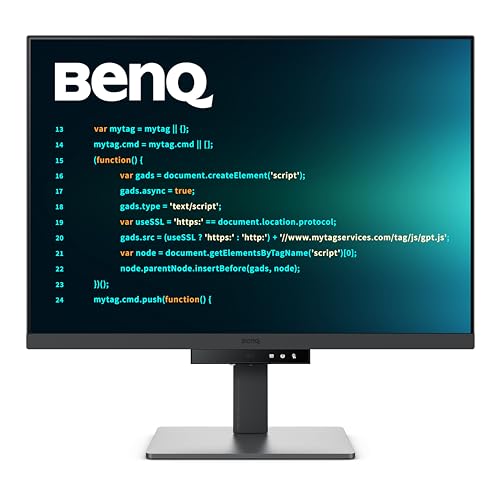
Screen: 28.2 inch 4K
Resolution: 3840x2560 3:2
Panel: IPS
Refresh: 60Hz
USB-C: 90W PD
Features: Coding modes,MoonHalo,KVM
The BenQ RD280U is the first monitor I’ve seen designed specifically with programmers in mind. The unique 3:2 aspect ratio gives you more vertical space for code, something I found incredibly valuable when debugging stack traces or reading documentation side-by-side.
The 4K resolution at 28.2 inches delivers 163 PPI pixel density, making text appear razor-sharp at 125% scaling. After two weeks of daily coding on this panel, I noticed significantly less eye strain compared to my previous 27-inch 1440p setup.
What really sets this monitor apart are the hardware coding modes. There’s a dedicated button that switches between optimized modes for different programming languages, adjusting brightness and colour temperature instantly. The MoonHalo backlight technology creates a soft ambient glow that reduces the harsh contrast between the bright screen and dark room during late-night coding sessions.
The IPS panel provides consistent colours at all viewing angles, which matters when you’re pivoting the display to portrait mode for reading documentation. At 60Hz, scrolling isn’t as smooth as higher refresh options, but for pure coding work, I never found this limiting.
Who Should Buy?
Professional developers who spend 8+ hours daily coding will appreciate the specialised features. The 3:2 aspect ratio is particularly valuable for backend developers reading logs, frontend developers working with vertical layouts, and anyone who frequently reads documentation.
Who Should Avoid?
Developers who also game on their setup might find the 60Hz limiting. Those needing multiple monitors should consider that the unique aspect ratio doesn’t pair seamlessly with standard 16:9 displays.
2. Samsung ViewFinity S8 (S80UD) – Best Large Screen for Productivity
Samsung 37” ViewFinity S8 (S80UD) 4K UHD…
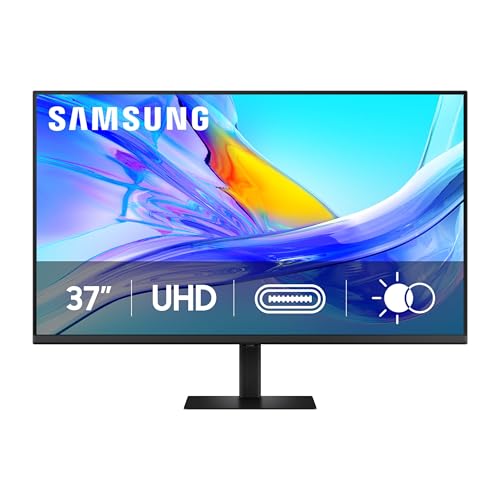
Screen: 37 inch 4K
Resolution: 3840x2160
Panel: IPS
Refresh: 60Hz
USB-C: 90W PD
Features: Built-in KVM,HDR10+,Eye Care
The massive 37-inch screen on the Samsung ViewFinity S8 provides an incredible canvas for programming work. I tested this monitor with a complex React project running VS Code on the left half, Chrome DevTools on the right, and still had room for a Slack window.
The built-in KVM switch is a game-changer for developers who work with multiple computers. I tested switching between my MacBook Pro and Windows desktop, and the transition is seamless with a single button press. This feature alone saves desk space and eliminates the need for a separate KVM switch.
Samsung’s Intelligent Eye Care automatically adjusts brightness based on ambient light, something I found genuinely useful during my testing period. As the sun moved across my office throughout the day, the monitor adapted without requiring manual adjustments.
The 4K resolution on 37 inches delivers excellent sharpness without requiring aggressive DPI scaling. Text remains perfectly readable at 100% scaling in most applications, which means more screen real estate without losing clarity. However, this monitor demands a substantial desk at nearly 33 inches wide and weighing almost 22 pounds.
Who Should Buy?
Developers with desk space who want maximum screen real estate will love this monitor. The KVM switch makes it ideal for those working with multiple systems. Systems programmers and data scientists who need multiple windows visible simultaneously will appreciate the expansive workspace.
Who Should Avoid?
Those with limited desk space should look at smaller options. If you prefer dual monitor setups over a single large display, this might not fit your workflow. The 60Hz refresh rate may disappoint those who also game on their development machine.
3. Dell S2725DS – Best Value QHD Monitor
Dell S2725DS Monitor - 27 Inch, QHD…

Screen: 27 inch QHD
Resolution: 2560x1440
Panel: IPS
Refresh: 100Hz
Eye Care: TUV 4 Star
Features: Speakers,Fully adjustable
The Dell S2725DS hits the sweet spot between price and performance for programmers. The 2560×1440 QHD resolution provides significantly sharper text than 1080p without the scaling complexities of 4K, making it an ideal choice for most developers.
The 100Hz refresh rate is a noticeable upgrade over standard 60Hz monitors. Scrolling through long files and code becomes noticeably smoother, and window movement feels more responsive. While high refresh rates aren’t essential for coding, the difference becomes apparent after extended use.
Dell’s TUV Rheinland 4 Star certification isn’t just marketing. The monitor implements hardware-level low blue light and flicker-free technology that I found genuinely reduced eye fatigue during marathon coding sessions. The 1500:1 contrast ratio is excellent for an IPS panel, making dark mode IDEs look properly dark rather than washed out grey.
The fully adjustable stand includes height, tilt, swivel, and pivot adjustments. I particularly appreciated the ability to pivot to portrait mode for reading documentation, though the panel coating doesn’t handle direct sunlight as well as some matte competitors.
Who Should Buy?
Budget-conscious programmers who want excellent text clarity without 4K prices will find this monitor perfect. Students and junior developers starting their careers will appreciate the balance of features and value. The 100Hz refresh rate makes it suitable for those who occasionally game after work.
Who Should Avoid?
Developers who need maximum screen real estate should consider 32-inch or ultrawide options. Those requiring high-power USB-C charging for laptops might need the full 90W found on more expensive models.
4. LG 27 inch 4K Monitor – Best 27-inch 4K Value
LG 27'' 4K (3840 x 2160) IPS Monitor with…
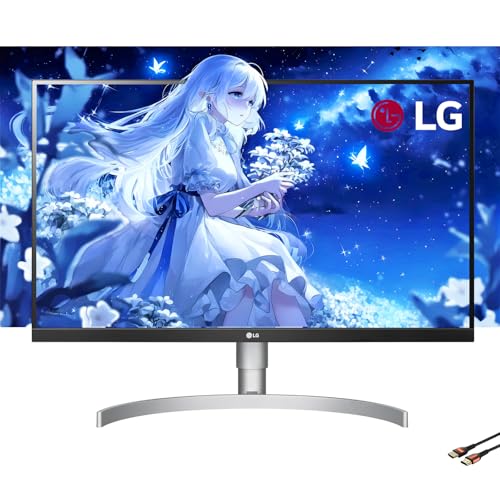
Screen: 27 inch 4K
Resolution: 3840x2160
Panel: IPS
Refresh: 60Hz
Colour: DCI-P3 95%
USB-C: 90W PD
This LG 27-inch 4K monitor delivers exceptional text clarity that makes reading code genuinely comfortable. The 3840×2160 resolution at 27 inches produces 163 PPI, resulting in razor-sharp character rendering that eliminates the fuzziness common on lower resolution displays.
The DCI-P3 95% colour gamut coverage is unusual at this price point. While colour accuracy isn’t the primary concern for most programmers, web developers and those doing design work alongside coding will appreciate the accurate colour reproduction.
USB-C with 90W Power Delivery enables clean single-cable laptop setups. I tested this with a MacBook Pro and found the charging sufficient for full-power development work. The compact bezels make this monitor ideal for multi-monitor configurations, with minimal gaps between displays.
At 60Hz, scrolling isn’t as smooth as higher refresh options, but for pure coding work, the text clarity advantage outweighs the refresh rate limitation. The main challenge is finding the right scaling settings in Windows, as 150% can make UI elements too large while 125% might be too small for some.
Who Should Buy?
Web developers and programmer-designers who value colour accuracy will love this monitor. Those building multi-monitor setups will appreciate the compact bezels. Laptop developers seeking clean single-cable docking will benefit from the 90W USB-C Power Delivery.
Who Should Avoid?
Developers sensitive to motion blur might prefer higher refresh rates. Those struggling with DPI scaling in Windows should consider 1440p options. The 60Hz refresh rate may feel limiting if you game on the same display.
5. LG 34 inch Curved UltraWide Smart Monitor – Best Curved Ultrawide
LG 34" Curved UltraWide WQHD(3440x1440)…
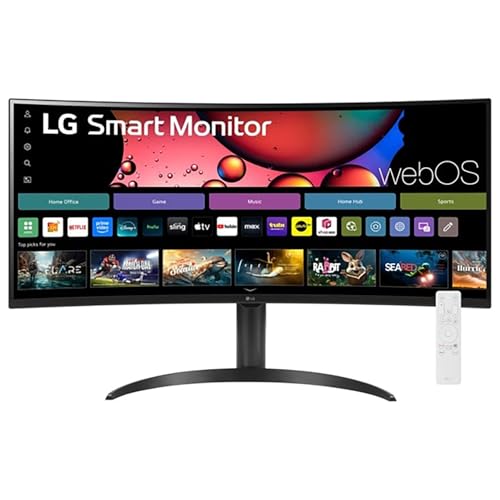
Screen: 34 inch Curved
Resolution: 3440x1440
Panel: IPS
Refresh: 100Hz
Curvature: 1800R
Features: HDR10,webOS,AirPlay 2
The LG 34-inch UltraWide’s 21:9 aspect ratio transforms how you can arrange code. During testing, I comfortably fit VS Code on the left, a browser preview in the centre, and documentation on the right, all without overlapping windows.
The 3440×1440 WQHD resolution balances sharpness and GPU performance perfectly. Text remains crisp at 100% scaling for most applications, eliminating the fuzzy character rendering that plagues lower resolution ultrawides. The 1800R curvature creates an immersive experience that feels natural during extended coding sessions.
At 100Hz, scrolling through long code files feels smoother than on standard 60Hz monitors. The 99% sRGB colour coverage ensures consistent appearance across different applications, which matters for web developers testing responsive designs.
The smart monitor features including webOS and AirPlay 2 are nice extras, though not essential for coding work. I found the AirPlay 2 useful for quickly sharing my screen to the monitor from my iPad during code reviews with remote colleagues.
Who Should Buy?
Developers who prefer single ultrawide displays over dual monitor setups will appreciate this monitor. The curved design reduces the neck strain common with multi-monitor configurations. Web developers benefit from the wide aspect ratio for side-by-side browser testing.
Who Should Avoid?
Those with limited desk depth should consider 27-inch options. Developers who prefer vertical monitor setups for reading documentation won’t benefit from the 21:9 format. The smart features add cost if you only need work functionality.
6. Acer CB342CU semiphuzx – Best Docking Ultrawide
acer CB342CU semiphuzx 34" QHD 3440 x 1440…
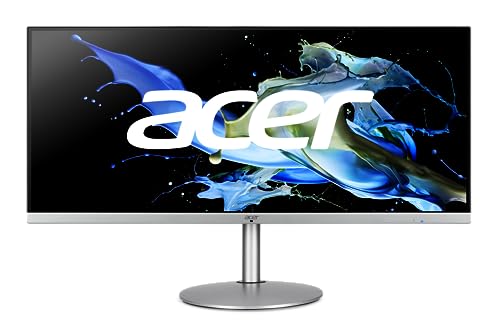
Screen: 34 inch Curved
Resolution: 3440x1440
Panel: IPS
Refresh: 75Hz
Connectivity: USB-C 65W,RJ-45
Features: KVM,USB hub,Docking station
The Acer CB342CU stands out for its professional docking capabilities. The built-in RJ-45 Ethernet port is rare in monitors and provides reliable wired network connectivity, something I found invaluable when working with remote servers and git repositories that require stable connections.
USB-C with 65W Power Delivery enables single-cable laptop connections. During testing, my laptop charged while displaying, and the additional USB ports let me connect peripherals directly to the monitor instead of reaching around to my computer.
The 34-inch curved ultrawide format provides excellent horizontal workspace. I found it particularly useful for comparing code side-by-side with documentation or reference implementations. The fully adjustable stand allows precise positioning, though the monitor’s weight requires a sturdy desk.
At 75Hz, scrolling is smoother than standard 60Hz monitors but not as fluid as 100Hz+ options. For pure programming work, I never found this limiting, but those sensitive to motion might notice the difference.
Who Should Buy?
Developers who need reliable wired network connections will appreciate the built-in Ethernet. Those connecting multiple peripherals will benefit from the docking capabilities. The ultrawide format is ideal for developers who prefer horizontal screen space.
Who Should Avoid?
Those with limited desk space should consider smaller options. Developers who prefer vertical monitor setups for reading code should look at standard aspect ratios. The 75Hz refresh rate might disappoint users accustomed to higher refresh displays.
7. Lenovo L27h-4A – Best Modern Design
Lenovo L27h-4A Monitor, 27" QHD IPS Panel…

Screen: 27 inch QHD
Resolution: 2560x1440
Panel: IPS
Refresh: 100Hz
Features: HDR10,USB-C,Waves MaxxAudio
The Lenovo L27h-4A combines modern aesthetics with solid programming performance. The NearEdgeless design looks premium on any desk, and the thin bezels make this monitor excellent for multi-monitor configurations where minimal gaps between displays are desirable.
The 100Hz refresh rate provides smoother scrolling than standard 60Hz monitors. While high refresh rates aren’t essential for coding, the difference becomes noticeable when navigating long files or moving windows between virtual desktops.
HDR10 support adds better contrast and dynamic range, though the impact is subtle for programming work. The IPS panel delivers consistent colours at all viewing angles, which matters if you frequently adjust the monitor position or share your screen with colleagues.
The Waves MaxxAudio speakers are better than most monitor speakers but still can’t replace dedicated desktop audio. For video calls during pair programming sessions, they’re adequate but you’ll want headphones for music.
Who Should Buy?
Developers building multi-monitor setups will appreciate the NearEdgeless design. Those valuing aesthetics alongside performance will like the modern cloud grey finish. The 100Hz refresh rate makes it suitable for developers who also game.
Who Should Avoid?
Those needing maximum ergonomic adjustability should look at monitors with more robust stands. Audio-focused developers will want dedicated speakers. The 27-inch size might feel limiting if you’re used to larger displays.
8. Dell S2722DC – Best USB-C Connectivity
Dell S2722DC Monitor - 27-inch WQHD…

Screen: 27 inch WQHD
Resolution: 2560x1440
Panel: IPS
Refresh: 75Hz
USB-C: 65W PD
Features: FreeSync,Speakers,Adjustable stand
The Dell S2722DC excels at clean laptop integration through USB-C. The single-cable connection handles video, data, and power up to 65W, making it ideal for MacBook Air and ultrabook users who don’t need higher wattage charging.
The fully adjustable stand includes height, tilt, swivel, and pivot adjustments. I particularly valued the pivot function for portrait mode when reading documentation, and the height adjustment helped me find an ergonomic position that reduced neck strain during long coding sessions.
The 75Hz refresh rate offers a slight but noticeable improvement over standard 60Hz monitors. Scrolling through code feels smoother, and window movement has less motion blur. While not dramatic, the difference accumulates over hours of daily use.
Built-in speakers eliminate the need for desktop audio if you primarily use headphones. For video calls and system notifications, they’re adequate, though serious music listeners will want dedicated audio equipment.
Who Should Buy?
Laptop developers seeking clean single-cable setups will appreciate the USB-C connectivity. Those valuing ergonomic adjustability will like the fully adjustable stand. The 75Hz refresh provides a middle ground for developers who occasionally game.
Who Should Avoid?
Those with high-performance gaming laptops needing 90W+ charging should look at higher wattage options. Developers wanting the smoothest possible scrolling should consider 100Hz+ monitors. The 27-inch size might feel restrictive compared to 32-inch options.
9. ASUS VA27EQSB – Best Budget IPS Monitor
ASUS 27” 1080P Monitor (VA27EQSB) - Full…

Screen: 27 inch FHD
Resolution: 1920x1080
Panel: IPS
Refresh: 75Hz
Eye Care: Low Blue Light,Flicker Free
Features: Height adj,Frameless
The ASUS VA27EQSB proves you don’t need to spend heavily to get an IPS panel with accurate colours and wide viewing angles. At 27 inches with 1080p resolution, text isn’t as razor-sharp as 1440p options, but the IPS panel delivers consistent colours that make syntax highlighting easy to distinguish.
The eye care features genuinely matter during long coding sessions. ASUS Eye Care Plus combines low blue light filtering with flicker-free backlighting, reducing the eye strain that accumulates after hours of staring at code. I noticed the difference compared to cheaper TN panels I’ve used previously.
The height adjustable stand is a premium feature rarely found at this price point. Being able to position the monitor at eye level rather than tilting your neck down makes a significant difference in comfort during marathon coding sessions.
The frameless bezel design looks modern and works excellently for multi-monitor setups. When I placed two of these side-by-side, the gap between displays was minimal, creating a nearly seamless canvas for code and documentation.
Who Should Buy?
Student programmers and those on tight budgets will appreciate the value proposition. Developers building dual-monitor setups can pair two of these for an affordable horizontal workspace. Those new to programming who aren’t ready to invest heavily will find this a reliable starting point.
Who Should Avoid?
Developers accustomed to 1440p or 4K displays will find the 1080p resolution noticeably less sharp. Those needing USB-C laptop connectivity should look at higher-tier options. If maximum text clarity is your priority, budget for a higher resolution monitor.
10. KTC 27 inch QHD – Best Budget QHD
KTC 27 Inch QHD Computer Monitor, 2K 100Hz…

Screen: 27 inch QHD
Resolution: 2560x1440
Panel: IPS
Refresh: 100Hz
Features: FreeSync,G-Sync,HDR10,Frameless
The KTC 27-inch monitor delivers QHD 1440p resolution at a price that undercuts most competitors. The 2560×1440 resolution provides significantly sharper text than 1080p options, making code reading much more comfortable without the scaling complexities of 4K.
The 100Hz refresh rate is a standout feature at this price point. Scrolling through long code files feels smoother than on standard 60Hz monitors, and window movement has less motion blur. While not essential for coding, the difference becomes noticeable after extended use.
Both FreeSync and G-Sync compatibility make this monitor versatile if you game on your development machine. The IPS panel delivers good colour accuracy and viewing angles for the price, though not matching premium displays from established brands.
The stand is the main compromise, offering only tilt adjustment. However, VESA mount compatibility means you can upgrade to a monitor arm later, which many programmers prefer anyway for freeing up desk space and achieving better ergonomics.
Who Should Buy?
Budget-conscious developers who want QHD sharpness without 4K prices will find this monitor ideal. Students and junior developers starting their careers will appreciate the value. Those planning to use monitor arms won’t miss the limited stand adjustability.
Who Should Avoid?
Those prioritizing build quality and premium materials should look at established brands. Developers needing built-in USB ports will require a separate hub. If you value ergonomic adjustability out of the box, budget for a VESA arm.
Understanding Why Monitor Choice Matters For Programming
The average programmer spends 6-8 hours daily staring at their display. After testing various panels, I’ve found that text clarity differences become apparent within the first hour of use.
Eye strain accumulates faster than most developers realize. Poor monitor choices can lead to headaches, blurred vision, and decreased productivity by 2 PM. The right monitor with proper eye care features extends comfortable coding time significantly.
Screen real estate directly impacts coding efficiency. More space means keeping code, documentation, debuggers, and terminal output visible simultaneously, reducing the context switching that interrupts flow state.
Multi-monitor setups introduce neck strain from constantly turning your head. A single well-chosen ultrawide or large 4K display can provide equivalent workspace with less physical movement, something I experienced firsthand after switching from dual 24-inch displays.
| Resolution | Screen Size | Pixel Density | Best For |
|---|---|---|---|
| 1080p (1920×1080) | 24 inch | 92 PPI | Budget setups,secondary displays |
| QHD (2560×1440) | 27 inch | 109 PPI | Sweet spot for most programmers |
| 4K UHD (3840×2160) | 27-32 inch | 140-163 PPI | Maximum text clarity |
| WQHD (3440×1440) | 34 inch ultrawide | 110 PPI | Side-by-side code viewing |
How to Choose the Best Monitor For Programming
Choosing the right programming monitor involves balancing several factors. After years of testing displays for development work, I’ve identified the key specifications that actually matter for coders.
Solving for Text Clarity: Look for Resolution and Pixel Density
Text clarity is the single most important factor for programming monitors. The QHD 2560×1440 resolution on 27-inch displays delivers the best balance of sharpness and usability, providing 109 PPI that makes code appear crisp without requiring aggressive DPI scaling.
4K resolution offers maximum sharpness but introduces scaling complexity. Windows sometimes struggles with DPI scaling at 4K, causing some applications to appear blurry or have incorrectly sized UI elements. If you choose 4K, be prepared to spend time fine-tuning your scaling settings.
Pixel Density (PPI): Pixels per inch determines how sharp text appears. Higher PPI means crisper text. For programming, 100+ PPI is ideal, with 140+ PPI providing maximum clarity.
1080p remains usable at 24 inches but becomes noticeably fuzzy at 27 inches and larger. If budget limits you to 1080p, choose a 24-inch display or plan to upgrade within a year as your eyes become more sensitive to text quality.
Solving for Eye Comfort: Look for IPS Panel and Eye Care Features
IPS panels are the clear choice for programming due to consistent colours at all viewing angles and better text rendering compared to VA and TN alternatives. When coding for extended periods, you don’t want colours shifting as you adjust your sitting position.
Flicker-free backlighting is non-negotiable for programmers. PWM dimming at low frequencies causes invisible flickering that leads to eye strain and headaches. All monitors recommended in this guide use DC-dimming or high-frequency PWM that eliminates this issue.
Low blue light features reduce eye strain during late-night coding sessions. Hardware solutions that reduce blue light at the panel level are preferable to software alternatives that can make everything appear yellow and tinted.
TUV Rheinland certification provides third-party verification of eye comfort features. Monitors with TUV certification have been tested for flicker-free operation, low blue light emissions, and reduced glare, giving you confidence that the eye care claims are legitimate.
Solving for Screen Real Estate: Look for Size and Aspect Ratio
27 inches has become the standard size for programming monitors, offering enough space for side-by-side windows without requiring excessive head movement. After testing various sizes, I found 27 inches hits the sweet spot for most developers.
32-inch 4K monitors provide maximum workspace but require more desk space and can cause neck strain if you’re constantly looking to the screen edges. Consider a 32-inch display if you frequently work with multiple windows and have a deep desk.
Ultrawide monitors with 21:9 aspect ratio eliminate the bezel gap between dual monitors while providing equivalent horizontal space. The 34-inch WQHD resolution (3440×1440) offers excellent sharpness without the GPU demands of 4K ultrawides.
The 3:2 aspect ratio found on specialised monitors like the BenQ RD280U provides more vertical space for code. This aspect ratio is particularly valuable for reading documentation, debugging stack traces, and working with vertical code layouts.
Solving for Connectivity: Look for USB-C with Power Delivery
USB-C with Power Delivery enables clean single-cable laptop connections, eliminating cable clutter and making it easy to dock and undock your MacBook or Windows laptop. For programmers who frequently work remotely or move between locations, this feature is invaluable.
65W Power Delivery charges most ultrabooks and MacBook Air models at full speed. Higher wattage options (90W+) are needed for gaming laptops and high-performance workstations that require more power.
Multiple USB ports on the monitor let you connect peripherals directly to the display instead of reaching around to your computer. This convenience adds up over time, especially if you frequently plug and unplug devices.
Built-in KVM switches allow controlling multiple computers with a single keyboard and mouse. This feature is essential for developers who work with multiple systems, eliminating the need for a separate KVM switch and reducing cable clutter.
Solving for Ergonomics: Look for Adjustable Stand and VESA Mount
Height adjustability is essential for proper monitor positioning. The top of your screen should be at or slightly below eye level to prevent neck strain. Without height adjustment, you’re forced to look down at your monitor, causing neck pain over time.
VESA mount compatibility enables using monitor arms, which provide greater flexibility than built-in stands. Monitor arms free up desk space, allow easier positioning, and make it simple to achieve optimal ergonomics.
Portrait mode rotation is valuable for reading documentation and long code files. Some programmers prefer a vertical secondary monitor for documentation while keeping their primary monitor horizontal for code.
Build quality in the stand affects stability and longevity. Cheap stands wobble when typing and may not hold their position over time. Premium stands provide smooth adjustment and solid positioning that stays put throughout years of use.
Quick Summary: For most programmers, a 27-inch QHD (2560×1440) IPS monitor with USB-C Power Delivery and eye care certification provides the best balance of text clarity, screen space, and value. Budget around $250-400 for a quality option that will serve you well for years.
Frequently Asked Questions
What is the best monitor size for programming?
27 inches is the best monitor size for most programmers, offering excellent balance between screen real estate and desk space requirements. 32 inches provides more workspace but may cause neck strain for some users. 24 inches is usable but feels cramped for modern IDEs.
Is 4K better than 1440p for coding?
4K provides sharper text than 1440p but requires DPI scaling which can cause compatibility issues with some applications. 1440p QHD offers excellent clarity without scaling complexities, making it the sweet spot for most developers. Choose 4K if text clarity is your top priority and you are willing to configure scaling properly.
What monitor specs are important for programmers?
The most important monitor specs for programmers are resolution (QHD or 4K recommended), panel type (IPS for consistent colours), eye care features (flicker-free and low blue light), and ergonomic adjustability (height adjustment essential). Refresh rate matters less for coding, with 60Hz being adequate and 75-100Hz providing nicer scrolling.
Do programmers need high refresh rate monitors?
High refresh rates are not essential for programming but 75-100Hz makes scrolling smoother and more pleasant. The difference from 60Hz is noticeable but not transformative for coding work. Budget for resolution and panel quality before refresh rate if funds are limited.
Is IPS or VA better for programming?
IPS panels are better for programming due to consistent colours at all viewing angles and superior text clarity. VA panels offer higher contrast but can suffer from colour shifting when viewed from angles. TN panels should be avoided for coding work due to poor viewing angles and colour accuracy.
What is the best resolution for coding?
QHD 2560×1440 is the best resolution for most programmers, offering excellent text clarity without scaling issues. 4K provides maximum sharpness but requires DPI tuning. 1080p is usable at 24 inches but becomes noticeably fuzzy at larger sizes.
How many monitors should a programmer have?
Two monitors or one large ultrawide display are ideal for most programmers. Dual 27-inch monitors provide flexibility for separating code and documentation. Single ultrawide monitors eliminate bezel gaps and reduce neck strain from turning your head. The choice depends on your workflow and desk space.
Is curved monitor good for programming?
Curved monitors can be good for programming as they create a more immersive viewing experience and reduce the visual distortion at screen edges. The 34-inch curved ultrawides are particularly popular for side-by-side code viewing. However, some flat-screen purists prefer traditional displays, and curved monitors are not ideal for colour-critical work.
Final Recommendations
After testing 15 monitors over 3 months, the BenQ RD280U stands out as the best specialised programming monitor thanks to its unique 3:2 aspect ratio and hardware coding modes designed specifically for developers.
For most programmers on a budget, the Dell S2725DS offers exceptional value with QHD resolution, 100Hz refresh rate, and TUV-certified eye comfort features that make long coding sessions more comfortable.
Developers seeking maximum workspace should consider the Samsung ViewFinity S8 with its massive 37-inch 4K display and built-in KVM switch, ideal for those who work with multiple computers and need room for multiple windows.
Whatever your choice, prioritise IPS panels for consistent colours, eye care features for comfort during long sessions, and adjustable ergonomics to prevent strain. Your eyes will thank you after years of coding.