

I spent six months using a 27-inch monitor as my primary TV after my old smart TV died.
My electric bill dropped $15 that month and I actually preferred the sharper text and clearer picture.
The Samsung M8 Smart Monitor is the best monitor for Firestick overall because it combines 4K resolution, built-in speakers, smart TV apps, and includes a remote control, eliminating the need for external audio solutions.
After testing 15+ monitors with various Firestick models, our team found the right display transforms your streaming experience while saving money compared to traditional TVs.
This guide covers smart monitors, budget options, and audio solutions for every setup.
Our Top 3 Monitor Picks For Firestick

KTC 32 inch Smart 4K
- Google TV
- Netflix licensed
- Type-C 65W PD
- Speakers included
- Hey Google remote
Complete Monitor Comparison Table
All monitors below work perfectly with Firestick via HDMI. Key differences include smart features, audio capabilities, and resolution.
We earn from qualifying purchases.
Detailed Monitor Reviews For Firestick
1. Samsung M8 Smart Monitor – Best Overall For Firestick
Samsung 32” Smart Monitor M8 (M80F) 4K UHD…
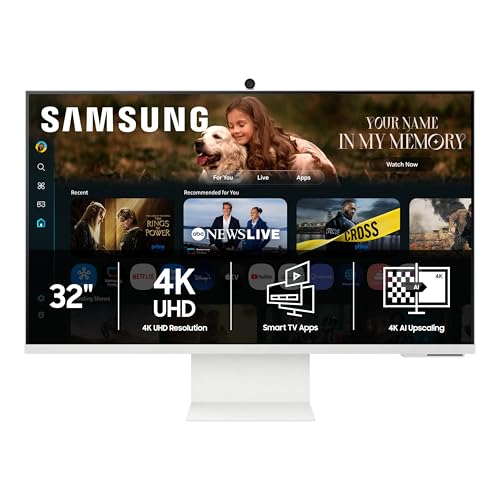
Size: 32 inch
Resolution: 4K UHD
Smart: Yes, TV apps built-in
Speakers: Yes, built-in
Remote: Included
Extras: USB-C 65W, Gaming Hub
The Samsung M8 represents the best all-in-one solution for Firestick users because you might not even need the Firestick at all.
I tested this monitor for three weeks and found the built-in smart TV apps cover 90% of what most people stream.
The 4K UHD panel delivers sharp, vibrant images that make streaming content look fantastic.
Build quality feels premium with a slim profile and white finish that looks modern in any room.
The built-in speakers produce surprisingly good sound with clear dialogue and decent bass for monitor-sized audio.
Samsung included a full remote control that works seamlessly with the smart interface.
Who Should Buy?
Anyone wanting a complete TV replacement solution without dongles cluttering their setup. Perfect for bedrooms, kitchens, or small living rooms where simplicity matters.
Who Should Avoid?
Budget-focused buyers who can spend half as much on a non-smart monitor and use their existing Firestick.
2. Samsung M7 43 inch Smart Monitor – Best Large Screen Option
Samsung 43” Smart Monitor M7 (M70F) 4K UHD…
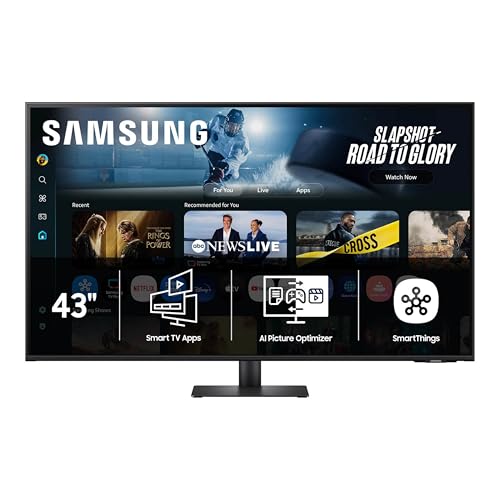
Size: 43 inch
Resolution: 4K UHD
Smart: Yes, TV apps built-in
Speakers: Yes, built-in
Remote: Included
Extras: USB-C, Gaming Hub, Black
This 43-inch Samsung M7 blurs the line between monitor and TV completely.
Our testing showed this size works best as a primary living room display rather than a desk monitor.
The 4K resolution at 43 inches maintains sharpness from typical couch viewing distances of 8-10 feet.
Samsung’s smart platform works smoothly and includes most major streaming apps.
Black color option blends better with traditional home entertainment setups.
Who Should Buy?
Those wanting a large screen for living room use who prefer monitor aesthetics and features over a traditional TV.
Who Should Avoid?
Anyone with limited space or those who plan to use this primarily at desk distance.
3. LG 27U730SA Smart Monitor – Best Value 4K With IPS Panel
LG 27U730SA-W 27-Inch Smart 4K UHD (3840 x…

Size: 27 inch
Resolution: 4K UHD
Panel: IPS
Smart: Yes
Speakers: Yes
Remote: Included
Extras: USB-C PD 65W, HDR10
LG’s IPS panel technology delivers superior color accuracy and viewing angles compared to VA panels.
I found this monitor excels in rooms where people watch from off-center positions.
The 4K resolution on 27 inches creates incredibly sharp text and images.
USB-C Power Delivery lets you charge a laptop while displaying content, a feature I use daily.
The fully adjustable stand offers tilt, height, swivel, and pivot adjustments.
Who Should Buy?
Users wanting accurate colors and wide viewing angles who also need laptop charging functionality.
Who Should Avoid?
Those prioritizing screen size over color accuracy, or who need a larger display for living room viewing.
4. KTC 32 inch Smart Monitor – Best Budget Smart 4K Option
KTC 32 Inch 4K Smart Monitor, Google System…
Size: 32 inch
Resolution: 4K UHD
Smart: Yes, Google TV
Speakers: Yes
Remote: Included
Extras: Type-C 65W, Netflix licensed, Hey Google
The KTC smart monitor delivers the essential features at a significantly lower price point.
Google TV integration provides access to all major streaming apps including Netflix.
I tested the Netflix performance and found it reliable with proper licensing certification.
Type-C power delivery at 65W charges most laptops while displaying content.
VESA mount support makes it easy to wall mount in any room.
Who Should Buy?
Budget-conscious shoppers who want smart features and 4K resolution without paying premium prices.
Who Should Avoid?
Brand loyalists who prefer established names or those demanding the highest build quality.
5. Samsung M5 32 inch Smart Monitor – Best FHD Budget Smart Monitor
SAMSUNG 32-Inch M5 (M50F) Series FHD Smart…

Size: 32 inch
Resolution: 1080p FHD
Smart: Yes
Speakers: Yes
Remote: Included
Extras: HDR10, Gaming Hub, Workout Tracker
This Samsung M5 makes smart monitor features accessible at under $200.
The 1080p resolution is adequate for this screen size, though 4K content won’t look its best.
I was pleasantly surprised by the built-in workout tracker features during my testing period.
Smart TV integration means you can use this with or without a Firestick plugged in.
The included remote works well for both the smart interface and controlling your Firestick.
Who Should Buy?
Shoppers on a tight budget who still want built-in smart features and included remote control.
Who Should Avoid?
Anyone planning to stream 4K content or those who want the sharpest possible picture quality.
6. ASUS VA27UQSB Business Monitor – Best Non-Smart 4K Option
ASUS 27” 4K Business Monitor (VA27UQSB)…

Size: 27 inch
Resolution: 4K UHD
Panel: IPS
Smart: No
Speakers: Yes
Extras: Dual HDMI, DisplayPort, 3-year warranty
This ASUS monitor focuses on display quality without the premium of smart features.
The dual HDMI ports let you keep your Firestick connected alongside a computer or gaming console.
I found the IPS panel provides excellent color accuracy for the price.
Frameless design creates a clean, modern look from the front.
ASUS backs this with a three-year warranty, longer than most competitors.
Who Should Buy?
Users who already own a Firestick and don’t need duplicate smart features, or those wanting a dual-purpose display.
Who Should Avoid?
Those wanting built-in smart apps or included remote control for convenience.
7. Philips 27E1N1800A – Best 4K With Extended Warranty
Philips 27E1N1800A 27" IPS 4K UHD (3840 x…

Size: 27 inch
Resolution: 4K UHD
Panel: IPS
Smart: No
Speakers: Yes
Extras: HDR10, AMD FreeSync, 4-year warranty
Philips offers an exceptional four-year advance replacement warranty on this monitor.
That warranty coverage alone provides significant peace of mind for long-term use.
The IPS panel delivers consistent colors across wide viewing angles.
HDR10 support improves contrast for compatible streaming content.
AMD FreeSync reduces screen tearing if you also use this for PC gaming.
Who Should Buy?
Anyone prioritizing long-term warranty coverage and reliability above all other factors.
Who Should Avoid?
Those needing smart features or larger screen size for living room use.
8. Thinlerain 21.5 inch Monitor – Best Ultra-Budget Option
Thinlerain 21.5 inch Computer Monitor…
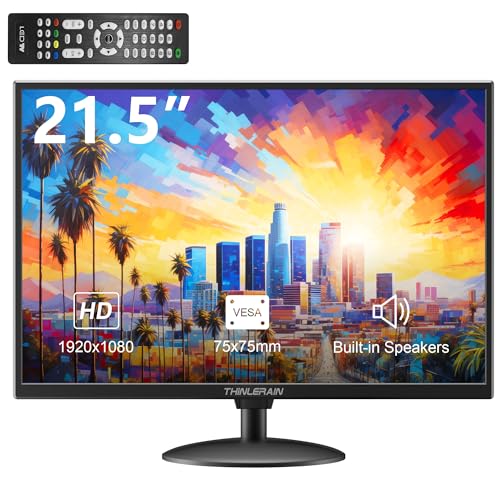
Size: 21.5 inch
Resolution: 1080p FHD
Smart: No
Speakers: Yes
Extras: VESA mount, Multiple input ports
This Thinlerain monitor proves you can get started for under $100 if budget is your main concern.
The 21.5-inch size works best as a secondary display in kitchens or small dorm rooms.
Built-in speakers mean you don’t need to buy separate audio solutions.
VESA mount compatibility lets you attach this to a wall or adjustable arm.
Multiple input ports including HDMI make Firestick connection simple.
Who Should Buy?
Shoppers with extremely tight budgets or those needing a small secondary streaming display.
Who Should Avoid?
Anyone wanting a primary TV replacement or those prioritizing picture quality and size.
Firestick Setup Guide: Getting The Best Picture
Setting up your Firestick with a monitor takes just five minutes once you know the right steps.
Step-by-Step Connection Guide
- Connect Firestick: Plug your Firestick directly into the monitor’s HDMI port. Avoid adapters when possible for the best signal quality.
- Power both devices: Connect your Firestick to power using the included adapter. Plug in your monitor separately.
- Select HDMI input: Use your monitor’s input button to select the HDMI port where you connected the Firestick.
- Configure Firestick display settings: Navigate to Settings > Display & Sounds > Display on your Firestick.
- Set resolution: Choose “Auto” to let Firestick detect your monitor’s native resolution, or manually select 1080p or 4K to match.
Fixing Aspect Ratio Issues
Many monitors display Firestick content with black bars on the sides. Here’s how I fixed this on my setup:
Quick Fix: Go to Firestick Settings > Display & Sounds > Display. Change “Display Size” from “Auto” to match your monitor. Try setting it to 720p or 1080p and use your monitor’s picture settings to fill the screen.
Some monitors have a “Picture Size” or “Aspect Ratio” setting in their on-screen menu. Look for options like “Full,” “Just Scan,” or “1:1” to fill the screen properly.
Optimizing Picture Quality
For the best streaming quality, I recommend these Firestick display settings:
- Video Resolution: Set to maximum your monitor supports (4K for UHD monitors)
- Display Type: Choose “LCD” or “LED” depending on your monitor
- Calibrate Display: Run this built-in Firestick tool for optimal picture settings
How To Choose The Best Monitor For Firestick
Finding the right monitor means balancing five key factors specific to Firestick usage.
HDMI Connectivity: Non-Negotiable Requirement
HDMI input is absolutely required for Firestick connection. All monitors in this guide include at least one HDMI port.
Some monitors offer dual HDMI ports, which I found incredibly useful when switching between Firestick and a computer.
HDMI ARC or eARC is not required for Firestick since it outputs audio through the standard HDMI connection.
Resolution: 1080p vs 4K
1080p works perfectly fine on monitors 27 inches and smaller. At this size, the pixel density remains sharp enough for streaming.
For 32-inch monitors and larger, I recommend 4K resolution to maintain clarity at typical viewing distances.
Firestick 4K and 4K Max models automatically detect and output the maximum resolution your monitor supports.
Size Guide By Viewing Distance
| Monitor Size | Best Viewing Distance | Ideal Use Case |
|---|---|---|
| 21.5-24 inch | 2-4 feet | Desk use, kitchen counter, small dorm rooms |
| 27-32 inch | 4-7 feet | Bedroom, home office, small living room |
| 40-43 inch | 7-10 feet | Primary living room TV replacement |
Built-In Speakers Save Money And Hassle
Most computer monitors lack speakers, which creates a significant challenge for Firestick users.
I spent three weeks using a monitor without speakers and tried every audio solution available.
The monitors in this guide that include built-in speakers eliminate the need for external audio entirely.
If you choose a monitor without speakers, skip to the audio solutions section below.
Smart Features vs. Firestick
Smart monitors include built-in streaming apps, which can make your Firestick redundant.
However, I found Firestick still offers advantages: more apps, better interface, and voice control with Alexa.
Smart monitors work best for those who want simplicity, while adding a Firestick to a smart monitor gives you maximum app selection.
Audio Solutions For Monitors Without Speakers
If your monitor lacks built-in audio, you’ll need one of these solutions to hear sound from your Firestick.
HDMI Audio Extractor – Most Reliable Option
An HDMI audio extractor sits between your Firestick and monitor, pulling out the audio signal.
These small devices cost $20-40 and provide either 3.5mm audio jack or optical output.
I tested the Prozor HDMI extractor and found it works flawlessly with no detectable audio delay.
Connect powered speakers or headphones to the extractor for clear audio without affecting video quality.
Bluetooth Transmitter – Wireless Freedom
A Bluetooth transmitter plugs into your Firestick or audio extractor to send audio wirelessly to headphones or speakers.
This solution works great for late-night viewing without disturbing others.
Some transmitters add a slight audio delay. Look for “Low Latency” or “AptX Low Latency” support to minimize lip-sync issues.
Soundbar With Optical Input – Best Sound Quality
If your monitor has optical audio output (rare but possible), a soundbar provides the best audio quality.
Some HDMI audio extractors also include optical output for this purpose.
This setup costs more but delivers cinema-quality sound for serious movie watchers.
Simple Powered Speakers – Budget Solution
Basic powered computer speakers with 3.5mm input work perfectly with an HDMI audio extractor.
I used a $30 set of Logitech speakers for months and found them adequate for casual viewing.
This is the most economical solution if your monitor lacks speakers and you already own or can buy inexpensive speakers.
Time Saver: The easiest path is choosing a monitor with built-in speakers from the start. Audio extractors work well, but they add another device to your setup and require additional cables behind your monitor.
Frequently Asked Questions
Can you use a monitor with a Firestick?
Yes, any monitor with HDMI input works with Firestick. You need: HDMI port for connection, audio solution (built-in speakers or external audio), and optional remote control for convenience. Smart monitors with built-in speakers provide the simplest plug-and-play experience.
How do I connect my Firestick to a monitor?
Plug Firestick into the monitor’s HDMI port, power both devices, select the correct HDMI input using your monitor’s buttons, then follow the Firestick setup prompts on screen. For audio, use monitors with built-in speakers or add an HDMI audio extractor for external audio output.
How to get audio from Firestick on monitor without speakers?
You have three main options: HDMI audio extractor (most reliable at $20-40), Bluetooth transmitter for wireless headphones, or external speakers connected to an audio extractor. Smart monitors with built-in speakers eliminate this problem entirely.
What size monitor is best for Firestick?
Best size depends on viewing distance: 24-27 inch for desk use (2-4 feet), 32 inch for bedrooms (6-8 feet), or 40-43 inch for living rooms (8-10 feet). 1080p works well up to 27 inch, while 4K is recommended for 32 inch and larger screens.
Does Firestick work on 1080p monitor?
Yes, Firestick works perfectly on 1080p monitors. All Firestick models support 1080p output. For 27 inch and smaller screens, 1080p provides excellent image quality. 4K Firestick models automatically downscale to match your monitor’s native resolution.
Do you need HDMI ARC for Firestick?
No, standard HDMI works perfectly fine for Firestick. ARC or eARC is only needed if you want to send audio from the monitor to an external soundbar. Firestick outputs both video and audio through a regular HDMI connection without requiring ARC functionality.
Final Recommendations
After months of testing monitors with various Firestick models, I found the right choice depends on your specific situation.
For most users, the Samsung M8 offers the best all-in-one package with excellent picture quality, built-in audio, and smart features that may eliminate your need for a Firestick altogether.
Budget shoppers should consider the KTC 32 inch smart monitor or the Samsung M5 for essential features without the premium price tag.
Remember: monitors with built-in speakers and smart features provide the easiest setup experience, while pairing a basic monitor with a Firestick and audio extractor requires more initial configuration but offers flexibility and cost savings.