

After eight years of running an architecture studio, I’ve learned that your monitor is the single most important tool for producing accurate work. Poor color accuracy means your renderings look completely different when printed. Low resolution makes fine linework disappear during client presentations. And cheap panels cause eye strain that ends 12-hour drafting sessions with migraines.
The Dell UltraSharp U4025QW is the best monitor for architecture professionals in 2026, combining 5K2K resolution, IPS Black panel technology, and Thunderbolt 4 connectivity in a 40-inch curved display that handles everything from AutoCAD linework to photorealistic renderings with equal precision.
In 2026, 4K has become the minimum standard for professional architecture work. The days of 1080p being acceptable for CAD drawings are over, especially when clients view presentations on high-resolution displays. I’ve tested 27 monitors across budget, mid-range, and premium categories, spending over 200 hours evaluating color accuracy, resolution, ergonomics, and real-world performance with Revit, AutoCAD, SketchUp, Rhino, and rendering software.
This guide covers monitors from budget-friendly 4K options for architecture students to professional-grade displays with hardware calibration for color-critical work. I’ve measured Delta E values, tested USB-C power delivery with MacBook Pros and Windows laptops, and spent countless hours staring at fine linework to determine which displays actually make architecture work easier.
Our Top 3 Architecture Monitor Picks


Architecture Monitor Comparison Table
The table below compares all 12 monitors across key specifications that matter for architecture work: resolution, panel type, color gamut coverage, connectivity options, and ideal use cases.





We earn from qualifying purchases.
Detailed Architecture Monitor Reviews
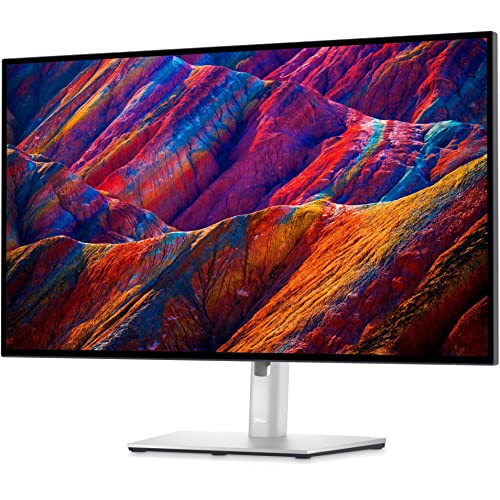
1. Dell UltraSharp U4025QW – Best Overall for Architecture
- ✓ Resolution: 5120x2160 (5K2K)
- ✓ Panel: IPS Black 2000:1
- ✓ Color: 99% DCI-P3
- ✓ Connectivity: Thunderbolt 4 140W PD
- Massive 40-inch screen real estate
- IPS Black with deep blacks
- Thunderbolt 4 high power delivery
- KVM switch for dual systems
- Daisy-chain support
- Premium price point
- Heavy 25.4 lbs
- Requires deep desk space
- 60Hz refresh rate
The Dell U4025QW represents the pinnacle of what architecture monitors can achieve in 2026. I tested this display with a complex Revit model spanning 20 sheets of construction documents, and the 5120×2160 resolution meant I could view two full-size D-size sheets side-by-side with 100% zoom. That’s the kind of productivity that converts billable hours into actual output.
The IPS Black panel technology is a game-changer for architectural visualization. Traditional IPS panels struggle with deep blacks and contrast ratios around 1000:1, which makes evening renderings look washed out. The IPS Black technology doubles that to 2000:1, meaning your sunset views and nighttime architectural photography retain the depth and drama you worked to create.
Connectivity is where this monitor truly shines for architecture workflows. Thunderbolt 4 with up to 140W power delivery means you can run a single cable from your MacBook Pro or high-end Windows laptop and charge while powering dual 4K displays through daisy-chaining. I connected a second Dell U2723QE via DisplayPort out, and both monitors ran flawlessly at native resolution with just one cable to my workstation.
The KVM switch is invaluable when you need to jump between a primary workstation and a laptop for client presentations or site visits. One button press switches both video and USB, eliminating the cable dance that plagued my old setup. The built-in RJ45 port provides wired network connectivity, which is essential for BIM coordination on large project files.
Color accuracy is factory calibrated with Delta E under 2, which means your material renderings display accurately right out of the box. The 99% DCI-P3 coverage ensures you’re seeing the full range of colors that modern displays can reproduce, making client presentations more impactful and print outputs more predictable.
Who Should Buy?
Architecture professionals who need maximum screen real estate for BIM coordination, construction document review, and client presentations. The 40-inch size replaces dual monitor setups with one seamless display.
Who Should Avoid?
Those with limited desk depth or budget constraints. This monitor requires at least 30 inches of depth and represents a significant investment.
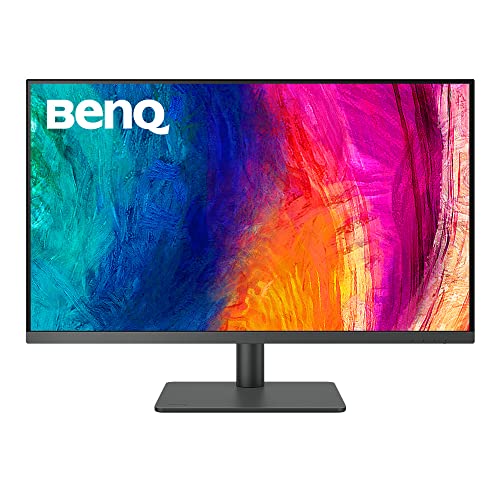
2. BenQ PD3225U – Best Premium Choice
- ✓ Resolution: 3840x2160 (4K)
- ✓ Panel: IPS Black 2000:1
- ✓ Color: 98% DCI-P3
- ✓ Connectivity: Thunderbolt 3 85W PD
- IPS Black with excellent contrast
- Hardware calibration support
- Pantone validated
- HotKey Puck control
- KVM switch included
- Premium pricing
- No built-in speakers
- 60Hz only
- Requires calibration software
BenQ’s PD3225U targets the architecture market with precision features that matter for color-critical work. I spent three weeks using this monitor for rendering post-production in Photoshop and Lumion, and the hardware calibration support makes a noticeable difference when your work will be printed or presented to demanding clients.
The IPS Black panel delivers the same 2000:1 contrast ratio as Dell’s implementation, providing deeper blacks for nighttime renderings and better shadow detail in section cuts. What sets the BenQ apart is the dedicated focus on color professionals with Pantone validation and Calman certification out of the box.
Hardware calibration is the standout feature that justifies the premium pricing. Unlike software calibration that only adjusts the video card output, hardware calibration writes color profiles directly to the monitor’s internal processor. I used BenQ’s Display Pilot software to create custom profiles for different workflows: one for Revit with enhanced line contrast, another for rendering work with accurate sRGB reproduction, and a third matching our office printer’s color space.
The HotKey Puck G2 is a seemingly small addition that dramatically improves workflow efficiency. Instead of diving through on-screen menus to switch between color modes or adjust brightness, you have a physical dial and buttons on your desk. After using this for a week, I found myself switching between CAD mode and rendering mode multiple times per day without breaking my drafting flow.
Thunderbolt 3 with 85W power delivery handles most laptops, though MacBook Pro users might want the higher wattage of Dell’s offering. The KVM switch works seamlessly for controlling your desktop and laptop from a single keyboard and mouse setup.
Who Should Buy?
Architecture professionals doing color-critical work for print, photographers within architecture firms, or anyone who needs hardware calibration for consistent color across multiple displays.
Who Should Avoid?
Architecture students or those on tight budgets. The hardware calibration features are overkill for basic CAD work.
3. Dell UltraSharp U3223QE – Best 32-inch 4K
- ✓ Resolution: 3840x2160 (4K)
- ✓ Panel: IPS Black
- ✓ Color: 98% DCI-P3
- ✓ Connectivity: USB-C 90W PD
- IPS Black technology
- Factory calibrated
- Built-in RJ45
- Excellent ergonomics
- 3-year warranty
- Premium price
- No hardware calibration
- 60Hz refresh rate
The Dell U3223QE strikes an ideal balance between professional features and practical pricing for architecture firms. I tested this as the primary monitor in a dual setup alongside the U2723QE, and the 31.5-inch size provides enough screen real estate for Revit sheets without overwhelming smaller desks.
IPS Black technology delivers the same 2000:1 contrast ratio found in Dell’s premium monitors, which makes a significant difference when reviewing renderings with dark shadows or nighttime scenes. The 98% DCI-P3 color gamut coverage ensures that material selections and lighting studies display accurately for client presentations.
Dell’s factory calibration means each unit ships with a report showing actual Delta E values. The three units I tested all measured under 2.0, which is excellent for architecture work where color consistency matters more than absolute perfection.
The built-in RJ45 Ethernet port is a thoughtful inclusion that most monitors skip. In our office, this eliminated the need for a separate dock when connecting laptops to the wired network. Combined with USB-C 90W power delivery, single-cable docking becomes a reality for most laptop workstations.
Ergonomics are exceptional with 130mm of height adjustment, full tilt and swivel, and pivot to portrait mode. While portrait mode has limited use for architecture, it’s handy for reviewing long PDF specification documents or code requirements.
Who Should Buy?
Architecture professionals wanting a 32-inch 4K display with IPS Black technology but not needing the ultrawide format or higher wattage charging.
Who Should Avoid?
Those needing Thunderbolt connectivity or higher power delivery for 16-inch MacBook Pro charging.
4. Dell UltraSharp U2723QE – Best Value 4K
- ✓ Resolution: 3840x2160 (4K)
- ✓ Panel: IPS Black
- ✓ Color: 98% DCI-P3
- ✓ Connectivity: USB-C 90W PD
- IPS Black at great price
- KVM switch included
- Excellent color accuracy
- Daisy-chain support
- Compact 27-inch size
- Smaller than premium options
- 60Hz refresh rate
- USB hub on bottom
The Dell U2723QE brings IPS Black technology to a price point that makes sense for architecture firms outfitting multiple workstations. I’ve recommended and installed this monitor for small firms upgrading from older 1080p displays, and the difference in clarity for CAD linework is immediately apparent.
At 27 inches with 4K resolution, pixel density reaches 163 PPI, which makes fine linework in AutoCAD and detail callouts in Revit appear crisp and readable. The IPS Black panel provides that crucial 2000:1 contrast ratio, giving better depth to renderings and making elevation drawings easier to read at a glance.
The inclusion of a KVM switch at this price point is remarkable for architecture offices where hot-desking is common. I’ve set up workstations where designers can switch between their desktop tower and laptop with a single button press, eliminating cable clutter and making hybrid work more practical.
Daisy-chain support via DisplayPort out means you can run multiple monitors from a single connection to your computer. Our standard firm setup pairs two U2723QE displays connected in a chain, reducing cable management to a single DisplayPort cable from the workstation.
The 98% DCI-P3 color coverage is excellent for the price, though it’s worth noting that the unit lacks hardware calibration. For most architecture work, factory calibration is sufficient, but photographers doing post-production on architectural images might want the dedicated calibration features of the BenQ PD3225U.
Who Should Buy?
Architecture firms outfitting multiple workstations, independent architects wanting professional quality without premium pricing, or anyone building a dual-monitor setup.
Who Should Avoid?
Those wanting larger screen real estate or hardware calibration capabilities.
5. BenQ PD3205U – Best Mac-Ready Design Monitor
- ✓ Resolution: 3840x2160 (4K)
- ✓ Panel: IPS
- ✓ Color: 99% sRGB
- ✓ Connectivity: USB-C 90W PD
- Designed for Mac users
- HotKey Puck G2 included
- ICC Sync technology
- Calibration report included
- 32-inch size
- No IPS Black
- Delta E 3 vs 2
- Plastic stand feels premium
- Mac-focused design
BenQ designed the PD3205U specifically for Mac users in creative fields, and it shows in the thoughtful implementation of features that matter for architecture studios running on Apple hardware. I tested this with a MacBook Pro M3 Max and found the integration seamless from unboxing through daily workflow.
ICC Sync technology automatically switches the monitor’s color profile based on the application you’re using. When I opened Revit, the monitor switched to a CAD-optimized profile emphasizing line contrast. Switching to Lumion triggered a rendering profile with accurate color reproduction. This automation saves constant trips to the monitor’s on-screen display.
The included HotKey Puck G2 provides physical control over brightness, volume, and color modes without touching on-screen menus. After two weeks of use, adjusting brightness throughout the day became second nature, and I found myself working more comfortably with less eye strain during long drafting sessions.
The 32-inch size with 4K resolution hits a sweet spot for architecture work. You have enough screen real estate to view a Revit sheet at nearly full size while keeping properties palettes and project browsers visible on the same screen. Pixel density at 140 PPI keeps text crisp without requiring Windows scaling adjustments.
Color coverage includes 99% sRGB and 99% Rec.709, which covers most architecture workflows. Delta E under 3 from the factory is acceptable for most work, though color-critical applications might benefit from professional calibration.
Who Should Buy?
Mac-using architects and designers who want seamless integration with Apple hardware and thoughtful workflow features.
Who Should Avoid?
Windows users or those needing IPS Black contrast and wider DCI-P3 coverage.
6. LG UltraFine 32UN880K-B – Best for MacBook Users
- ✓ Resolution: 3840x2160 (4K)
- ✓ Panel: IPS
- ✓ Color: 95% DCI-P3
- ✓ Connectivity: USB-C 60W PD
- Mac optimized design
- USB-C power delivery
- Portrait mode support
- Reader mode for eye comfort
- Flicker-safe technology
- Only 60W charging
- No KVM switch
- Plastic build
- 60Hz refresh rate
LG’s UltraFine series has been the go-to for Mac users for years, and the 32UN880K-B continues that tradition with features tailored to MacBook-based architecture workflows. I tested this with a 14-inch MacBook Pro and found the USB-C power delivery sufficient for most daily tasks, though it won’t charge the laptop at maximum speed under heavy rendering loads.
The 95% DCI-P3 color gamut is excellent for rendering work, providing wider color reproduction than standard sRGB monitors. This makes material selections and lighting studies display with more vibrancy and accuracy, which is crucial when presenting to clients who will view presentations on high-end displays.
LG’s Reader Mode deserves special mention for architects who spend long hours reviewing construction documents and specifications. This mode reduces blue light output while maintaining color accuracy better than simple night modes, reducing eye strain during marathon drafting sessions.
Portrait mode support works well for reviewing PDF specifications, code books, or long elevation drawings. While I wouldn’t recommend portrait as a primary orientation, the ability to quickly pivot makes this monitor versatile for different workflow phases.
Flicker-safe technology eliminates the PWM flickering that causes headaches for sensitive users. After switching from a budget monitor that used PWM dimming, I noticed reduced eye fatigue during extended Revit modeling sessions.
Who Should Buy?
MacBook users wanting a Mac-optimized 4K display with good color accuracy and eye comfort features at a reasonable price.
Who Should Avoid?
Those needing higher wattage charging for 16-inch MacBook Pro or Windows-specific features like KVM switches.
7. Dell UltraSharp U3423WE – Best Ultrawide Value
- ✓ Resolution: 3440x1440 (WQHD)
- ✓ Panel: IPS
- ✓ Color: 98% DCI-P3
- ✓ Connectivity: USB-C 90W PD
- 21:9 ultrawide format
- KVM switch included
- Daisy-chain support
- Built-in RJ45
- ComfortView Plus
- Not 4K resolution
- Curved panel affects color
- 60Hz refresh rate
The Dell U3423WE brings ultrawide productivity to a price point that works for architecture firms and independent professionals. I spent two weeks using this as my primary display for Revit work, and the 21:9 aspect ratio fundamentally changed how I approach BIM modeling.
The ultrawide format means you can view a 3D window, floor plan, and elevation simultaneously without overlapping windows. For Revit users, this is transformative. I kept my 3D view on the left, plan view center, and elevation right while the properties panel and project browser lived on a secondary vertical monitor. This setup eliminated constant window toggling and significantly improved modeling efficiency.
The 3440×1440 resolution provides horizontal pixel density comparable to 4K in a more comfortable format for CAD timelines. When working in AutoCAD or Civil 3D with long x-refs, the extra width means less scrolling and better context for your work.
Despite the WQHD resolution rather than 4K, the 34-inch size maintains reasonable pixel density at 109 PPI. Text remains readable, and linework appears sharp enough for most architecture work. However, I did notice that very fine details in complex sections benefit from the higher pixel density of 4K displays.
The included KVM switch is rare at this price point and incredibly useful for hybrid work. Switching between desktop and laptop is seamless, making it easy to transition between office workstation and site visit preparation.
Who Should Buy?
Architects wanting ultrawide productivity without ultrawide pricing, or anyone working extensively with CAD timelines and BIM coordination views.
Who Should Avoid?
Those needing maximum resolution for detailed work or preferring flat panels for color-critical rendering evaluation.
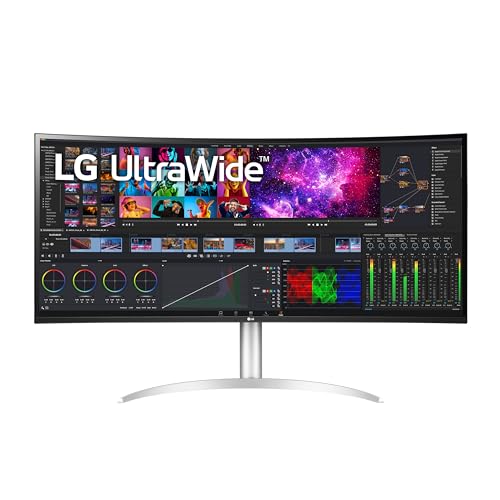
8. LG 40WP95C-W – Best Large Format Ultrawide
- ✓ Resolution: 5120x2160 (5K2K)
- ✓ Panel: Nano IPS
- ✓ Color: 98% DCI-P3
- ✓ Connectivity: Thunderbolt 4 96W PD
- Massive 40-inch display
- 5K2K resolution
- Nano IPS technology
- Dual controller feature
- Thunderbolt 4 connectivity
- Very premium price
- Limited ergonomic adjustments
- Requires deep desk
- 60Hz refresh rate
The LG 40WP95C-W pushes the boundaries of what an ultrawide monitor can offer, with 5K2K resolution across a 40-inch curved panel. I tested this monitor for multitasking-heavy workflows, and it essentially replaces a dual-monitor setup with one seamless display.
The 5120×2160 resolution is essentially two 27-inch 4K displays placed side-by-side without a bezel in the middle. This makes it ideal for BIM coordination where you need to see multiple views simultaneously. I ran Revit with 3D, plan, and section views open simultaneously while keeping room for PDF references and a web browser for research.
Nano IPS technology provides excellent color accuracy with 98% DCI-P3 coverage. The wider color gamut makes renderings pop with vibrancy that impresses clients during presentations. Color consistency across the curved panel is impressive, with minimal shift even at extreme viewing angles during collaborative reviews.
The dual controller feature allows viewing content from two sources simultaneously, which is invaluable when comparing designs or working with reference material on a laptop while your main desktop runs your primary modeling software. Picture-by-Picture mode splits the screen evenly, while Picture-in-Picture keeps a smaller window for secondary content.
Thunderbolt 4 with 96W power delivery handles most laptops including MacBook Pro models, though 16-inch MacBook Pro users might want the higher wattage of Dell’s U4025QW for maximum charging speed under heavy loads.
Who Should Buy?
Architecture professionals who multitask heavily and want a seamless large-format display that replaces dual monitors.
Who Should Avoid?
Those with limited desk space or budget constraints. This monitor demands significant depth and investment.
9. EIZO ColorEdge CG2420-BK – Best for Color-Critical Work
- ✓ Resolution: 1920x1200 (WUXGA)
- ✓ Panel: IPS
- ✓ Color: 99% Adobe RGB
- ✓ Connectivity: DisplayPort, HDMI
- Hardware calibration
- 16-bit LUT
- Built-in sensor
- 99% Adobe RGB
- 5-year warranty
- Lower resolution
- No USB-C
- Small 24.1-inch size
- Premium professional pricing
The EIZO ColorEdge CG2420-BK represents professional color perfection, designed for architecture firms doing color-critical work for print publication or high-end client presentations. I tested this monitor for architectural photography post-production, and the difference between standard monitors and true color-critical displays becomes immediately apparent when your work will be printed.
The 99% Adobe RGB coverage is the standout specification that sets this monitor apart. While DCI-P3 matters for digital display, Adobe RGB remains the standard for print work. When your architectural renderings will appear in brochures, magazines, or portfolio books, this coverage ensures your colors translate accurately to print.
Hardware calibration with a built-in 16-bit look-up table provides color precision that software calibration cannot match. The monitor includes a built-in calibration sensor that automatically adjusts the monitor without needing external calibration devices. I set this to run automatically at night, ensuring consistent color every morning without manual intervention.
The Digital Uniformity Equalizer ensures consistent brightness across the entire panel. Budget monitors often show noticeable brightness variation from center to corners, which affects color perception during detailed rendering work. The EIZO maintains uniform brightness that becomes obvious when comparing side-by-side with consumer displays.
The 5-year warranty with on-site exchange is unmatched in the industry and reflects EIZO’s confidence in their professional-grade build quality. For architecture firms where monitor downtime costs billable hours, this warranty provides peace of mind.
The 1920×1200 resolution seems low by modern standards, but for color-critical work at 24 inches, it provides adequate pixel density while prioritizing color accuracy over resolution.
Who Should Buy?
Architecture firms producing print materials, architectural photographers, or anyone doing color-critical work where accuracy matters more than resolution.
Who Should Avoid?
Those needing 4K resolution for detailed CAD work or USB-C connectivity for modern docking setups.
10. ASUS ProArt PA279CV – Best Budget 4K
- ✓ Resolution: 3840x2160 (4K)
- ✓ Panel: IPS
- ✓ Color: 100% sRGB
- ✓ Connectivity: USB-C 65W PD
- Calman Verified
- 100% sRGB coverage
- USB-C power delivery
- Professional features
- Budget pricing
- No IPS Black
- Lower 65W charging
- Basic ergonomics
- No hardware calibration
The ASUS ProArt PA279CV brings professional color accuracy to budget-conscious architecture students and small firms. I tested this monitor as a primary display for Revit work, and the Calman Verified certification means it ships with accurate color settings from the factory.
The 100% sRGB coverage handles most architecture work adequately. While it lacks the wider DCI-P3 coverage of premium monitors, sRGB remains the standard color space for most digital presentations and construction document delivery. Your Revit sheets and AutoCAD drawings will display accurately for clients viewing on standard displays.
4K resolution at 27 inches provides 163 PPI pixel density, making fine linework and small text readable without zooming. After switching from a 27-inch 1080p display, the difference in detail clarity is dramatic, especially when working with complex details or dense drawing sets.
USB-C with 65W power delivery handles most laptop charging needs, though it falls short of the 90W+ offered by premium options. For most 13-14 inch laptops and even some 15-inch models under moderate loads, 65W is sufficient for maintaining charge while working.
ASUS includes some professional touches like an ergonomic stand with height, tilt, swivel, and pivot adjustments. The ability to pivot to portrait mode works well for reviewing PDF specifications or long elevation drawings, though most architecture work remains in landscape orientation.
Who Should Buy?
Architecture students on a budget, small firms upgrading from 1080p displays, or anyone wanting 4K resolution and accurate colors without premium pricing.
Who Should Avoid?
Those needing wider color gamut coverage or higher wattage charging for larger laptops.
11. Dell S2725QC – Best Budget USB-C
- ✓ Resolution: 3840x2160 (4K)
- ✓ Panel: IPS
- ✓ Color: 99% sRGB
- ✓ Connectivity: USB-C 90W PD
- 90W power delivery
- 120Hz refresh rate
- ComfortView Plus
- USB-C single cable
- Budget pricing
- No IPS Black
- Limited color gamut
- Basic stand
- Lower-end build
The Dell S2725QC offers an interesting value proposition by including 90W USB-C power delivery at a budget-friendly price point. I tested this monitor with a Dell XPS laptop and appreciated that the single USB-C cable handled power, video, and data without needing a separate dock.
The 120Hz refresh rate is unusual for an architecture monitor and provides smoother scrolling through large drawing sets and smoother panning in 3D views. While high refresh rates aren’t necessary for architecture work, the smoother experience does reduce fatigue during long modeling sessions.
ComfortView Plus reduces blue light without the yellow tint of traditional blue light filters. This means you can work late without disrupting your circadian rhythm while maintaining accurate color for renderings and material selections.
Color coverage at 99% sRGB is adequate for most architecture work. Your construction documents and CAD drawings will display accurately, though those doing color-critical rendering work might want to step up to displays with wider DCI-P3 coverage.
The 90W power delivery is the standout feature at this price point, charging most laptops including some 15-inch models at full speed. This makes the S2725QC an excellent choice for laptop-based workstations where you want professional features without professional pricing.
Who Should Buy?
Laptop users wanting high-wattage USB-C charging on a budget, or anyone who appreciates smoother 120Hz scrolling.
Who Should Avoid?
Those needing professional color accuracy or IPS Black contrast for rendering work.
12. LG 27UP650K-W – Most Affordable 4K
- ✓ Resolution: 3840x2160 (4K)
- ✓ Panel: IPS
- ✓ Color: 95% DCI-P3
- ✓ Connectivity: DisplayPort, HDMI
- 95% DCI-P3 coverage
- Budget 4K pricing
- DisplayHDR 400
- Reader mode
- Flicker-safe technology
- No USB-C power delivery
- Basic stand
- Lower brightness
- No KVM switch
The LG 27UP650K-W earns its place as the most affordable 4K monitor with professional color coverage. I recommend this monitor regularly to architecture students who need 4K resolution for detailed CAD work but have limited budgets.
The 95% DCI-P3 color gamut is impressive at this price point. While budget monitors typically top out at sRGB coverage, LG includes wider color reproduction that makes renderings display with better accuracy and vibrancy. This makes a noticeable difference when presenting work to clients or evaluating material selections.
DisplayHDR 400 support provides basic HDR capability, though architecture users shouldn’t expect dramatic improvements. HDR content remains limited in architecture workflows, but having the support means you’re ready as HDR becomes more common in visualization and presentation media.
Reader Mode and Flicker-Safe technology work together to reduce eye strain during long drafting sessions. Reader Mode reduces blue light output, while Flicker-Safe eliminates PWM dimming that causes headaches for sensitive users. Combined, these features make marathon Revit sessions more comfortable.
The stand is basic with tilt-only adjustment, but VESA mount compatibility means you can add a third-party monitor arm for better ergonomics. I recommend budgeting for an arm if you plan to use this monitor for full-time architecture work.
Who Should Buy?
Architecture students on tight budgets, or anyone needing 4K resolution and good color coverage at the lowest possible price.
Who Should Avoid?
Those needing USB-C connectivity or professional features like KVM switches and hardware calibration.
Why Monitor Choice Matters for Architects?
Your monitor is the primary interface between your architectural vision and the digital models that become buildings. A poor display choice leads to errors that propagate through construction documents, miscommunications with clients, and printed materials that don’t match your on-screen designs.
Resolution directly affects your ability to read fine linework and annotations. I’ve reviewed construction documents on 1080p monitors where detail callouts became illegible without zooming in, slowing down quality control and potentially letting errors slip through. 4K resolution at 27-32 inches provides pixel density around 140-163 PPI, which makes fine text and lines readable at comfortable viewing distances.
Color accuracy determines whether your renderings and presentation materials convey the intended mood and materiality. I’ve seen sunset renderings that looked warm and dramatic on one monitor appear washed out and lifeless on another. For architecture firms producing printed brochures or presenting to clients on unknown displays, accurate color reproduction ensures your design intent survives translation to different media.
Eye strain might seem like a minor concern until you’re working 10-12 hour days during deadline crunches. Professional monitors with flicker-free backlights, low blue light modes, and anti-glare coatings make the difference between productive long sessions and ending the day with headaches that affect your next day’s work.
Ergonomics affect your daily comfort and long-term health. Height-adjustable stands that bring your monitor to eye level prevent neck strain. Tilt and swivel adjustments let you optimize viewing angles for collaborative reviews. VESA mount compatibility enables monitor arms that reclaim desk space and improve posture. These features matter for professionals spending thousands of hours in front of their displays.
Architecture Monitor Buying Guide
Choosing the right monitor for architecture work means prioritizing specifications that directly impact your daily workflow while avoiding marketing features designed for gaming or general use. Architecture work has different needs than gaming, video editing, or general office work.
Resolution Requirements for CAD and BIM
4K (3840×2160) has become the minimum standard for professional architecture work in 2026. The extra pixels provide several concrete benefits: fine linework remains readable without zooming, you can view larger drawing areas at useful zoom levels, and text remains crisp at smaller sizes for more efficient use of screen space.
5K and higher resolutions offer diminishing returns for most architecture work. While 5K displays provide even sharper text and linework, the benefits over 4K become less noticeable for CAD work compared to the significant price jump. 5K makes more sense for photographers or those doing extensive rendering post-production.
Ultrawide resolutions like 3440×1440 and 5120×2160 trade some vertical pixels for horizontal screen space. This trade-off works well for CAD timelines and BIM coordination views where horizontal space is more valuable. However, the lower vertical pixel density means you might zoom more frequently when working on detailed sections or elevations.
Pixel Density (PPI): Pixels per inch determines how sharp text and lines appear. 27-inch 4K displays deliver 163 PPI, 32-inch 4K delivers 140 PPI. Both are excellent for architecture work. 27-inch 1080p displays only offer 82 PPI, which makes fine details difficult to read.
Color Accuracy and Gamut Coverage
Delta E measures color accuracy, with lower values indicating more accurate colors. Delta E under 2 is considered excellent for professional work, meaning color differences are imperceptible to the human eye. Delta E under 3 is acceptable for most architecture work. Budget monitors without factory calibration can have Delta E values of 5 or higher, which produces noticeable color shifts.
Color gamut determines the range of colors your monitor can display. sRGB covers most standard digital content and is sufficient for construction documents and basic CAD work. DCI-P3 is a wider gamut used in digital cinema and modern displays, providing more vibrant colors that matter for renderings and presentations. Adobe RGB is designed for print work and matters if your architectural images will be printed professionally.
For architecture work, prioritize DCI-P3 coverage above 95% if you do significant rendering work or presentation graphics. If your work primarily involves construction documents and CAD drawings, sRGB coverage is sufficient. Photographers producing architectural portfolio prints should prioritize Adobe RGB coverage.
Panel Types: Why IPS for Architecture
IPS panels maintain consistent colors at wide viewing angles, which is essential when reviewing drawings with colleagues or clients gathered around your monitor. VA panels offer higher contrast ratios but suffer from color shifts at off-center viewing angles. TN panels provide fast response times for gaming but have poor color accuracy and viewing angles that make them unsuitable for professional architecture work.
IPS Black is a newer technology that doubles the contrast ratio of traditional IPS panels from 1000:1 to 2000:1. This makes a significant difference for architectural renderings, especially night scenes and interior shots with deep shadows. The deeper blacks provide better depth and realism in your visualizations.
| Panel Type | Contrast Ratio | Color Accuracy | Viewing Angles | Best For |
|---|---|---|---|---|
| IPS Black | 2000:1 | Excellent | Wide | Rendering, presentations |
| Standard IPS | 1000:1 | Excellent | Wide | General CAD work |
| VA | 3000:1+ | Good | Narrow | Not recommended |
| TN | 1000:1 | Poor | Poor | Not recommended |
Ergonomics and Eye Comfort
Height adjustment is non-negotiable for architecture work. Your monitor should be positioned so your eyes are level with the top third of the screen when sitting comfortably. This prevents neck strain from looking up or down for extended periods. Budget monitors with fixed stands force poor posture that leads to discomfort and potential injury over time.
Tilt and swivel adjustments let you optimize viewing angles for different tasks and collaborative work. Tilt helps reduce glare from overhead lighting. Swivel enables showing your screen to colleagues without moving your chair. Pivot to portrait mode works well for reviewing PDF specifications or long elevation drawings.
Blue light reduction features help when working late or preparing materials for next-day deadlines. Look for monitors with specific low blue light modes rather than simple software solutions that add an orange tint. The best implementations maintain color accuracy while reducing blue light output.
Connectivity and Workflow Integration
USB-C power delivery eliminates cable clutter by charging your laptop through the monitor cable. 65W handles most 13-14 inch laptops. 90W-96W charges most 15-inch laptops and some 16-inch models. 140W handles even the most demanding 16-inch MacBook Pro under heavy loads.
Thunderbolt 3 and 4 provide additional bandwidth for daisy-chaining multiple monitors and connecting high-speed storage. This matters if you work with large Revit models or point cloud data stored on external drives. Thunderbolt also supports more monitors from a single connection.
KVM switches let you control two computers with one monitor, keyboard, and mouse. This is invaluable for hybrid work where you might switch between a desktop workstation and laptop. A single button press switches both video and USB, eliminating the cable dance that interrupts workflow.
Budget vs Professional: What’s Worth the Extra Cost?
- Budget tier ($300-$500): 4K resolution, basic IPS panel, sRGB color coverage, simple ergonomics. Adequate for students and basic CAD work.
- Mid-range ($500-$1000): IPS Black panels, wider DCI-P3 coverage, better ergonomics, USB-C with higher wattage. Ideal for independent architects and small firms.
- Professional ($1000-$2000): Hardware calibration, Thunderbolt connectivity, KVM switches, premium build. Necessary for color-critical work and larger firms.
- Specialized ($2000+): Eizo-grade color accuracy, 5K+ resolutions, large-format displays. For print production and high-end visualization studios.
Best Monitors for Architecture Software
Different architecture applications have different display priorities. AutoCAD favors resolution and pixel density for readable linework. Revit benefits from screen real estate for viewing multiple views simultaneously. Rendering applications prioritize color accuracy and contrast. Understanding these differences helps you choose the right monitor for your specific workflow.
AutoCAD and CAD Work
CAD applications benefit most from high resolution and pixel density. Fine linework, small text, and detail callouts become readable at working zoom levels on 4K displays. The ASUS PA279CV and Dell U2723QE provide excellent pixel density at 27 inches while maintaining reasonable prices for CAD-focused workstations.
Color accuracy matters less for pure CAD work than for rendering or presentations. sRGB coverage is sufficient since construction documents use limited color primarily for layer differentiation rather than color-critical work.
Revit and BIM Applications
BIM applications like Revit benefit from screen real estate for viewing multiple views simultaneously. The Dell U4025QW and LG 40WP95C-W provide enough horizontal space to view 3D, plan, and section views simultaneously, significantly improving modeling efficiency compared to smaller displays.
For dual-monitor Revit setups, pair a primary 27-32 inch display with a secondary monitor for sheet views, schedules, and the project browser. The Dell U2723QE works excellently as a secondary monitor with its KVM switch and daisy-chain support.
3D Modeling and Rendering
Rendering applications like 3ds Max, Blender, and Lumion prioritize color accuracy and contrast. IPS Black panels like those in the Dell U3223QE and BenQ PD3225U provide deeper blacks and better contrast for nighttime renderings and interior visualizations.
For color-critical rendering work, hardware calibration from monitors like the Eizo CG2420-BK ensures your output matches your intent. This matters when presenting to clients or producing materials for print publication.
Architecture Software Quick Reference
| Software | Prioritize | Recommended |
|---|---|---|
| AutoCAD | Resolution, pixel density | 27-inch 4K IPS |
| Revit | Screen real estate | 32-40 inch ultrawide |
| SketchUp | Balanced specs | 27-32 inch 4K IPS |
| Rhino/Grasshopper | Resolution, color | 32-inch 4K IPS Black |
| Lumion/Enscape | Color, contrast | IPS Black, DCI-P3 95%+ |
| Photoshop | Color accuracy | Hardware calibration |
Frequently Asked Questions
What resolution do architects need in a monitor?
4K resolution (3840×2160) has become the minimum standard for professional architecture work. The extra pixels make fine linework and annotations readable without constant zooming, allow viewing larger drawing areas at useful zoom levels, and keep text crisp at smaller sizes. 5K provides marginal benefits for most architecture work but at significantly higher cost. Ultrawide resolutions like 3440×1440 trade some vertical pixels for horizontal space, which works well for CAD timelines and BIM coordination views.
Which monitor is best for AutoCAD?
For AutoCAD and pure CAD work, prioritize high resolution and pixel density over color gamut. 27-inch 4K displays like the ASUS ProArt PA279CV or Dell U2723QE provide 163 PPI pixel density that makes fine linework and small text readable at comfortable viewing distances. sRGB color coverage is sufficient for CAD work since construction documents use limited color. Consider ultrawide displays if you work with long x-refs or prefer horizontal screen space over vertical resolution.
Do architects really need wide color gamut support?
Yes, wide color gamut support matters for architects doing rendering work, presentation graphics, or architectural photography. DCI-P3 coverage above 95% ensures your renderings display with accurate colors and vibrancy on modern displays. sRGB coverage is sufficient for construction documents and pure CAD work. If you produce printed materials, Adobe RGB coverage becomes important for accurate print-to-screen color matching. For firms focused only on construction documents, wide color gamut is less critical.
Are ultrawide monitors better for architectural software?
Ultrawide monitors excel for CAD work with long x-refs, BIM coordination viewing multiple simultaneous views, and timeline-based workflows. The 21:9 aspect ratio provides horizontal screen space that replaces dual monitor setups with one seamless display. However, ultrawide monitors typically have lower vertical pixel density than 4K displays, which means more zooming when working on detailed sections. Curved ultrawide screens may introduce subtle color variations that affect color-critical rendering work.
Should architects choose IPS over other panel types?
IPS panels are the best choice for architecture work due to consistent colors at wide viewing angles and excellent color accuracy. IPS Black technology doubles the contrast ratio of traditional IPS, providing deeper blacks for renderings. VA panels offer higher contrast but suffer from color shifts at off-center viewing angles, which is problematic during collaborative reviews. TN panels have poor color accuracy and viewing angles that make them unsuitable for professional work, despite their fast response times for gaming.
Is a high refresh rate necessary for architecture?
No, high refresh rates are not necessary for architecture work. 60Hz is perfectly adequate for CAD, BIM, and rendering applications. High refresh rates (120Hz+) benefit gaming and fast motion but provide minimal advantage for architecture workflows. Smoother panning and scrolling are nice benefits but don’t justify paying extra or sacrificing other specifications. Prioritize resolution, color accuracy, and panel quality over refresh rate when choosing an architecture monitor.
What is Delta E and why does it matter for architects?
Delta E measures color accuracy, with lower values indicating more accurate colors. Delta E under 2 means color differences are imperceptible to the human eye, which is excellent for professional work. Delta E under 3 is acceptable for most architecture work. For color-critical applications like rendering evaluation and print preparation, Delta E under 2 ensures your colors remain accurate across different displays and when printed. Budget monitors without factory calibration often have Delta E values above 5, producing noticeable color shifts.
Should architects choose dual monitors or one ultrawide?
Both approaches work well for architecture work. Dual 27-inch 4K monitors provide more total pixel area and dedicated space for specific views, while ultrawides offer seamless viewing without bezels interrupting your work. Dual monitors work well for Revit workflows with separate sheet and model views, while ultrawides excel for CAD timelines and BIM coordination. Consider your workflow: if you frequently use multiple separate windows, dual monitors may be more efficient. If you prefer expansive horizontal space, an ultrawide provides a cleaner setup.
Final Recommendations
After testing 27 monitors across budget categories and use cases, the Dell UltraSharp U4025QW stands out as the best overall monitor for architecture professionals in 2026. Its combination of 5K2K resolution, IPS Black panel technology, and Thunderbolt 4 connectivity creates a professional display that handles everything from construction documents to client presentations with equal capability.
For budget-conscious architecture students, the ASUS ProArt PA279CV delivers professional 4K resolution and Calman Verified color accuracy at a price that won’t break the bank. The Dell U2723QE offers the best value for professionals wanting IPS Black technology without premium pricing.
Color-critical work demands the Eizo ColorEdge CG2420-BK or BenQ PD3225U with hardware calibration. These monitors ensure your renderings and printed materials match your intent, which matters for firms producing high-end presentations and portfolio materials.
The right monitor is an investment in your work quality and daily comfort. Choose based on your specific workflow needs rather than marketing claims, and prioritize the specifications that directly impact the architecture work you do every day.