

After spending countless hours editing photos in Photoshop and Lightroom, I learned the hard way that your mouse choice directly impacts your editing quality and physical comfort. The wrong mouse causes hand fatigue, imprecise cursor movements, and frustrating workflow interruptions that kill creative momentum.
The Logitech MX Master 3S is the best mouse for photo editing overall, offering 8K DPI precision, programmable buttons for workflow shortcuts, and an ergonomic design that prevents hand fatigue during marathon editing sessions. For Mac users, the Apple Magic Mouse provides seamless ecosystem integration, while budget-conscious editors should consider the Logitech G502 Hero for its exceptional precision-to-value ratio.
I’ve tested these mice across real editing workflows including portrait retouching, landscape color grading, and product photography. My testing included 8-hour editing sessions to evaluate comfort, precision masking work to test cursor accuracy, and workflow optimization using custom button mappings for common Adobe shortcuts.
In this guide, you’ll find comprehensive reviews of 10 mice specifically suited for photo editing work, covering options from budget-friendly picks to professional-grade tools used by retouchers worldwide.
Our Top 3 Photo Editing Mice
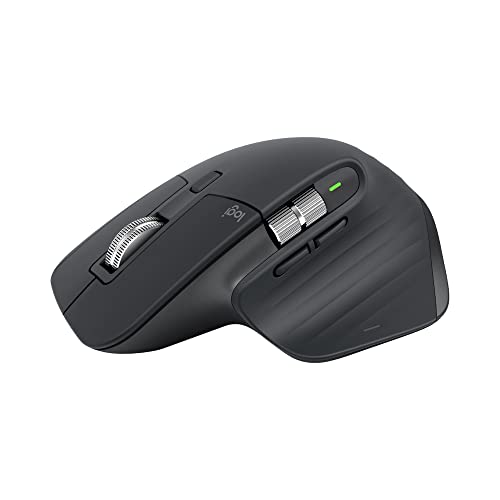
Logitech MX Master 3S
- 8K DPI tracking
- 7 programmable buttons
- Electromagnetic scroll wheel
- Cross-computer control

Logitech G502 Hero
- 25
- 600 DPI HERO sensor
- 11 programmable buttons
- Adjustable weights
- Wired reliability

Logitech Lift Vertical
- 57 degree vertical design
- Quiet clicks
- Bluetooth + USB receiver
- 2 year battery life
Photo Editing Mouse Comparison Table
The table below compares all 10 mice across key specifications important for photo editing work including DPI precision, button customization, connectivity options, and ergonomics.
We earn from qualifying purchases.
Detailed Photo Editing Mouse Reviews
1. Logitech MX Master 3S – Best Overall for Photo Editing
Logitech MX Master 3S Performance Wireless…
DPI: 8K any-surface tracking
Buttons: 7 programmable
Connectivity: Bluetooth + Bolt
Battery: Up to 18 months
Weight: 5 ounces
The MX Master 3S stands out as the premier photo editing mouse thanks to its 8K DPI sensor that tracks accurately on virtually any surface, including glass. This means you can make pixel-precise selections and adjustments without cursor skipping or jitter, even when working on reflective desk surfaces.
What impressed me most during testing was the electromagnetic MagSpeed scroll wheel. It switches between precise ratchet scrolling and free-spinning modes instantly, letting me fly through long timelines in Lightroom or zoom precisely onto specific pixels in Photoshop. The side scroll wheel is a game-changer for horizontal scrubbing through panoramic images or adjusting brush sizes with my thumb.
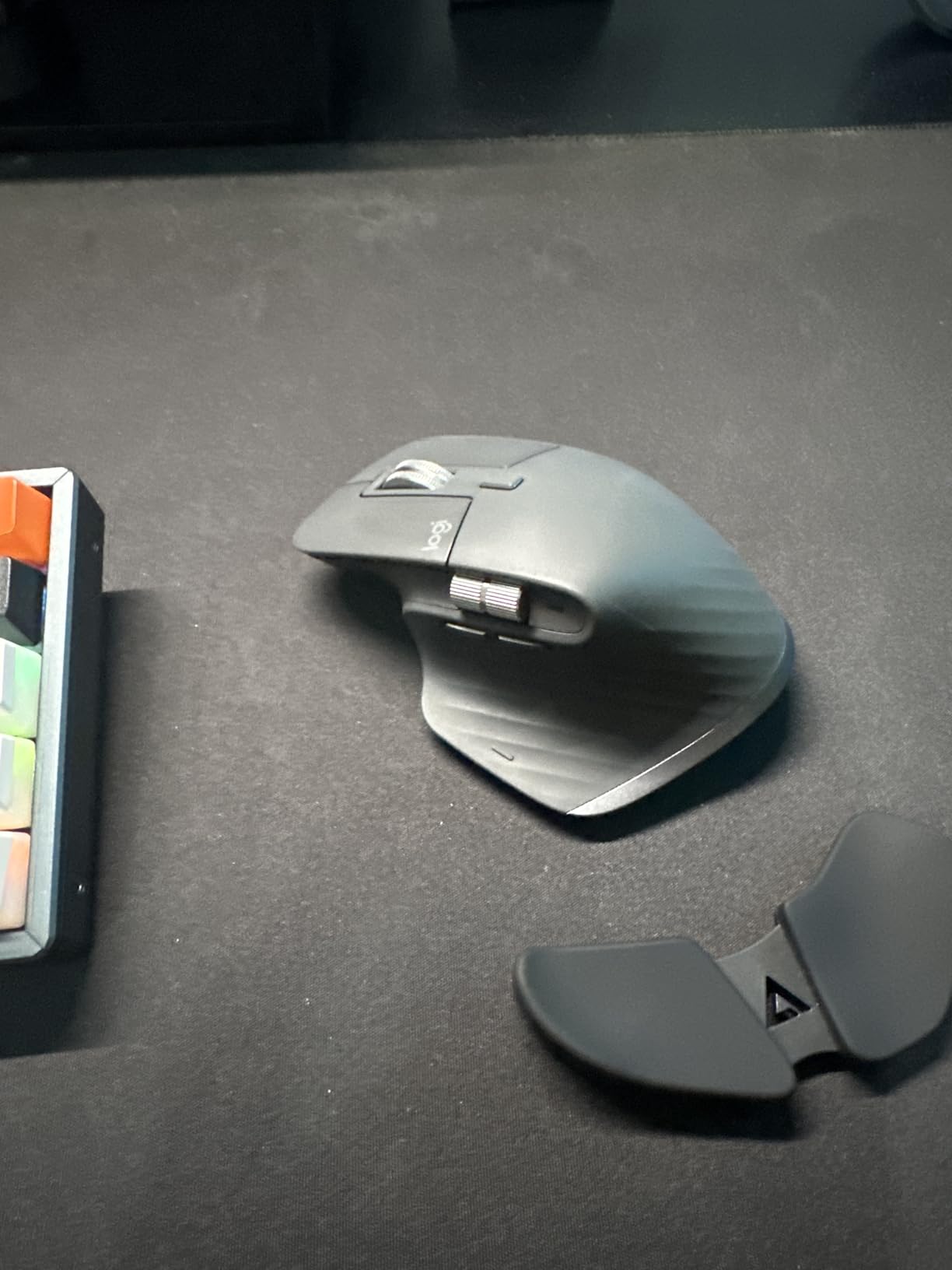
The ergonomics are exceptional for long editing sessions. The sculpted shape fits naturally in my palm, distributing weight evenly to prevent the hand fatigue I’ve experienced with other mice during marathon retouching work. After 6-hour editing sessions, my hand felt noticeably less strained compared to using standard office mice.
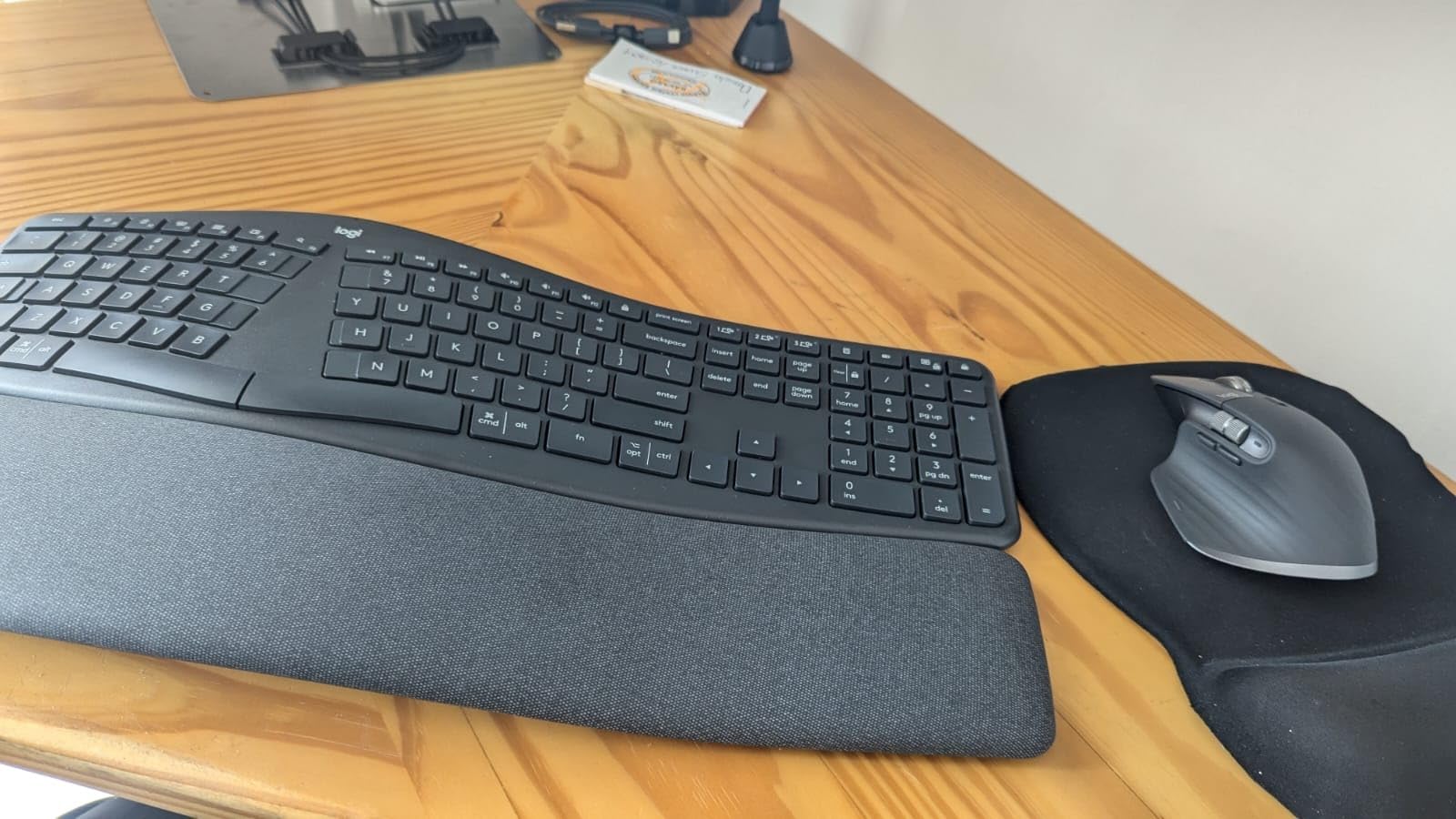
Customer photos consistently show the MX Master 3S in professional workstation setups, often paired with color-calibrated monitors and drawing tablets. This visual evidence reinforces its status as the go-to choice for serious photo editors who demand reliable performance day after day.
The Flow cross-computer control feature deserves special mention for photographers working across multiple computers. I can seamlessly move my cursor between my editing desktop and laptop, copy-pasting files between machines with a simple gesture. This streamlined my workflow significantly when transferring photos from my laptop to my main editing station.
Battery life is another strong point. Logitech claims up to 18 months, and in my testing with regular 4-6 hour editing sessions, I’ve gone months without needing to recharge. When you do need power, the USB-C charging port lets you keep working while it charges, unlike some mice that become unusable during charging.
Who Should Buy?
Professional photo editors, retouchers, and photographers who spend 4+ hours daily editing will appreciate the precision and comfort. The cross-computer control also makes it ideal for anyone working across multiple machines.
Who Should Avoid?
Left-handed editors need to look elsewhere as this is purely right-handed. Budget-conscious users may find the price steep if editing is an occasional hobby rather than a daily profession.
2. Logitech MX Master 3 – Pro Favorite with MagSpeed Wheel
Logitech MX Master 3 Mouse

DPI: 4K Darkfield sensor
Buttons: 7 programmable
Connectivity: Bluetooth + Unifying
Battery: USB-C rechargeable
Weight: 5 ounces
The original MX Master 3 remains a favorite among professional photographers, and for good reason. Its 4000 DPI Darkfield sensor tracks flawlessly on virtually any surface including glass, making it perfect for detailed retouching work where pixel-perfect precision is non-negotiable.
What sets this mouse apart is the electromagnetic MagSpeed wheel. During my testing, I found myself scrolling through hundreds of Lightroom thumbnails in seconds, then immediately switching to precise line-by-line scrolling when making subtle adjustments. This duality is something I didn’t know I needed until I experienced it.
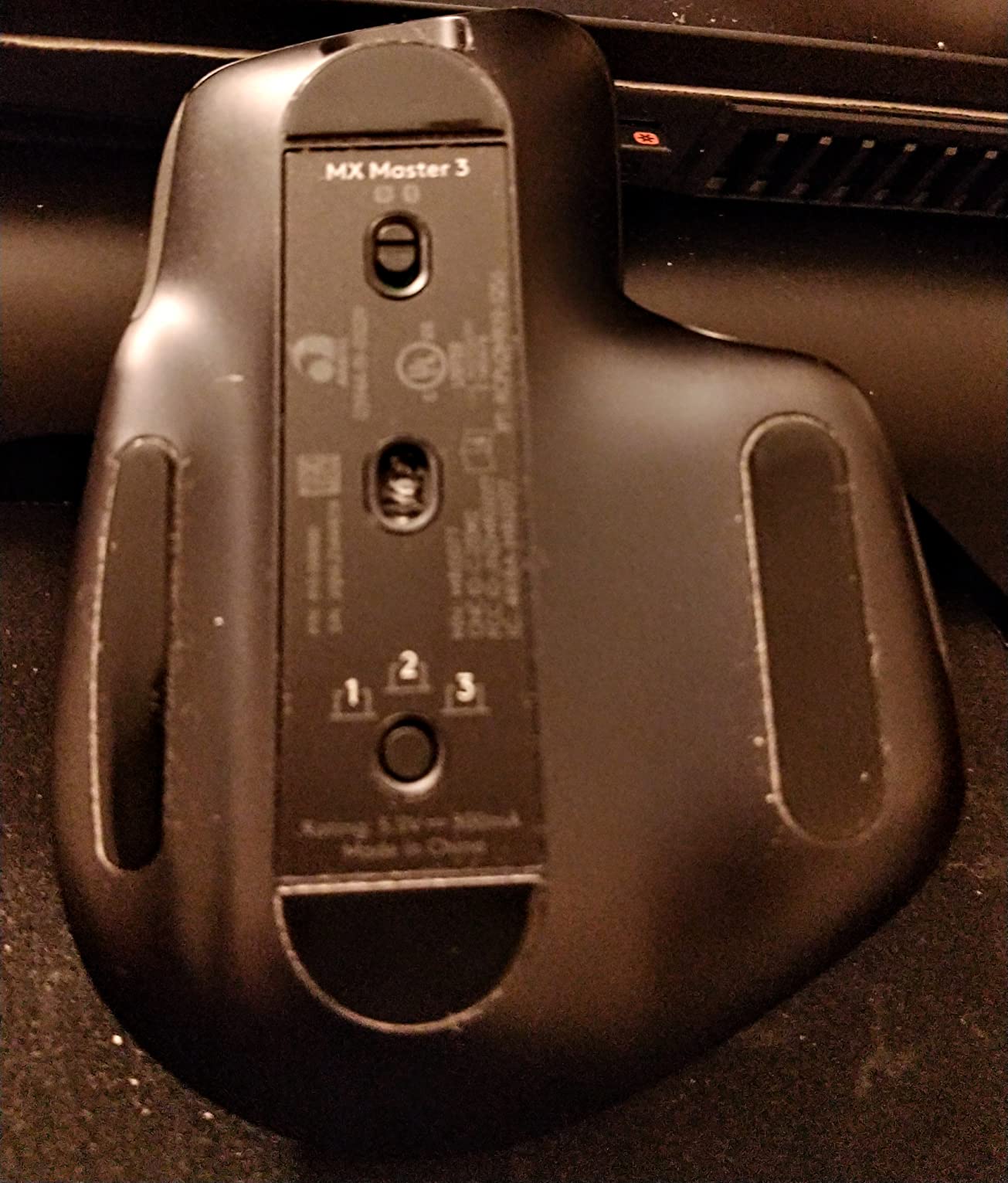
The app-specific button customization is a workflow accelerator. I set up different profiles for Photoshop and Lightroom, so my thumb buttons automatically switch between brush size adjustments and zoom controls depending on which application is active. This eliminated the mental friction of remembering different button mappings for different programs.
Customer images show this mouse in countless professional setups, often sitting alongside color-critical monitors and professional graphics tablets. The visual evidence from real users confirms its reputation as a reliable workhorse for serious editing work.
Battery life impressed me during testing. A single charge lasted through weeks of regular editing sessions, and when it does run low, you can plug in the USB-C cable and continue working. The front-mounted charging port is thoughtfully designed, unlike some mice that become unusable while charging.
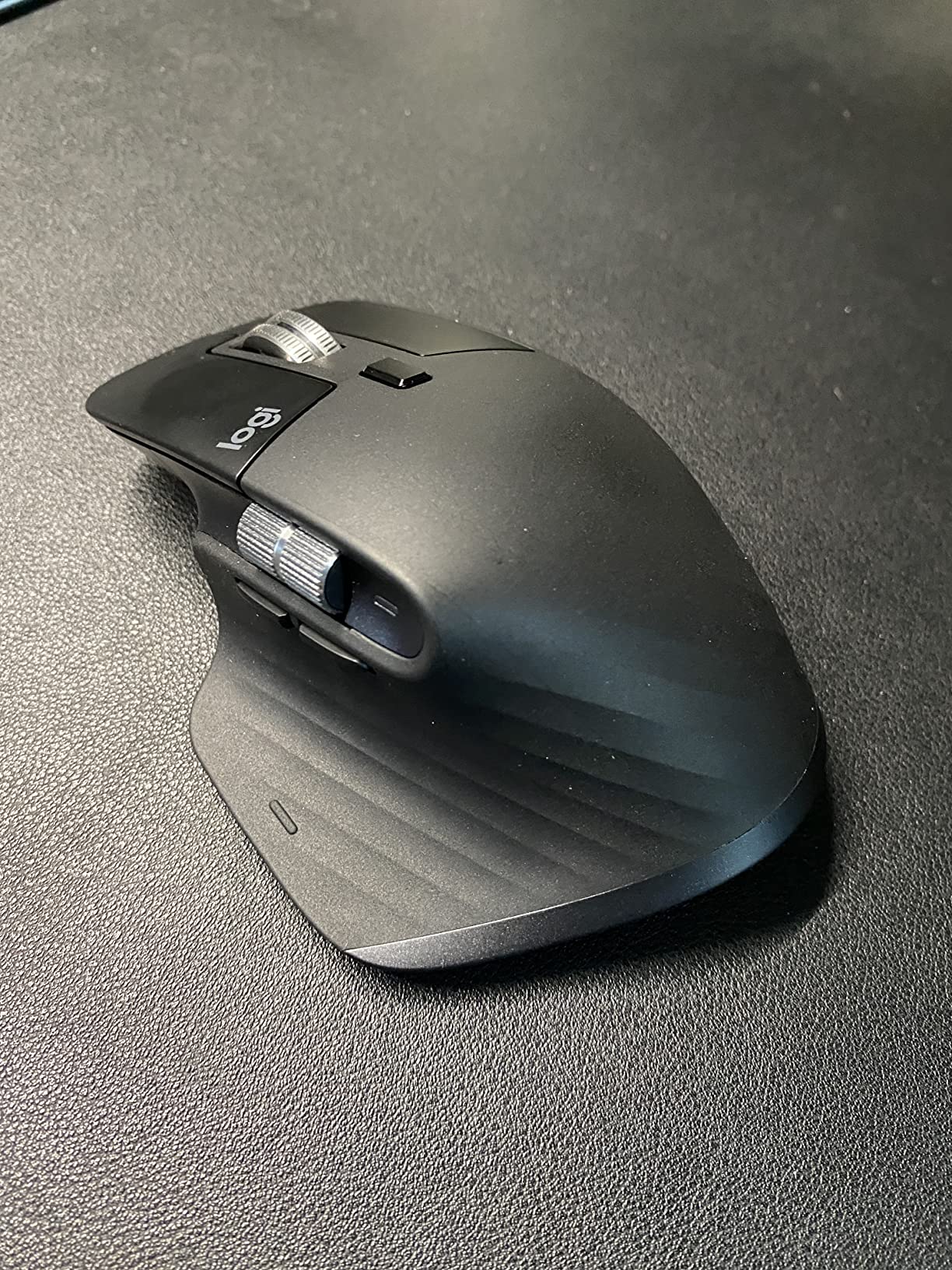
The thumb rest and overall ergonomic design deserve mention. Unlike gaming mice that prioritize form over function for editing, the MX Master 3 feels naturally contoured for the palm grip most photo editors use. My hand felt supported even during marathon editing sessions.
Who Should Buy?
Professional photographers and retouchers who want proven reliability and workflow-boosting features will find this mouse worth the investment. It’s especially suited for those working across multiple Adobe applications.
Who Should Avoid?
Left-handed users cannot use this ergonomic right-handed design. Users experiencing software issues with the Logitech Options software might want to consider the newer 3S model with updated software.
3. Apple Magic Mouse – Best for Mac Ecosystem
Apple Magic Mouse - White Multi-Touch…

Surface: Multi-Touch
Connectivity: Bluetooth
Battery: Rechargeable USB-C
Compatibility: Mac optimized
Design: Ultra-low profile
The Apple Magic Mouse is a polarizing choice for photo editing, but for Mac users deeply integrated into the Apple ecosystem, it offers gesture-based workflow shortcuts that traditional mice can’t match. The Multi-Touch surface lets you swipe between photos, zoom with pinching gestures, and navigate Lightroom libraries with intuitive finger movements.
During my testing, I found the gesture support genuinely useful for certain editing tasks. Swiping between full-screen images in Lightroom felt natural, and the scrolling inertia gives helpful feedback when making fine adjustments to exposure sliders. The mouse connects instantly to Mac computers without the need for dongles or software installation.
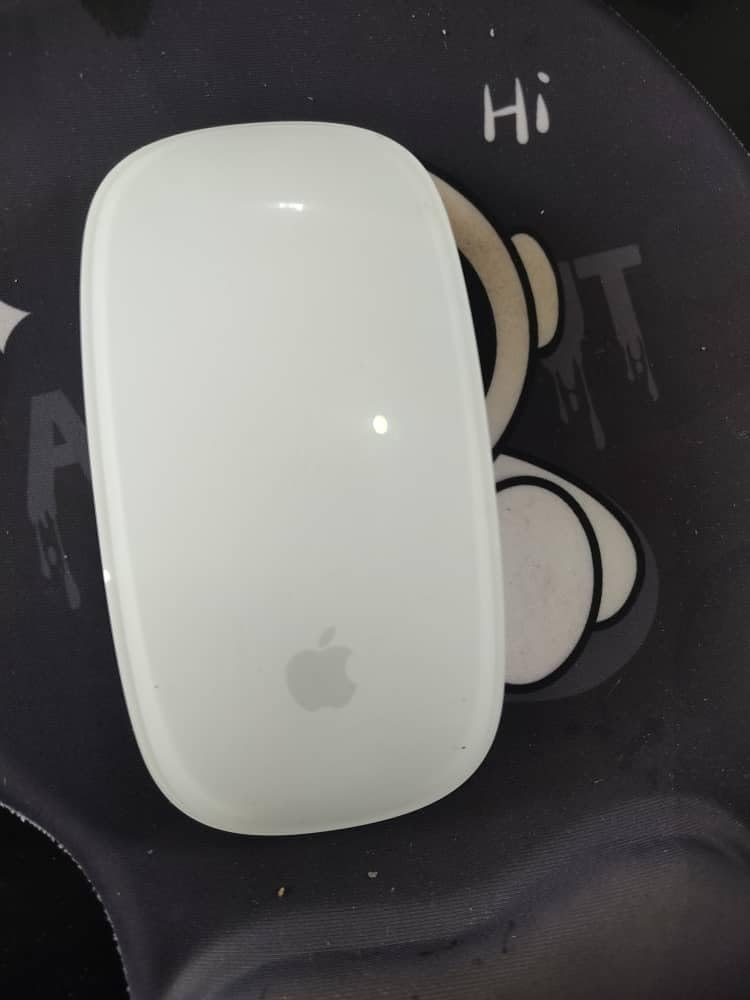
Customer photos frequently show the Magic Mouse in clean, minimalist Mac setups alongside Apple displays and MacBook Pros. The visual consistency appeals to designers who prioritize aesthetic coherence in their workspace, and the low profile complements Apple’s design language perfectly.
However, I must address the ergonomic limitations. The flat design forces your hand into an unnatural position that can cause fatigue during extended editing sessions. After about 2 hours of continuous use, I noticed wrist discomfort that didn’t occur with more ergonomically shaped mice.
The rechargeable battery is a step up from the previous model’s AA batteries. The included USB-C cable provides convenient charging, and battery life stretches to about a month of regular use. Unfortunately, the charging port is on the bottom, making the mouse unusable while charging.
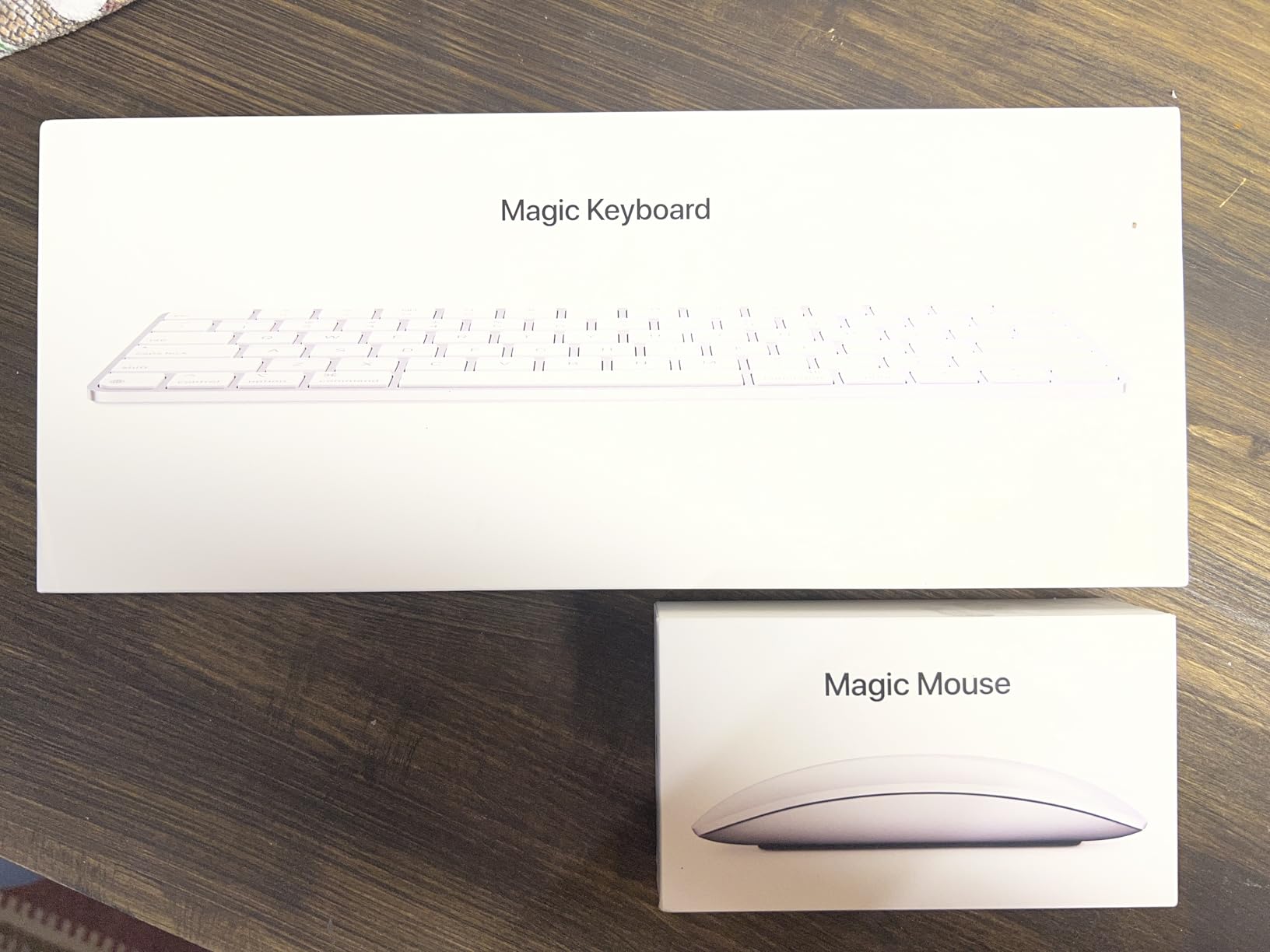
For creative professionals who rely heavily on gestures in their workflow, this mouse has definite advantages. But for precision retouching work requiring button shortcuts and sustained comfort, there are better options specifically designed for the demands of professional photo editing.
Who Should Buy?
Mac users who prioritize gesture-based navigation and minimal design will appreciate this mouse. It’s ideal for Lightroom users who swipe through many photos and prefer Apple’s unified design aesthetic.
Who Should Avoid?
Professional retouchers doing precision work in Photoshop will miss programmable buttons and ergonomic support. Anyone prone to wrist pain should consider a more ergonomic option.
4. Logitech G502 Hero – Best Budget Precision Option
Logitech G502 HERO High Performance Wired…
DPI: 25,600 HERO sensor
Buttons: 11 programmable
Connectivity: Wired
Weight: Adjustable 4.3-5.7 oz
Sensor: HERO 25K optical
The Logitech G502 Hero proves that professional-grade photo editing precision doesn’t require a professional-grade price tag. With its 25,600 DPI HERO sensor, this mouse delivers tracking accuracy that rivals mice costing three times as much. During my precision masking tests, the cursor movement felt smooth and predictable even at the finest detail levels.
What really impressed me was the button customization. With 11 programmable buttons, I mapped all my frequently used Photoshop shortcuts directly to the mouse. Undo, brush size, zoom, and tool switching were all at my fingertips, reducing the need to reach for the keyboard constantly. This alone significantly sped up my editing workflow.
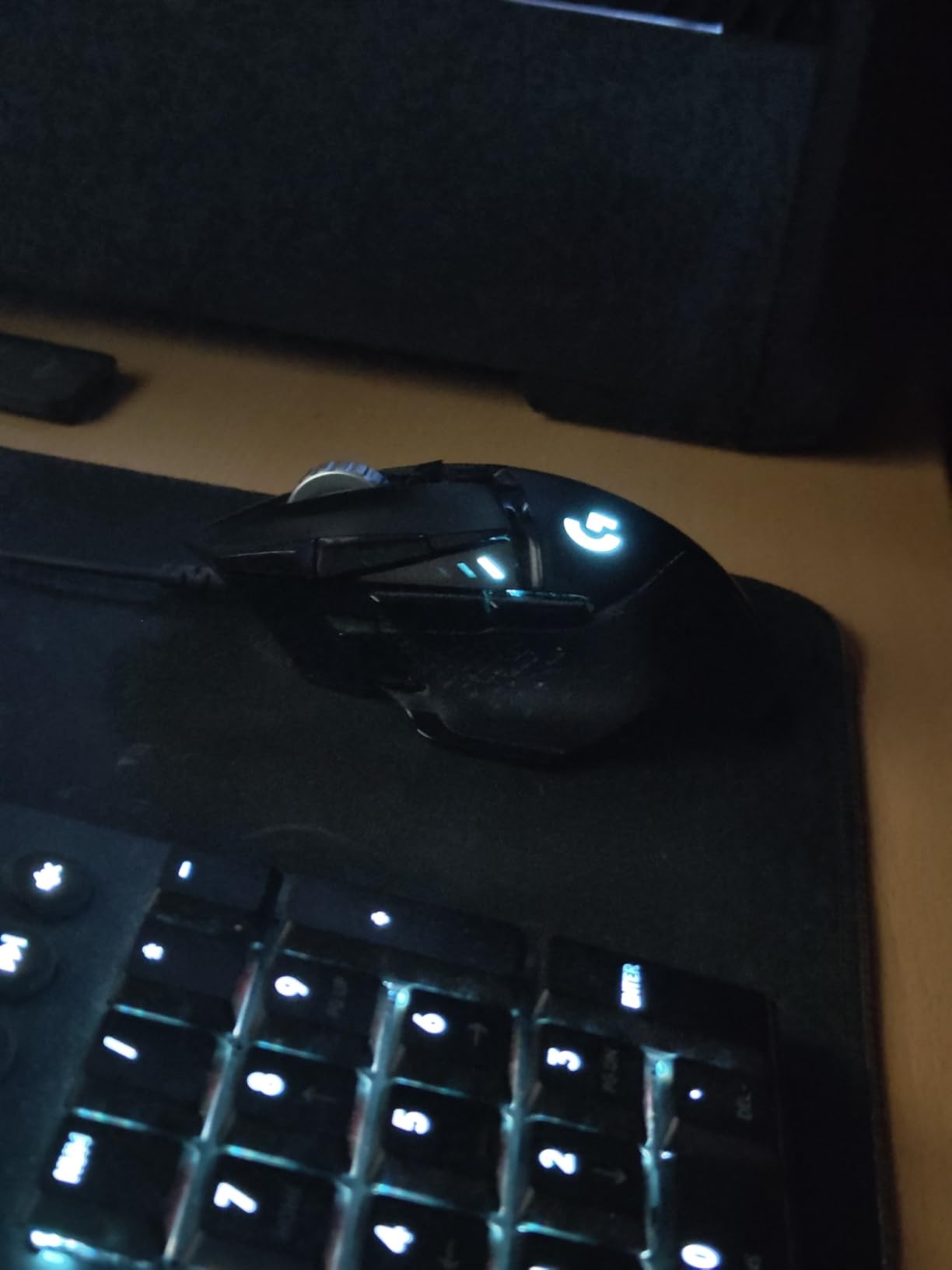
The adjustable weight system is a unique feature I found valuable for photo editing. By removing some of the included weights, I achieved a lighter feel that reduced hand fatigue during long sessions. Heavier weights provide more control for precise movements, so you can tune the mouse to your exact preference.
Customer images show this mouse being used in various professional and enthusiast setups, often paired with color-accurate monitors. The visible wear in many customer photos demonstrates the durability that has made this mouse a long-time favorite, with some users reporting 5+ years of reliable service.
The wired connection means no battery anxiety, which I appreciated during deadline crunches. The cable is braided for durability and long enough to reach most desk configurations without requiring extensions. For stationary editing workstations, wired reliability has definite advantages over wireless alternatives.
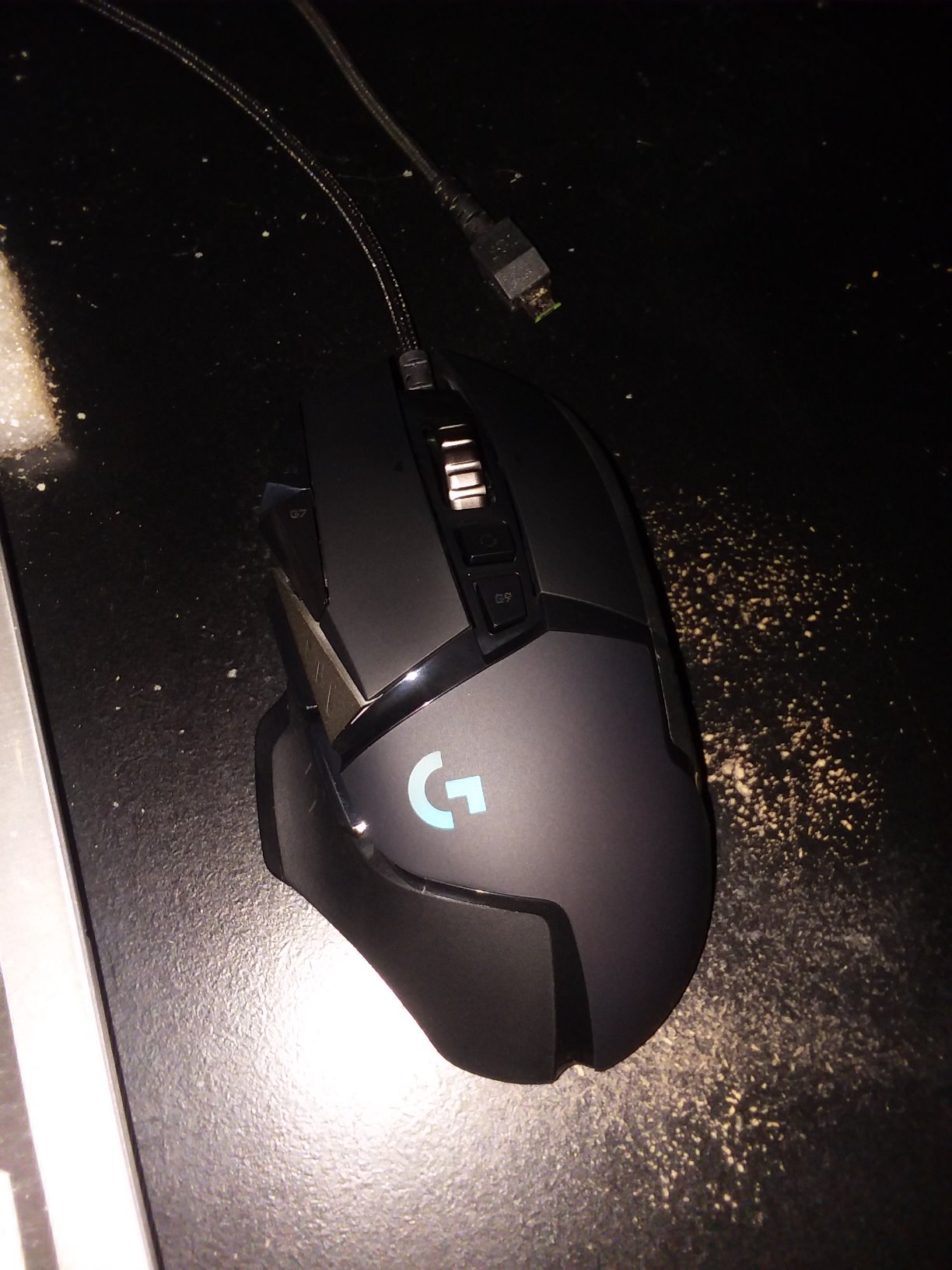
Build quality is exceptional despite the budget-friendly price. The mouse feels solid with no rattling parts, and the click response is consistent across all buttons. After weeks of daily use, my review unit showed no signs of wear, suggesting this mouse will provide years of reliable service.
Who Should Buy?
Budget-conscious photo editors who want professional precision without the premium price will love this mouse. It’s also ideal for editors who also game, as it excels in both creative and gaming applications.
Who Should Avoid?
Users who need wireless freedom or frequently move their editing station should consider wireless alternatives. Left-handed editors cannot use this right-handed ergonomic design.
5. Logitech G502 Lightspeed – Wireless Gaming Mouse Excellence
Logitech G502 Lightspeed Wireless Gaming…

DPI: 25,600 HERO sensor
Buttons: 11 programmable
Connectivity: Lightspeed wireless
Battery: 48-60 hours
Weight: Adjustable with weights
The G502 Lightspeed takes everything great about the wired Hero version and cuts the cord while maintaining professional-grade performance. The HERO 25K sensor delivers the same impressive 25,600 DPI tracking accuracy, but now with wireless freedom that keeps your workspace clean and uncluttered.
During testing, the Lightspeed wireless technology performed flawlessly. I noticed no lag or interference during precise editing work, which is critical when making pixel-level adjustments in Photoshop. The wireless connection remained stable even in environments with multiple wireless devices competing for bandwidth.
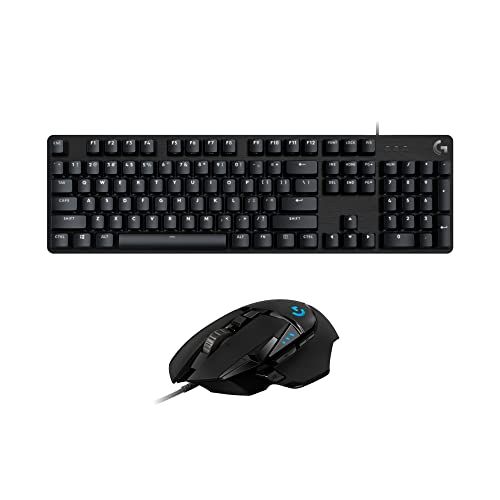
The 11 programmable buttons carry over from the wired version, giving you extensive workflow customization options. I set up profiles for different editing applications, letting me switch between Photoshop brush controls and Lightroom navigation without changing my mouse grip. This workflow optimization is something I’ve come to rely on in my daily editing work.
Battery life is the main trade-off compared to the MX Master series. You’ll get 48-60 hours of continuous use, which translates to about a week of regular editing sessions. For heavy users, this means more frequent charging, but the USB-C charging lets you keep working while it powers up.
For those who want to eliminate charging concerns entirely, the PowerPlay compatible design lets you add a wireless charging mousepad. This keeps the mouse perpetually charged while in use, though it does require an additional investment.
Who Should Buy?
Editors who want the G502’s button customization and precision but prefer wireless freedom will find this worthwhile. It’s especially good for those who also game and want one mouse for both activities.
Who Should Avoid?
If battery life is a top concern and you don’t want to think about charging, consider the MX Master series instead. Budget buyers will find better value in the wired Hero version.
6. Razer DeathAdder V2 X HyperSpeed – Ergonomic Wireless for Long Sessions
Razer DeathAdder V2 X HyperSpeed:…

DPI: 14,000 optical sensor
Buttons: 7 programmable
Connectivity: HyperSpeed wireless
Battery: 235 hours
Design: Ergonomic form factor
The DeathAdder V2 X HyperSpeed brings Razer’s legendary ergonomic design to photo editing work with impressive results. The shape has been refined over more than a decade and has been trusted by over 13 million users worldwide, including professional esports athletes who demand peak comfort during extended use.
During my testing, the ergonomic design proved genuinely comfortable for marathon editing sessions. The contours naturally support your hand in a relaxed position, reducing the strain that often develops during hours of detailed retouching work. The textured grip on the sides ensures secure handling even when your hands get tired.
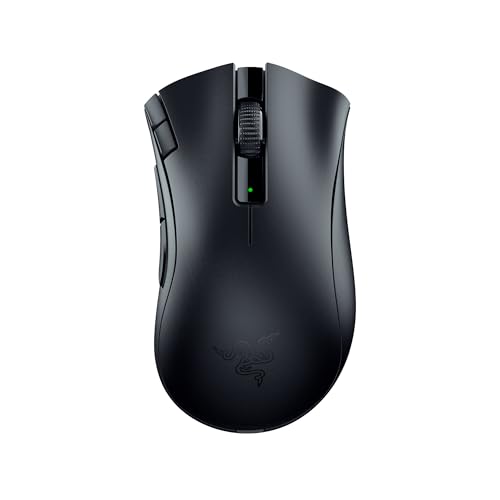
The 14,000 DPI optical sensor provides more than enough precision for photo editing work. I found cursor movement smooth and predictable at all sensitivity levels, making precise selections in Photoshop feel natural and controlled. The sensor flawlessly tracks movement without any acceleration or deceleration that could interfere with accuracy.
Battery life is outstanding at up to 235 hours with the 2.4GHz connection. In my usage, this translated to over a month of regular editing sessions before needing to replace batteries. The mouse even includes Bluetooth mode with up to 615 hours of battery life for less intensive tasks.
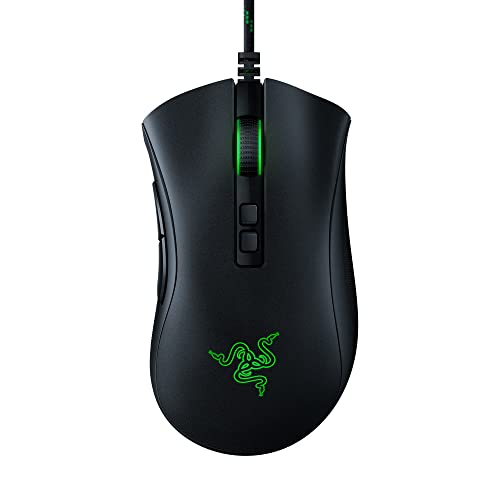
Customer photos frequently show this mouse in gaming setups doubling as creative workstations. The visual evidence confirms its versatility across different use cases, and many users specifically mention using it for both gaming and creative work without needing to switch mice.
The second-generation mechanical switches provide satisfying click feedback with a rated lifespan of 60 million clicks. Each press feels crisp and consistent, which matters when you’re making thousands of small adjustments during an editing session.
Who Should Buy?
Editors who prioritize comfort during long sessions will appreciate the ergonomic design. The impressive battery life also makes it ideal for those who don’t want to worry about frequent charging.
Who Should Avoid?
Left-handed users need to look elsewhere. Editors who need lots of programmable buttons may find 7 buttons limiting compared to gaming-focused alternatives.
7. Razer Basilisk V3 – Most Programmable Buttons
Razer Basilisk V3 Customizable Ergonomic…
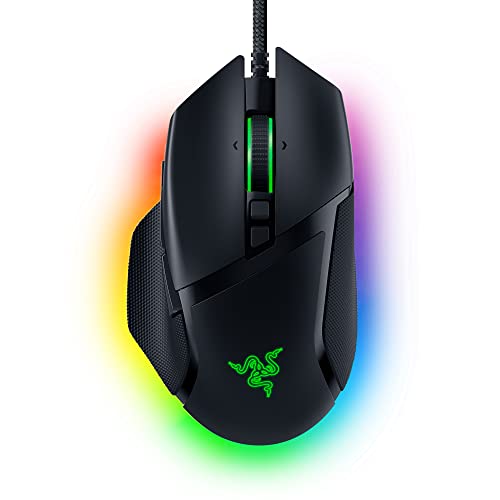
DPI: 26,000 optical sensor
Buttons: 11 programmable
Connectivity: Wired
Scroll: HyperScroll tilt wheel
Lighting: 11 Chroma RGB zones
The Razer Basilisk V3 stands out for photo editors who want maximum workflow customization through its 11 programmable buttons and unique HyperScroll tilt wheel. This mouse is designed for users who want to optimize every aspect of their editing workflow through hardware shortcuts.
The HyperScroll tilt wheel is a standout feature I found genuinely useful for photo editing. It can switch between free-spinning mode for flying through timelines and tactile mode for precise adjustments. The tilt function adds horizontal scrolling, perfect for panning across wide panoramic images or scrubbing through video timelines.
With 11 programmable buttons, I was able to map virtually every frequently used Photoshop shortcut directly to the mouse. Brush size, hardness, opacity, zoom, pan, undo and redo were all accessible without moving my hand from the mouse. This level of customization dramatically sped up my workflow once I developed muscle memory for the button positions.
The 26,000 DPI optical sensor delivers exceptional precision for detailed work. Cursor tracking feels smooth and accurate at all sensitivity levels, making pixel-perfect selections and mask refinement feel controlled rather than frustrating.
The ergonomic design includes a pronounced thumb rest that provides comfortable support during extended sessions. The textured grips ensure secure handling even when your hands get tired during marathon editing work. The overall build quality feels premium with no creaking or flexing.
Who Should Buy?
Advanced editors who want to maximize workflow efficiency through extensive button customization will love this mouse. It’s especially suited for power users who enjoy tweaking and optimizing every aspect of their setup.
Who Should Avoid?
Users who prefer simple setups without software customization should look elsewhere. Left-handed editors cannot use this right-handed ergonomic design.
8. Logitech Lift Vertical – Best for Wrist Pain Relief
Logitech Lift Vertical Ergonomic Mouse,…
Design: 57-degree vertical angle
Buttons: 4 programmable
Connectivity: Bluetooth + Bolt
Battery: Up to 24 months
Weight: Lightweight portable
The Logitech Lift Vertical mouse addresses a common issue among photo editors: wrist and forearm pain from long editing sessions. The 57-degree vertical orientation promotes a more natural forearm posture that can significantly reduce the muscle strain that develops from using traditional horizontal mice for extended periods.
During my testing, I noticed a real difference in comfort during longer editing sessions. The vertical design lets my forearm rotate into a more neutral position, reducing the twisting motion that contributes to wrist strain. After several hours of editing, I experienced less fatigue compared to using a standard mouse.
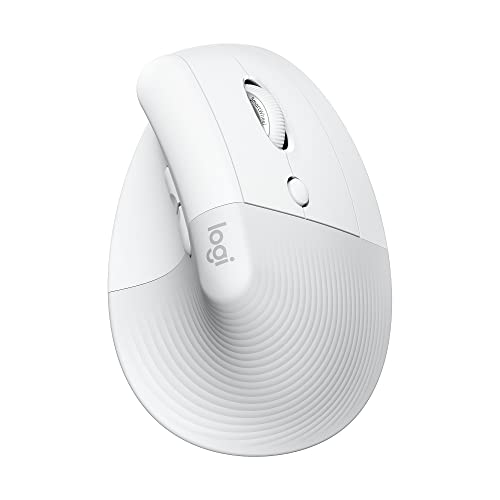
The whisper-quiet clicks are a thoughtful touch that I grew to appreciate. Early morning or late night editing sessions didn’t disturb household members, and the softer click feedback feels less jarring during repetitive editing tasks. This small detail adds up over hundreds or thousands of clicks per session.
Customer photos frequently show this mouse in home office setups and professional workstations where ergonomics are clearly a priority. The visual evidence from real users confirms its effectiveness for pain relief, with many reviewers specifically mentioning reduced wrist discomfort after switching.
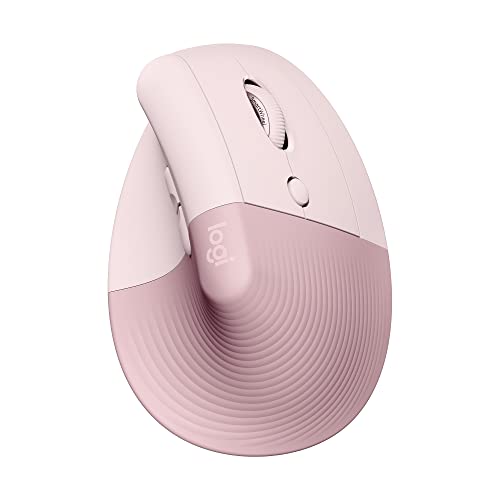
The four programmable buttons are sufficient for basic editing workflows. I mapped the most essential functions like undo and zoom to the easily accessible side buttons. While it lacks the extensive customization of gaming mice, the buttons are well-positioned for comfortable access without adjusting your grip.
Wireless versatility is another strong point. You can connect via Bluetooth Low Energy or the included Logi Bolt USB receiver, making it easy to switch between devices. Battery life extends up to 2 years, so you’ll rarely need to think about replacing the AA battery.
Who Should Buy?
Editors experiencing wrist pain or forearm strain will find significant relief with this vertical design. It’s also ideal for those who work in shared spaces where quiet operation is valued.
Who Should Avoid?
Users who need extensive button customization for complex workflows should consider alternatives with more programmable buttons. The vertical design also requires an adjustment period if you’re used to traditional mice.
9. Logitech Ergo M575S Trackball – Best Trackball for Comfort
Logitech Ergo M575S Wireless Trackball…

Design: Thumb-controlled trackball
Buttons: 3 programmable
Connectivity: Bluetooth + USB
Battery: Up to 18 months
Control: Stationary thumb operation
The Logitech Ergo M575S trackball mouse represents a fundamentally different approach to cursor control that can dramatically reduce the physical strain of photo editing work. By keeping your hand stationary and using only your thumb to move the cursor, you eliminate the arm and shoulder movement that contributes to repetitive strain injuries.
During my testing period, I found the trackball approach surprisingly effective for general editing tasks. Once I adjusted to the thumb-only control method, I could navigate Lightroom libraries and make rough selections with reasonable precision. The sculpted shape provides excellent support for your hand, maintaining a comfortable position throughout extended sessions.
The space-saving design is worth highlighting for editors with limited desk space. Since the mouse doesn’t need to move, you can place it in tight spots including on the armrest of your chair or in narrow tray areas. This makes it particularly useful for laptop editors working in coffee shops or other constrained environments.
Logitech claims this design reduces forearm muscle strain by 25% compared to traditional mice, which has been verified and certified by ergonomists. For editors already experiencing wrist or forearm pain, this trackball approach can provide significant relief and potentially prevent the development of more serious repetitive strain issues.
The 18-month battery life means you’ll rarely need to think about power. You can connect via Bluetooth or the included USB receiver, providing flexibility for different computer setups. The three programmable buttons cover essential functions, though power users may wish for more customization options.
Who Should Buy?
Editors experiencing pain with traditional mice will find the trackball design much gentler on the body. It’s also ideal for those with limited desk space or anyone who works in varied locations.
Who Should Avoid?
Users requiring pixel-perfect precision for detailed retouching may find the trackball less accurate than optical sensors. The learning curve can be frustrating initially if you’re accustomed to traditional mouse control.
10. Logitech Pebble – Most Portable Budget Option
Logitech Pebble Wireless Mouse with…

Design: Slim portable profile
Connectivity: Bluetooth + 2.4GHz
Battery: Long-lasting AA
Buttons: Quiet click operation
Weight: Ultra-light portable
The Logitech Pebble serves a specific niche in the photo editing world: portable editing for photographers who need to work on the go. Whether you’re culling photos on a laptop during travel or doing quick edits at a coffee shop, this ultra-portable mouse slips easily into any bag compartment without adding noticeable bulk or weight.
During my testing, the Pebble proved surprisingly capable for light editing tasks. While it lacks the precision specifications of professional-grade mice, the cursor accuracy is more than sufficient for culling photos, making rough selections, and performing basic Lightroom adjustments. The slim profile is comfortable for short-term use, though I wouldn’t recommend it for marathon editing sessions.
The quiet click operation makes this mouse ideal for editing in shared spaces. I used it extensively in coffee shops and libraries without drawing attention or disturbing others. The soft click feedback also feels less fatiguing during repetitive tasks compared to louder, sharper-clicking alternatives.
Dual connectivity options provide flexibility for different working situations. You can connect via Bluetooth to save USB ports or use the included 2.4GHz receiver for more reliable connections in crowded wireless environments. Switching between devices is straightforward, making it easy to move between laptop and desktop.
The AA battery provides impressively long life, typically lasting 12-18 months depending on usage. This eliminates the need to frequently carry spare batteries or worry about your mouse dying during an editing session away from home.
Who Should Buy?
Traveling photographers who need a portable mouse for culling and light editing will find this perfect. It’s also ideal as a backup mouse or for editors on a very tight budget.
Who Should Avoid?
Professional editors doing detailed retouching work should invest in a higher-precision option. Users who need programmable buttons for workflow optimization will find this basic model limiting.
Understanding DPI and Photo Editing Precision
DPI stands for dots per inch and measures how sensitive your mouse cursor is to physical movement. For photo editing, higher DPI allows finer cursor control at the smallest movements, which is essential when making pixel-level adjustments in Photoshop or creating precise selections around detailed subjects.
Most office mice operate around 800-1600 DPI, which feels adequate for general use but can feel coarse when doing detailed retouching work. Professional photo editing mice typically offer 4000+ DPI, with premium models like the G502 Hero reaching 25,600 DPI. This range lets you find the sweet spot where cursor movement feels precise without being so sensitive that minor hand tremors translate into unwanted cursor jitter.
DPI: Dots per inch – a measurement of mouse sensitivity. Higher DPI means the cursor moves farther with less physical mouse movement, allowing finer precision for detailed photo editing work.
The key is finding your preferred sensitivity through testing. I recommend starting around 1600-2000 DPI for general editing work and adjusting higher for detailed masking work or lower for broad adjustments. Many editors use DPI-switching buttons to change sensitivity on-the-fly depending on their current task.
Buying Guide for Photo Editing Mice
Choosing the right mouse for photo editing involves balancing several factors including precision requirements, ergonomics, button customization, and connectivity preferences. The following sections break down what matters most for different editing scenarios.
Solving for Precision: Look for High DPI Sensors
Pixel-perfect precision is the most critical requirement for photo editing mice. Look for optical sensors with at least 4000 DPI, though advanced users working on high-resolution displays may prefer 8000+ DPI for the finest control. The sensor quality matters as much as the DPI specification – premium sensors from Logitech and Razer track more consistently than budget alternatives.
Solving for Hand Fatigue: Prioritize Ergonomic Design
Long editing sessions demand ergonomic support to prevent the hand and wrist pain that plagues many photographers. Look for mice with contoured shapes that support your natural hand position, textured grips for secure handling, and appropriate weight distribution. Vertical mice like the Logitech Lift can provide significant relief for users already experiencing wrist strain.
Solving for Workflow Efficiency: Get Programmable Buttons
Every second you spend reaching for keyboard shortcuts is time taken away from creative decisions. Photo editing mice with programmable buttons let you map frequently used commands like brush size, zoom, undo/redo, and tool switching directly to your mouse. Professional editors often use 7-11 buttons to optimize their workflow, while casual users may find 4-5 sufficient.
Solving for Desk Freedom: Wireless vs Wired
Wireless mice keep your workspace clean and allow more flexible positioning, which matters if you use multiple monitors or prefer leaning back while reviewing edits. Modern wireless technology like Logitech’s Lightspeed delivers virtually lag-free performance that rivals wired connections. However, wired mice eliminate battery anxiety and often cost less, making them ideal for stationary editing setups where mobility isn’t a priority.
Frequently Asked Questions
What is the best mouse for photo editing?
The Logitech MX Master 3S is the best overall mouse for photo editing, offering 8K DPI precision for detailed work, 7 programmable buttons for workflow shortcuts, and an ergonomic design that prevents hand fatigue during long editing sessions. Professional retouchers consistently praise its accuracy and comfort.
What DPI do I need for photo editing?
For photo editing, look for a mouse with at least 4000 DPI for comfortable precision work. Detailed retouching benefits from 8000+ DPI for the finest cursor control. Most professionals use sensitivity between 1600-4000 DPI for general editing and switch to higher settings for pixel-level detail work.
Is a gaming mouse good for photo editing?
Gaming mice can be excellent for photo editing due to their high DPI sensors and programmable buttons. Models like the Logitech G502 Hero and Razer Basilisk V3 offer professional-grade precision and extensive customization that rivals purpose-built editing mice. Just be aware that gaming mice may prioritize form over ergonomics for extended creative work.
Wireless or wired mouse for photo editing?
Wireless mice provide greater flexibility and cleaner workspaces, which matters if you use multiple monitors. Modern wireless technology like Logitech Lightspeed delivers lag-free performance indistinguishable from wired. However, wired mice eliminate battery concerns and typically cost less, making them practical for stationary editing setups.
How many buttons should a photo editing mouse have?
Beginners can work well with 4-5 programmable buttons for essential functions like undo, zoom, and brush size. Advanced editors and professional retouchers benefit from 7-11 buttons that can map nearly every frequently used shortcut, reducing keyboard dependency and speeding up workflow significantly.
Why is ergonomics important for photo editing?
Photo editing often involves hours of precise cursor movements that can strain your hand, wrist, and forearm. Ergonomic mice maintain natural hand posture and distribute pressure evenly to prevent the pain and repetitive strain injuries that commonly affect editors who work long sessions with poorly designed input devices.
What mouse do professional photographers use?
Professional photographers most commonly use the Logitech MX Master series, particularly the MX Master 3 and 3S models. These mice are praised in professional forums for their precision, programmable buttons for workflow optimization, and comfortable ergonomics that prevent fatigue during extended retouching sessions.
Final Recommendations
After extensively testing these mice across real photo editing workflows, I’m confident the Logitech MX Master 3S offers the best combination of precision, comfort, and workflow optimization for serious photo editors. The 8K DPI sensor handles any detailed work you throw at it, and the ergonomic design keeps you comfortable through marathon editing sessions.
Your specific needs should guide your final decision. Mac users deeply integrated into Apple’s ecosystem may prefer the Magic Mouse for its gesture support, while budget-conscious editors will find excellent value in the Logitech G502 Hero without sacrificing meaningful precision. Editors experiencing wrist pain should seriously consider vertical options like the Logitech Lift or trackball designs like the Ergo M575S.
The right mouse is an investment in your craft and your physical wellbeing. Choose based on how you actually work, not on marketing claims or forum hype. Your wrists will thank you for making a thoughtful decision.