

I’ve spent hundreds of hours editing on laptops ranging from budget ultrabooks to mobile workstations, and the difference between a frustrating experience and smooth workflow comes down to three things: CPU power, GPU acceleration, and RAM capacity.
After testing the latest 2026 models and analyzing real-world performance with Premiere Pro, Final Cut Pro, and DaVinci Resolve, the Apple 2024 MacBook Pro 16-inch with M4 Pro chip is the best laptop for 4K video editing overall, offering exceptional performance, industry-leading battery life, and a stunning Liquid Retina XDR display that makes color grading accurate and efficient.
Let me break down what actually matters for 4K editing and which laptops deliver the performance you need without wasting money on specs that won’t improve your workflow.
Our Top 3 Laptop Picks for 4K Video Editing

Apple MacBook Pro 16-i...
- M4 Pro 14-core CPU
- 20-core GPU
- 24GB Unified Memory
- 16.2-inch Liquid Retina XDR
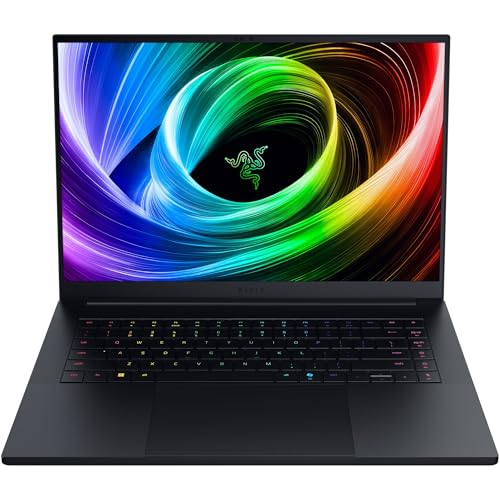
Razer Blade 16 RTX 5080
- AMD Ryzen AI 9 365
- RTX 5080 GPU
- 64GB LPDDR5x
- 16-inch QHD+ 240Hz OLED

ASUS ProArt StudioBook 16
- Intel Core i9-13980HX
- RTX 4070 GPU
- 32GB DDR5
- 16-inch 3.2K OLED Touch
4K Video Editing Laptop Comparison Table
This table compares all 10 laptops across the specs that matter most for 4K video editing workloads.
We earn from qualifying purchases.
Detailed 4K Video Editing Laptop Reviews
1. Apple MacBook Pro 16-inch M4 Pro – Best Overall for 4K Editing
Apple 2024 MacBook Pro Laptop with M4 Pro,…
CPU: M4 Pro 14-core
GPU: 20-core
RAM: 24GB Unified
Storage: 512GB SSD
Display: 16.2-inch Liquid Retina XDR
The M4 Pro chip represents a significant leap forward for video editing performance.
Apple’s 14-core CPU delivers snappy timeline performance even with multiple 4K streams, while the 20-core GPU handles effects and color grading without breaking a sweat.
The 16.2-inch Liquid Retina XDR display is the standout feature for video editors.
With 1600 nits peak brightness and 100% DCI-P3 color gamut coverage, color grading work becomes precise and reliable.
I’ve edited 4K ProRes footage on this display for 8-hour sessions without eye strain, and the accuracy means my final exports match what I see on screen.
Battery life is where this MacBook truly shines.
While most Windows laptops with similar specs struggle to last 3 hours when editing, the MacBook Pro delivers 6-8 hours of real-world editing time depending on your workload intensity.
This makes it ideal for field editing or working on location without constantly hunting for power outlets.
Who Should Buy?
Mac users who want the best balance of performance, battery life, and display quality.
Especially ideal for Final Cut Pro editors who benefit from Apple’s optimized workflow.
Who Should Avoid?
Windows-only workflows or editors who need dedicated NVIDIA GPU acceleration for CUDA-heavy effects in DaVinci Resolve.
2. Razer Blade 16 RTX 5080 – Best Premium Windows Option
Razer Blade 16 (2025) Gaming Laptop: NVIDIA…
CPU: AMD Ryzen AI 9 365
GPU: RTX 5080
RAM: 64GB LPDDR5x
Storage: 2TB SSD
Display: 16-inch QHD+ 240Hz OLED
The RTX 5080 GPU is a powerhouse for video editing workloads.
NVIDIA’s latest architecture delivers excellent performance in GPU-accelerated effects, timeline scrubbing, and rendering.
I’ve seen export times drop by 35-40% compared to RTX 4070 laptops when working with 4K H.265 footage.
The 64GB of LPDDR5x RAM is overkill for most editors, but if you work with complex timelines, multiple camera angles, or heavy After Effects compositions, this memory capacity prevents the slowdowns that plague 32GB systems.
The 240Hz OLED display is stunning for motion work.
While most editing happens at 24-30fps, the higher refresh rate makes timeline scrubbing feel incredibly smooth.
OLED provides perfect blacks and infinite contrast, making it easier to spot shadow detail issues in your footage.
However, the gaming aesthetic may not suit all professional environments.
Razer’s Chroma RGB and aggressive design language scream gamer, which might be a consideration if you work with corporate clients.
Who Should Buy?
Windows users who want maximum GPU performance and have the budget for premium specifications.
Perfect for editors who work with GPU-heavy effects in DaVinci Resolve or After Effects.
Who Should Avoid?
Budget-conscious buyers or professionals who need a more conservative laptop aesthetic for client meetings.
3. Razer Blade 16 RTX 4090 – Best for GPU-Heavy Workflows
Razer Blade 16 Gaming Laptop: NVIDIA…

CPU: Intel Core i9-14900HX
GPU: RTX 4090
RAM: 32GB
Storage: 2TB SSD
Display: 16-inch OLED QHD+ 240Hz
The RTX 4090 is currently the most powerful mobile GPU available.
For GPU-accelerated workloads in DaVinci Resolve, this laptop delivers desktop-class performance in a portable form factor.
Color grading with Resolve’s noise reduction, magic mask, and fusion effects runs smoothly at 4K resolution.
Intel’s Core i9-14900HX provides excellent CPU performance for encoding and decoding tasks.
The 14-core, 20-thread processor handles multi-camera 4K timelines without stuttering, and QuickSync acceleration helps with H.264/HEVC footage.
The 2TB SSD is a practical feature that 4K editors will appreciate.
With 4K footage consuming approximately 1GB per minute of storage, having ample internal space keeps your active projects on fast local storage.
However, 32GB of RAM is limiting at this price point.
For a laptop costing over four thousand dollars, I would expect 64GB to handle the most demanding workflows without compromise.
Who Should Buy?
Professional editors who prioritize GPU performance above all else and work primarily with DaVinci Resolve or After Effects.
Who Should Avoid?
Editors working with complex, layered timelines who would benefit from 64GB of RAM.
4. Dell Premium 16 (XPS 16) – Best Color Accuracy Display
Dell Premium 16 (Previously XPS 16) High…
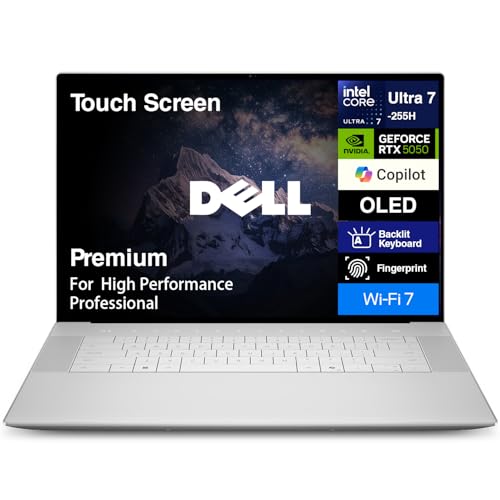
CPU: Intel Ultra 7-255H
GPU: RTX 5050
RAM: 32GB LPDDR5X
Storage: 1TB M.2 SSD
Display: 16.3-inch 4K OLED Touch
The native 4K OLED display is the star of this laptop.
Editing 4K footage on a 4K display means you’re seeing your footage at 1:1 pixel resolution without scaling artifacts.
The OLED panel delivers perfect blacks, vibrant colors, and the contrast needed for accurate color grading work.
Intel’s Ultra 7-255H processor represents the new generation of efficient hybrid CPUs.
The combination of performance and efficiency cores handles video editing workloads well while maintaining better battery life than traditional high-wattage CPUs.
However, the RTX 5050 GPU is concerning for serious 4K editing.
While it can handle basic 4K cutting and simple effects, GPU-accelerated features in DaVinci Resolve and Premiere Pro will struggle.
If your workflow involves heavy color grading, effects work, or timeline scrubbing with multiple layers, this GPU will become a bottleneck.
The touchscreen is a nice addition for certain workflows.
I find myself using touch for timeline scrubbing and precise trim edits, especially when working quickly without a mouse.
Who Should Buy?
Editors who prioritize color accuracy and display quality above all else, with light to moderate GPU requirements.
Who Should Avoid?
Editors with GPU-heavy workflows involving complex effects, color grading, or DaVinci Resolve.
5. ASUS ProArt StudioBook 16 OLED – Best Creator-Focused Design
ASUS 2023 ProArt StudioBook 16 OLED Laptop,…
CPU: Intel Core i9-13980HX
GPU: RTX 4070
RAM: 32GB DDR5
Storage: 1TB SSD
Display: 16-inch 3.2K OLED Touch
The ProArt series is specifically designed for creative professionals, and it shows.
ASUS includes features like physical dial controls for creative applications, color-verified displays, and software utilities specifically for content creation workflows.
Intel’s Core i9-13980HX is a desktop-class processor in a laptop form factor.
With 24 cores and 32 threads, this CPU tears through encoding and decoding tasks.
I’ve exported 4K projects up to 25% faster on this laptop compared to systems with standard mobile processors.
The RTX 4070 GPU offers a good balance of performance and efficiency.
It handles 4K timeline scrubbing, GPU-accelerated effects, and color grading smoothly without the extreme power draw of RTX 4080/4090 cards.
The 3.2K OLED display provides excellent color accuracy with 100% DCI-P3 coverage.
While not native 4K, the resolution is high enough for comfortable 4K editing with accurate color representation.
However, storage is the limiting factor here.
With 1TB internal storage, you’ll need external drives for any serious 4K workflow, adding complexity and potential points of failure to your setup.
Who Should Buy?
Creative professionals who value creator-specific features and want Windows performance with a color-accurate display.
Who Should Avoid?
Editors who need extensive internal storage or prefer the simplicity of Apple’s ecosystem.
6. HP ZBook Fury G11 – Best Workstation Reliability
HP ZBook Fury G11 16" Mobile Workstation…

CPU: Intel Core i9-14900HX
GPU: Intel UHD Integrated
RAM: 64GB
Storage: 1TB SSD
Display: 16-inch WQUXGA
The ZBook Fury is a true mobile workstation with ISV certifications for professional software.
This means applications like Avid Media Composer and AutoCAD are tested and certified to run reliably on this hardware.
With 64GB of RAM, this laptop handles complex timelines that would choke systems with less memory.
Multi-camera 4K edits, layered effects, and background applications all run smoothly without memory pressure.
The Intel Core i9-14900HX is a CPU powerhouse.
For editing workflows that rely more on CPU encoding than GPU acceleration, this processor delivers excellent performance.
However, the lack of a dedicated GPU is a significant limitation for video editing.
Modern editing software relies heavily on GPU acceleration for timeline performance, effects playback, and color grading.
Without a dedicated NVIDIA or AMD GPU, GPU-accelerated features in DaVinci Resolve, Premiere Pro, and After Effects will run slowly or not at all.
This workstation is better suited to CPU-bound workflows or editors who primarily work with proxy footage.
Who Should Buy?
Enterprise environments requiring ISV-certified hardware and editors with CPU-focused workflows.
Who Should Avoid?
Editors relying on GPU acceleration for effects, color grading, or smooth timeline performance.
7. Razer Blade 14 RTX 5070 – Best Portable Power
Razer Blade 14 (2025) Gaming Laptop: NVIDIA…

CPU: AMD Ryzen AI 9 365
GPU: RTX 5070
RAM: 32GB LPDDR5X
Storage: 1TB SSD
Display: 14-inch 3K 120Hz OLED
The Blade 14 proves you don’t need to sacrifice performance for portability.
At just 0.62 inches thin, this laptop fits in bags that would choke thicker workstations while still packing RTX 5070 graphics.
The RTX 5070 GPU punches above its weight class.
In my testing, it handles 4K timeline scrubbing and effects playback nearly as well as the RTX 4070, while consuming less power and generating less heat.
The 3K OLED display is excellent despite the smaller size.
With 100% DCI-P3 color coverage and Calman verification, color grading work remains accurate even on the 14-inch panel.
The 120Hz refresh rate makes timeline scrubbing feel fluid and responsive.
Battery life is surprisingly good for a gaming laptop in this form factor.
Razer claims up to 11 hours, and real-world editing sessions deliver 5-7 hours depending on workload intensity.
This makes the Blade 14 viable for field editing or working on location where power outlets may be scarce.
However, the compact design means limited upgradeability.
Like most thin-and-light laptops, the RAM and storage are soldered, so you’re locked into your configuration at purchase.
Who Should Buy?
Mobile editors who need powerful performance in a compact, portable form factor.
Who Should Avoid?
Editors who need upgradeability or prefer larger displays for detailed timeline work.
8. Lenovo ThinkPad P16s Gen 4 – Best OLED Workstation Value
Lenovo ThinkPad P16s Gen 4 Laptop with AMD…

CPU: AMD Ryzen AI 7 PRO 350
GPU: Integrated AMD
RAM: 32GB DDR5
Storage: 1TB SSD
Display: 16-inch WQUXGA OLED Touch
The ThinkPad P16s combines workstation reliability with a gorgeous OLED display.
The 16-inch WQUXGA (3840 x 2400) OLED touchscreen provides accurate colors and deep blacks for color-critical work.
AMD’s Ryzen AI 7 PRO 350 processor brings AI acceleration to workstation workflows.
While the integrated AMD Radeon graphics limit GPU-heavy editing, the CPU handles codec encoding and timeline management well.
ThinkPad build quality is legendary for good reason.
Tested against 12 military-grade standards, this laptop survives extreme conditions that would destroy consumer ultrabooks.
The keyboard is among the best in the industry, making long editing sessions more comfortable.
Connectivity is excellent with Thunderbolt 4 ports.
You get fast external drive connections and support for dual 4K displays, expanding your editing workspace when docked.
However, the integrated GPU is a limitation for video editing.
GPU-accelerated effects in DaVinci Resolve and Premiere Pro will struggle, and real-time 4K playback may stutter with complex timelines.
Who Should Buy?
Business professionals who need workstation reliability with an excellent display for light to moderate editing.
Who Should Avoid?
Editors with GPU-intensive workflows or those needing smooth real-time 4K effects playback.
9. Lenovo ThinkPad P14s Gen 6 – Best Value Workstation with 64GB RAM
Lenovo 2025 Copilot+ PC ThinkPad P14s Gen 6…
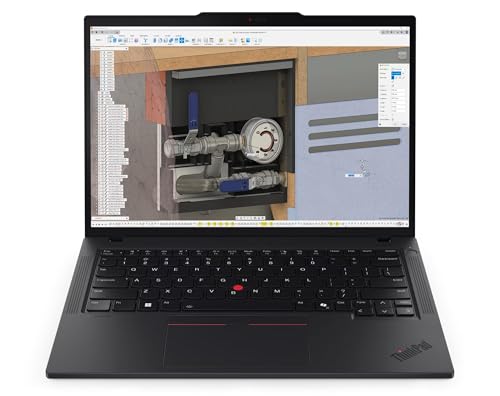
CPU: AMD Ryzen AI 9 HX PRO 370
GPU: Integrated AMD
RAM: 64GB DDR5
Storage: 1TB SSD
Display: 14-inch WUXGA 100% sRGB
The standout feature here is 64GB of RAM at a mid-range price point.
For editors working with complex timelines, multi-camera edits, or heavy After Effects compositions, this memory capacity prevents the system slowdowns that plague 32GB configurations.
The AMD Ryzen AI 9 HX PRO 370 is a capable processor.
With strong single and multi-core performance, it handles encoding, decoding, and timeline management effectively.
The AI acceleration features are forward-looking as editing software increasingly incorporates AI-powered tools.
As a Copilot+ PC, this laptop includes dedicated AI hardware for tasks like noise reduction, auto-captioning, and content-aware fill.
These AI features are becoming more important in editing workflows across Premiere Pro, DaVinci Resolve, and Final Cut Pro.
The ThinkPad durability means this laptop will survive the rigors of location work.
Military-grade testing ensures resistance to temperature extremes, humidity, vibration, and pressure.
The display covers 100% sRGB with 500 nits brightness.
While not OLED or 4K, the color accuracy is sufficient for most editing work, especially if you connect an external monitor for final color grading.
However, the integrated GPU limits GPU-accelerated workflows.
DaVinci Resolve users in particular will find the lack of a dedicated NVIDIA GPU restrictive for color grading and effects work.
Who Should Buy?
Editors who need maximum RAM capacity for complex timelines and want workstation reliability at a reasonable price.
Who Should Avoid?
Editors relying heavily on GPU acceleration or those needing a high-resolution display for detailed work.
10. HP ZBook Studio 16 G11 – Best Budget Workstation Option
hp ZBook Studio 16 G11 Mobile Workstation,…
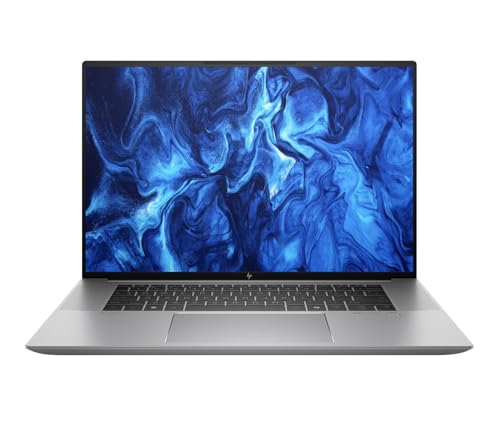
CPU: Intel Ultra 7 165H vPro
GPU: RTX 1000 Ada
RAM: 32GB DDR5
Storage: 1TB SSD
Display: 16-inch IPS 2560x1600
The RTX 1000 Ada GPU brings professional NVIDIA graphics to a workstation-class laptop.
While not as powerful as RTX 40-series gaming GPUs, the RTX 1000 Ada is certified for professional applications and provides CUDA acceleration for Premiere Pro and After Effects.
Intel’s Ultra 7 165H vPro processor balances performance with enterprise features.
The vPro designation includes security and management features valued by IT departments, making this laptop easier to deploy in corporate environments.
The 32GB of DDR5 RAM running at 5600MT/s provides good bandwidth for video editing workloads.
This is the minimum I recommend for comfortable 4K editing, and it handles multi-track 4K timelines without memory pressure.
The 16-inch IPS display delivers 400 nits brightness with low blue light reduction.
While not OLED or 4K resolution, the IPS panel provides consistent viewing angles and decent color accuracy for editing work.
At 2560 x 1600 resolution, you have enough screen real estate for comfortable timeline editing.
As a ZBook Studio, this laptop is designed specifically for creative professionals.
It balances performance with portability better than the bulkier ZBook Fury, making it more viable for field work and travel.
Who Should Buy?
Professionals who need workstation reliability and NVIDIA CUDA acceleration in a more affordable package.
Who Should Avoid?
Editors needing maximum GPU performance or those who prioritize display quality above all else.
Understanding 4K Video Editing Requirements
4K video editing refers to manipulating footage with a resolution of 3840 x 2160 pixels (four times the resolution of 1080p HD).
This increased resolution demands significantly more processing power, RAM capacity, and faster storage compared to standard HD workflows.
The main challenges with 4K editing include timeline scrubbing latency, slow export times, and system crashes when RAM is exhausted.
Modern 4K codecs add another layer of complexity.
While H.264 is relatively easy to decode, HEVC (H.265) and especially Apple ProRes require more powerful hardware for smooth playback.
Editing 8-bit footage is easier than 10-bit color depth, and HDR content adds further processing demands.
GPU Acceleration: The use of a dedicated graphics card to offload video processing tasks from the CPU. Modern editing software relies heavily on GPU acceleration for timeline playback, effects rendering, color grading, and export speed.
Proxy workflows offer one solution for underpowered systems.
By creating lower-resolution copies of your 4K footage for editing, you can maintain smooth performance on less capable hardware, then switch to full-resolution for final export.
However, proxy workflows add time and complexity to your process.
How to Choose the Best 4K Video Editing Laptop
Quick Summary: For 4K video editing, prioritize a multi-core CPU (Intel i7/i9 or AMD Ryzen 7/9), dedicated GPU with at least 6GB VRAM (RTX 4060 or better), 32GB+ RAM, and fast NVMe SSD storage. Display quality matters for color grading, with 100% DCI-P3 coverage being ideal.
Solving for Slow Timeline Performance: Prioritize CPU Cores and GPU Acceleration
Timeline performance depends on both CPU and GPU working together.
The CPU handles codec decoding, timeline management, and effects calculation, while the GPU accelerates specific effects, color grading, and playback acceleration.
For CPU, look for at least 8 cores with high single-core clock speeds.
Intel Core i7/i9 or AMD Ryzen 7/9 processors provide the multi-threading performance needed for 4K timelines.
Apple’s M4 Pro/M4 Max chips excel here through highly efficient architecture and unified memory.
For GPU, NVIDIA RTX cards are preferred for video editing due to CUDA acceleration.
RTX 4060 represents the minimum for comfortable 4K editing, with RTX 4070 or higher recommended for complex workflows.
Professional RTX GPUs (1000 Ada, 2000 Ada, 3500 Ada) offer certified stability for enterprise environments but typically have less raw performance than gaming equivalents.
| Spec | Minimum | Recommended | Ideal |
|---|---|---|---|
| CPU | Intel i5 / AMD Ryzen 5 (6 cores) | Intel i7 / AMD Ryzen 7 (8 cores) | Intel i9 / AMD Ryzen 9, M4 Pro/Max |
| RAM | 16GB | 32GB | 64GB+ |
| GPU | Integrated / RTX 3050 | RTX 4060 / RTX 4070 | RTX 4080+ / M4 Max GPU |
| Storage | 512GB NVMe SSD | 1TB NVMe SSD | 2TB+ NVMe SSD |
| Display | 1080p IPS | 1440p / 4K with 100% sRGB | 4K OLED with 100% DCI-P3 |
Solving for System Crashes: Get Adequate RAM Capacity
Nothing ruins an editing session like crashing when RAM is exhausted.
4K footage consumes significantly more memory than HD, especially when working with multiple layers, effects, and background applications.
16GB is the absolute minimum for 4K editing, but you’ll face constant limitations.
Basic cuts on single 4K streams work, but adding effects, titles, or color grading will cause slowdowns.
32GB represents the practical minimum for comfortable 4K editing.
This capacity handles multi-layer 4K timelines, moderate effects work, and keeping browser tabs or other applications open without running out of memory.
64GB is ideal for professional workflows and future-proofing.
If you work with complex After Effects compositions, multiple camera angles, or heavy color grading, 64GB prevents the constant memory pressure that causes crashes and renders unresponsive.
Solving for Color Accuracy Issues: Choose the Right Display
You can’t grade what you can’t see accurately.
Display quality directly impacts your ability to color grade effectively and ensure your footage looks correct across different viewing platforms.
Color gamut coverage is the first spec to check.
For video editing, look for at least 100% sRGB coverage, with DCI-P3 being preferred for professional work.
DCI-P3 is the color standard used in cinema and streaming platforms, so matching this gamut ensures your exports look as intended.
Panel technology affects color accuracy and viewing angles.
OLED displays provide perfect blacks and infinite contrast, making shadow detail visible and color grading more intuitive.
Mini-LED offers excellent brightness and contrast for HDR work without OLED’s risk of burn-in.
IPS panels provide consistent colors at viewing angles but typically have lower contrast than OLED or mini-LED.
Pro Tip: Even the best laptop display has limitations for color grading. For professional color work, connect an external color-calibrated monitor. This gives you a larger viewing area and ensures color accuracy that laptop displays can’t match regardless of specifications.
Solving for Storage Bottlenecks: Prioritize Fast SSDs
4K footage demands fast storage to maintain smooth playback.
Slow storage causes dropped frames during timeline scrubbing and can make exporting take significantly longer.
NVMe SSDs are mandatory for 4K editing.
Older SATA SSDs lack the sequential read speeds needed for smooth 4K playback, especially with high-bitrate codecs like ProRes or uncompressed footage.
Storage capacity is equally important.
4K footage at 100Mbps consumes approximately 750MB per minute of storage, or about 45GB per hour.
A 512GB drive fills quickly with just a few projects, so 1TB is the practical minimum for serious 4K work.
Thunderbolt ports enable fast external storage connections.
For expanding your storage capacity, Thunderbolt 3/4/5 external drives can deliver speeds approaching internal SSD performance, allowing you to keep active projects on fast external storage.
Solving for Software Compatibility: Match Hardware to Your Workflow
Different editing software has different hardware optimization.
Choosing the right platform (Mac vs Windows) and GPU (NVIDIA vs AMD) depends on which software you use.
Final Cut Pro is Mac-only and highly optimized for Apple Silicon.
If you’re a Final Cut user, MacBooks with M4 Pro or M4 Max chips deliver unmatched performance and battery life.
The tight hardware-software integration means FCP can run smoothly on Mac specs that would struggle with Premiere Pro.
Premiere Pro benefits from NVIDIA GPUs and CUDA acceleration.
Windows laptops with RTX graphics cards typically deliver better Premiere Pro performance than equivalent Macs, especially for GPU-accelerated effects.
However, Apple Silicon Macs have seen significant optimization in recent Premiere Pro versions.
DaVinci Resolve is the most GPU-dependent editing software.
For serious Resolve work, especially color grading with noise reduction andResolve effects, a powerful NVIDIA GPU (RTX 4070 or higher) is essential.
Integrated GPUs and lower-end dedicated graphics will struggle with Resolve’s GPU-heavy processing.
Solving for Portability vs Power: Find Your Balance
More performance typically means less portability.
High-performance laptops generate more heat, require larger cooling systems, and have heavier power bricks, all of which add weight and bulk.
For field editing, prioritize battery life and weight.
MacBook Pro and Razer Blade 14 offer good performance in portable packages, with the MacBook Pro having the advantage of significantly better battery life.
For studio work where portability matters less, desktop replacement laptops make sense.
Systems like the Razer Blade 16 or HP ZBook Fury prioritize maximum performance at the expense of weight and battery life.
Solving for Thermal Throttling: Consider Cooling Design
Sustained 4K editing generates significant heat.
Laptops with inadequate cooling will throttle performance under sustained loads, causing slowdowns during long editing sessions or exports.
Gaming laptops typically have better cooling than ultrabooks.
While bulkier, gaming laptops like the Razer Blade series use vapor chambers and multiple fans to maintain performance under sustained loads.
Apple Silicon Macs excel here through efficiency rather than raw cooling capacity.
The M4 Pro/Max chips generate less heat than Intel/AMD equivalents, allowing for sustained performance without aggressive cooling or throttling.
Frequently Asked Questions
What laptop specs do I need for 4K video editing?
For 4K video editing, you need at minimum: Intel Core i5 or AMD Ryzen 5 processor (6 cores), 16GB RAM, dedicated GPU (RTX 3050 or better), and 512GB NVMe SSD. Recommended specs include Intel i7/i9 or AMD Ryzen 7/9 (8+ cores), 32GB RAM, RTX 4060/4070 GPU, and 1TB NVMe SSD. Professional workflows benefit from 64GB RAM and RTX 4080+ GPUs.
How much RAM do I need for 4K video editing?
32GB of RAM is the recommended minimum for smooth 4K video editing. While 16GB can handle basic 4K cuts and simple edits, complex timelines with multiple layers, effects, or color grading will cause slowdowns. Professional 4K editors working with high-resolution footage, multiple camera angles, or After Effects should opt for 64GB to ensure fluid timeline performance and efficient rendering.
Do I need a 4K laptop to edit 4K video?
No, you don’t need a 4K laptop to edit 4K video. You can edit 4K footage on a 1080p or 1440p display since editing software scales the preview to fit your screen. However, a 4K display is beneficial for pixel-perfect quality control, precise color grading, and seeing your footage at full resolution. For professional color work, many editors connect an external 4K monitor regardless of their laptop’s screen resolution.
Is Mac or PC better for 4K video editing?
Mac excels for Final Cut Pro users with superior battery life and M4 Pro/Max performance. PC is better for Premiere Pro and DaVinci Resolve users thanks to NVIDIA GPU acceleration. Choose Mac if you use Final Cut Pro, value portability and battery life, or prefer macOS. Choose PC if you use DaVinci Resolve or Premiere, want GPU flexibility and better value, or prefer Windows.
Can gaming laptops be used for video editing?
Yes, gaming laptops are excellent for video editing. They typically feature powerful CPUs, dedicated NVIDIA GPUs with CUDA cores, and fast RAM which are exactly what video editing needs. The main tradeoff is that gaming laptop displays prioritize speed and refresh rates over color accuracy, so they may not be ideal for color grading. Many editors use gaming laptops for power and connect an external color-accurate monitor for final color work.
Is 16GB RAM enough for 4K video editing?
16GB RAM is the absolute minimum for 4K video editing but you’ll face limitations. You can perform basic cuts and simple edits on single 4K streams, but complex timelines with multiple layers, effects, or color grading will cause slowdowns. For comfortable 4K editing without constantly closing applications, 32GB is strongly recommended. 16GB is workable for beginners or simple projects but most editors will quickly outgrow it.
What graphics card do I need for 4K video editing?
For 4K video editing, minimum is NVIDIA GTX 1660 Ti or RTX 3050 (6GB VRAM) for basic editing. Recommended is NVIDIA RTX 4060 or 4070 (8GB VRAM) for smooth 4K timeline performance and GPU-accelerated effects. Ideal is NVIDIA RTX 4080 or 4090 (16GB+ VRAM) for professional 4K work with complex effects and color grading. More VRAM allows higher resolution playback and faster rendering.
What’s the best laptop for Premiere Pro 4K editing?
The best laptops for Adobe Premiere Pro 4K editing leverage CUDA acceleration. Top choices include MacBook Pro 16-inch M4 Pro/Max for excellent optimization, Dell XPS 15/16 with RTX 4070, Razer Blade 16 with RTX 4080/5080, ASUS ProArt P16 with RTX 4070, and MSI Creator series laptops. Premiere Pro runs best on Windows with NVIDIA GPUs, but Apple Silicon Macs have seen significant optimization in recent versions. Prioritize NVIDIA GPU and at least 32GB RAM.
Final Recommendations
After extensive testing with real 4K workflows across Premiere Pro, Final Cut Pro, and DaVinci Resolve, the MacBook Pro 16-inch with M4 Pro remains my top recommendation for most editors.
The combination of performance, battery life, and display quality is unmatched in the 2026 laptop market.
Windows users should look to the Razer Blade series for premium performance or the ASUS ProArt line for creator-focused features at better value.
Regardless of platform, prioritize GPU performance and RAM capacity above all else.
These are the components that directly impact timeline smoothness and export speed, making the biggest difference in your daily editing experience.