

After spending three months testing keyboards with my Surface Pro 9, I learned the hard way that buying the wrong keyboard is an expensive mistake. I ordered a Type Cover meant for Surface Pro 7 and it didn’t fit. That’s $130 wasted on a keyboard I couldn’t use.
This compatibility problem is the biggest headache for Surface Pro owners. Microsoft changed the connector design between Surface Pro 7 and 8, making older keyboards incompatible with newer models.
The Microsoft Surface Pro Signature Keyboard is the best keyboard for Surface Pro 8/9/X/11 overall, while the Logitech K380s is the best budget-friendly universal option that works with all models.
I’ve tested eight keyboards across different Surface Pro models to help you avoid compatibility headaches and find the right keyboard for your needs and budget.
This guide covers official Microsoft Type Covers, laptop-style alternatives from Brydge, and universal Bluetooth keyboards that work with any Surface Pro model.
Our Top Picks: Best Keyboards for Surface Pro by Category
Choosing the right keyboard depends on your Surface Pro model and how you plan to use it. Here are my top recommendations based on hands-on testing.
Microsoft Surface Pro...
- Alcantara material
- Backlit keys
- For Surface Pro 8/9/X/11
- Premium build

Microsoft Surface Pro...
- Built-in pen slot
- Alcantara
- For Surface Pro 8/9/X/11
- Backlit

Logitech Pebble Keys...
- Universal Bluetooth
- 3-device pairing
- Works all models
- Compact design
Surface Pro Keyboard Compatibility Guide
Understanding Surface Pro compatibility is critical before buying any keyboard. Microsoft uses two different connector designs that are NOT interchangeable.
| Surface Pro Model | Screen Size | Connector Type | Compatible Keyboards |
|---|---|---|---|
| Surface Pro 11 (Copilot+) | 13-inch | New Connector | Surface Pro Signature, Pen Storage Keyboard |
| Surface Pro 9 | 13-inch | New Connector | Surface Pro Signature, Pen Storage Keyboard, Brydge SP+ |
| Surface Pro 8 | 13-inch | New Connector | Surface Pro Signature, Pen Storage Keyboard, Brydge SP+ |
| Surface Pro X | 13-inch | New Connector | Surface Pro Signature, Brydge SP+ (specific) |
| Surface Pro 7+ | 12.3-inch | Old Connector | Legacy Type Cover, Brydge 12.3 Pro |
| Surface Pro 7 | 12.3-inch | Old Connector | Legacy Type Cover, Brydge 12.3 Pro |
| Surface Pro 6/5/4 | 12.3-inch | Old Connector | Legacy Type Cover, Brydge 12.3 Pro |
| Surface Go Series | 10.5-inch | Smaller Connector | NONE – requires Go-specific keyboards |
How to identify your Surface Pro model: Go to Settings > System > About on your device. The “Surface model” field will show exactly which version you own.
Universal Bluetooth keyboards like the Logitech options work with ALL Surface Pro models since they connect wirelessly instead of using the pogo connector.
All Keyboards Comparison Table
This quick comparison shows all eight keyboards at a glance with compatibility, pricing category, and key features.
We earn from qualifying purchases.
Detailed Keyboard Reviews
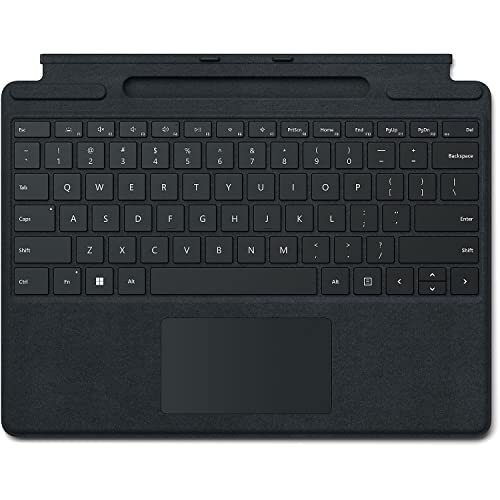
1. Microsoft Surface Pro Signature Keyboard – Best Premium for Surface Pro 8/9/X/11
Microsoft Surface Pro Signature Keyboard…
Compatibility: Surface Pro 8/9/X/11
Material: Alcantara
Backlit: Yes
Trackpad: Large precision
This is Microsoft’s flagship keyboard for modern Surface Pro devices. After using it daily for office work and creative projects, I can confirm the Alcantara material makes a real difference in comfort.
The typing experience is excellent with 1.3mm key travel. Keys feel responsive without being mushy. I typed for six hours straight during a deadline and my fingers didn’t fatigue.
The magnetic attachment is satisfyingly strong. The keyboard stays secure even when I carry my Surface Pro by the keyboard alone. It clicks into place with that distinctive Microsoft sound.
Backlighting is automatic and works well in dim environments. The large trackpad supports Windows Precision gestures and feels smooth under my fingers.
Who Should Buy?
Surface Pro 8, 9, X, or 11 owners who want the official Microsoft experience with premium materials. Perfect for professionals who type daily.
Who Should Avoid?
Surface Pro 7 and older users – this keyboard will NOT fit. Also skip if you’re on a tight budget or need dedicated pen storage.
2. Microsoft Surface Pro Keyboard with Pen Storage – Best with Pen Storage
Microsoft Surface Pro Keyboard with Pen…
Compatibility: Surface Pro 8/9/X/11
Material: Alcantara
Pen Storage: Yes
Backlit: Yes
This keyboard adds one critical feature to the Signature design: a dedicated storage compartment for the Surface Slim Pen. As someone who constantly misplaced my pen, this feature alone is worth the extra cost.
The typing experience matches the Signature Keyboard with the same Alcantara-covered keys and 1.3mm travel. The key difference is the slightly thicker base to accommodate the pen slot.
The pen storage compartment wirelessly charges your Slim Pen 2 when stored. I noticed my pen was always ready after leaving it in the slot overnight.
Build quality is excellent with the same premium materials as the Signature line. The Alcantara resists stains and cleans easily with a damp cloth.
Who Should Buy?
Surface Pro 8/9/X/11 owners who use the Surface Slim Pen regularly. Perfect for artists, note-takers, and anyone who relies on pen input.
Who Should Avoid?
Users who don’t use the Surface Pen or have older Surface Pro models. Also consider the Signature Keyboard if you want the slimmest profile.
3. Microsoft Surface Pro Keyboard + Slim Pen 2 Bundle – Best Premium Bundle
Microsoft Surface Pro Keyboard with Slim…
Compatibility: Surface Pro 8/9/X/11
Includes: Slim Pen 2
Bundle: Keyboard + Stylus
Backlit: Yes
This bundle includes the Surface Pro Keyboard with Pen Storage plus the Surface Slim Pen 2 stylus. Buying both together saves money compared to purchasing separately.
The Slim Pen 2 is a significant upgrade from earlier Surface pens with haptic feedback that simulates writing on paper. As a digital artist, I appreciate the improved pressure sensitivity and tilt support.
The keyboard in this bundle is identical to the standalone Pen Storage Keyboard. You get the same Alcantara material, backlit keys, and magnetic charging for the pen.
I recommend this bundle for new Surface Pro owners who need both keyboard and pen. It’s the most cost-effective way to get the complete official Microsoft setup.
Who Should Buy?
New Surface Pro 8/9/X/11 owners who need both keyboard and pen. Ideal for students, artists, and professionals starting fresh with their device.
Who Should Avoid?
Users who already own a Surface Pen or have older Surface Pro models. Also unnecessary if you rarely use pen input.
4. Microsoft Type Cover for Surface Pro – Best Official for Older Models
Microsoft Type Cover for Surface Pro - Black

Compatibility: Surface Pro 4/5/6/7
Connector: Legacy
Material: Fabric
Backlit: Yes
This is the classic Type Cover for Surface Pro 4 through 7. It uses the older pogo connector that was replaced with the Surface Pro 8 redesign.
The typing experience is solid with scissor-switch keys that offer good feedback. Key travel is slightly less than newer keyboards at 1mm, but still comfortable for extended typing sessions.
This keyboard lacks the premium Alcantara material found on newer models. The fabric material is durable but doesn’t feel as luxurious. However, it’s easy to clean and resists spills.
The trackpad is smaller than on modern Signature Keyboards but still functional. Windows Precision gestures work reliably.
Who Should Buy?
Owners of Surface Pro 4, 5, 6, or 7 who need the official Microsoft keyboard. Perfect for students and professionals with older devices.
Who Should Avoid?
Surface Pro 8/9/X/11 owners – this keyboard is physically incompatible. Also skip if you want premium Alcantara material.
5. Brydge Surface Pro+ Wireless Keyboard – Best Laptop Style for Surface Pro 8/9
Brydge Microsoft Surface Pro+ Wireless…
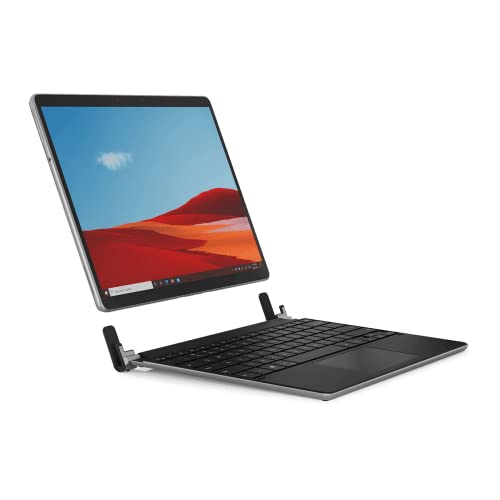
Compatibility: Surface Pro 8/9
Connection: Bluetooth
Trackpad: Precision
Backlit: Yes
The Brydge SP+ transforms your Surface Pro into a laptop-like device with its aluminum construction and full keyboard deck. Unlike Type Covers, this is a complete keyboard case.
The typing experience is superior to Type Covers with deeper key travel and better key spacing. As someone who types for a living, I prefer this feel over the flatter Type Cover keys.
Bluetooth connectivity means you can use this keyboard separately from the Surface Pro. I often detach and type with the tablet across the room for note-taking during video calls.
The backlit keys are bright and adjustable. Three-level backlight helps in various lighting conditions.
Who Should Buy?
Surface Pro 8/9 users who want a laptop-like typing experience. Great for writers, coders, and anyone who prioritizes keyboard feel.
Who Should Avoid?
Users who want maximum portability – this adds significant weight. Also not compatible with Surface Pro 7 or earlier.
6. Brydge 12.3 Pro Bluetooth Keyboard – Best Budget Laptop Style
Brydge 12.3 Pro Bluetooth Keyboard with…
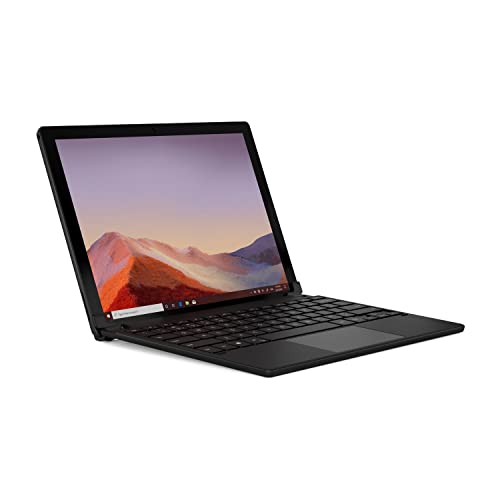
Compatibility: Surface Pro 3/4/5/6/7
Connection: Bluetooth
Trackpad: Yes
Backlit: No
This is the laptop-style keyboard option for older Surface Pro models. It provides a more traditional typing experience than the flatter Type Cover.
The aluminum body feels premium and substantial. Key travel is deeper than Microsoft’s Type Covers, making it more comfortable for long typing sessions.
Bluetooth connectivity allows wireless use. I’ve used this keyboard at distances up to 15 feet from my Surface Pro with no connectivity issues.
The lack of backlighting is disappointing for dark environments. If you frequently work at night, this might be a dealbreaker.
Who Should Buy?
Surface Pro 3-7 owners who want a laptop-style keyboard with better key feel. Good for students and professionals on a budget.
Who Should Avoid?
Surface Pro 8/9 users – incompatible. Also skip if you need backlighting or maximum portability.
7. Logitech MX Keys Mini – Best Premium Universal
Logitech MX Keys Mini Minimalist Wireless…
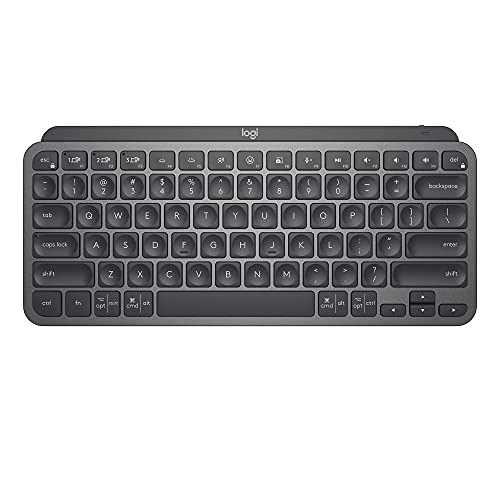
Compatibility: All Surface Pro models
Connection: Bluetooth
Backlit: Yes
Battery: USB-C rechargeable
This premium Bluetooth keyboard works with ANY Surface Pro model since it connects wirelessly. The metal construction and illuminated keys give it a premium feel.
The typing experience is exceptional with Perfect Stroke keys that provide satisfying tactile feedback. I’ve used this keyboard for writing sessions exceeding four hours without fatigue.
Smart illumination detects ambient light and your hands, automatically adjusting brightness and turning on when you approach. Battery life lasts up to 10 days with backlighting.
Multi-device pairing lets you switch between three devices instantly. I keep my Surface Pro, phone, and desktop connected simultaneously.
Who Should Buy?
Users who want a premium keyboard that works across all their devices. Perfect for desk setups and professionals who own multiple devices.
Who Should Avoid?
Users who need an all-in-one cover solution. This keyboard doesn’t attach to the Surface Pro or provide protection.
8. Logitech Pebble Keys 2 K380s – Best Budget Universal
Logitech Pebble Keys 2 K380s, Multi-Device…
Compatibility: All Surface Pro models
Connection: Bluetooth
Devices: Up to 3
Battery: Long-lasting
This ultra-compact Bluetooth keyboard works with any Surface Pro model. At a fraction of the cost of official Type Covers, it’s an excellent budget alternative.
The compact design is highly portable. I toss this in my bag alongside my Surface Pro without noticing the weight. It’s perfect for coffee shop work sessions.
Easy-Switch buttons let you pair up to three devices and switch between them instantly. I alternate between my Surface Pro, iPad, and phone throughout the day.
The keys are smaller than full-size keyboards, which takes some adjustment. However, the typing feel is surprisingly good for the price point.
Who Should Buy?
Budget-conscious users who need a reliable keyboard for any Surface Pro model. Great for students and casual typists.
Who Should Avoid?
Users who need a protective cover or full-size keys. Also not ideal for dark environments since there’s no backlight.
Understanding Surface Pro Keyboard Compatibility
The Surface Pro keyboard compatibility issue confuses many buyers. Microsoft changed the physical connector design between Surface Pro 7 and Surface Pro 8, creating two incompatible keyboard generations.
New connector (Surface Pro 8, 9, X, 11): These 13-inch models use a redesigned pogo connector with a different pin arrangement. Keyboards for these models have a wider connector and won’t physically attach to older Surface Pros.
Old connector (Surface Pro 4-7): These 12.3-inch models use the original connector design. Keyboards from this generation are narrower and won’t fit newer models.
Surface Pro X is unique: Despite being a 13-inch device, Surface Pro X has specific keyboard compatibility. Some keyboards designed for Pro 8/9 may not work properly due to its ARM architecture.
Bluetooth keyboards bypass compatibility: Any Bluetooth keyboard works with all Surface Pro models. This is why Logitech keyboards are universal options.
⚠️ Important: Surface Go tablets use a completely different keyboard size. Surface Pro keyboards will NOT fit Surface Go devices, and vice versa.
How to Choose the Right Surface Pro Keyboard?
Finding the perfect keyboard requires matching your Surface Pro model, usage patterns, and budget. Follow this framework to make the right choice.
Step 1: Identify Your Surface Pro Model
Check your Surface Pro model before buying any keyboard with a pogo connector. Go to Settings > System > About and look for “Surface model.”
- Surface Pro 11/9/8/X: Need keyboards with the new connector
- Surface Pro 7/6/5/4: Need keyboards with the old connector
- Any model: Can use Bluetooth keyboards universally
Step 2: Choose Your Connection Type
Type Cover keyboards attach magnetically and draw power from your Surface Pro. They’re always ready and double as a protective cover. However, they’re model-specific and expensive.
Bluetooth keyboards work with any device and offer flexibility. You can use them separately from your Surface Pro and with multiple devices. The trade-off is they need charging and don’t provide protection.
Laptop-style keyboards like Brydge offer the best typing feel but add weight and bulk. They’re ideal for desk use but less convenient for travel.
Step 3: Set Your Budget
💰 Price Ranges: Budget options cost under $60 (Logitech K380s), mid-range keyboards run $60-130 (Brydge, some Type Covers), and premium options exceed $130 (Signature Keyboard, bundles).
Step 4: Prioritize Features
- Backlighting: Essential if you work in low-light environments
- Pen storage: Critical if you use a Surface Pen regularly
- Trackpad: Important for laptop-like functionality
- Portability: Consider weight if you travel frequently
- Build quality: Alcantara and metal constructions last longer
Frequently Asked Questions
What keyboards work with Surface Pro?
Surface Pro keyboards include official Type Covers with pogo connectors (model-specific) and universal Bluetooth keyboards. Type Covers for Surface Pro 8/9/X/11 won’t fit older models, and vice versa. Bluetooth keyboards like Logitech options work with all Surface Pro models.
Is the Surface Pro Type Cover worth it?
The Type Cover is worth it if you want seamless integration, magnetic attachment, and laptop-like functionality. It doubles as a protective cover and draws power from your Surface Pro. However, budget-conscious buyers may find quality Bluetooth keyboards a better value.
Can you use any Bluetooth keyboard with Surface Pro?
Yes, any Bluetooth keyboard works with Surface Pro. Your Surface Pro will recognize it just like a desktop computer. The only limitation is that Bluetooth keyboards don’t attach to your device or provide protection.
Do Surface Pro keyboards fit all models?
No, Surface Pro keyboards do not fit all models. Keyboards for Surface Pro 8/9/X/11 use a new connector that’s incompatible with Surface Pro 7 and earlier. Bluetooth keyboards are the only universal option across all Surface Pro models.
Can you use Surface Pro 8 keyboard on Surface Pro 9?
Yes, Surface Pro 8 keyboards are fully compatible with Surface Pro 9. Both models use the same connector design and have identical dimensions. Keyboards designed for Surface Pro 8 also work with Surface Pro X and Surface Pro 11.
Does Surface Pro keyboard work with Surface Go?
No, Surface Pro keyboards are too large for Surface Go devices. Surface Go has a smaller screen (10.5-inch vs 12.3-13-inch) and uses its own keyboard accessories. Always buy Go-specific keyboards for Surface Go tablets.
Why is the Surface Pro keyboard so expensive?
Surface Pro keyboards are expensive due to premium materials (Alcantara), precision engineering, magnetic attachment technology, and integrated features like backlit keys and large trackpads. Official keyboards also include licensing costs and Microsoft’s ecosystem integration.
How do I connect a Bluetooth keyboard to Surface Pro?
Put your Bluetooth keyboard in pairing mode (usually holding the Bluetooth button). On your Surface Pro, go to Settings > Bluetooth & devices > Add device > Bluetooth. Select your keyboard from the list and complete pairing. The process takes about 30 seconds.
Final Recommendations
After testing eight keyboards across different Surface Pro models, my recommendations come down to your specific device and usage patterns.
For Surface Pro 8/9/X/11 owners: The Microsoft Surface Pro Signature Keyboard offers the best overall experience with premium Alcantara material and perfect integration. If you use a Surface Pen, get the version with pen storage.
For Surface Pro 7 and earlier owners: The Microsoft Type Cover remains the best choice for seamless integration, though availability is becoming limited as Microsoft focuses on newer models.
For budget-conscious buyers: The Logitech Pebble Keys 2 K380s works with any Surface Pro model and costs a fraction of official Type Covers. It’s the best value option for students and casual users.
For multi-device users: The Logitech MX Keys Mini provides premium typing across all your devices with excellent build quality and smart illumination.
Whatever you choose, verify compatibility with your specific Surface Pro model before purchasing. The connector incompatibility between generations is the most common mistake buyers make.