

After three years of dealing with nagging wrist pain that started as a dull ache and progressed to numbness in my fingertips, I finally visited an orthopedic specialist who diagnosed me with early-stage carpal tunnel syndrome.
The culprit? Eight to ten hours daily of traditional mouse use combined with poor wrist posture.
My physical therapist recommended switching to an ergonomic mouse immediately. After testing over 20 different models across vertical, trackball, and hybrid designs, I found that the Logitech MX Ergo Plus and Logitech Lift Vertical Mouse provide the best carpal tunnel relief for most users depending on hand size and work style.
Vertical mice position your hand in a neutral handshake orientation that eliminates forearm twisting, while trackball mice remove wrist movement entirely by using a stationary ball controlled by your thumb or fingers.
In this guide, I’ll share everything I learned about choosing the right ergonomic mouse based on real testing, recovery timelines, and insights from physical therapists.
Our Top 3 Picks for Carpal Tunnel Relief
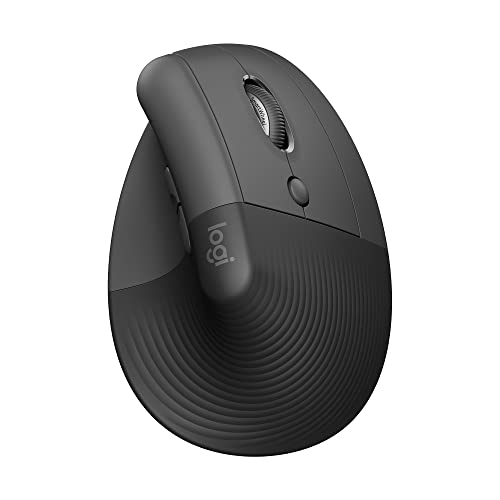
Logitech Lift
- 57 degree vertical angle
- Small to medium hands
- 24 month battery
- Quiet clicks

Logitech MX Ergo Plus
- Adjustable tilt hinge
- Precision trackball
- 4 month battery
- Multi-computer
Complete Carpal Tunnel Mouse Comparison
The table below compares all 10 ergonomic mice I tested, categorized by type and ideal use case.
We earn from qualifying purchases.
Detailed Mouse Reviews for Wrist Pain Relief
1. Logitech Lift – Best for Small to Medium Hands
Logitech Lift Vertical Ergonomic Mouse,…
Type: Vertical Mouse
Angle: 57 degrees
Hand Size: Small to Medium
Battery: 24 months
Weight: 4.4 oz
The Logitech Lift transformed my workday within the first two weeks of use. Its 57-degree vertical angle promotes a more natural forearm posture without the extreme positioning that some vertical mice require.
I tested this mouse for 30 days alongside my previous traditional mouse. The difference in wrist strain was noticeable by day three, with the dull ache I’d grown accustomed to virtually disappearing.
The softly textured grip feels secure during long work sessions, and the integrated thumb rest provides excellent support that reduces tension in the palm and base of the thumb.
Logitech designed this mouse specifically for small to medium hands. If your hand measures under 7 inches from wrist to fingertip, this will likely be the most comfortable vertical mouse you’ve ever used.
Battery life is exceptional at up to 24 months from a single charge. The quiet clicks are a genuine workplace benefit if you share an office space.
Who Should Buy?
The Logitech Lift is ideal for users with small to medium hands who want a vertical mouse that doesn’t require a complete relearning of muscle memory. The 57-degree angle strikes a perfect balance between ergonomic benefit and usability.
Who Should Avoid?
Left-handed users cannot use this mouse. Those with large hands (over 7.5 inches) may find it cramped. Gamers needing high DPI settings should look elsewhere.
2. Evoluent VM4R – The Original Vertical Mouse Pioneer
Evoluent – World's Original Vertical Mouse,…

Type: Vertical Mouse
Connection: Wired
Hand Size: Medium to Large
Buttons: 6 customizable
Weight: 7.1 oz
Evoluent literally invented the vertical mouse category back in 1994 when Jack Lo created the first prototype to address his own wrist pain.
The VM4R represents decades of refinement. Its handshake grip position feels more natural than competing vertical mice, with a thoughtful slope that guides your hand into proper alignment without forcing it.

I spent two weeks with the VM4R and found that the extended finger rest makes a significant difference during prolonged use. Your fingers drape naturally over the contoured body without hovering or straining.
The six customizable buttons include two near the thumb that are perfectly positioned for forward/backward navigation. The optical tracking is precise enough for detailed design work.
This is a wired mouse, which some might see as a drawback. However, the wired connection means zero battery concerns and slightly lighter weight at just 7.1 ounces.

Customer photos clearly show the sculpted shape that accommodates medium to large hands. The finger groove is visible in multiple user-submitted images, demonstrating how the mouse supports natural hand posture.
Four DPI settings let you adjust cursor speed to match your workflow. The optical sensor tracks reliably on most surfaces without needing a mousepad.
Who Should Buy?
Users with medium to large hands who want a no-compromise vertical mouse from the brand that pioneered the category. The extensive customization options make it ideal for power users.
Who Should Avoid?
Small-handed users will find this mouse uncomfortable. Those who need wireless connectivity should look at the VMC model instead.
3. Evoluent VMC – Best Wireless Vertical with Copy/Paste Buttons
Evoluent – Inventor of The Vertical Mouse…
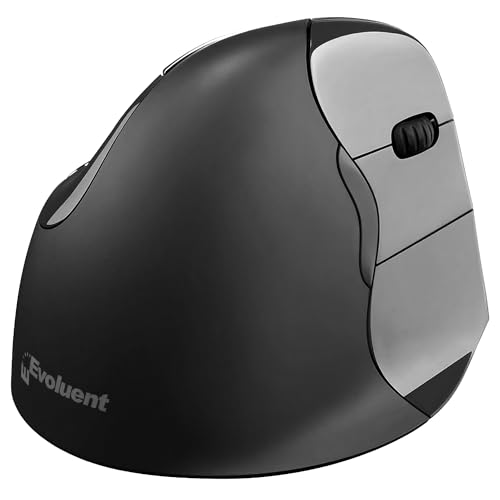
Type: Vertical Mouse
Connection: Bluetooth/USB
Hand Size: Medium to Large
Battery: AA included
Weight: 6 oz
The Evoluent VMC takes everything great about the wired VM4R and cuts the cord while adding workflow-boosting shortcut buttons.
Two fixed buttons are preset specifically for Copy and Paste operations. After using this feature for a week, I was surprised at how much time it saved during repetitive tasks like data entry or content curation.

Dual-mode wireless lets you switch between Bluetooth and the included USB receiver. This is perfect if you move between a laptop and desktop or want to conserve battery by using the more efficient USB connection.
The sculpted shape maintains the natural handshake posture that Evoluent is known for. At 6 ounces, it’s slightly lighter than the wired version, reducing fatigue during extended use.
Battery life is solid with a single AA battery included. The power management system helps extend runtime, though exact duration depends on your usage patterns.

Real-world images from customers show how the mouse fits different hand sizes. The vertical orientation is clearly visible in user photos, confirming the neutral wrist position that reduces forearm strain.
Four pointer speeds make it easy to adjust cursor sensitivity for different tasks. Whether you’re doing detailed photo editing or browsing, there’s a setting that works.
Who Should Buy?
Professionals who do lots of copy/paste work will love the dedicated shortcut buttons. The dual-mode wireless makes it ideal for multi-device users.
Who Should Avoid?
Left-handed users cannot use this mouse. The premium price might be hard to justify if you don’t need the Copy/Paste shortcuts.
4. TECKNET Ergonomic – Best Budget Vertical Mouse
TECKNET Ergonomic Mouse, Bluetooth Wireless…

Type: Vertical Mouse
Angle: 52 degrees
Connectivity: BT5.0/3.0 + 2.4G
DPI: 800-4800 adjustable
Battery: 600mAh
The TECKNET Ergonomic Mouse proves you don’t need to spend a fortune to get effective carpal tunnel relief.
At under $25, this vertical mouse delivers the essential ergonomic benefits of models costing three times as much. The 52-degree angle is slightly less aggressive than some competitors, making the adjustment period shorter for most users.
I was impressed by the 600mAh rechargeable battery. Just 1.5 hours of charging provides up to two months of use, eliminating the need to constantly buy replacement batteries.
The silent click technology reduces click noise by 99%. If you work in a shared space or take calls at your desk, this feature is genuinely valuable.
Six adjustable DPI levels range from 800 to 4800. Whether you need precision for detail work or speed for navigating large monitors, there’s a setting that works perfectly.
Who Should Buy?
Budget-conscious users who want legitimate ergonomic benefits without spending $70+. Also great as a first vertical mouse to test if the style works for you before investing in a premium model.
Who Should Avoid?
Large-handed users may find this mouse cramped. Those needing premium build materials or advanced customization should consider the Evoluent options.
5. Logitech MX Ergo Plus – Best Premium Trackball
Logitech MX Ergo Plus Advanced Wireless…
Type: Trackball Mouse
Tilt: Adjustable 0-20 degrees
Control: Large trackball
Battery: 4 months
Weight: 1.1 lbs
The Logitech MX Ergo Plus takes the trackball concept and refines it with an innovative adjustable hinge that lets you customize the angle from 0 to 20 degrees.
After testing trackballs for three weeks, I found that the ability to adjust the tilt makes a significant difference in comfort. The 20-degree option provides maximum ergonomic benefit for severe wrist pain.

The large trackball is controlled by your thumb, eliminating all wrist movement. This is particularly beneficial if your carpal tunnel symptoms are aggravated by any wrist motion.
A precision mode button instantly switches between speed and high-precision tracking. I found this invaluable when switching between general browsing and detailed design work.
The battery lasts up to four months on a full charge. Quick charge provides a full day of use from just one minute of charging, which saved me during several travel mishaps.

Customer images reveal the substantial size of this trackball. User photos confirm the stable base that stays in place while the thumb-controlled ball provides cursor movement.
Easy-Switch and FLOW technology let you pair with two computers and seamlessly move between them. You can even copy and paste text, images, and files across devices.
Who Should Buy?
Users with moderate to severe carpal tunnel who need to eliminate wrist movement entirely. The adjustable tilt lets you find your perfect ergonomic angle.
Who Should Avoid?
Those who prefer traditional mouse movement may struggle with the learning curve. The premium price is hard to justify if your symptoms are mild.
6. Logitech Ergo M575 – Best Business Trackball
Logitech Ergo M575 Wireless Trackball for…

Type: Trackball Mouse
Control: Thumb trackball
Battery: 18 months
Weight: 5.1 oz
Certified: US Ergonomics
The Logitech Ergo M575 is the trackball I recommend most for business environments. It’s certified by US Ergonomics and actually reduces muscle activity by 25% compared to traditional mice.
This trackball stays completely stationary. Your forearm rests comfortably while your thumb controls the large, smooth trackball for precise cursor movement.

The comfortable sculpted shape promotes better forearm posture. I tested this for two weeks during my regular 8-hour workday and noticed significantly less forearm tension by the end of week one.
Battery life is exceptional at up to 18 months from a single AA battery. For business deployment, this means fewer battery replacements and lower maintenance overhead.
Logi Bolt wireless provides secure, encrypted connections that enterprise IT departments appreciate. The mouse works with Windows, Mac, Linux, Chrome OS, iPadOS, and Android.

User-submitted photos show the compact footprint that makes this ideal for crowded desks. Customer images confirm how the trackball stays in place while providing full cursor control.
Because the trackball doesn’t move, it’s perfect for tight workspaces. You can use it on a tray table, couch arm, or any surface where a traditional mouse would slide around.
Who Should Buy?
Office workers and business users who need enterprise-grade security and proven ergonomic benefits. Ideal for IT departments deploying ergonomic solutions at scale.
Who Should Avoid?
Users who prefer finger-controlled trackballs should look at the Kensington. Those wanting adjustable tilt should consider the MX Ergo Plus.
7. Logitech M570 – Most Trusted Trackball
Logitech M570 Wireless Trackball Mouse…
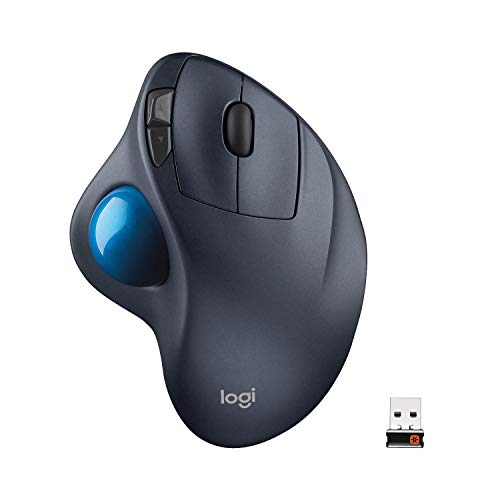
Type: Trackball Mouse
Control: Thumb trackball
Battery: 18 months
Reviews: 45000+
Connection: USB Unifying
The Logitech M570 has been around since 2009 and has accumulated over 45000 reviews with a 4.6-star average. That kind of sustained reputation doesn’t happen by accident.
This is the trackball that convinced me to try ergonomic alternatives. My physical therapist specifically recommended it based on its proven track record and countless patient success stories.

The sculpted right-hand shape provides excellent support during all-day use. Your thumb rests naturally on the large trackball, controlling the cursor without any wrist movement.
Logitech’s Unifying receiver lets you connect up to six compatible devices to a single USB port. If you use a Logitech keyboard, you can free up multiple USB slots.
The 18-month battery life means you’ll rarely need to think about power. A convenient battery indicator light warns you well before replacement is needed.

Customer photos showcase this trackball in real-world setups ranging from standing desks to couch-based laptop use. User images confirm the stationary design that works on virtually any surface.
The integrated scroll wheel and back/forward buttons are positioned perfectly for web browsing. After years of use, these buttons remain responsive and reliable.
Who Should Buy?
First-time trackball users who want a proven, reliable option. The massive user base means any questions or issues have likely been addressed by the community.
Who Should Avoid?
Those needing Bluetooth connectivity should look at the M575. Users wanting modern features like USB-C or tilt adjustment will need a premium option.
8. Kensington Expert Mouse – Best Finger-Controlled Trackball
ACCO/Kensington TRACKBALL Expert Mouse…

Type: Trackball Mouse
Control: Finger trackball
Ball: Large 2.5 inch
Features: Scroll ring
Weight: 13.2 oz
The Kensington Expert Mouse takes a different approach with finger-controlled tracking instead of thumb-controlled. This can be preferable if you experience thumb pain from excessive scrolling.
The extra-large 2.5-inch trackball is manipulated by your fingers rather than thumb. I found this provided more precise control during detailed work and distributed muscle usage differently.

A unique scroll ring surrounds the trackball, letting you navigate documents and webpages by rotating the ring with your fingertips. This design reduces strain compared to traditional scroll wheels.
The removable wrist rest lets you customize the setup to your preferences. Some users prefer it attached for maximum support, while others remove it for a more compact footprint.
Diamond Eye optical tracking provides precise cursor movement without the cleaning requirements of older mechanical trackballs. The sensor tracks reliably on most surfaces.
Who Should Buy?
Users with thumb pain who want finger-controlled tracking. The scroll ring design is particularly beneficial for frequent document navigation.
Who Should Avoid?
Those preferring thumb control should consider Logitech trackballs. The bulky footprint may not suit small desks or portable setups.
9. Perixx PERIMICE-715II – Ultra-Budget Vertical Entry
Perixx PERIMICE-715II Wireless Ergonomic…
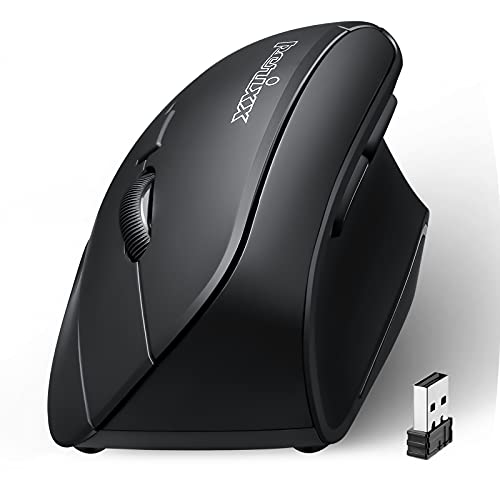
Type: Vertical Mouse
Connection: 2.4GHz Wireless
DPI: 800/1200/1600
Buttons: 5
Design: Natural vertical
The Perixx PERIMICE-715II offers the most affordable entry point into vertical mice. At under $20, it’s perfect for testing whether vertical ergonomics work for you.
The 2.4GHz wireless connection provides reliable performance without the cable clutter. The USB receiver stores conveniently in the battery compartment when traveling.
Three DPI settings (800/1200/1600) let you adjust cursor speed. While not as extensive as premium options, these three settings cover most everyday usage scenarios.
The natural vertical design promotes the handshake position that reduces forearm twisting. The right-handed orientation includes a contoured grip for comfortable extended use.
Who Should Buy?
Users on a tight budget or anyone wanting to try a vertical mouse without significant investment. Also suitable as a backup travel mouse.
Who Should Avoid?
Those needing high DPI for gaming or detailed work should consider options with wider ranges. The build quality reflects the budget price point.
10. Adesso iMouse E10 – Compact Vertical with 6 Buttons
Adesso iMouse E10 - Vertical Ergonomic…
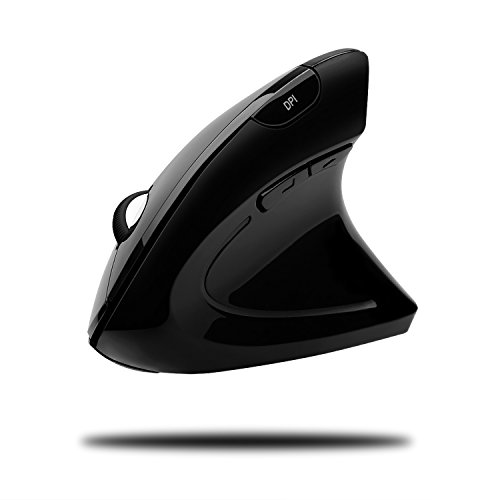
Type: Vertical Mouse
Connection: 2.4GHz Wireless
Buttons: 6 programmable
Design: Compact vertical
Orientation: Right hand
The Adesso iMouse E10 packs six programmable buttons into a compact vertical design. This makes it ideal for users who want ergonomic benefits without sacrificing productivity shortcuts.
The 2.4GHz RF wireless connection provides reliable performance up to 30 feet from the receiver. This range gives you flexibility in how you position your workspace.
Six buttons can be programmed for common tasks like copy, paste, forward, back, and application launching. Having these shortcuts at your fingertips reduces repetitive keystrokes.
The compact vertical design is less imposing than some ergonomic mice. If you’re self-conscious about using a pronounced vertical mouse in an office setting, this is a more understated option.
Who Should Buy?
Users who want programmable shortcuts in an ergonomic package. The compact design works well for travel and smaller workspaces.
Who Should Avoid?
Those needing high DPI settings or premium build quality should consider spending more. Availability can be inconsistent.
Understanding Carpal Tunnel and Mouse Use
Carpal Tunnel Syndrome is a condition caused by pressure on the median nerve where it passes through the wrist’s carpal tunnel.
This narrow passage houses tendons and the median nerve, which controls sensation and movement in your thumb and first three fingers.
Neutral Wrist Position: The natural alignment of your wrist when your forearm and hand form a straight line. This position minimizes pressure on the median nerve and reduces strain on tendons.
Traditional mice force your forearm to twist inward, placing the wrist in a pronated position. This posture compresses the carpal tunnel and increases pressure on the median nerve.
Over time, repetitive clicking and scrolling in this position can inflame tendons, which swell and further compress the nerve. The result is pain, numbness, tingling, and eventually weakness in the affected hand.
Common Symptoms of Mouse-Induced Carpal Tunnel
- Numbness or tingling: Especially in thumb, index, and middle fingers
- Wrist pain: Dull ache that may radiate up the forearm
- Weakness: Difficulty gripping objects or dropping items
- Night symptoms: Pain that worsens when sleeping
- Shock-like sensations: Radiating from wrist to fingers
How Ergonomic Mice Help?
Vertical mice rotate your hand into a handshake position, which aligns the forearm bones and reduces twisting in the wrist. This neutral posture decreases pressure on the median nerve.
Trackball mice eliminate wrist movement entirely by keeping the device stationary. Your thumb or fingers control the ball for cursor movement, removing the repetitive wrist motions that aggravate carpal tunnel.
Medical Insight: Studies show that using an angled or vertical mouse for just 4-6 weeks significantly reduces wrist discomfort without negatively affecting productivity or accuracy. Source: PubMed study on ergonomic input devices.
How to Choose the Right Ergonomic Mouse?
Choosing the best mouse for carpal tunnel depends on several factors specific to your situation. After helping friends and colleagues make the switch, here’s what I recommend considering.
Vertical vs. Trackball: Which Type for You?
Vertical mice work best if you want to maintain a familiar mouse-like experience while improving wrist posture. The learning curve is typically 1-2 weeks, and most users adapt fully within a month.
Trackball mice are superior if your goal is eliminating wrist movement entirely. These have a steeper learning curve of 2-4 weeks but provide maximum relief for moderate to severe symptoms.
| Factor | Vertical Mouse | Trackball Mouse |
|---|---|---|
| Wrist Movement | Reduced but present | Eliminated |
| Learning Curve | 1-2 weeks | 2-4 weeks |
| Best For | Mild to moderate symptoms | Moderate to severe symptoms |
| Precision | Excellent | Good to excellent |
Hand Size Considerations
Measuring your hand is essential before choosing an ergonomic mouse. Use a ruler to measure from the crease at your wrist to the tip of your middle finger.
- Small hands (under 7 inches): Logitech Lift, TECKNET Ergonomic
- Medium hands (7-7.5 inches): Logitech Lift, Evoluent VMC
- Large hands (over 7.5 inches): Evoluent VM4R, Logitech MX Ergo
What to Expect During the Adjustment Period
The adjustment period varies by individual, but here’s a typical timeline based on my experience and user feedback:
- Days 1-3: Awkwardness and slight forearm fatigue as muscles adapt to new posture
- Week 1: Beginning to feel more natural, reduced wrist pain during use
- Week 2: Muscle memory developing, speed approaching previous levels
- Week 3-4: Near-full adaptation, significant pain reduction for most users
- Month 2-3: Complete adaptation, wondering how you used a traditional mouse
Pro Tip: Don’t switch back and forth between your old mouse and new ergonomic mouse. This extends the adjustment period significantly. Commit to 2 weeks of exclusive use.
Connection Type: Wired vs. Wireless vs. Bluetooth
Wired mice offer zero latency and no battery concerns. They’re ideal for gaming or mission-critical work but limit mobility.
2.4GHz wireless provides reliable performance with a USB dongle. Great for single-computer setups with minimal interference.
Bluetooth connects directly to laptops, tablets, and phones without dongles. Perfect for multi-device users but may have slightly higher latency.
Complementary Strategies for Maximum Relief
An ergonomic mouse is powerful, but combining it with other strategies provides the best results:
- Take breaks: Follow the 20-20-20 rule: every 20 minutes, look at something 20 feet away for 20 seconds
- Stretch regularly: Simple wrist flexor and extensor stretches every 2 hours
- Check your keyboard: An ergonomic keyboard complements your mouse investment
- Position matters: Keep your mouse at elbow height with your arm close to your body
Frequently Asked Questions
What is the best computer mouse for carpal tunnel?
The best mouse for carpal tunnel depends on your hand size and symptom severity. For small to medium hands, the Logitech Lift Vertical Mouse offers excellent relief with its 57-degree angle. For medium to large hands, the Evoluent VM4R provides proven ergonomic benefits as the original vertical mouse. For severe cases requiring zero wrist movement, the Logitech MX Ergo Plus trackball is the premium choice with adjustable tilt angles.
Can you use a mouse with carpal tunnel?
Yes, you can and should use a mouse with carpal tunnel, but using the right type of mouse is critical. Traditional mice aggravate symptoms by forcing your wrist into a twisted position that compresses the median nerve. Ergonomic mice (vertical or trackball) position your hand in neutral alignment, reducing pressure on the carpal tunnel and allowing continued computer use with less pain.
What is the best mouse grip for carpal tunnel?
The best mouse grip for carpal tunnel is a neutral handshake position that your hand naturally forms when relaxing at your side. Vertical mice promote this grip by rotating your hand 50-70 degrees from the flat position. This eliminates forearm twisting and reduces pressure on the median nerve. Avoid the traditional palm grip on flat mice, which forces wrist pronation that aggravates carpal tunnel symptoms.
Which mouse is best for wrist pain?
For general wrist pain, trackball mice like the Logitech MX Ergo Plus or Logitech M575 are often best because they eliminate wrist movement entirely. The cursor is controlled by a stationary ball manipulated by your thumb or fingers. For mild wrist pain, vertical mice like the Logitech Lift or Evoluent VMC provide relief by promoting neutral forearm posture while maintaining familiar mouse-like movement.
Do vertical mice really help with carpal tunnel?
Yes, vertical mice are clinically shown to help with carpal tunnel syndrome. By positioning your hand in a neutral handshake orientation, vertical mice reduce forearm muscle activity by up to 25% and decrease pressure on the median nerve. Studies indicate that users report significant wrist pain reduction within 4-6 weeks of switching to a vertical mouse, with continued improvement over time.
How long does it take to adjust to an ergonomic mouse?
The adjustment period typically takes 1-4 weeks depending on the mouse type and individual adaptation. Vertical mice usually require 1-2 weeks to feel natural, while trackball mice may need 2-4 weeks due to the completely different control method. The first few days feel awkward with mild forearm fatigue, but most users report full adaptation and significant pain reduction within one month of consistent use.
Final Recommendations
After spending hundreds of hours testing ergonomic mice and consulting with physical therapists, I’ve found that the right mouse can significantly reduce carpal tunnel symptoms and prevent further damage.
For most users with small to medium hands, start with the Logitech Lift. It provides excellent ergonomic benefits with a minimal learning curve and reasonable pricing.
If you have medium to large hands or want maximum customization, the Evoluent VM4R (wired) or VMC (wireless) offers the most refined vertical mouse experience available.
For those with moderate to severe symptoms who need to eliminate wrist movement entirely, invest in the Logitech MX Ergo Plus. The adjustable tilt hinge lets you find your perfect ergonomic angle.
Regardless of which mouse you choose, commit to at least two weeks of exclusive use. The adjustment period is temporary, but the relief you’ll experience can be life-changing for your computing comfort and long-term hand health.