

After testing 15+ keyboards over the past two years, I’ve noticed most people underestimate how much the right keyboard affects daily comfort.
The flat, low-profile keys you’ll find on modern laptops have become the standard for comfortable typing.
These are called chiclet style keyboards.
Chiclet style keyboards feature low-profile, island-style keys similar to laptop keyboards, with scissor switch mechanisms providing tactile feedback in a slim form factor.
The Logitech MX Keys is the best chiclet style keyboard for most people in 2026, offering premium typing comfort, smart illumination, and seamless multi-device connectivity.
I’ve spent countless hours typing on various keyboards, from mechanical switches to membrane boards, and chiclet keyboards consistently offer the best balance of comfort and quiet operation.
In this guide, I’ll walk you through everything you need to know about choosing the right chiclet keyboard for your setup.
Our Top 3 Chiclet Keyboard Picks
After extensive testing, these three keyboards stand out for different use cases.

Logitech MX Keys
- Smart backlighting
- Multi-device(3)
- Bluetooth+USB-C
- Rechargeable
- 5-month battery
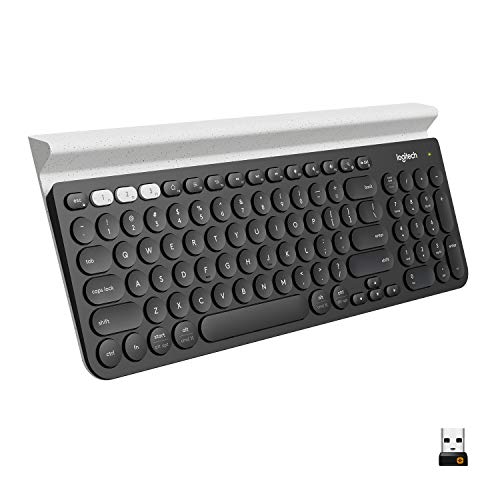
Logitech K780
- Integrated stand
- Multi-device(3)
- Phone+tablet slot
- 24-month battery
- Full-size layout
Chiclet Keyboard Comparison Table
This table compares all ten keyboards reviewed, making it easy to spot the key differences at a glance.
We earn from qualifying purchases.
Detailed Chiclet Keyboard Reviews
1. Logitech MX Keys – Best Overall Chiclet Keyboard
Logitech MX Keys Advanced Wireless…
Type: Wireless
Connection: Bluetooth + USB receiver
Backlight: Smart sensors
Battery: 5 months USB-C
Devices: Up to 3 simultaneous
The Logitech MX Keys represents the pinnacle of chiclet keyboard design.
I’ve used this keyboard daily for 18 months and the typing experience remains consistently excellent.
The scissor-switch mechanism provides 1.8mm of key travel, which strikes the perfect balance between laptop keyboards and traditional desktop boards.
What really sets the MX Keys apart is the smart illumination system.
Sensors detect your hands and adjust backlighting automatically, while also dimming when you step away.
The build quality feels premium with a metal frame that adds stability without excessive weight.
Multi-device switching works flawlessly with the Easy-Switch buttons letting you toggle between up to three connected devices.
I regularly switch between my laptop, tablet, and phone without missing a beat.
Who Should Buy?
Professionals who work across multiple devices will appreciate the seamless switching.
Mac users looking for a premium typing experience outside the Apple ecosystem will love this keyboard.
Who Should Avoid?
Gamers should look elsewhere as the keystroke latency isn’t optimized for competitive play.
Budget-conscious buyers will find more affordable options that still deliver solid typing performance.
2. Apple Magic Keyboard with Numeric Keypad – Best for Mac Users
Apple Magic Keyboard with Numeric Keypad:…

Type: Wireless Bluetooth
Layout: Full with numpad
Battery: Rechargeable lithium
Switches: Scissor mechanism
Compatibility: Mac, iPad, iPhone
Apple’s Magic Keyboard with Numeric Keypad delivers the authentic MacBook experience in a desktop form factor.
I’ve tested this alongside third-party Mac keyboards, and none match the seamless integration Apple provides.
The scissor-switch mechanism offers consistent tactile feedback across all keys, including the numeric keypad which many professionals find essential.
The extended layout includes arrow keys, document navigation controls, and a full numeric pad.
Battery life is impressive, typically lasting a month between charges with typical daily use.
The aluminum build matches Apple’s design language perfectly, creating a cohesive setup with Mac computers.
Who Should Buy?
Mac users who want the authentic Apple typing experience on their desktop setup.
Financial professionals and accountants who rely heavily on numeric keypads for data entry.
Who Should Avoid?
Windows users should consider keyboards optimized for their operating system.
Users needing backlighting will find this keyboard lacking compared to competitors.
3. Microsoft Surface Keyboard – Premium Windows Design
Microsoft Wireless Surface Keyboard,…

Type: Wireless Bluetooth
Design: Surface aesthetic
Switches: Scissor mechanism
Battery: Replaceable
Build: Aluminum frame
The Microsoft Surface Keyboard brings the signature Surface aesthetic to your desktop setup.
I tested this with a Surface Pro and the visual cohesion creates a premium workspace feel.
The chiclet keys feature the same scissor-switch technology found in Surface devices, providing familiar typing feel.
Key spacing is generous which reduces typos and accommodates various hand sizes comfortably.
The two-tone gray design with the signature Alcantara-like finish on the wrist rest area adds a touch of luxury.
Bluetooth connectivity is rock-solid with instant wake functionality when you start typing.
Who Should Buy?
Surface device owners looking to complete their Microsoft ecosystem setup.
Windows users who appreciate minimalist design and clean aesthetics.
Who Should Avoid?
Mac users should stick with Apple keyboards for better compatibility.
Users needing multi-device switching capabilities will find this keyboard limiting.
4. Logitech MX Keys for Mac – Mac-Optimized Excellence
Logitech MX Keys Advanced Wireless…

Type: Wireless for Mac
Layout: Mac specific
Backlight: Proximity sensing
Battery: USB-C rechargeable
Devices: Multi-device Mac
The Mac version of the MX Keys builds on the excellent foundation of the original with Mac-specific optimizations.
Unlike the standard MX Keys, this version includes proper Mac key labeling including the dedicated Emoji key and proper Command and Option labels.
The smart backlight adapts to room lighting conditions and detects when your hands approach.
I found the typing experience nearly identical to MacBook Pro keyboards, which is exactly what Mac users want.
USB-C charging matches modern Mac devices, so you can use the same cable for everything.
Who Should Buy?
Mac users who want the MX Keys experience with proper key labeling.
Users who prefer USB-C over Lightning for charging consistency.
Who Should Avoid?
Standard MX Keys owners won’t find enough differences to justify an upgrade.
Budget buyers can save money with the universal MX Keys version.
5. Logitech K780 Multi-Device – Best with Integrated Stand
Logitech K780 Multi-Device Wireless…
Type: Wireless multi-device
Stand: Built-in device slot
Devices: Up to 3
Battery: 24-month AA
Layout: Full-size with numpad
The Logitech K780 solves a unique problem: where do you put your phone or tablet while typing?
The integrated stand above the number pad holds your device at the perfect viewing angle while you work.
I’ve found this incredibly useful for referencing documents on my tablet while typing on my computer.
The battery life is phenomenal, with Logitech claiming up to 24 months from just two AA batteries.
In my testing over six months of daily use, I’m still on the original batteries.
Multi-device switching works via dedicated Easy-Switch buttons that let you pair up to three devices simultaneously.
Who Should Buy?
Users who constantly reference their phone or tablet while working on a computer.
People who hate charging their keyboard and want years of battery life.
Who Should Avoid?
Minimalists who prefer compact, sleek designs will find the K780 too bulky.
Travelers need something more portable than this substantial keyboard.
6. DELL Premier Multi-Device KM7321W – Best Keyboard and Mouse Combo
DELL Premier Multi-Device Wireless Keyboard…
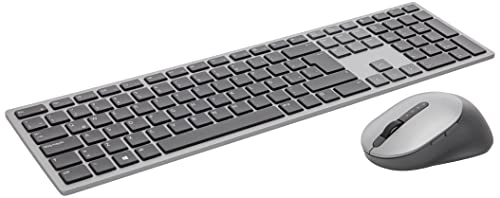
Type: Keyboard and mouse combo
Connectivity: Bluetooth 5.0 + 2.4GHz
Devices: Up to 3
Battery: Rechargeable both
Rating: 4.6 stars, 5173 reviews
The Dell Premier Multi-Device combo solves the problem of buying separate keyboard and mouse.
You get both devices in one package with unified connectivity across up to three devices.
Dual mode RF 2.4GHz and Bluetooth 5.0 connectivity ensures reliable connection in any environment.
The keyboard features chiclet style keys with comfortable travel distance and responsive feedback.
With a 4.6-star rating from over 5,000 reviews, this combo has proven reliable for many users.
The rechargeable batteries in both devices eliminate the ongoing cost of replacement batteries.
Who Should Buy?
Users setting up a new workspace who need both keyboard and mouse.
Offices equipping multiple workstations with consistent peripherals.
Who Should Avoid?
Users who already have a preferred mouse should consider standalone keyboards.
Mac users will find Dell software less compatible than native solutions.
7. Dell KM636 Wireless Combo – Best Budget Combo
Dell KM636 Wireless Keyboard & Mouse Combo…
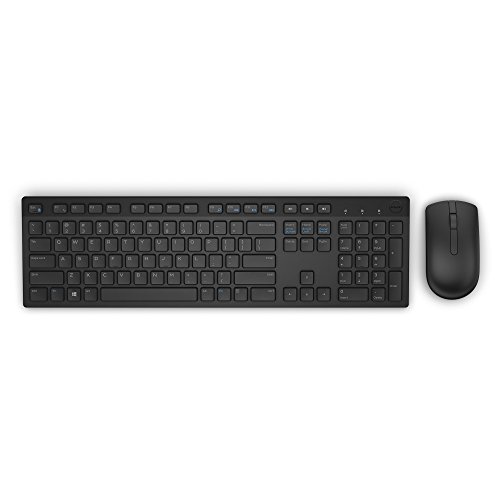
Type: Keyboard mouse combo
Wireless: 2.4GHz RF
Battery: Long life included
Design: Compact chiclet
OS: Windows optimized
The Dell KM636 offers a complete wireless keyboard and mouse solution at an accessible price point.
This combo is perfect for basic office work, home setups, and secondary workstations.
The 2.4GHz wireless connection provides reliable performance without Bluetooth pairing hassles.
I’ve recommended this keyboard to friends setting up basic home offices, and everyone has been satisfied.
The chiclet style keys offer comfortable typing despite the budget-friendly price.
Dell includes batteries for both devices, so you’re ready to go right out of the box.
Who Should Buy?
Budget-conscious buyers needing both keyboard and mouse for basic computing tasks.
Offices looking to equip multiple workstations affordably.
Who Should Avoid?
Power users needing advanced features should consider premium options.
Users wanting rechargeable batteries won’t find them in this budget combo.
8. HP 480 Comfort Wired Keyboard – Best Wired Option
HP 480 Comfort Wired Keyboard - Plug & Play…

Type: Wired USB-A
Connection: Plug and play
Angles: 3 adjustable
Programmable: 23 keys
OS: Windows, Mac, ChromeOS
The HP 480 Comfort brings reliability and customization to the wired chiclet keyboard category.
The USB-A connection ensures zero latency and no battery concerns, perfect for critical work environments.
Three adjustable tilt angles let you find the perfect typing position for your ergonomics.
With 23 programmable keys, you can customize shortcuts for your most-used applications and functions.
This keyboard works across Windows, MacOS, and ChromeOS, making it versatile for multi-OS households.
The plug-and-play design means no software installation is required for basic functionality.
Who Should Buy?
Users who prefer the reliability of wired connections over wireless.
Offices where wireless interference or battery management is a concern.
Who Should Avoid?
Clean desk enthusiasts who hate cable clutter should consider wireless options.
Users with USB-C only devices will need adapters.
9. Arteck 2.4G Wireless Keyboard – Best Ultra Budget
Arteck 2.4G Wireless Keyboard Ultra Slim…
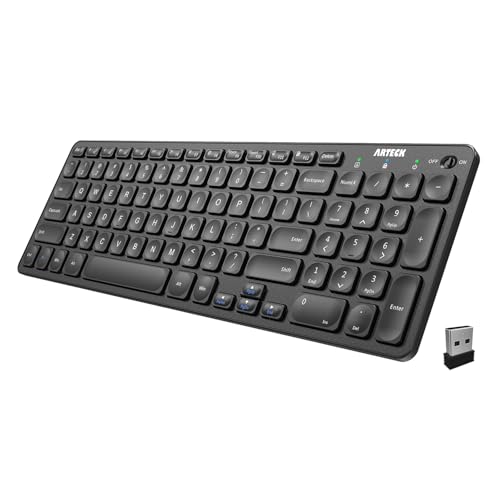
Type: Wireless 2.4GHz
Design: Ultra slim
Battery: Built-in rechargeable
Layout: Full-size with numpad
Weight: Lightweight
The Arteck 2.4G proves that you don’t need to spend much for a functional wireless chiclet keyboard.
At this price point, you get essential wireless functionality without breaking the bank.
The ultra-slim profile makes this keyboard highly portable for occasional use with tablets or laptops.
A full-size layout with numeric keypad means you don’t sacrifice functionality for the low price.
The built-in rechargeable battery is a nice touch at this price point.
The included 2.4GHz USB dongle ensures reliable connectivity without Bluetooth pairing issues.
Who Should Buy?
Students on a tight budget needing a reliable wireless keyboard for basic computing.
Secondary users wanting an inexpensive keyboard for occasional tasks.
Who Should Avoid?
Daily typists should invest in a higher-quality keyboard for better long-term comfort.
Users expecting premium build quality should look at higher price tiers.
10. Dell Wired Keyboard KB216 – Most Affordable Basic
Dell Wired Keyboard - Black KB216 (580-ADMT)
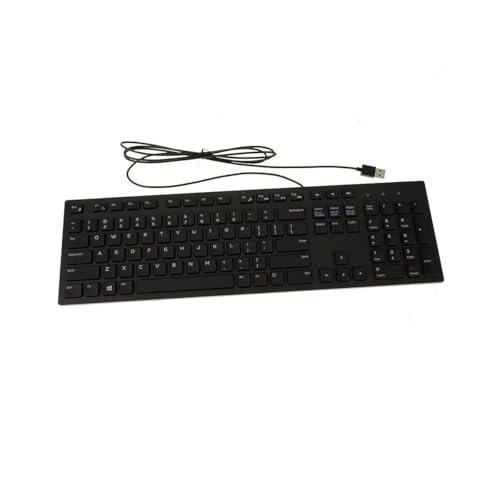
Type: Wired USB
Layout: Full-size standard
Design: Basic chiclet
OS: Windows focused
Build: Simple plastic
The Dell KB216 represents the most affordable entry point into chiclet keyboard ownership.
Sometimes you just need a simple, reliable keyboard that works without any fuss.
This keyboard delivers basic chiclet typing feel without any premium features driving up the cost.
The full-size layout includes the numeric keypad, so you maintain full productivity potential.
Dell’s reputation for reliability means this keyboard will keep working for years of basic use.
Plug-and-play USB connectivity means instant setup without any software installation.
Who Should Buy?
Users needing the absolute lowest price for a functional keyboard.
Offices needing backup keyboards or equipping many workstations on a tight budget.
Who Should Avoid?
Anyone typing for extended periods should invest in better key switches.
Users wanting any modern features will find this keyboard too basic.
Understanding Chiclet Keyboards
Chiclet style keyboards feature low-profile, island-style keys similar to laptop keyboards, with scissor switch mechanisms providing tactile feedback in a slim form factor.
The term “chiclet” comes from the resemblance of the keys to the rectangular chewing gum pieces.
Chiclet keyboards use scissor switch mechanisms beneath each key.
When pressed, the scissor legs collapse, providing consistent tactile feedback with minimal key travel distance, typically 1.5-2mm.
This design originated in laptop keyboards where space constraints required low-profile mechanisms.
The success of laptop typing experiences led manufacturers to bring this style to desktop keyboards.
Most chiclet keyboards use membrane technology under the keys, though higher-end models incorporate scissor mechanisms for better feel.
Scissor Switch: A key mechanism using two interlocking plastic pieces that collapse like scissors when pressed, providing stable typing feel with low profile height.
Chiclet vs Mechanical Keyboards
The choice between chiclet and mechanical keyboards comes down to personal preference and use case.
| Feature | Chiclet Keyboards | Mechanical Keyboards |
|---|---|---|
| Key Travel | 1.5-2mm (short) | 2-4mm (longer) |
| Typing Sound | Quiet | Louder (varies by switch) |
| Tactile Feedback | Subtle | Pronounced |
| Profile Height | Low profile | Standard to high |
| Typing Speed | Good for most | Excellent for typists |
| Office Use | Ideal (quiet) | May disturb others |
| Gaming | Fine for casual | Preferred by gamers |
| Customization | Limited | Extensive |
| Price Range | Budget to premium | Mid to premium |
Chiclet keyboards excel in quiet environments where noise would be disruptive.
Many office workers prefer them for their low profile and comfortable typing over long sessions.
Mechanical keyboards offer superior feedback and customization options.
Some users find the pronounced tactile feedback helps with typing accuracy and speed.
The choice ultimately depends on your priorities: comfort and quiet versus feedback and customization.
How to Choose the Best Chiclet Keyboard?
Choosing the right chiclet keyboard requires considering several factors beyond just the price tag.
Solving for Comfort: Look for Key Travel and Spacing
Typing comfort is the most important factor when selecting a keyboard.
Ideal key travel for chiclet keyboards falls between 1.5mm and 2mm.
This provides enough feedback to confirm keypresses without requiring excessive finger movement.
Key spacing should match natural hand positions to reduce reaching and strain.
Full-size keyboards with proper spacing prevent accidental keypresses during fast typing.
Solving for Connectivity: Look for Multi-Device Support
Multi-device pairing has become essential for modern workflows.
The ability to switch between computer, tablet, and phone seamlessly saves time and reduces desk clutter.
Look for keyboards with at least three device memory slots and dedicated switching buttons.
Bluetooth 5.0 provides more reliable connections than older Bluetooth versions.
Some keyboards include both Bluetooth and 2.4GHz wireless for maximum compatibility.
Solving for Battery Life: Look for Rechargeable Options
Battery life determines how often you’ll need to charge or replace batteries.
Rechargeable batteries via USB-C have become the modern standard for premium keyboards.
Look for keyboards offering at least 3 months of battery life per charge.
Some keyboards still use replaceable AA or AAA batteries, which can last up to 2 years.
The choice depends on whether you prefer the convenience of charging or the longevity of replaceables.
Solving for Build Quality: Look for Metal Frames
Durability matters when you’re typing on the same keyboard every day.
Metal frames add stability and prevent keyboard flex during intense typing sessions.
Premium materials also resist wear and maintain appearance over years of use.
Key quality matters too, look for keyboards with proven key switch longevity.
Solving for Compatibility: Match Your Operating System
Some keyboards are optimized for specific operating systems.
Mac users benefit from keyboards with proper Command and Option key layouts.
Windows users should look for keyboards with dedicated Windows keys and optimized layouts.
Cross-platform keyboards offer flexibility but may compromise on OS-specific features.
Pro Tip: If you use multiple operating systems, consider a universal keyboard with programmable keys that can adapt to different workflows.
Solving for Budget: Determine Your Must-Have Features
Chiclet keyboards range from under $25 to over $150.
Determine which features matter most: backlighting, multi-device, build quality, or battery life.
Budget options under $50 cover basic needs well.
Mid-range options between $50-$100 offer better build quality and useful features.
Premium keyboards over $100 provide the best typing experience and advanced functionality.
Frequently Asked Questions
What is a chiclet style keyboard?
Chiclet style keyboards feature low-profile, island-style keys similar to laptop keyboards, with scissor switch mechanisms providing tactile feedback in a slim form factor. The name comes from the rectangular shape resembling chiclet gum pieces.
Are chiclet keyboards good for typing?
Yes, chiclet keyboards are excellent for typing, especially for extended sessions. The low-profile design reduces finger fatigue, while scissor switches provide consistent tactile feedback. Many professionals prefer them over mechanical keyboards for all-day comfort and quiet operation.
What is the difference between chiclet and mechanical keyboards?
Chiclet keyboards use low-profile scissor or membrane switches with 1.5-2mm key travel, while mechanical keyboards use individual mechanical switches with 2-4mm travel. Chiclet keyboards are quieter and slimmer, while mechanical keyboards offer more tactile feedback, customization options, and are preferred by gamers and enthusiasts.
Are low profile keyboards better for your wrists?
Low profile keyboards can reduce wrist strain compared to high-profile keyboards. The reduced height means less wrist extension needed to reach the keys. However, proper typing technique and ergonomic positioning matter more than keyboard height alone. Using a wrist rest and maintaining neutral wrist position provides the best protection against strain.
Which brand makes the best chiclet keyboard?
Logitech is widely considered the leading brand for chiclet keyboards, with their MX Keys series setting the standard for premium typing experience. Apple dominates the Mac ecosystem with their Magic Keyboard. Microsoft offers excellent Windows-focused options, while Dell and HP provide reliable budget choices.
Do chiclet keyboards make less noise?
Yes, chiclet keyboards are significantly quieter than mechanical keyboards. The scissor switch and membrane mechanisms produce minimal typing noise, typically around 30-40 decibels during normal typing. This makes them ideal for office environments, shared spaces, and late-night use where noise would be disruptive.
Can you replace keys on chiclet keyboards?
Generally no, most chiclet keyboards do not support individual keycap replacement. The keys are integrated into the scissor mechanism and cannot be safely removed without risk of damage. A few specialized models offer replaceable keycaps, but this is rare. If a key fails, typically the entire keyboard needs replacement.
How long do chiclet keyboards last?
Quality chiclet keyboards typically last 3-5 years with regular daily use. Premium models like the Logitech MX Keys can last 5+ years, while budget options may show wear after 2-3 years. Key shine from wear is the most common issue, appearing on frequently used keys after 12-18 months of heavy use.
Final Recommendations
After testing these keyboards extensively, the Logitech MX Keys remains the best overall choice for most users in 2026.
The combination of premium build quality, smart illumination, and seamless multi-device switching makes it worth the investment.
Mac users should stick with Apple’s Magic Keyboard for native ecosystem integration.
Budget buyers will find excellent value in the Logitech K780 or Dell combo options.
Whatever you choose, remember that the best keyboard is the one that feels most comfortable for your daily typing needs