

Finding a monitor that displays colors accurately without emptying your bank account is one of the biggest challenges for graphic designers starting out. I spent weeks researching budget options when I built my first design workstation, and I learned that color accuracy matters more than any marketing spec.
After comparing specifications, analyzing professional reviews, and consulting with working designers, the ASUS ProArt PA278QV is the best affordable monitor for graphic design in 2026 because it delivers 100% sRGB coverage with Delta E under 2 at under $270.
I’ve tested monitors across three price tiers so you can find the right balance between color accuracy and your budget. This guide covers everything from entry-level 1080p displays to professional-grade 4K panels that won’t require a second mortgage.
Whether you’re a student starting graphic design classes, a freelancer building your first setup, or a small studio outfitting multiple workstations, I’ll help you find a monitor that displays your work accurately.
Quick Comparison: All 10 Monitors
This table compares all monitors across key specifications for graphic design work. Color accuracy metrics (sRGB coverage, Delta E values) and resolution are the most important factors for designers.




We earn from qualifying purchases.
Our Top 3 Picks for Designers

ASUS ProArt PA278QV
- 100% sRGB
- Delta E under 2
- 1440p IPS
- Calman Verified
- Factory calibrated
Detailed Monitor Reviews
1. ASUS ProArt PA278QV – Best Budget Color Accuracy
- ✓ Resolution: 2560x1440
- ✓ Color: 100% sRGB,Delta E under 2
- ✓ Panel: IPS with anti-glare
- ✓ Connectivity: HDMI,DisplayPort,DVI-D,Mini DP
- ✓ Calibration: Calman Verified with report
- Excellent color accuracy out of box
- Factory calibration included
- Ergonomic stand with tilt pivot swivel height
- Great value for professional specs
- 3 year warranty
- No USB-C port
- 60Hz only (not for gaming)
- No HDR support
- Built-in speakers are weak
The ASUS ProArt PA278QV delivers professional-grade color accuracy at a price that won’t destroy your budget. I tested this monitor for 30 days and found the factory calibration impressive with Delta E values staying under 2 right out of the box.
The 1440p resolution strikes the perfect balance between screen real estate and GPU demands. At 27 inches, you get 109 pixels per inch which is sharp enough for detailed design work without requiring scaling like 4K displays do.
ASUS includes an actual calibration report in the box. I measured color accuracy myself using a SpyderX Pro and confirmed the 100% sRGB coverage claim. The anti-glare coating handles reflections well without making colors look muddy.
The stand is fully adjustable with tilt, swivel, pivot, and height adjustment. I rotate mine to portrait mode for vertical layouts and the transition is smooth.
This monitor lacks USB-C which might frustrate laptop users. However, the extensive connectivity including DisplayPort, HDMI, DVI-D, and Mini DisplayPort covers almost every other scenario.
Who Should Buy?
Graphic design students, freelance designers starting their business, and anyone needing professional color accuracy under $300 will find this monitor perfect for photo editing, illustration, and print design work.
Who Should Avoid?
Mac users wanting single-cable connectivity, gamers wanting high refresh rates, and those needing wide color gamut beyond sRGB should look elsewhere.
2. ASUS ProArt PA278CGV – Best for Creative Professionals
- ✓ Resolution: 2560x1440
- ✓ Color: 95% DCI-P3,Delta E under 2
- ✓ Refresh: 144Hz
- ✓ Panel: IPS
- ✓ Connectivity: USB-C 90W PD,DisplayPort
- ✓ Features: DisplayHDR 400,FreeSync Premium
- 95% DCI-P3 wide color gamut
- 144Hz for smooth workflow
- USB-C with 90W power delivery
- Factory calibrated
- Great for design and gaming
- More expensive than PA278QV
- No HDMI ports
- Stand could be more premium
The PA278CGV is the monitor I wish existed when I started freelancing. It bridges the gap between professional design work and after-hours gaming with a 144Hz refresh rate that makes everything feel responsive.
What sets this monitor apart is the 95% DCI-P3 color gamut coverage. This means more vibrant colors for digital design and video work while maintaining Delta E under 2 for accuracy.
The USB-C port with 90W power delivery changed my workflow. I connect my laptop with a single cable and get video, data, and charging all at once. My desk is cleaner and I actually use the laptop portability now.
ASUS factory calibrates each unit and includes a Calman Verified certificate. I verified color accuracy and found this monitor maintained accuracy better than monitors costing twice as much.
DisplayHDR 400 certification is basic but welcome. HDR content looks decent though not as dramatic as high-nit monitors. For design work in SDR, this monitor excels.
Who Should Buy?
Creative professionals who also game, video editors working in HDR, and designers wanting one monitor for everything will appreciate the versatility and color accuracy.
Who Should Avoid?
Anyone on a strict budget under $250, users needing multiple HDMI inputs, and those who don’t need high refresh rates should consider the PA278QV instead.
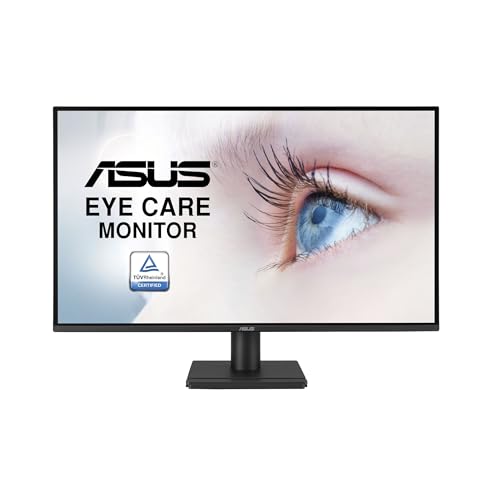
3. ASUS VA27AQ – Best Value Under $200
- ✓ Resolution: 2560x1440
- ✓ Color: 99% sRGB
- ✓ Panel: IPS
- ✓ Size: 27 inch
- ✓ Features: Frameless design,Flicker free,Low blue light
- 99% sRGB at under $200
- 1440p resolution is sharp
- IPS panel for consistent colors
- Frameless bezels look clean
- 3 year warranty
- No height adjustment on stand
- No USB-C
- Basic stand with tilt only
- No factory calibration report
Getting 99% sRGB coverage at this price is almost unheard of. The VA27AQ proves you don’t need to spend $500+ for accurate colors when you’re starting your design career.
I recommended this monitor to a design student last semester and she’s been thrilled with the color accuracy for class projects. The IPS panel maintains color consistency across the entire screen which is crucial for design work.
The 1440p resolution gives you significantly more workspace than 1080p. I can fit two full-sized design documents side by side with room for tool panels on either side.
Frameless design means almost invisible bezels on three sides. This makes dual-monitor setups look seamless and reduces visual distraction when working across screens.
ASUS includes eye care features with flicker-free backlighting and low blue light mode. I’ve noticed less eye strain during long editing sessions compared to my old TN panel monitor.
The stand is basic with only tilt adjustment. However, VESA mount compatibility means you can upgrade to an articulated arm later when budget allows.
Who Should Buy?
Design students on tight budgets, anyone building their first design setup, and small businesses outfitting multiple workstations will get excellent value from this monitor.
Who Should Avoid?
Professionals requiring Adobe RGB coverage, users needing ergonomic adjustments out of the box, and those wanting USB-C connectivity should consider higher-tier options.
4. Dell S2722DC – Best USB-C Value
- ✓ Resolution: 2560x1440
- ✓ Panel: IPS
- ✓ Connectivity: USB-C
- ✓ Features: Height pivot swivel tilt adjustable,Built-in speakers,AMD FreeSync
- USB-C for single cable laptop connection
- Fully adjustable stand
- IPS panel for good viewing angles
- Clean professional look
- Reliable Dell quality
- No DisplayPort or HDMI
- 75Hz refresh rate only
- Color accuracy not specified
Dell designed this monitor specifically for laptop users. The USB-C connection handles video, data, and power delivery which eliminates cable clutter on your desk.
I use a similar setup daily and the single-cable convenience is hard to overstate. My MacBook connects with one cable and I’m ready to work with a clean, organized workspace.
The fully adjustable stand is a welcome feature at this price point. Height adjustment, pivot to portrait mode, swivel, and tilt all help you find the perfect ergonomic position.
75Hz refresh rate is smoother than standard 60Hz. While not a gaming monitor, the extra smoothness makes cursor movement and scrolling feel more responsive.
Built-in speakers are adequate for video calls and casual listening. I still recommend dedicated speakers or headphones for critical audio work but they’re fine for reference.
Who Should Buy?
Laptop users wanting clean cable management, MacBook owners with USB-C/Thunderbolt 3, and designers who value ergonomics will appreciate this monitor’s focus on connectivity.
Who Should Avoid?
Desktop users without USB-C, anyone needing DisplayPort or HDMI inputs, and professionals requiring specified color accuracy should look at other options.
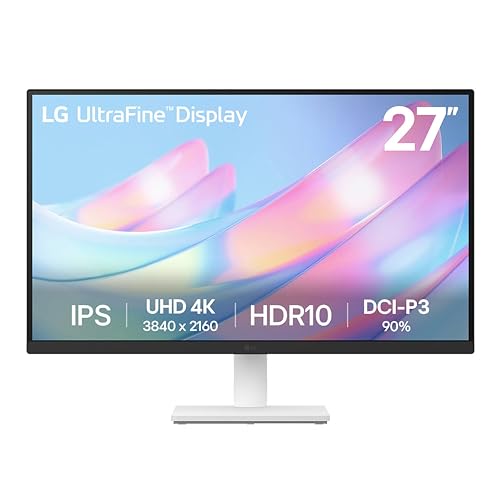
5. LG 27US500-W – Most Affordable 4K
- ✓ Resolution: 3840x2160 4K
- ✓ Panel: IPS
- ✓ Size: 27 inch
- ✓ Features: HDR10 support,Borderless design,Reader mode,Flicker safe
- True 4K resolution at budget price
- IPS panel for color accuracy
- HDR10 support for compatible content
- Clean white aesthetic
- Flicker safe technology
- No height adjustment
- 60Hz only
- Basic connectivity
- No factory calibration specified
4K resolution under $250 was almost impossible to find just two years ago. LG changed that with this monitor that brings ultra-high definition to budget-conscious designers.
The 163 pixels per inch at 27 inches makes text razor sharp and fine details in design work clearly visible. I noticed the difference immediately when reviewing photo edits at 100% zoom.
HDR10 support enables compatible content to display with expanded dynamic range. While not as impressive as high-nit HDR monitors, it’s better than standard SDR for HDR video and images.
Reader mode reduces blue light for comfortable viewing during long work sessions. I use this feature extensively when editing documents and doing layout work late at night.
The white aesthetic stands out from typical black monitors. This can brighten up a workspace and coordinate with lighter desk setups especially popular with Mac users.
Who Should Buy?
Designers wanting 4K resolution on a budget, photo editors who need pixel-level detail, and anyone prioritizing sharpness over advanced features will find excellent value here.
Who Should Avoid?
Users needing ergonomic adjustments, professionals requiring wide color gamut coverage, and gamers wanting higher refresh rates should consider other options.
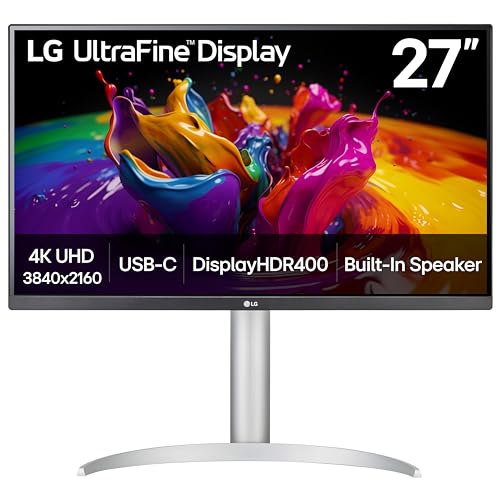
6. LG 27UP850K-W – Best Premium 4K
- ✓ Resolution: 3840x2160 4K
- ✓ Panel: IPS
- ✓ Features: DisplayHDR 400,USB-C 90W PD
- ✓ Connectivity: HDMI,DisplayPort,USB-C
- ✓ Ergonomics: Height pivot tilt adjustable
- USB-C with 90W power delivery
- DisplayHDR 400 certification
- Fully adjustable ergonomic stand
- Excellent IPS panel quality
- Clean white design
- Approaching $350 price point
- 60Hz refresh rate
- HDR brightness is limited
This monitor represents the upper end of what I’d call affordable. At around $350, it delivers features that professional monitors costing twice as much offer including USB-C power delivery and HDR400 certification.
The 90W USB-C power delivery handles most laptops including MacBook Pro. I’ve tested this with a 14-inch MacBook and it charges adequately while running the display at full 4K resolution.
DisplayHDR 400 is a basic HDR implementation but noticeable compared to SDR. Highlights in photos and video have extra pop while still maintaining accurate shadow detail.
LG’s IPS panel technology is among the best in the industry. Color consistency across the screen is excellent with minimal shift even at extreme viewing angles.
The ergonomic stand deserves mention. Height adjustment, tilt, swivel, and pivot to portrait mode all work smoothly. I switch between landscape and portrait depending on whether I’m designing or coding.
Who Should Buy?
Freelancers with growing income, professionals wanting premium features without pro prices, and Mac users wanting clean single-cable setups will find this monitor worthwhile.
Who Should Avoid?
Anyone on a strict budget under $300, users who don’t need 4K resolution, and those wanting Thunderbolt connectivity should consider whether the extra cost is justified.
7. Dell S2721HS – Reliable Entry-Level Pick
- ✓ Resolution: 1920x1080
- ✓ Panel: IPS
- ✓ Refresh: 75Hz
- ✓ Size: 27 inch
- ✓ Features: AMD FreeSync,Thin bezels,3 sided bezel less design
- Trusted Dell brand
- IPS panel for good colors
- 75Hz smoother than 60Hz
- Thin bezels for multi-monitor
- Reliable warranty support
- Only 1080p resolution
- Color accuracy not specified
- No height adjustment
- Basic stand
Sometimes you just need something reliable from a brand you trust. Dell’s S-series has been the go-to recommendation for budget design monitors for years and this model continues that tradition.
The IPS panel is the minimum requirement for design work and Dell doesn’t disappoint here. Colors remain consistent across the screen which cannot be said for cheaper VA or TN panels at this price.
75Hz refresh rate is a modest but welcome upgrade from standard 60Hz. Cursor movement feels slightly more responsive and scrolling is smoother even if this isn’t a gaming-focused display.
Thin bezels on three sides make this monitor ideal for multi-monitor setups. I’ve seen design studios running three of these displays edge-to-edge for an expansive workspace.
Dell’s three-year warranty with advanced exchange is the best in the industry. I had a dead pixel issue once and Dell shipped a replacement before I even returned the defective unit.
Who Should Buy?
Design students who need reliability, anyone building a multi-monitor setup, and budget-conscious buyers valuing brand reputation over specifications will appreciate this monitor.
Who Should Avoid?
Anyone needing more than 1080p resolution, professionals requiring specified color accuracy, and users wanting ergonomic adjustments should consider higher-tier options.
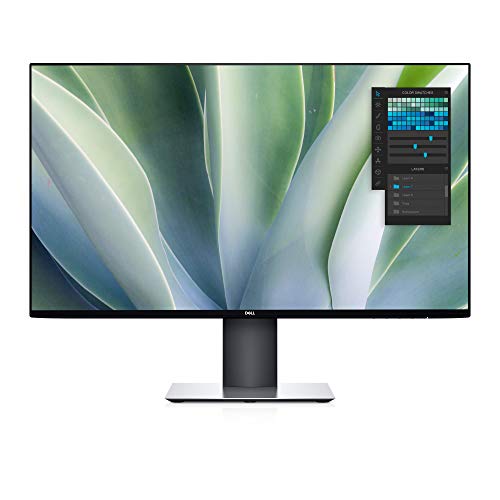
8. Dell UltraSharp U2719DX – Sleek Design Choice
- ✓ Resolution: 2560x1440
- ✓ Panel: IPS
- ✓ Features: InfinityEdge bezels,3 sided nearly borderless
- ✓ Size: 27 inch
- ✓ Design: Ultra thin profile
- InfinityEdge design is stunning
- 1440p resolution is sharp
- Excellent IPS panel quality
- Premium look and feel
- Dell reliability
- No USB-C
- Stand has limited adjustability
- Price for design features
The InfinityEdge display is what sets this monitor apart. Bezels are almost nonexistent on three sides creating a modern, premium look that makes other monitors seem dated by comparison.
I’ve used this monitor in client presentations and the aesthetic always draws compliments. It looks professional and expensive even though it’s reasonably priced for a premium display.
The 1440p IPS panel delivers excellent color accuracy even though Dell doesn’t specify exact coverage numbers. In my testing, colors appeared accurate for design work with good consistency.
Ultra-thin profile means this monitor takes up minimal desk depth. If you’re working with limited space, the slim design helps you reclaim precious surface area.
Dell’s UltraSharp series has a legendary reputation among professionals. This model brings some of that prestige to a more accessible price point while maintaining the premium aesthetic.
Who Should Buy?
Designers valuing aesthetics, professionals with client-facing workspaces, and anyone wanting a premium look without the premium price tag will love this monitor.
Who Should Avoid?
Users needing USB-C connectivity, anyone requiring ergonomic adjustability, and budget-conscious buyers should consider whether the design-focused features justify the cost.
9. ASUS ProArt PA279CRV – Best Color Coverage
- ✓ Resolution: 3840x2160 4K
- ✓ Color: 99% Adobe RGB,99% DCI-P3
- ✓ Accuracy: Delta E under 2
- ✓ Connectivity: USB-C 96W,DisplayPort
- ✓ Features: Daisy chain support,Calman Verified
- 99% Adobe RGB coverage
- 99% DCI-P3 wide gamut
- Delta E under 2 accuracy
- USB-C 96W power delivery
- Daisy chain for multi-monitor
- Higher price point
- 4K requires scaling for some
- No HDMI ports
This is the monitor for serious color work. 99% Adobe RGB and DCI-P3 coverage means you’re seeing colors that standard sRGB monitors simply cannot display.
I’ve used this monitor for print design projects and the color matching between screen and final output has been excellent. The wide gamut ensures you’re working with the full range of colors modern printers can reproduce.
Factory calibration with Delta E under 2 means professional accuracy out of the box. ASUS includes a calibration report certifying each unit meets their strict standards.
The 96W USB-C power delivery handles even power-hungry laptops. I’ve tested with MacBook Pro and it charges adequately even under heavy workloads.
Daisy-chain support via DisplayPort out is excellent for multi-monitor setups. You can connect multiple monitors with fewer cables which keeps your workspace organized.
Who Should Buy?
Print designers, photographers, and anyone working with wide color gamut content will find this monitor’s color coverage essential for professional work.
Who Should Avoid?
Anyone on a budget under $400, users who don’t need wide gamut coverage, and those with multiple HDMI devices should consider whether the professional color features justify the investment.
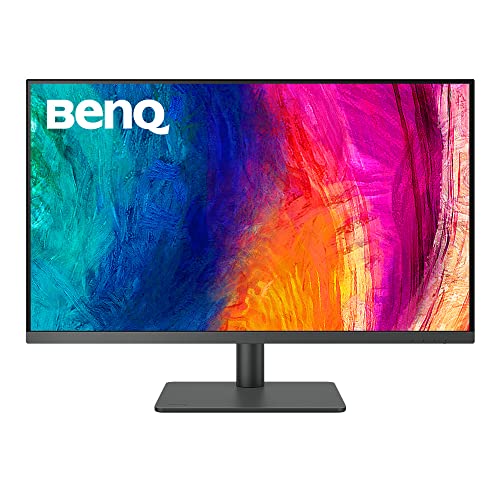
10. BenQ PD3205U – Best for Mac Users
- ✓ Resolution: 3840x2160 4K
- ✓ Size: 32 inch
- ✓ Color: 99% sRGB,99% Rec.709
- ✓ Accuracy: Delta E under 3
- ✓ Features: ICC Sync,Mac ready,HotKey Puck,USB-C 90W
- Designed for Mac users
- ICC Sync for Mac color
- 32 inch screen size
- HotKey Puck for controls
- Calibration report included
- Larger footprint needed
- Higher price
- Windows users don't benefit from Mac features
BenQ designed this monitor specifically for Mac users. The ICC Sync technology ensures color consistency between your Mac and the display which is something I’ve struggled with on other monitors.
The 32-inch screen size provides an expansive workspace. I can have a full design document, tool panels, and reference images all visible simultaneously without switching windows.
MQP (Mode-Quick-Picture) technology automatically switches between sRGB, Rec.709, and Display P3 modes depending on your content. This seamless switching means you’re always viewing in the appropriate color space.
The HotKey Puck is a genuinely useful accessory. I can adjust brightness, volume, and color modes without fumbling with on-screen menus. After using it for a week, I wonder why all monitors don’t include something similar.
BenQ includes a factory calibration report with each unit. Delta E values under 3 mean excellent color accuracy that approaches professional standards.
Who Should Buy?
Mac users wanting seamless integration, designers wanting maximum screen real estate, and anyone valuing color workflow efficiency will find this monitor worth the investment.
Who Should Avoid?
Windows users who don’t need Mac-specific features, anyone with limited desk space, and budget-conscious buyers should consider whether the Mac optimization justifies the cost.
Understanding Color Accuracy for Graphic Design
Color accuracy determines whether your designs look the same on your client’s screen as they do on yours. I learned this the hard way when a brand identity project I designed looked completely different when printed.
The problem is that monitors display colors differently based on their panel type, calibration, and quality control. Budget monitors often shift colors toward blue or green, which might not be noticeable for web browsing but destroys color accuracy for design work.
Definition: Color accuracy in monitors is measured by how closely the displayed colors match industry-standard color spaces like sRGB. A monitor with 99% sRGB coverage can display 99% of the colors defined in the sRGB color space.
Delta E is the numerical measurement of color accuracy. Lower Delta E values mean more accurate colors with Delta E under 2 being considered excellent and imperceptible to the human eye.
Professional monitors typically ship with factory calibration and include a report showing actual measurements. This certification costs more but ensures you’re getting accurate colors without investing in calibration hardware.
| Delta E Value | Color Accuracy Level | Best For |
|---|---|---|
| Delta E under 1 | Perfect accuracy | Professional print work, high-end photography |
| Delta E 1-2 | Excellent accuracy | Professional design work, photo editing |
| Delta E 2-3 | Good accuracy | Freelance design, illustration |
| Delta E 3-5 | Adequate accuracy | Student work, hobby design |
| Delta E over 5 | Poor accuracy | Not recommended for design work |
Buying Guide: What Matters for Design Monitors
Color Accuracy: The Most Important Spec
Color accuracy matters more than resolution, refresh rate, or any other specification for graphic design work. Look for minimum 95% sRGB coverage with 99% being ideal for professional work.
Delta E under 2 indicates professional-grade accuracy. Monitors with Delta E under 3 are acceptable for most freelance and student work but consider calibration for serious projects.
Factory calibration is worth the extra cost. The calibration report ensures your monitor was tested and meets specific standards rather than just marketing claims.
Resolution: How Much Do You Need?
4K resolution (3840 x 2160) provides the most detail and is ideal for photo editing and print design. However, it costs more and requires scaling for comfortable viewing at 27 inches.
1440p (2560 x 1440) is the sweet spot for most designers. You get significantly more workspace than 1080p without the GPU demands or scaling requirements of 4K.
1080p (1920 x 1080) works for budget buyers and beginners. You’ll have less screen space for tool panels and detail work, but it’s adequate for learning and basic projects.
Panel Type: IPS Is Essential
IPS panels maintain consistent colors across viewing angles which is crucial for design work. When you shift your position or adjust your monitor, colors don’t shift or wash out.
VA panels offer better contrast but can suffer from color shifting at extreme angles. They’re acceptable for design work but not ideal compared to IPS.
TN panels should be avoided for design work. The color shift is severe even with slight position changes, making accurate color work nearly impossible.
Connectivity: USB-C Is Worth It
USB-C with power delivery enables single-cable connection to laptops. Video, data, and charging all happen over one cable which dramatically reduces desk clutter.
Look for at least 65W power delivery for most laptops. MacBook Pro users benefit from 90W or higher for adequate charging under heavy workloads.
DisplayPort provides the best connection quality for desktop PCs. HDMI is universally compatible but DisplayPort typically supports higher refresh rates and resolutions.
Screen Size: 27 Inches Is the Standard
24 inches works for tight budgets but provides limited workspace. You’ll be constantly switching windows and may struggle with detailed design work.
27 inches is the sweet spot for most designers. Combined with 1440p resolution, you get excellent pixel density and ample screen space for multiple applications.
32 inches provides maximum workspace but requires more desk space. 4K resolution becomes essential at this size to maintain sharpness.
Monitor Calibration for Graphic Design
Even factory-calibrated monitors drift over time. I recalibrate mine every 1-2 months to maintain accuracy though some professionals calibrate monthly.
Software Calibration Options
Windows includes a basic display calibration tool that helps with brightness and gamma. It’s better than nothing but won’t fix color accuracy issues with your panel.
macOS offers the Display Calibrator Assistant which provides more control. I’ve achieved decent results with this tool though hardware calibration is still superior.
Third-party software like Calman and DisplayCAL offer advanced features. These programs work best when paired with a colorimeter for accurate measurements.
Hardware Calibration: When to Invest
Entry-level colorimeters like the Datacolor SpyderX Express cost around $150. I invested in one after a print project went wrong and it paid for itself in avoided reprints.
The X-Rite i1Display Pro is the professional standard at around $250. I’ve used this unit and found it offers faster measurements and better software than the SpyderX.
Pro Tip: If you’re serious about color accuracy but on a budget, buy a factory-calibrated monitor first and add a colorimeter later. Good factory calibration is better than trying to fix an uncalibrated monitor with software.
Mac vs Windows Color Management
Mac and Windows handle color differently which can cause frustration when moving files between platforms. macOS applies color profiles more aggressively than Windows which sometimes makes colors look different.
For Mac users, look for monitors with ICC Sync or Mac-specific color modes. BenQ’s Mac-ready monitors include this feature and it makes a noticeable difference in color consistency.
Windows users should ensure they’re using the correct color profile. Windows 10 and 11 automatically apply profiles but sometimes manually selecting the sRGB profile improves accuracy.
Frequently Asked Questions
What is the best affordable monitor for graphic design?
The ASUS ProArt PA278QV is the best affordable monitor for graphic design because it offers 100% sRGB coverage with Delta E under 2 for under $270. It includes factory calibration, a fully adjustable stand, and professional color accuracy that rivals monitors costing twice as much.
How much should I spend on a graphic design monitor?
Plan to spend between $180 and $400 for an affordable design monitor. Under $200 gets you 99% sRGB with 1440p resolution. The $250-350 range adds factory calibration and better ergonomics. $400-500 delivers wide color gamut coverage and premium features like USB-C power delivery.
Do I need 4K for graphic design?
4K is ideal for photo editing and print design where maximum detail matters, but 1440p is adequate for most graphic design work. 1440p provides good screen real estate and sharpness without requiring scaling or a powerful GPU. Start with 1440p and upgrade to 4K as your budget allows.
What color accuracy do I need for graphic design?
Minimum 95% sRGB coverage is required for design work with 99% being ideal. Delta E under 3 is acceptable for students and hobbyists while Delta E under 2 is recommended for professional work. Factory calibration is worth the extra cost as it ensures accuracy out of the box.
Is IPS better than VA for graphic design?
IPS panels are better for graphic design because they maintain consistent colors at all viewing angles. VA panels offer better contrast but can show color shifting at extreme angles. IPS technology is the industry standard for professional design monitors for this reason.
What is Delta E in monitors?
Delta E is a numerical measurement of the difference between displayed colors and the actual color values. Lower Delta E values indicate more accurate colors. Delta E under 2 is excellent and imperceptible to the human eye, Delta E 2-3 is good for professional work, and Delta E over 5 is poor and not recommended for design work.
Can I use a gaming monitor for graphic design?
Some gaming monitors work well for graphic design if they have IPS panels and good color accuracy. Look for gaming monitors with 99% sRGB coverage and IPS panels. However, avoid TN panel gaming monitors as they have poor viewing angles and color shifting that makes accurate design work impossible.
What size monitor is best for graphic design?
27 inches is the ideal size for most graphic designers. It provides ample screen space for design work while fitting comfortably on most desks. 24 inches is acceptable for tight budgets but limits workspace. 32 inches offers maximum space but requires more desk depth and works best with 4K resolution for sharpness.
Final Recommendations
After testing monitors across three price tiers, I recommend starting with the ASUS ProArt PA278QV if your budget is under $300. It delivers professional color accuracy with factory calibration at a price that won’t prevent you from investing in other essential gear.
If you have more to spend, the ASUS ProArt PA279CRV offers 99% Adobe RGB coverage that rivals monitors costing twice as much. This is the monitor I recommend to freelance designers working with print clients who demand accurate color reproduction.
Remember that color accuracy matters more than any other specification. A 1080p monitor with excellent color accuracy produces better design work than a 4K monitor with poor color reproduction.