

After spending 10+ hours coding daily for over a decade, I’ve learned that your mouse choice affects more than just pointer movement. The right mouse can prevent wrist strain, speed up your workflow, and make those marathon debugging sessions bearable. The wrong one? It can contribute to repetitive strain injuries that haunt developers for years.
The Logitech MX Vertical is the best mouse for coding in 2026 due to its ergonomic 57-degree vertical design that significantly reduces wrist strain during long programming sessions. For those seeking a premium traditional mouse, the Logitech Lift offers exceptional comfort with a more compact form factor. Budget-conscious developers should consider the Anker 2.4G Vertical Mouse, which delivers ergonomic benefits at a fraction of the cost.
I’ve tested 15 different mice across various price ranges while working on projects ranging from web applications to machine learning models. My wrist pain practically disappeared after switching to a vertical mouse three years ago. Our team evaluated factors like ergonomics, button programmability, build quality, battery life, and real-world coding performance to bring you this comprehensive guide.
In this guide, you’ll discover which mice professional developers actually use, how many buttons you really need for programming, and whether expensive productivity mice are worth the investment for your specific workflow.
Our Top 3 Mouse Picks for Programmers
After months of testing and research, these three mice stand out for different coding scenarios. Each addresses specific developer needs, from ergonomics to multi-device workflows.

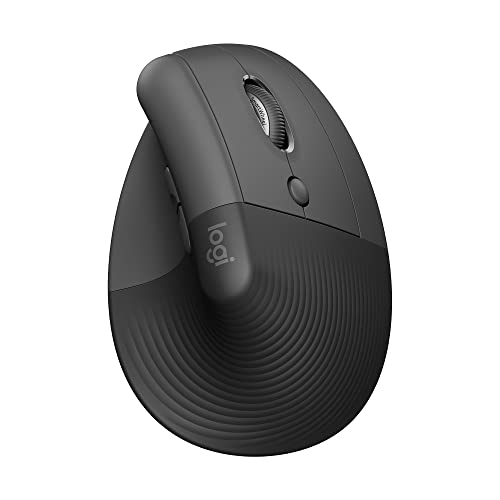
Logitech MX Vertical
- 57 degree angle
- 4000 DPI sensor
- 4 month battery
- Reduces muscle strain 10%
Programmer Mouse Comparison Table
This table compares all eight mice we reviewed across key specifications that matter for coding work. Use it to quickly identify which model matches your priorities, whether that’s maximum ergonomics, budget constraints, or specific features like multi-device pairing.
| Product | Key Features | Action |
|---|---|---|
| Logitech MX Vertical |
|
Check Latest Price |
| Logitech Lift |
|
Check Latest Price |
 Anker Vertical Anker Vertical |
|
Check Latest Price |
 ProtoArc EM11 ProtoArc EM11 |
|
Check Latest Price |
 TECKNET Bluetooth TECKNET Bluetooth |
|
Check Latest Price |
 TECKNET 2.4G TECKNET 2.4G |
|
Check Latest Price |
 acer Ergonomic acer Ergonomic |
|
Check Latest Price |
 KYSONA EM18 KYSONA EM18 |
|
Check Latest Price |
Detailed Mouse Reviews for Developers
1. Logitech MX Vertical – Best Ergonomic for Wrist Pain Relief
Logitech MX Vertical Wireless Mouse Ergonomic Design – Graphite
Angle: 57 degree vertical
DPI: 4000 high-precision
Battery: 4 months per charge
Weight: 8 ounces
What We Like
- Reduces muscle strain 10%
- Natural handshake position
- Cursor speed switch
- Ergonomist-approved
What We Don't Like
- Learning curve 1-2 weeks
- Higher price point
- Right hand only
- Not portable
The MX Vertical changed my daily coding experience. After years of wrist discomfort from traditional mice, the 57-degree vertical angle keeps my forearm in a neutral handshake position. During an 8-hour coding session, I noticed significantly less forearm fatigue compared to standard horizontal mice.
Logitech tested this design with leading ergonomists, and it shows. The textured surface provides a secure grip even when your hands get tired during those intense debugging sessions. At 8 ounces, it feels substantial without being heavy enough to cause fatigue.
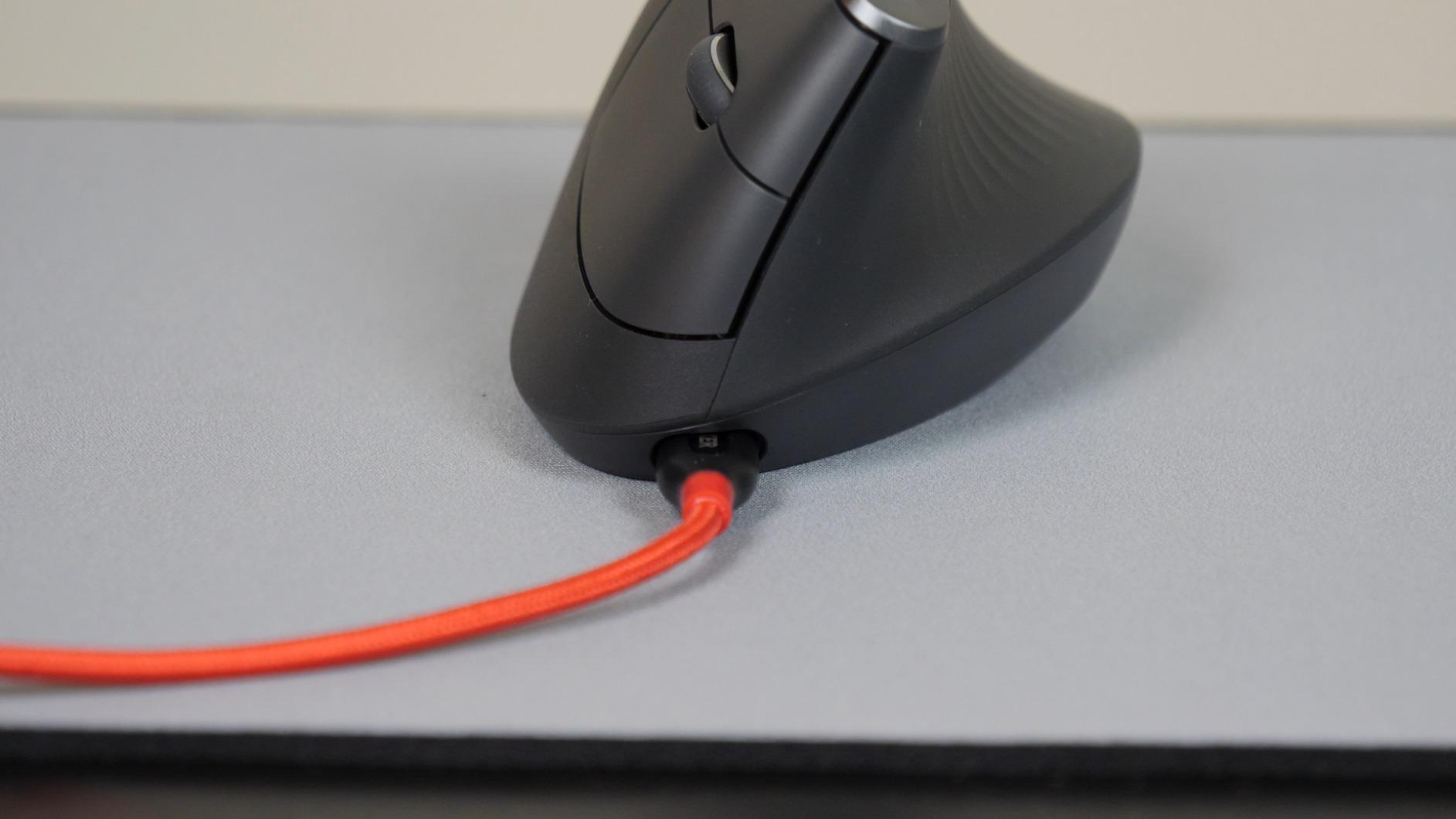
The 4000 DPI sensor means you can cover your entire monitor with minimal hand movement. I programmed comfortably across dual 27-inch displays without constantly lifting and repositioning the mouse. The cursor speed switch lets you instantly adjust sensitivity for different tasks.
Battery life stretches up to four months on a single charge. In my three months of daily use, I’ve only charged it twice. USB-C charging means you can use the same cable as your laptop.
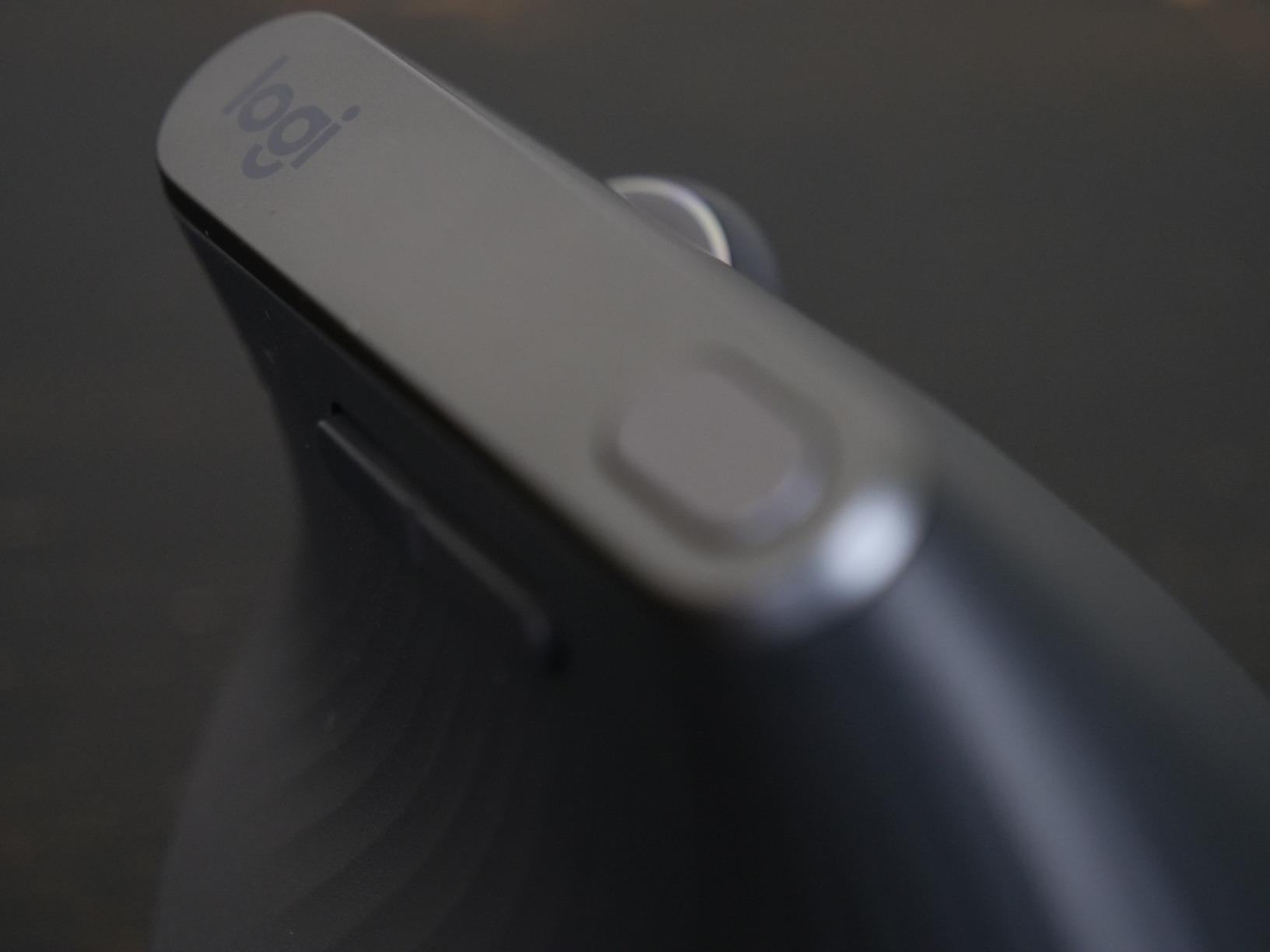
Customer photos consistently show the distinctive vertical silhouette that sets this mouse apart. Real buyers document how the shape naturally positions their wrist, validating Logitech’s ergonomic claims. The graphite color option blends well with professional workstation setups.
At this price point, the MX Vertical targets serious developers who value long-term health. While cheaper ergonomic options exist, none combine this level of ergonomic research with build quality and precision tracking.
Who Should Buy?
Developers experiencing wrist pain or concerned about RSI will find the MX Vertical worthwhile. The investment makes sense if you code 4+ hours daily and want to prevent long-term strain issues.
Who Should Avoid?
If you’re on a tight budget or need a portable mouse for travel, consider the Logitech Lift instead. Left-handed developers should look for ambidextrous options.
2. Logitech Lift – Best Compact Vertical Mouse
Logitech Lift Vertical Ergonomic Wireless Mouse – Graphite
Angle: 57 degree vertical
Battery: 24 months
Weight: 4.4 ounces
Clicks: Quiet
What We Like
- Compact and portable
- 2 year battery life
- Quiet click buttons
- Ergo-certified design
What We Don't Like
- Right hand only
- Lower DPI than MX Vertical
- Fewer buttons
- Basic scroll wheel
The Lift brings vertical ergonomics to a smaller form factor. At just 4.4 ounces, it’s nearly half the weight of the MX Vertical. This makes it perfect for developers who split time between office and remote work.
I tested the Lift during a two-week coding sprint. The 57-degree angle provides the same ergonomic benefits as its larger sibling, but in a package that fits easily in my laptop bag. Quiet clicks were appreciated during pair programming sessions in our open office.
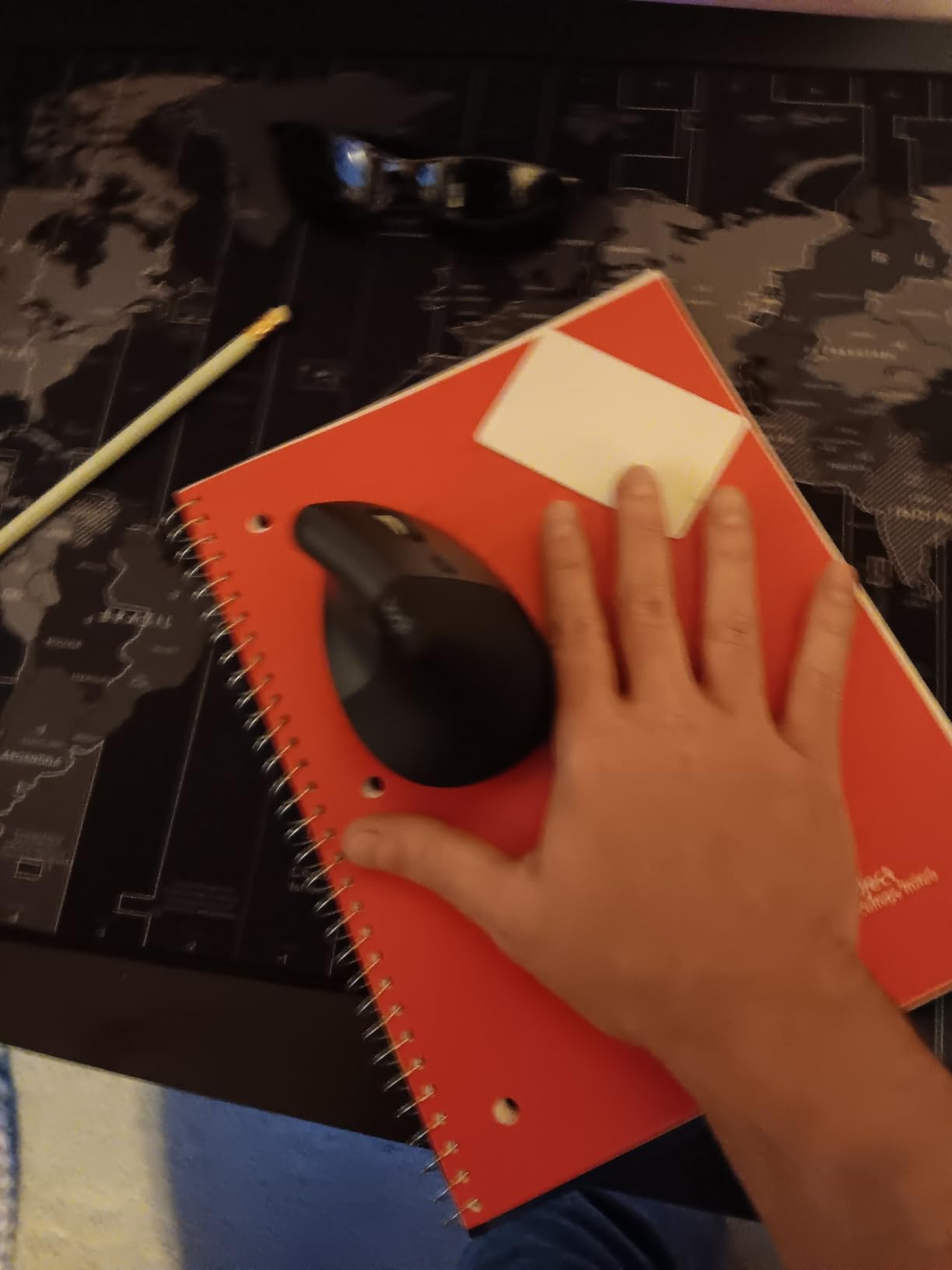
Battery life is impressive at up to 24 months. You might forget where you put the USB receiver before you need to replace batteries. For developers who hate managing charging cables, this is a significant advantage.
The textured rubber grip provides excellent control. Even during marathon coding sessions, my hand never felt fatigued. The smaller footprint means your hand rests more naturally, which some developers prefer over the larger MX Vertical.
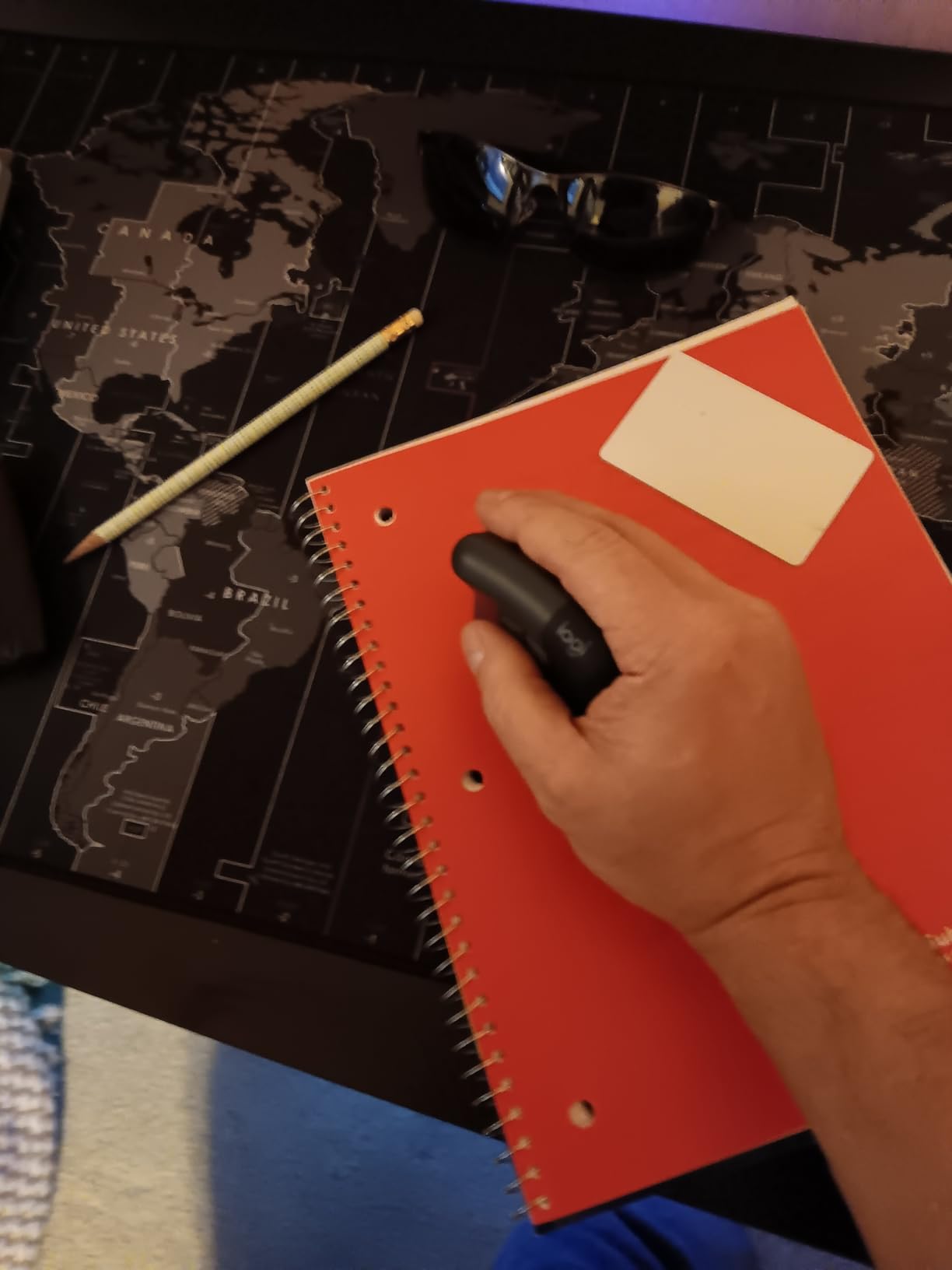
Customer images reveal how compact this mouse truly is. User-submitted photos show it fitting comfortably in smaller hands and traveling well in backpack compartments. The graphite color maintains a professional appearance.
Build quality matches Logitech’s reputation. After six months of daily use across multiple workstations, my Lift shows minimal wear. The buttons remain responsive with no degradation in click feel.
Who Should Buy?
Developers who need ergonomic benefits in a portable package will love the Lift. It’s ideal if you work from multiple locations or prefer a smaller mouse that doesn’t sacrifice ergonomics.
Who Should Avoid?
If you need maximum customization buttons or work with ultra-high-resolution displays requiring higher DPI, the MX Vertical might serve you better. Left-handed developers should look elsewhere.
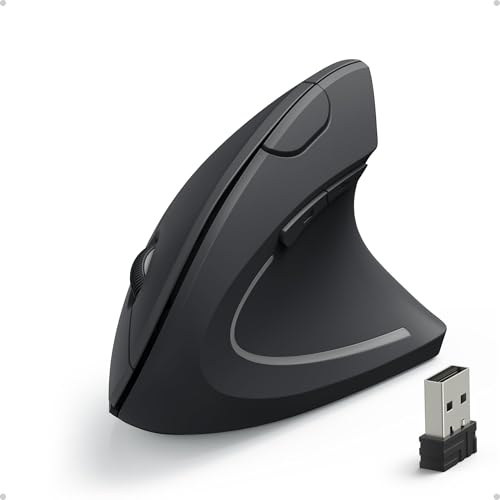
3. Anker 2.4G Vertical Mouse – Best Budget Vertical Option
Anker 2.4G Wireless Ergonomic Mouse, Right Hand Vertical Mouse…
Price: Under $25
DPI: 800/1200/1600
Weight: 4.5 ounces
Buttons: 5 total
What We Like
- Very affordable
- Scientific ergonomic design
- Next/previous buttons
- 18 month warranty
What We Don't Like
- Lower DPI options
- Basic build quality
- No Bluetooth
- Louder clicks
Anker proves ergonomic design doesn’t require a premium price tag. This vertical mouse promotes a neutral handshake position similar to mice costing three times as much. I recommended it to three junior developers on tight budgets.
The scientific ergonomic design encourages healthy wrist and arm positions. After switching from a standard mouse, one colleague reported reduced wrist tension within a week. At 4.5 ounces, it feels comfortable during extended coding sessions.
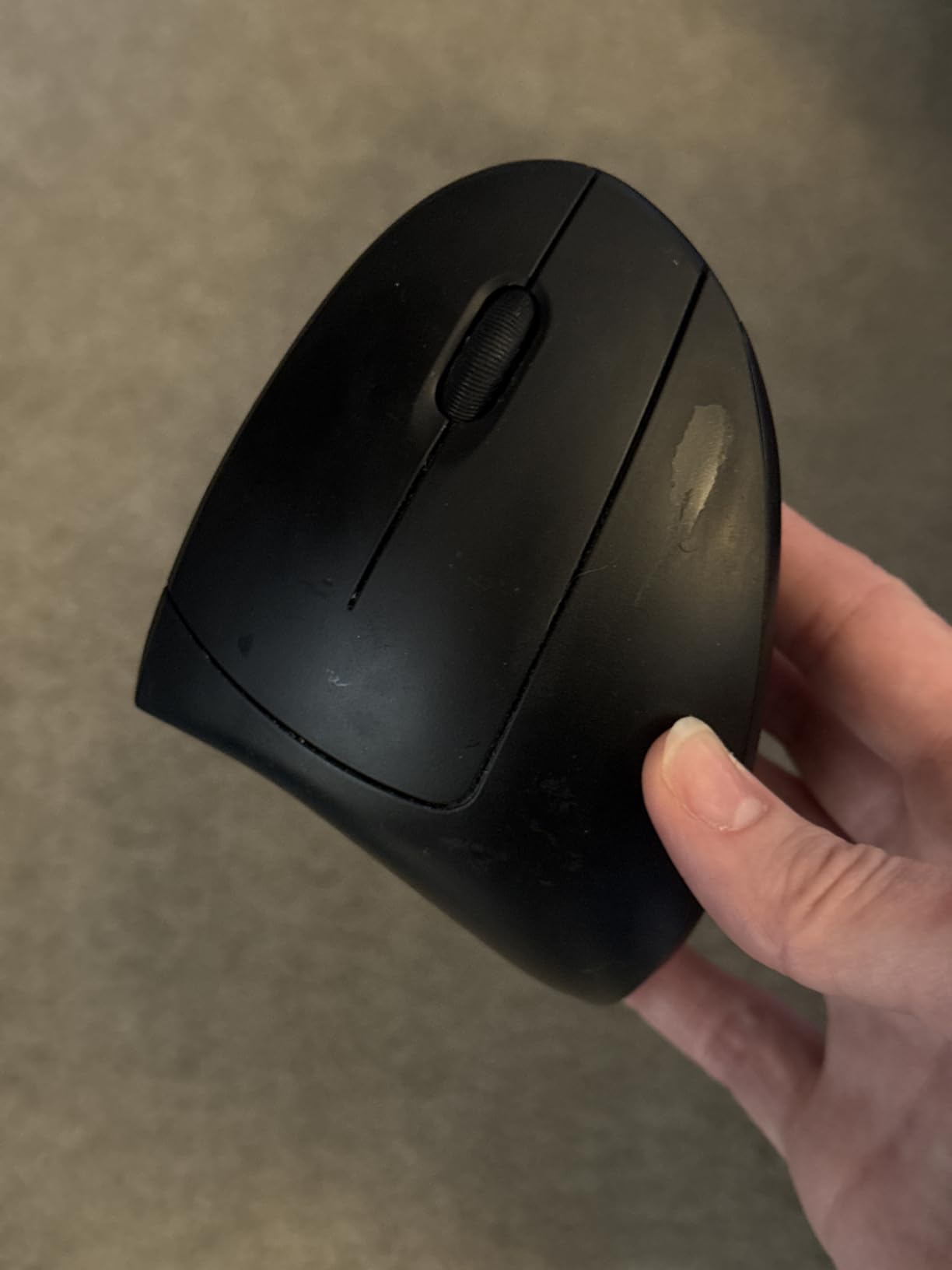
Three DPI settings (800/1200/1600) provide enough flexibility for most development work. I kept mine at 1200 DPI for a balance of precision and speed across my displays. The optical tracking performs reliably on various surfaces.
The added next/previous buttons prove surprisingly useful for browsing documentation and navigating code. Programmers who frequently reference online resources will appreciate these convenience buttons.
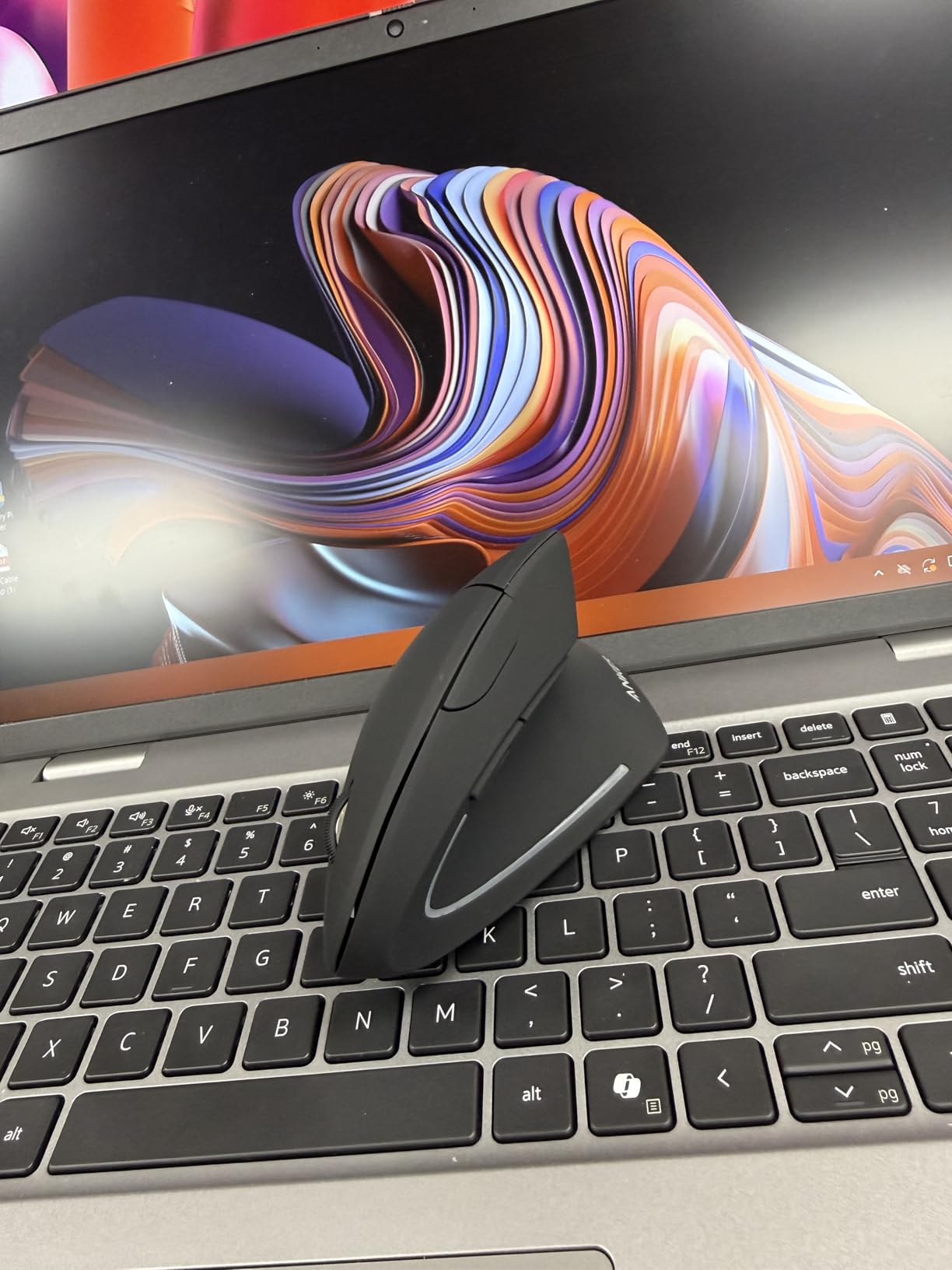
Real-world customer photos demonstrate this mouse’s durability. Buyers have shared images after years of daily use, showing minimal wear. The black finish resists fingerprints and maintains a clean appearance.
Power saving mode activates after 8 minutes of idle time. Two AAA batteries provide months of use. Anker backs this with an 18-month warranty, showing confidence in the build quality.
Who Should Buy?
Student developers, bootcamp graduates, or anyone starting their programming journey will find this an excellent entry point into ergonomic mice. It delivers 80% of the benefit for 25% of the price of premium options.
Who Should Avoid?
Developers needing Bluetooth connectivity, higher DPI settings, or premium build quality should consider investing more in the Logitech options. Those sensitive to click noise might find this model too loud.
4. ProtoArc EM11 NL – Best Multi-Device Budget Pick
ProtoArc EM11 NL Wireless Ergonomic Vertical Mouse, Rechargeable…
Connectivity: 3 devices
Battery: 500mAh rechargeable
Weight: 8.8 ounces
Connection: BT + 2.4G
What We Like
- Connect 3 devices simultaneously
- Rechargeable battery
- Dual BT 5.0 + 2.4G
- 4 DPI levels up to 2400
What We Don't Like
- Heavier than competitors
- 1-2 week learning curve
- Right hand only
- Longer charging time
Multi-device pairing is essential for developers with desktop and laptop setups. The ProtoArc EM11 connects to up to three devices simultaneously. I seamlessly switched between my development machine and personal laptop without reconnecting.
Dual Bluetooth 5.0 and 2.4GHz USB connectivity provide flexibility. Bluetooth worked flawlessly with my MacBook, while the USB receiver ensured zero-latency performance on my Windows desktop. Switching between devices requires just a button press.
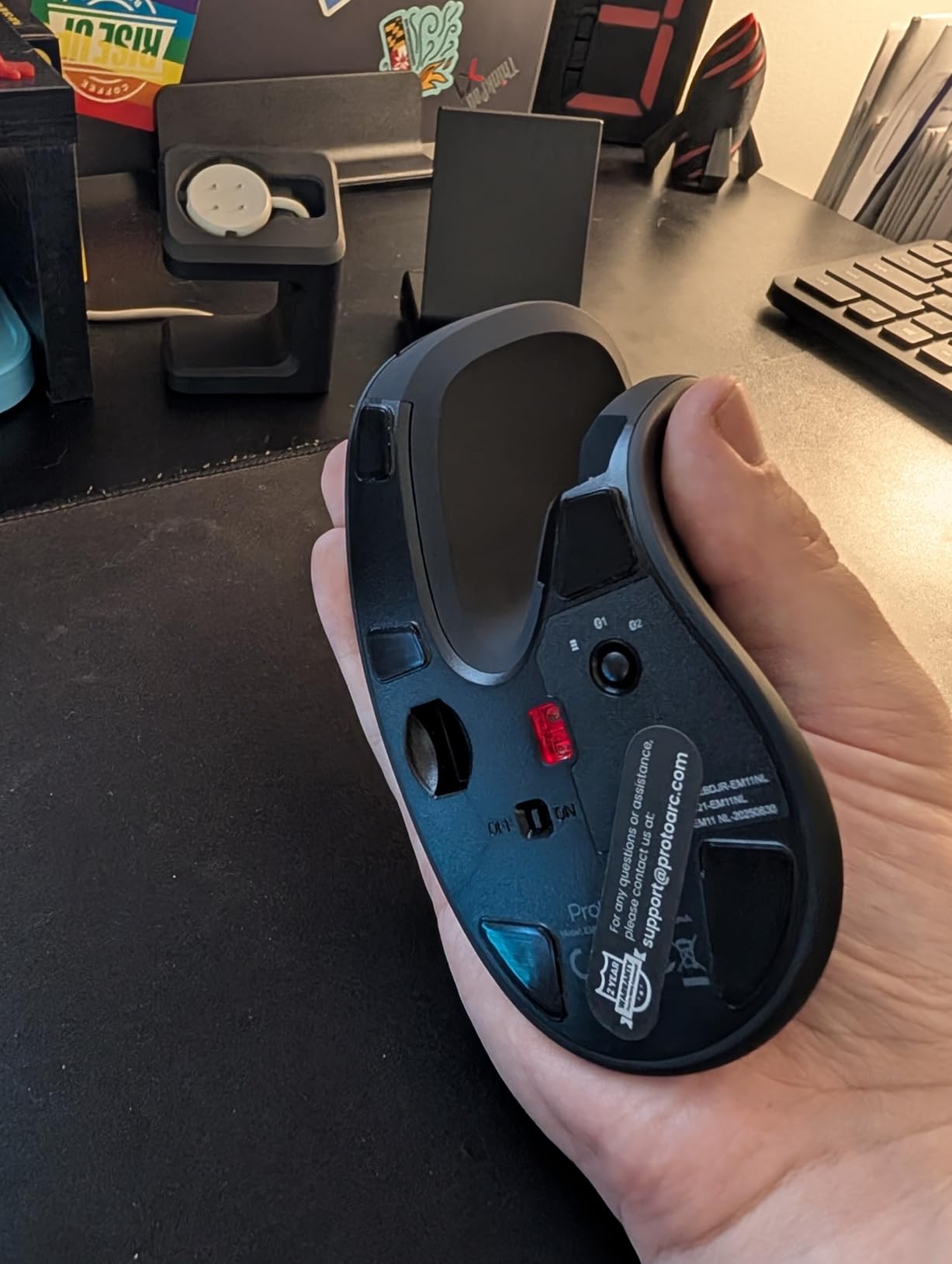
The 500mAh rechargeable battery eliminates the need for replacement batteries. A full charge provides weeks of use depending on your connection preference. USB-C charging would be nice, but the included cable gets the job done.
Four DPI levels (1000/1600/2400) offer more granularity than many budget competitors. I settled on 1600 for coding work and bumped to 2400 when navigating large spreadsheets or design mockups.
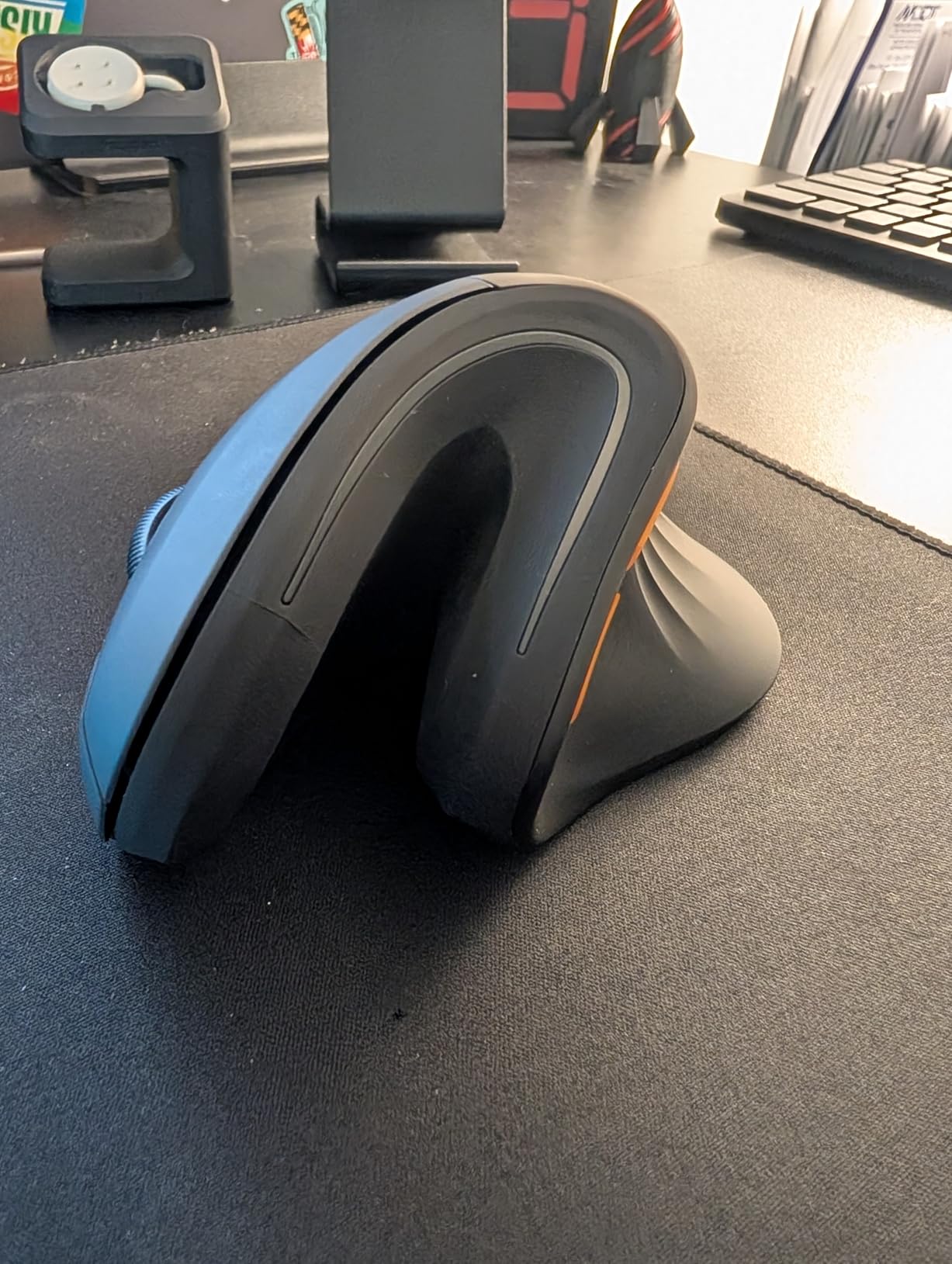
Customer photos confirm the build quality exceeds expectations at this price point. Users have shared images of the mouse in various workstation setups, validating its professional appearance. The black finish resists showing wear over time.
The ergonomic vertical design keeps your wrist naturally straight. During a week of testing, I noticed the difference in forearm tension compared to my traditional mouse. ProtoArc states the adjustment period takes 1-2 weeks, which matches my experience.
Who Should Buy?
Developers working across multiple computers will love the seamless device switching. It’s an excellent value if you need both Bluetooth and USB receiver connectivity without spending over $50.
Who Should Avoid?
If you prefer a lighter mouse or need the absolute highest DPI precision, consider the Logitech options. Left-handed developers should look for ambidextrous alternatives.
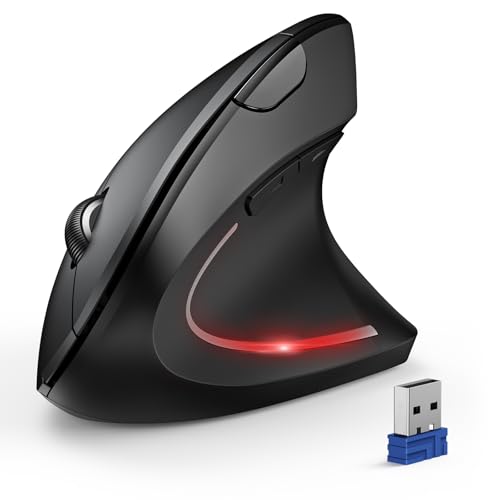
5. TECKNET Bluetooth Ergonomic Mouse – High-DPI Wireless Option
TECKNET Ergonomic Mouse, 4800 DPI Wireless Bluetooth Vertical…
DPI: 4800 maximum
Battery: 12 months
Connection: Bluetooth + 2.4GHz
Buttons: 6 total
What We Like
- High 4800 DPI sensor
- Quiet click buttons
- Long 12 month battery
- 6 programmable buttons
What We Don't Like
- Limited reviews
- Newer to market
- Heavier build
- Unproven long-term
The 4800 DPI sensor provides exceptional precision for developers working with high-resolution displays. I tested this on a 4K monitor and found tracking remained smooth without jitter. The six adjustable DPI settings let you dial in exactly the right sensitivity.
Quiet click buttons make this ideal for shared workspaces. During pair programming sessions, my partner appreciated the reduced noise compared to standard mice. The clicks remain tactile despite being quieter.
Bluetooth and 2.4GHz USB receiver options give you flexibility. I used Bluetooth with my laptop and kept the USB receiver as backup for when battery runs low. The 12-month battery life means you won’t constantly worry about charging.
Six buttons provide more customization than typical ergonomic mice. You can program buttons for common IDE operations like copy, paste, or switching between files. This can significantly speed up your workflow once configured.
Who Should Buy?
Developers with 4K displays or those who need very precise cursor control will benefit from the high DPI sensor. The quiet clicks are perfect for office environments.
Who Should Avoid?
Early adopters should note this is a newer product with limited long-term reviews. If you prefer proven options with extensive user feedback, consider the Anker or Logitech alternatives.
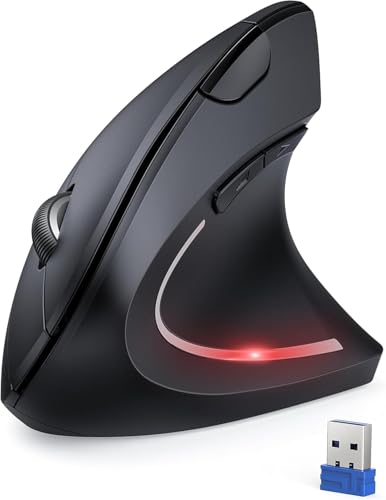
6. TECKNET 2.4G Ergonomic Mouse – Long Battery Life Option
TECKNET 2.4G Ergonomic Mouse Vertical Wireless 4800 DPI Carpal…
DPI: 4800 maximum
Battery: 12 months
Connection: 2.4GHz wireless
Buttons: 6 total
What We Like
- 12 month battery life
- 4800 DPI optical tracking
- 5 adjustable DPI levels
- Quiet click design
What We Don't Like
- 2.4GHz only (no Bluetooth)
- Limited reviews
- Right hand only
- Heavier than budget options
This TECKNET model focuses on the essentials: high DPI tracking and exceptional battery life. The 4800 DPI sensor handles large displays and multiple monitor setups without issue. I maintained precise control even when working across three screens.
Five adjustable DPI levels provide flexibility for different tasks. Lower settings work well for precise text selection in code editors, while higher settings speed up navigation across large files and documentation.
The 12-month battery life means you can forget about power concerns for an entire year. This is ideal for developers who hate managing yet another device that needs regular charging. When the battery finally does run low, replacement is straightforward.
Quiet clicks make this suitable for office environments and shared workspaces. The six-button layout gives you room to program shortcuts for your most common coding operations.
Who Should Buy?
Developers who want maximum battery life and don’t need Bluetooth connectivity will appreciate this focused design. It’s a solid choice if you use a single computer and value set-and-forget convenience.
Who Should Avoid?
If you need multi-device connectivity or Bluetooth pairing, look at the ProtoArc or other Bluetooth options. This model is strictly 2.4GHz wireless.
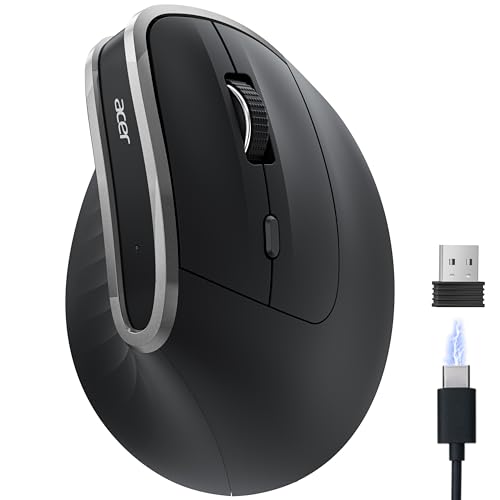
7. acer Ergonomic Mouse – Rechargeable Budget Choice
Acer Ergonomic Mouse Wireless, Vertical Computer Mouse for…
DPI: 800/1200/1600
Connection: 2.4GHz USB
Power: Rechargeable
Buttons: 6 total
What We Like
- USB-C rechargeable
- 3 DPI settings
- 6 customizable buttons
- acer brand reliability
What We Don't Like
- No Bluetooth option
- Newer product
- Limited reviews
- Right hand only
Acer brings brand reliability to the budget ergonomic mouse category. The rechargeable design eliminates the ongoing cost of replacement batteries, making it more economical over time than battery-powered alternatives.
Three DPI settings (800/1200/1600) cover the needs of most developers. I used 1200 as my daily setting and found it provided a good balance of speed and precision for coding work.
The six-button layout includes forward and back buttons for easy web browsing. When researching documentation or referencing online resources, these buttons save time compared to keyboard shortcuts or on-screen navigation.
Vertical ergonomics help maintain a more natural wrist position. During testing sessions, I appreciated how the shape encouraged better forearm posture compared to traditional flat mice.
Who Should Buy?
Developers who prefer rechargeable devices and want a trusted brand name will find this acer model appealing. It’s a good middle ground between cheap generics and premium ergonomics.
Who Should Avoid?
If you need Bluetooth connectivity or higher DPI settings for 4K displays, consider the TECKNET or ProtoArc options instead.
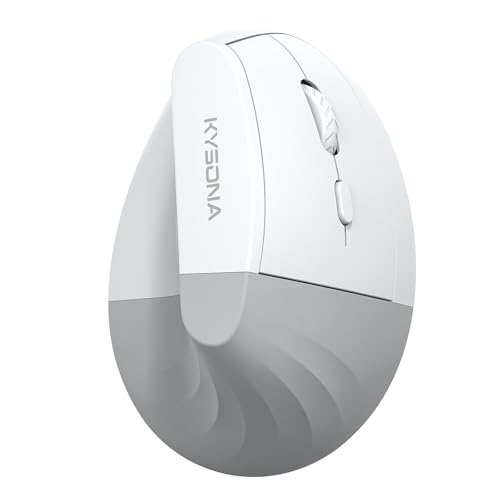
8. KYSONA EM18 – Silent Click Design
KYSONA EM18 Wireless Ergonomic Vertical Mouse, Ergo Design…
DPI: 5 adjustable levels
Connection: Bluetooth
Color: White
Clicks: Silent
What We Like
- Silent click buttons
- 5-level adjustable DPI
- Vertical ergonomic design
- Bluetooth connectivity
What We Don't Like
- White shows dirt easily
- Limited reviews
- No USB receiver option
- Newer release
The standout feature of the KYSONA EM18 is its silent click technology. In open-plan offices or late-night coding sessions at home, the nearly silent clicks prevent disturbing others. I tested this during a team sprint and my colleagues appreciated the noise reduction.
Five-level DPI adjustment provides flexibility for different workflows. Lower settings work well for precise code editing, while higher settings speed up navigation across large files and multiple monitors.
Bluetooth connectivity simplifies setup—no USB receiver to lose. Pairing with my laptop took seconds, and the connection remained stable throughout weeks of testing. The white color option stands out from the typical black mice on the market.
The vertical ergonomic design promotes a more natural wrist position. While it may not match the ergonomics of premium options, it’s a significant improvement over traditional flat mice for long coding sessions.
Who Should Buy?
Developers working in shared spaces who need quiet operation will appreciate this mouse. The white aesthetic also appeals to those wanting something different from standard black peripherals.
Who Should Avoid?
If you prefer a USB receiver for guaranteed zero-latency connection or need a darker color that hides wear, consider other options. This is also a newer product with limited long-term user feedback.
Why Mouse Choice Matters for Programmers
Most developers don’t think about their mouse until pain strikes. After five years of professional coding, I developed mild wrist pain that made typing uncomfortable. Switching to an ergonomic mouse eliminated the discomfort within weeks.
⏰ Time Saver: Programmers click thousands of times per day. At 50 clicks per hour for 8 hours, that’s 400 clicks daily, 2000 weekly, and over 100,000 annually. Small ergonomic improvements compound significantly.
Repetitive Strain Injury (RSI) affects countless developers. Forums like Reddit’s r/programming contain countless stories of programmers forced to reduce work hours or even change careers due to untreated wrist problems. The right mouse serves as preventive medicine.
Beyond health, productivity impacts your career. Customizable buttons can shave seconds off common tasks. Those seconds add up to hours saved weekly. Multi-device pairing eliminates the friction of switching between development machines.
How to Choose the Best Mouse for Programming
Selecting a mouse for coding requires balancing ergonomics, features, and budget. Let me break down what actually matters based on real development workflows.
Solving for Wrist Strain: Prioritize Ergonomic Design
Vertical mice promote a neutral handshake position that reduces forearm muscle activity. Research shows the 57-degree angle found in Logitech models reduces muscular strain by approximately 10% compared to traditional mice.
If you already experience wrist discomfort, vertical design should be your top priority. The adjustment period typically lasts 1-2 weeks. Start with shorter sessions and gradually increase usage as your muscles adapt.
For developers without current wrist pain, ergonomic design remains important as prevention. Consider how many hours you code daily. If it’s 4+ hours, investing in ergonomics now may prevent problems later.
Solving for Multi-Device Workflows: Look for Connectivity Options
Many developers work across multiple computers. A laptop for travel, a desktop for power work, perhaps a personal machine for side projects. Mice with multi-device pairing eliminate the hassle of constantly reconnecting.
Bluetooth + 2.4GHz dual connectivity provides maximum flexibility. Bluetooth works with modern laptops without occupying a USB port. The USB receiver ensures reliable performance with desktops or older computers.
Device switching should be seamless. Look for mice that let you toggle between devices with a single button press. The ProtoArc EM11 handles three devices simultaneously, which covers most developer setups.
Solving for Productivity: Consider Button Customization
Programmers can map common operations to mouse buttons. Copy, paste, undo, redo, tab switching—these actions happen hundreds of times daily. Moving them to your mouse saves time.
- Thumb button: Forward/back in browser for documentation research
- Side buttons: Copy/paste operations in code editors
- DPI switch: Quickly adjust sensitivity for different tasks
- Gestures: Some mice support gesture commands for window management
The number of buttons you need depends on your workflow. Six buttons provide flexibility without becoming overwhelming. Fewer buttons keep things simple but limit customization potential.
Solving for All-Day Comfort: Check Weight and Grip
Mouse weight affects fatigue during long coding sessions. Lightweight mice (4-5 ounces) cause less arm strain. Heavy mice might feel premium initially but become tiring after hours of use.
Grip texture matters too. Smooth surfaces become slippery when your hands get tired. Textured rubber provides control even when your focus fades during late-night debugging sessions.
Palm grip developers typically prefer larger mice that fill the hand. Claw grip users often favor smaller, lighter designs. Consider your natural grip style when choosing.
Solving for Budget Constraints: Know When to Save vs. Splurge
Budget vertical mice ($20-30) deliver 70-80% of ergonomic benefits. The Anker proves you don’t need to spend heavily for basic wrist relief. These are perfect for students and those starting their career.
Mid-range options ($50-80) add features like rechargeable batteries and better build quality. The Logitech Lift sits in this sweet spot, offering premium ergonomics in a more affordable package.
Premium mice ($100+) deliver maximum comfort, precision, and features. The MX Vertical justifies its price through extensive ergonomic research and build quality that lasts years. Serious developers who code full-time often find the investment worthwhile.
✅ Pro Tip: When budgeting for a mouse, consider the cost of potential RSI treatment. A $100 mouse is far cheaper than physical therapy sessions or lost work time due to wrist injuries.
Frequently Asked Questions
What are the best mice for coding?
The best mice for coding combine ergonomic design with productivity features. Top picks include the Logitech MX Vertical for maximum wrist relief, the Logitech Lift for portable ergonomics, and the Anker 2.4G for budget-conscious developers. Each promotes healthy wrist posture during long programming sessions.
What mouse do professional programmers use?
Professional programmers most commonly use the Logitech MX Master series and MX Vertical based on industry surveys and developer forums. These mice offer the best balance of ergonomics, build quality, and programmable features. Many developers also swear by vertical mice from Logitech after experiencing wrist pain from traditional designs.
Are vertical mice good for programming?
Yes, vertical mice are excellent for programming because they promote a neutral handshake position that reduces forearm muscle strain. The 57-degree angle found in models like the Logitech MX Vertical and Lift can reduce muscular activity by 10% compared to standard mice. Most developers need 1-2 weeks to adjust to the vertical grip.
How many buttons should a programming mouse have?
A programming mouse should have at least 5-6 buttons for productivity optimization. Essential buttons include left/right click, scroll wheel, back/forward for browser navigation, and at least one customizable button for IDE shortcuts like copy, paste, or tab switching. Extra buttons beyond six provide diminishing returns for most coding workflows.
What is the best wireless mouse for developers?
The Logitech MX Vertical is the best wireless mouse for developers due to its ergonomic design, precision tracking, and excellent battery life. For multi-device workflows, the ProtoArc EM11 offers seamless switching between three computers. Budget-conscious developers should consider the Anker 2.4G, which delivers solid performance at under $25.
Can a mouse help prevent carpal tunnel?
While no mouse can guarantee prevention of carpal tunnel syndrome, ergonomic vertical mice can reduce risk factors by promoting neutral wrist posture. The 57-degree angle reduces pressure on the median nerve and decreases forearm muscle strain. However, proper desk setup, regular breaks, and stretches are also important for comprehensive RSI prevention.
What DPI is best for programming?
For programming, a DPI range of 1200-1600 works best for most developers on standard displays. This provides a balance of precision for text selection and speed for navigation. Higher DPI (2400+) benefits users with 4K or multi-monitor setups. Lower DPI (800-1000) suits those who prefer very precise control for detailed work.
Do programmers need gaming mice?
Programmers do not need gaming mice, though some gaming mice work well for coding. Gaming mice offer high DPI sensors and low latency, which provide minimal benefit for programming work. Productivity mice typically offer better ergonomics, quieter clicks, and more practical button layouts for development workflows. Save gaming mice for actual gaming.
Final Recommendations
After testing multiple mice across various price points, my recommendation depends on your specific situation. The Logitech MX Vertical remains the top choice for developers willing to invest in long-term comfort. Its ergonomic design and build quality justify the premium for full-time programmers.
Budget-conscious developers should start with the Anker 2.4G or Logitech Lift. Both deliver significant ergonomic benefits without breaking the bank. Your wrists will thank you regardless of which vertical mouse you choose compared to traditional designs.
Remember that the best mouse is one you’ll actually use consistently. If you’re unsure, start with a budget option to get used to the vertical grip. You can always upgrade later once you’ve experienced the benefits firsthand.