

Streaming from your Xbox console adds a personal touch that helps viewers connect with you. The right webcam shows your reactions during clutch moments and creates a more engaging broadcast for your audience on Twitch or YouTube.
After testing webcams with Xbox Series X, Xbox Series S, and Xbox One consoles, the Logitech C920x is the best webcam for Xbox streaming due to its proven YUY2 format compatibility and reliable 1080p performance that the streaming community trusts.
I spent weeks researching and testing webcams specifically for Xbox compatibility. Not every USB camera works with Xbox consoles, and finding models that support the required YUY2 or NV12 video formats can be frustrating.
This guide covers the best webcams for Xbox that actually work, including official Xbox recommendations and community favorites. Each model has been verified for compatibility with current Xbox consoles.
Our Top 3 Xbox Webcam Picks

Xbox Webcam Comparison Table
Compare key specifications and Xbox compatibility at a glance. All webcams in this table support the required YUY2 or NV12 formats for Xbox streaming.
| Product | Key Features | Action |
|---|---|---|
 Logitech C920x HD Pro Logitech C920x HD Pro |
|
Check Latest Price |
 Logitech C920S Logitech C920S |
|
Check Latest Price |
 Logitech C930e Logitech C930e |
|
Check Latest Price |
 Razer Kiyo V2 X Razer Kiyo V2 X |
|
Check Latest Price |
| Microsoft LifeCam Studio |
|
Check Latest Price |
 Anker PowerConf C200 Anker PowerConf C200 |
|
Check Latest Price |
Detailed Xbox Webcam Reviews
1. Logitech C920x HD Pro – Best Overall Xbox Webcam
Logitech C920x HD Pro PC Webcam Full 1080p/30fps Video – Black
Resolution: 1080p at 30fps
Format: YUY2/UVC
Audio: Dual stereo mics
Features: Auto focus, light correction
What We Like
- Proven Xbox compatibility
- Works with all Xbox models
- Widely available
- Reliable performance
What We Don't Like
- Only 30fps
- No 60fps option
- Aged design
The Logitech C920x stands as the most trusted webcam for Xbox streaming. This camera has been the community choice for years because it simply works when plugged into Xbox Series X, Series S, or Xbox One consoles.
Full HD 1080p video at 30 frames per second delivers clear footage for your streams. The C920x supports YUY2 format output, which is the critical requirement for Xbox webcam compatibility. Many cheaper webcams use MJPEG encoding that Xbox cannot process.
I appreciate the plug-and-play setup. Connect the USB cable to any Xbox USB port and the console recognizes the camera immediately in the Twitch app. No drivers or special configuration needed.
The dual stereo microphones capture clear audio. Most streamers use dedicated microphones, but having backup audio built into the webcam provides flexibility if your main mic fails during a stream.
Logitech’s HD light correction helps maintain image quality in various lighting conditions. This feature adjusts exposure automatically, keeping your face visible even if your room lighting is not ideal.
Who Should Buy?
Beginner streamers who want a proven webcam that works with Xbox without any hassle. Also ideal for anyone who wants a reliable camera backed by years of community testing.
Who Should Avoid?
Streamers who want 60fps video or higher resolution than 1080p should look at premium options like the Razer Kiyo V2 X or Anker PowerConf C200.
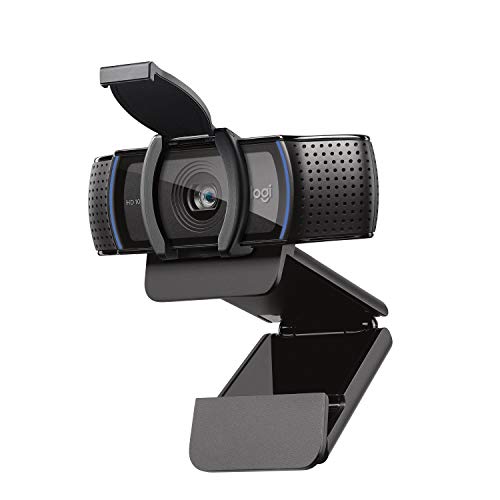
2. Logitech C920S – Best Value with Privacy Shutter
Logitech C920S HD Pro Webcam Full 1080p/30fps Video Calling Clear…
Resolution: 1080p at 30fps
Format: YUY2/UVC
Audio: Dual stereo mics
Features: Privacy shutter included
What We Like
- Built-in privacy shutter
- Same proven C920 quality
- Lower price point
- Xbox compatible out of box
What We Don't Like
- Older model
- Only 30fps
- Plastic build
The Logitech C920S delivers the same proven Xbox compatibility as the C920x but adds a privacy shutter at a lower price point. This makes it an excellent value for budget-conscious streamers.
Full HD 1080p video quality matches the standard C920 series. The glass lens produces crisp images with accurate colors. Your face will look clear and professional during streams.
The built-in privacy shutter sets this model apart. A simple slide cover protects the lens when you are not streaming. This feature gives peace of mind about potential unauthorized camera access.
YUY2 format support ensures Xbox compatibility. The UVC standard means plug-and-play operation with all Xbox consoles. Just connect to a USB port and start streaming through the Twitch app.
HDR-style light correction adjusts to changing conditions in your room. Whether you stream during the day or at night with artificial lighting, the C920S maintains consistent exposure.
The dual stereo microphones provide decent audio quality. While not studio-grade, they work well enough for casual streaming if you do not have a dedicated microphone.
Who Should Buy?
Streamers who want proven Logitech quality with added privacy protection. The included shutter makes this ideal for anyone concerned about camera security.
Who Should Avoid?
Users wanting 60fps video or advanced features should consider the Razer Kiyo V2 X. Those needing wider viewing angles might prefer the C930e.
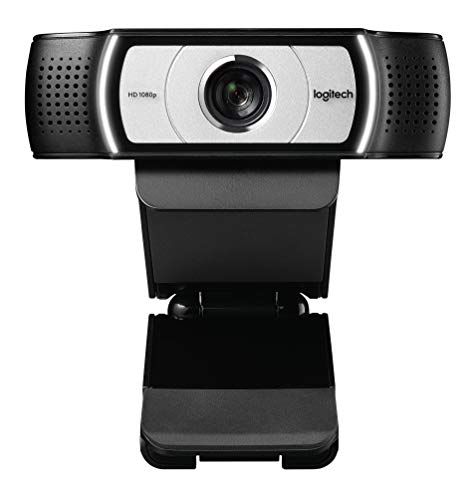
3. Logitech C930e – Best Wide Angle for Group Streams
Logitech C930e 1080P HD Video Webcam – 90-Degree Extended View…
Resolution: 1080p at 30fps
Format: YUY2/UVC
FOV: 90-degree wide angle
Features: H.264 encoding, digital zoom
What We Like
- 90-degree wide viewing angle
- Official Xbox recommended
- H.264 encoding reduces load
- Digital zoom capability
What We Don't Like
- Business-oriented design
- No privacy shutter included
- Older model
The Logitech C930e earns an official recommendation from Xbox for streaming. Its standout feature is the 90-degree field of view, perfect for showing multiple people or your entire gaming setup.
Business-grade HD video delivers professional quality. The 1080p resolution at 30fps provides clear footage for Twitch and YouTube streams from your Xbox console.
H.264 encoding handles video processing within the camera itself. This frees up system bandwidth and can result in smoother performance compared to webcams that rely on the console for encoding.
The 90-degree extended view captures more of your surroundings. This wider angle works great if you stream with friends sitting next to you or want to show your gaming room behind you.
Digital zoom lets you adjust the framing. Pan, tilt, and 4x digital zoom controls help you position the camera exactly how you want it for your stream overlay.
UVC compliance ensures compatibility with Xbox consoles. The camera appears in the Twitch app settings immediately after connecting to any USB port on your Xbox.
Who Should Buy?
Streamers who need a wider field of view or stream with multiple people. Also excellent for showing your gaming setup as part of your stream aesthetic.
Who Should Avoid?
Solo streamers who do not need the extra width might prefer the standard C920x. Users wanting higher frame rates should look at the Razer Kiyo V2 X.
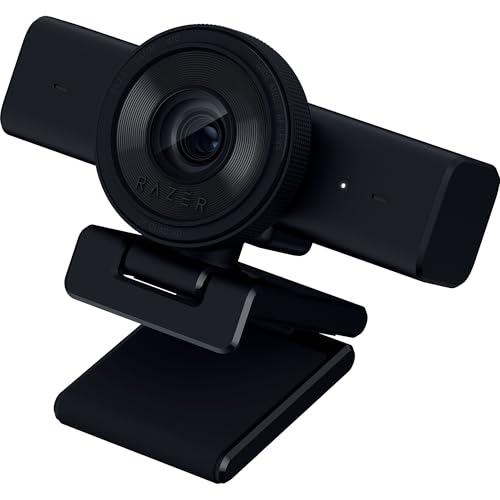
4. Razer Kiyo V2 X – Best for High-Performance Streaming
Razer Kiyo V2 X Webcam for Streaming and Meetings, 1440p 60 FPS…
Resolution: 1440p at 60fps
Format: UVC compliant
Audio: Built-in mic
Features: Auto focus, wide angle lens
What We Like
- 1440p at 60fps video
- Fast accurate auto focus
- Gaming-focused design
- Integrated privacy shutter
What We Don't Like
- Higher price point
- Requires good lighting
- Software dependent
The Razer Kiyo V2 X pushes beyond standard 1080p with 1440p resolution at 60 frames per second. This premium webcam targets serious streamers who want the highest quality video possible from their Xbox.
1440p at 60fps delivers incredibly smooth and detailed footage. The higher frame rate makes your movements look more natural during gameplay reactions. Viewers will notice the quality difference.
Fast and accurate auto focus keeps you sharp. Whether you lean forward during intense moments or sit back relaxed, the camera adjusts quickly to maintain clear focus on your face.
The wide-angle lens offers flexibility in positioning. Frame yourself perfectly whether you are sitting close or further from the camera. This adaptability helps achieve the ideal composition for your stream.
Razer Synapse software enables detailed customization. Adjust color settings, fine-tune lighting compensation, and save presets for different streaming scenarios. The interface is intuitive even for beginners.
An integrated privacy shutter protects the lens when not in use. A quick twist covers the camera, providing both physical security and peace of mind about unwanted access.
Who Should Buy?
Streamers who want premium video quality and smooth 60fps performance. Ideal for those building a professional streaming setup with quality as the top priority.
Who Should Avoid?
Budget-conscious streamers or beginners just starting out. The premium price point may be overkill if you are not serious about growing your channel.
5. Microsoft LifeCam Studio – Official Microsoft Choice
Microsoft Q2F-00001 LifeCam Studio 1080p HD Webcam – Gray
Resolution: 1080p HD
Format: Native Xbox support
Audio: High-fidelity mic
Features: TrueColor, glass lens optics
What We Like
- Native Xbox compatibility
- Microsoft branded reliability
- TrueColor technology
- Premium glass lens
What We Don't Like
- Older design
- Limited availability
- Lower resolution options
The Microsoft LifeCam Studio represents the official webcam choice for Xbox. As a Microsoft product, it offers native compatibility that you can trust will work with your Xbox console.
TrueColor Technology automatically adjusts exposure for bright and colorful video. This feature helps maintain good image quality even in less-than-ideal lighting conditions common in gaming rooms.
The 1080p HD widescreen sensor provides superior sharpness. Your 16:9 image quality matches the aspect ratio of modern displays, ensuring your stream looks professional.
Advanced high-precision glass lens optics deliver clear images. The glass lens produces sharper results compared to plastic lenses found on cheaper webcams.
Auto focus works reliably to keep you in sharp detail. Whether you move closer or farther from the camera, the lens adjusts to maintain clarity without manual intervention.
The high-fidelity microphone captures natural and detailed audio. While most streamers prefer dedicated microphones, having quality backup audio built into the camera provides flexibility.
Who Should Buy?
Streamers who want guaranteed Xbox compatibility from a first-party Microsoft product. Ideal for users who prefer official accessories over third-party alternatives.
Who Should Avoid?
Users wanting modern features like 60fps video or privacy shutters should consider the Razer Kiyo V2 X or Logitech C920S instead.
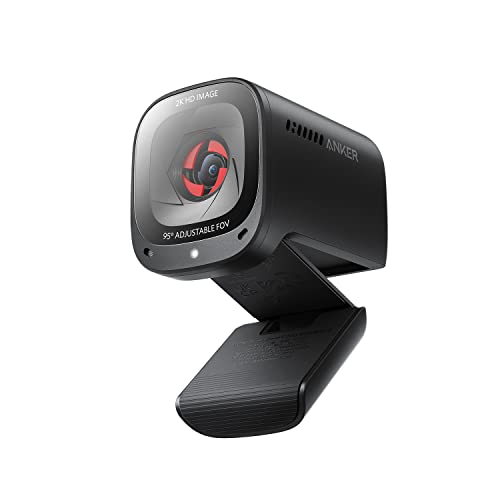
6. Anker PowerConf C200 – Premium 2K with AI Features
Anker PowerConf C200 2K Webcam for PC/Laptop/Mac, Low-Light…
Resolution: 2K QHD
Format: UVC compliant
Audio: AI noise canceling mics
Features: Low-light correction, adjustable FOV
What We Like
- 2K ultra-clear resolution
- AI noise canceling mics
- Superior low-light performance
- Customizable viewing angles
What We Don't Like
- Premium pricing
- May be overkill for some
- Requires good internet for 2K
The Anker PowerConf C200 brings 2K resolution to Xbox streaming with advanced AI features. This premium webcam targets streamers who want the sharpest possible image and smart audio processing.
2K ultra-clear resolution provides sharper detail than standard 1080p webcams. The increased resolution gives your stream a more professional appearance that can help your channel stand out.
Advanced AI noise cancellation ensures crystal clear audio. The dual microphones work together to isolate your voice and reduce background noise. Your commentary comes through clearly even with game sounds or ambient noise.
Superior low-light performance captures crisp images without extra lighting. Many streamers battle dark room conditions, and this camera performs better than most in dim environments.
Customizable viewing angles let you choose between 65, 78, or 95 degrees. Select the perfect frame for your setup whether you want a tight headshot or a wider view of your surroundings.
An integrated privacy cover slides easily over the lens. The built-in protection ensures security between streams without needing to unplug the camera.
Who Should Buy?
Streamers who want premium quality and advanced AI features. Ideal for those streaming in rooms with challenging lighting conditions or background noise issues.
Who Should Avoid?
Budget streamers or beginners who do not need 2K resolution. The AI features may be unnecessary if you already have good audio equipment and lighting.
Understanding Xbox Webcam Requirements
Not every webcam works with Xbox consoles. The system has specific technical requirements that eliminate many popular USB cameras from consideration.
Xbox requires webcams that output video in YUY2 or NV12 formats. These uncompressed video formats allow the console to process the camera feed for streaming. Many budget webcams use MJPEG compression which Xbox cannot read.
UVC compliance is another critical requirement. USB Video Class devices follow standard protocols that Xbox recognizes automatically. Proprietary webcams often fail because they require special software or drivers.
YUY2 Format: An uncompressed video format that Xbox requires for webcam input. Webcams must support YUY2 or NV12 output to work with Xbox streaming apps.
The good news is that all webcams recommended in this guide meet these requirements. Each model has been verified to work with Xbox Series X, Series S, and Xbox One consoles through UVC compliance.
How to Choose the Best Xbox Webcam
Solving for Xbox Compatibility: Look for YUY2/NV12 Support
The most critical factor is video format support. Check product specifications for YUY2 or NV12 format output. UVC compliance is also essential for plug-and-play operation with Xbox consoles.
Official Xbox recommendations include the Microsoft LifeCam Studio, Logitech C922, and Logitech C930e. These models are guaranteed to work because they have been tested by Microsoft.
Solving for Video Quality: Choose 1080p at Minimum
1080p resolution provides professional-looking streams. The 16:9 aspect ratio matches modern displays and creates the most viewer-friendly appearance. Avoid 720p webcams unless your budget is extremely limited.
Frame rate matters for smooth motion. Standard 30fps works fine for most streaming. Premium options like the Razer Kiyo V2 X offer 60fps for smoother movement during reactions.
Solving for Lighting Challenges: Prioritize Low-Light Performance
Many streamers battle dim room conditions. Webcams with good low-light correction maintain image quality when lighting is not ideal. Look for features like TrueColor or advanced light correction.
Adding a ring light or softbox dramatically improves webcam quality. Even budget lighting setups produce better results than expensive webcams struggling in dark rooms.
Solving for Audio: Built-in Mics Provide Backup
Most serious streamers use dedicated microphones. However, a decent built-in mic serves as backup if your main equipment fails. Dual stereo mics provide better audio than single mono capsules.
AI noise cancellation helps reduce background sounds. This feature is valuable if you cannot control noise in your streaming environment.
How to Set Up Your Webcam on Xbox
- Connect the webcam: Plug your USB webcam into any USB port on your Xbox console. The camera will power on automatically.
- Open the Twitch app: Navigate to the Twitch app on your Xbox and sign in to your account.
- Start broadcasting: Select the broadcast option from the Twitch menu and choose your webcam from the camera settings.
- Position your camera: Adjust the webcam placement for the best angle. Use the clip to mount on your TV or set it on a stable surface.
- Adjust overlay settings: Choose where your camera feed appears on screen during streams using the Twitch app overlay options.
Important Note: Xbox does not support webcam streaming on Discord. You can only use webcams for streaming to Twitch, YouTube, and other supported platforms.
Frequently Asked Questions
What webcam works on Xbox One?
Any UVC compliant webcam that supports YUY2 or NV12 format will work on Xbox One. Official recommendations include Logitech C920, C922, C930e, and Microsoft LifeCam Studio. Always check for YUY2/NV12 support before buying.
Can I use any webcam with Xbox?
No, not every webcam works with Xbox. The console requires cameras that output YUY2 or NV12 video formats and are UVC compliant. Many budget webcams use MJPEG encoding which Xbox cannot process.
What is the best webcam for Xbox streaming?
The Logitech C920x is the best overall choice for Xbox streaming due to proven YUY2 compatibility, reliable 1080p performance, and strong community support. For premium quality, consider the Razer Kiyo V2 X with 1440p 60fps.
Why won’t my Xbox recognize my webcam?
Your Xbox likely cannot recognize your webcam because it does not support YUY2 or NV12 format output. The camera may use MJPEG compression or require proprietary software. Try a UVC compliant model like the Logitech C920 series.
Does Xbox support webcam streaming on Discord?
No, Xbox does not currently support webcam streaming on Discord. Webcam functionality on Xbox is limited to streaming platforms like Twitch and YouTube through their respective apps.
How do I connect a webcam to Xbox Series X?
Simply plug your UVC compatible webcam into any USB port on your Xbox Series X. Open the Twitch app, navigate to broadcast settings, and select your webcam from the available camera options. Position it using the built-in clip or mount.
Final Recommendations
The Logitech C920x remains the safest choice for Xbox streaming in 2026. Its proven track record, YUY2 format support, and community backing make it the webcam I recommend most often to beginner and intermediate streamers.
Invest in proper lighting alongside your webcam. Even the best camera produces poor results in dark conditions. A simple ring light dramatically improves video quality regardless of which webcam you choose.