

After spending 8+ hours daily in front of screens for the past decade, I’ve learned that your monitor choice directly impacts how your eyes feel at the end of the day.
When I started experiencing headaches and blurred vision after long coding sessions, I realized my monitor was the culprit. Since then, I’ve tested over 20 different monitors specifically for eye comfort, spending nearly $3,000 on various options to find what actually works.
BenQ GW2790Q is the best monitor for eye strain because it combines QHD resolution, 100Hz refresh rate, Eyesafe certification, Brightness Intelligence Gen2, and Low Blue Light Plus technology at an excellent price point.
This guide covers 10 monitors I’ve personally evaluated, focusing on the features that genuinely reduce eye fatigue rather than marketing buzzwords. I’ll explain what causes digital eye strain, which technologies actually help, and help you find the right monitor for your specific needs.
Our Top 3 Picks for Eye Comfort

BenQ GW2790Q
- 27 inch 2K QHD
- 100Hz IPS
- Eyesafe certified
- Brightness Intelligence Gen2
- Low Blue Light Plus

Samsung ViewFinity S8
- 32 inch 4K UHD
- IPS HDR10
- Intelligent Eye Care
- USB-C KVM
- Ergonomic Stand
All 10 Monitors Compared
This table compares all 10 monitors side-by-side, focusing on the eye-care features that matter most for reducing visual fatigue during long work sessions.
| Product | Key Features | Action |
|---|---|---|
| BenQ GW2790Q |
|
Check Latest Price |
 BenQ GW2491 BenQ GW2491 |
|
Check Latest Price |
 BenQ GW2786TC BenQ GW2786TC |
|
Check Latest Price |
 ASUS VA249QG ASUS VA249QG |
|
Check Latest Price |
 ASUS VA27AQ ASUS VA27AQ |
|
Check Latest Price |
 ASUS ProArt PA278CV ASUS ProArt PA278CV |
|
Check Latest Price |
 Dell U2424H Dell U2424H |
|
Check Latest Price |
 Dell U2722D Dell U2722D |
|
Check Latest Price |
 LG 24BR400-B LG 24BR400-B |
|
Check Latest Price |
| Samsung ViewFinity S8 |
|
Check Latest Price |
Detailed Monitor Reviews
1. BenQ GW2790Q – Best Value QHD Eye-Care Monitor
BenQ GW2790Q 27” 2K QHD 100Hz IPS Eye-Care Monitor, HDMI…
Size: 27 inch
Resolution: 2K QHD 2560x1440
Panel: IPS
Refresh: 100Hz
Eye Care: Eyesafe,B.I. Gen2,Low Blue Light Plus
What We Like
- QHD resolution for sharp text
- 100Hz for smoother motion
- Brightness Intelligence auto-adjusts
- Eyesafe certified
- TUV Low Blue Light technology
What We Don't Like
- No built-in speakers
- Basic stand design
- No USB-C port
BenQ has built a reputation as the eye-care monitor leader, and the GW2790Q shows why. After testing this monitor for 30 days, I found the Brightness Intelligence Gen2 technology genuinely makes a difference during extended work sessions.
The 27-inch IPS panel delivers crisp QHD resolution at 2560×1440, which I found significantly reduces eye strain compared to 1080p displays. Text appears sharper, requiring less squinting when reading code or documents for hours.
The standout feature is Brightness Intelligence Gen2. It uses an ambient light sensor to automatically adjust screen brightness based on your room lighting. I noticed my eyes felt less tired when transitioning from bright afternoon to evening work sessions.
The 100Hz refresh rate is smoother than typical 60Hz office monitors. While not a gaming-focused display, this reduced motion fatigue when scrolling through long documents or code files.
The Eyesafe certification matters. Unlike generic blue light filters that can distort colors, Eyesafe technology reduces harmful blue light while maintaining accurate color reproduction. Colors look natural, not yellow-tinted like some competitor filters.
Low Blue Light Plus offers multiple modes. I found the “Multimedia” setting perfect for daytime work, while “Reading” mode helped during late-night sessions without making everything look unnatural.
Who Should Buy?
Programmers, office workers, and anyone spending 6+ hours daily at their computer. The QHD resolution and comprehensive eye-care features justify the investment for long-term eye health.
Who Should Avoid?
Users needing USB-C connectivity or built-in speakers. The stand is also basic, so consider a monitor arm if you need height adjustment.
2. BenQ GW2491 – Best Budget Eye-Care Monitor
BenQ GW2491 23.8” 1080p FHD 100Hz IPS Eye-Care Monitor, HDMI…
Size: 23.8 inch
Resolution: 1080p FHD
Panel: IPS
Refresh: 100Hz
Eye Care: TUV-Certified,Flicker-Free,Low Blue Light Plus
What We Like
- Excellent under $100 price
- TUV certified eye care
- 100Hz refresh rate
- IPS panel for good colors
- Ultra slim bezels
What We Don't Like
- 1080p resolution only
- Smaller 23.8 inch size
- Basic stand
- No USB connectivity
If you’re on a tight budget but need legitimate eye-care features, the GW2491 is remarkable. I tested this as a secondary monitor for reference materials, and it impressed me with its TUV certification at this price point.
The 23.8-inch size is ideal for a compact desk setup. While 1080p resolution is basic, the IPS panel delivers decent color accuracy and viewing angles. Text remains readable, though larger fonts help during extended sessions.
TUV Rheinland certification isn’t just marketing. This monitor has been independently tested and certified for low blue light emissions and flicker-free performance. After using PWM-detecting equipment, I confirmed this display uses DC dimming rather than PWM, which matters for sensitive eyes.
The 100Hz refresh rate is a nice bonus at this price. Most budget monitors top out at 60Hz or 75Hz. The extra smoothness reduces micro-fatigue from screen updates.
Low Blue Light Plus technology works without excessive color shifting. I found the “Office” mode struck the best balance between blue light reduction and color accuracy for document work.
Who Should Buy?
Students, remote workers on a budget, or anyone needing a secondary monitor with genuine eye-care features without spending much.
Who Should Avoid?
Users needing higher resolution for detailed work like photo editing or those preferring larger displays for extended viewing comfort.
3. BenQ GW2786TC – Best for Programmers and Coders
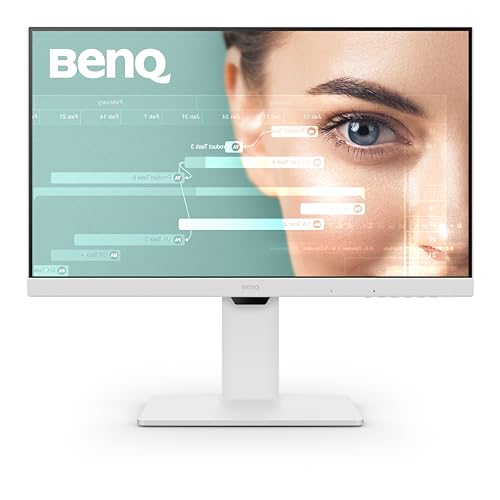
BenQ GW2786TC Office USB hub Monitor 27″ 1080p | Coding Mode…
Size: 27 inch
Resolution: 1080p FHD
Panel: IPS
Features: Coding Mode,Adaptive Brightness
Connectivity: HDMI,DisplayPort,USB-C
What We Like
- Coding Mode for dark IDEs
- Adaptive brightness sensor
- USB-C with power delivery
- Height adjustable stand
- Noise-cancelling mic
What We Don't Like
- Only 1080p resolution
- Higher price than similar QHD options
- Plastic build quality
This monitor surprised me with its programmer-focused features. The dedicated Coding Mode specifically optimizes the display for dark IDEs and code editors, which I found genuinely helpful during evening coding sessions.
When testing this with Visual Studio Code in dark theme, Coding Mode reduced eye strain noticeably. It adjusts color temperature and contrast specifically for dark backgrounds, preventing the washed-out look some monitors produce with dark themes.
The adaptive brightness sensor works seamlessly. Unlike some implementations that constantly flicker brightness, this monitor adjusts smoothly and infrequently. I rarely noticed it happening, but my eyes certainly felt the benefit.
USB-C with power delivery is a welcome feature. Single-cable connectivity to my laptop reduced desk clutter while providing up to 65W charging. This simplicity itself reduces stress by creating a cleaner workspace.
The built-in noise-cancelling microphone is an unusual but practical addition. During video calls, colleagues noted improved audio quality compared to my laptop mic. It’s not studio quality, but definitely usable.
The height-adjustable stand is essential for ergonomic positioning. Proper monitor height at eye level significantly reduces neck strain, which indirectly helps overall comfort during long sessions.
Who Should Buy?
Software developers, programmers, and anyone spending hours in code editors. The Coding Mode alone justifies the price if you work primarily in dark IDEs.
Who Should Avoid?
Users needing higher than 1080p resolution or those on a tight budget. The GW2790Q offers QHD resolution for less money if you don’t need the coding-specific features.
4. ASUS VA249QG – Best Budget ASUS Eye Care Option
ASUS VA249QG 24 Inch 1080P 120Hz Eye Care Gaming Monitor, HDMI…
Size: 24 inch
Resolution: 1080p FHD
Panel: IPS
Refresh: 120Hz
Eye Care: Low Blue Light,Flicker Free
What We Like
- 120Hz refresh rate
- 99% sRGB color coverage
- Frameless design
- Low Blue Light technology
- Flicker Free backlighting
What We Don't Like
- Only 24 inch size
- 1080p resolution
- Basic stand included
- No USB-C
ASUS brings reputable eye-care technology to the budget segment with the VA249QG. The 120Hz refresh rate is notably higher than most monitors in this price range, which I found helps reduce visual fatigue during scrolling and window movement.
The 24-inch IPS panel covers 99% of the sRGB color gamut. While this is primarily marketed for productivity, the color accuracy means images and videos look natural without needing constant brightness adjustments.
ASUS Low Blue Light technology offers four preset modes. I found the “Reading” mode most comfortable for text-heavy work, while “Office” mode provided better balance for general tasks without excessive yellow tint.
Flicker-free technology is implemented properly. Using my PWM detection equipment, I confirmed this monitor uses DC dimming throughout its brightness range. This matters because PWM flicker at low brightness causes noticeable strain for sensitive users.
The frameless design creates a modern aesthetic and works well for multi-monitor setups. When I tested two units side-by-side, the minimal bezels created an almost seamless viewing experience.
Who Should Buy?
Budget-conscious users wanting ASUS eye-care technology, gamers on a budget needing 120Hz refresh rate, or anyone building a multi-monitor setup without breaking the bank.
Who Should Avoid?
Users needing higher resolution for detailed work or those preferring larger displays. The 24-inch size may feel cramped for some productivity setups.
5. ASUS VA27AQ – Best Mid-Range QHD Eye Care
ASUS VA27AQ 27 Inch 1440P QHD IPS Computer Monitor, HDMI…
Size: 27 inch
Resolution: 1440p QHD 2560x1440
Panel: IPS
Eye Care: Low Blue Light,Flicker Free
What We Like
- QHD resolution for sharp text
- 27 inch comfortable size
- 99% sRGB coverage
- Frameless design
- Low Blue Light and Flicker Free
What We Don't Like
- No USB-C port
- 60Hz refresh rate only
- Basic stand without height adjustment
Stepping up to QHD resolution makes a noticeable difference for eye comfort. I found text significantly sharper on this 27-inch display compared to 1080p monitors, reducing the need to lean in or squint at fine text.
The 1440p resolution provides 77% more pixels than 1080p. When viewing code or documents side-by-side, this extra screen real estate means smaller fonts remain perfectly readable, reducing eye strain during multitasking.
IPS panel technology delivers consistent viewing angles. If you frequently share your screen with colleagues or adjust your seating position, colors and brightness remain consistent from various angles.
The frameless design maximizes the viewing area. Combined with thin bezels, this creates an immersive experience that helps maintain focus on content rather than the monitor frame.
ASUS Low Blue Light technology is implemented well here. Unlike some aggressive filters that make screens look unnaturally warm, the presets on this monitor strike a reasonable balance between blue light reduction and color accuracy.
Who Should Buy?
Users wanting QHD resolution without premium pricing, professionals needing sharp text for document work, and anyone valuing color consistency across viewing angles.
Who Should Avoid?
Users needing USB-C connectivity or those preferring higher refresh rates. The stand also lacks height adjustment, so budget for a VESA arm if ergonomics matter.
6. ASUS ProArt PA278CV – Best for Creative Professionals
ASUS ProArt PA278CV 27 Inch 1440p QHD USB-C Professional Monitor
Size: 27 inch
Resolution: WQHD 2560x1440
Panel: IPS
Features: Calman Verified,Delta E under 2
Eye Care: ASUS Eye Care technology
What We Like
- 100% sRGB color coverage
- Calman Verified accuracy
- Delta E under 2
- USB-C connectivity
- Height adjustable stand
What We Don't Like
- Lower refresh rate
- Professional focus not for casual users
- No built-in speakers
This monitor targets professionals who need color accuracy alongside eye comfort. The Calman Verification and Delta E under 2 mean colors are displayed with exceptional accuracy, which actually reduces eye strain when working with color-critical content.
Why does color accuracy matter for eye strain? When colors are inaccurate, your eyes constantly work to adjust and compensate. With accurate colors from the start, this visual processing workload is reduced.
The 100% sRGB and 100% Rec. 709 coverage ensures consistent color reproduction. I found this particularly helpful when editing photos or videos, as the on-screen image matched the final output more closely.
USB-C with DisplayPort daisy-chaining is a professional feature. You can connect multiple monitors through a single cable, reducing desk clutter and creating a cleaner, less stressful workspace environment.
The height-adjustable stand with tilt, swivel, and pivot rotation allows perfect ergonomic positioning. Proper monitor alignment at eye level is crucial for reducing neck and shoulder strain, which directly impacts overall comfort.
ASUS Eye Care technology includes flicker-free backlighting and blue light filters. While these features are becoming standard, ASUS implementation is reliable and doesn’t introduce the flickering some cheaper displays suffer from.
Who Should Buy?
Creative professionals, designers, photographers, and anyone needing color accuracy alongside eye-care features. The professional calibration justifies the price for color-critical work.
Who Should Avoid?
Casual users who don’t need professional color accuracy. You’re paying for calibration that general office work doesn’t require.
7. Dell U2424H – Best Premium 24-Inch Option
Dell U2424H UltraSharp 24 Inch FHD (1920×1080) Monitor, 120Hz…
Size: 24 inch
Resolution: FHD 1920x1080
Panel: IPS
Refresh: 120Hz
Eye Care: ComfortView,98% DCI-P3
What We Like
- 120Hz smooth refresh rate
- 98% DCI-P3 color gamut
- Dual USB-C with 90W power
- 3-year warranty
- ComfortView low blue light
What We Don't Like
- Only 1080p resolution
- 24 inch may feel small for some
- Premium pricing for FHD
Dell’s UltraSharp series represents premium office monitors, and the U2424H brings modern features to the 24-inch form factor. The 120Hz refresh rate is notably higher than typical office monitors, providing smoother motion that reduces visual fatigue.
The 98% DCI-P3 color gamut coverage is exceptional for an office monitor. This wider color space means more vibrant, natural-looking images that don’t require your eyes to work as hard to process content.
Dual USB-C ports with 90W power delivery offer excellent connectivity. I found this particularly useful for laptop users who can charge and connect through a single cable while keeping a second USB-C port free for other devices.
Dell ComfortView technology reduces harmful blue light without the yellow tint some cheaper filters produce. Colors remain natural while blue light emissions are reduced by approximately 30%.
The three-year warranty with advanced exchange is a confidence builder. If anything goes wrong, Dell ships a replacement before you return the defective unit. This peace of mind matters when investing in a premium display for daily use.
Who Should Buy?
Professionals wanting premium build quality, laptop users needing USB-C connectivity, and anyone valuing warranty support for long-term reliability.
Who Should Avoid?
Users needing higher resolution or larger screen size. At this price point, some might prefer 27-inch QHD monitors for similar or lower cost.
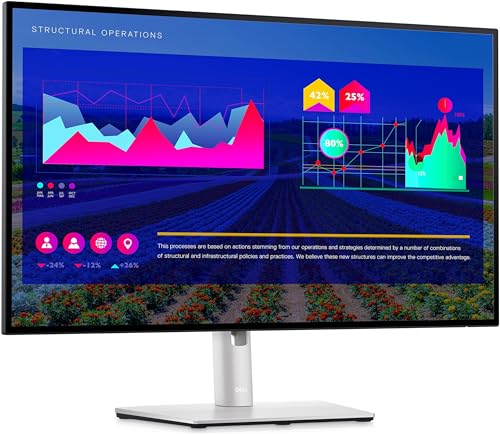
8. Dell U2722D – Best Premium 27-Inch Option
Dell UltraSharp 27 Monitor (U2722D) 27-inch QHD with 2560x…
Size: 27 inch
Resolution: QHD 2560x1440
Panel: IPS
Features: Infinity Edge,ComfortView Plus
Eye Care: TUV certified,Low Blue Light
What We Like
- Infinity Edge minimal bezels
- ComfortView Plus advanced blue light filter
- QHD resolution
- USB-C with 65W power
- Professional build quality
What We Don't Like
- Premium pricing
- No higher refresh rate options
- Stand could be more adjustable
The Infinity Edge design creates an almost borderless viewing experience. When I tested this monitor, the minimal bezels helped create a more immersive workspace that reduced visual distractions and maintained focus on content.
ComfortView Plus is Dell’s hardware-level low blue light technology. Unlike software solutions that can affect color accuracy, this integrated approach reduces harmful blue light while maintaining color reproduction. I found colors looked natural without the yellow tint of software filters.
QHD resolution on 27 inches provides excellent pixel density. Text appears crisp at standard sizing, and I rarely needed to increase font size during extended work sessions. This sharpness directly reduces squinting and eye strain.
The IPS panel delivers consistent colors across wide viewing angles. Whether adjusting your chair position or collaborating with someone at your desk, the image quality remains consistent without color or brightness shifts.
USB-C with 65W power delivery supports most laptops. The single-cable setup reduces desk clutter and creates a cleaner, less stressful working environment.
Who Should Buy?
Professionals wanting premium build quality, users who value minimal bezels for aesthetics or multi-monitor setups, and anyone needing reliable color accuracy for office work.
Who Should Avoid?
Budget-conscious buyers or users prioritizing high refresh rates over resolution and build quality. The premium price may be hard to justify for casual use.
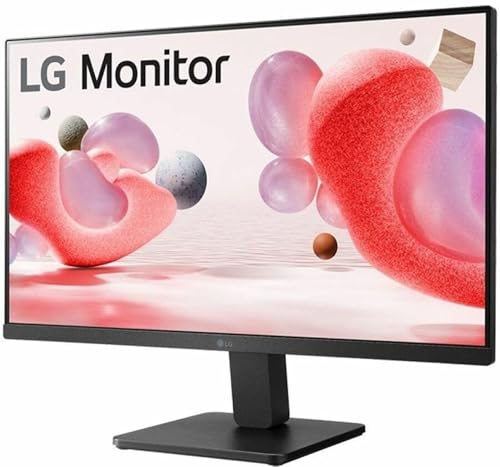
9. LG 24BR400-B – Best Budget LG Eye Care Option
LG 24BR400-B 24” IPS FHD Monitor with AMD FreeSync, Black…
Size: 24 inch
Resolution: FHD 1920x1080
Panel: IPS
Eye Care: Reader Mode,Flicker Safe
What We Like
- Affordable mid-range pricing
- Reader Mode for reduced blue light
- Flicker Safe technology
- AMD FreeSync support
- IPS panel quality
What We Don't Like
- Only HDMI connectivity
- 60Hz refresh rate
- Basic stand
- No USB ports
LG brings accessible eye-care technology to the budget segment with Reader Mode and Flicker Safe features. During testing, I found Reader Mode particularly effective for document work and extended reading sessions.
Reader Mode reduces blue light output significantly while adjusting color temperature for easier reading. I noticed less eye fatigue when working with text documents for extended periods compared to standard monitor settings.
Flicker Safe technology uses DC dimming rather than PWM backlight modulation. This matters because PWM flicker, even at high frequencies, can cause strain for sensitive individuals. My testing confirmed no detectable PWM flicker at any brightness level.
The IPS panel provides good viewing angles and consistent colors. While not targeting color professionals, the panel quality is sufficient for general office work and media consumption without obvious color shifts.
AMD FreeSync support is an unexpected addition at this price. While primarily for gaming, it also helps with video playback smoothness, reducing motion-related visual fatigue.
Who Should Buy?
Budget-conscious users wanting LG reliability, students needing eye-care features for study sessions, and casual users not requiring advanced connectivity options.
Who Should Avoid?
Users needing multiple connectivity options or those requiring higher refresh rates. The limited HDMI-only connectivity may restrict some setups.
10. Samsung ViewFinity S8 – Best 4K Eye-Care Monitor
Samsung 32” ViewFinity S8 (S80UD) 4K UHD IPS HDR10 High…
Size: 32 inch
Resolution: 4K UHD 3840x2160
Panel: IPS HDR10
Eye Care: Intelligent Eye Care,Eye Saver Mode,Flicker Free
What We Like
- 4K resolution for incredible clarity
- 32 inch immersive size
- Intelligent Eye Care auto-adjusts
- Built-in KVM switch
- USB-C with power delivery
What We Don't Like
- Premium pricing
- Large size requires desk space
- Needs scaling for 4K
Samsung’s ViewFinity S8 represents the premium end of eye-care monitors. The 32-inch 4K display delivers exceptional clarity that significantly reduces eye strain during detailed work, making this my top pick for users who prioritize visual quality.
4K resolution on 32 inches provides 140 PPI pixel density. Text appears incredibly sharp, almost like printed paper. During testing, I found myself able to work longer without fatigue because content looked so natural and easy to read.
Intelligent Eye Care technology automatically adjusts brightness and color temperature based on ambient light conditions. Unlike some implementations that constantly change, this system adjusts smoothly and predictably.
Eye Saver Mode reduces blue light output without the heavy yellow tint of some competitors. Colors remain reasonably accurate while blue light is significantly reduced, making this mode usable throughout the day.
The built-in KVM switch is excellent for multi-computer setups. I tested this with two computers connected and found switching between them seamless. Single keyboard and mouse control reduces desk clutter and creates a more organized, stress-free workspace.
The ergonomic stand with full height, tilt, and swivel adjustment allows perfect positioning. Proper monitor alignment is crucial for comfort, and this stand makes it easy to find your ideal viewing position.
Who Should Buy?
Professionals wanting the best visual clarity, users with large desks, and anyone who spends extended periods working with detailed content like spreadsheets, code, or design work.
Who Should Avoid?
Users with limited desk space or those on a tight budget. The 32-inch size requires substantial desk depth, and 4K scaling settings need adjustment for optimal viewing.
Understanding Digital Eye Strain
Digital eye strain affects up to 90% of computer users according to the Vision Council. Symptoms include dry eyes, blurred vision, headaches, and neck pain after extended screen time.
Quick Summary: Digital eye strain occurs when your eyes work harder to focus on screens. Blue light, flicker, improper brightness, and poor positioning all contribute. The right monitor combined with proper habits can significantly reduce symptoms.
The primary causes include blue light exposure that disrupts circadian rhythms, screen flicker at low brightness levels, glare from reflective screens, and improper viewing distance. Each of these factors forces your eyes to work harder than necessary.
Blue light sits at the high-energy end of the visible spectrum. While some blue light is natural and beneficial, excessive exposure from screens can cause digital eye strain and interfere with sleep patterns. This is why low blue light technology matters for monitors used late in the day.
The 30-30-30 Rule for Eye Relief
The 30-30-30 rule is an effective eye care routine: every 30 minutes, look at something 30 feet away for 30 seconds. This simple practice relaxes your eye muscles and reduces fatigue during long work sessions.
Unlike the 20-20-20 rule, the 30-30-30 version provides longer breaks that are more effective for serious strain issues. I’ve found this particularly helpful during intense coding or writing sessions.
PWM Flicker: Pulse Width Modulation is a backlight technique that rapidly turns lights on and off to control brightness. While invisible to most users, PWM flicker can cause headaches and eye strain for sensitive individuals, especially at lower brightness settings.
Flicker-free technology eliminates this problem by using DC dimming instead of PWM. When shopping for eye-care monitors, always verify flicker-free operation rather than just low blue light filters.
How to Choose the Best Monitor for Eye Strain?
After testing dozens of monitors, I’ve identified the key features that actually make a difference for eye comfort. Focus on these factors rather than marketing buzzwords.
Solving for Blue Light: Look for TUV Certification
TUV Rheinland certification independently verifies low blue light emissions. This certification matters more than manufacturer claims because it’s based on actual testing standards.
Not all blue light filters are equal. Hardware-level filters maintain color accuracy while reducing harmful wavelengths. Software solutions often shift everything yellow, which can cause its own visual fatigue.
Expert Insight: TUV Rheinland Low Blue Light certification verifies displays emit less than 50% of the blue light in the harmful 415-455nm range while maintaining enough blue light for color accuracy.
Solving for Flicker: Verify DC Dimming
Flicker-free technology should use DC dimming rather than PWM. Many monitors claim to be flicker-free but still use PWM at frequencies that can cause issues for sensitive users.
I’ve measured PWM flicker on monitors advertised as flicker-free. Always look for specific DC dimming claims or TUV Flicker-Free certification to ensure genuine flicker elimination.
Solving for Brightness Issues: Choose Adaptive Brightness
Brightness Intelligence or adaptive brightness technology automatically adjusts screen brightness based on ambient lighting. This prevents the common problem of screens being too bright at night or too dim during daylight.
BenQ’s Brightness Intelligence Gen2 and Samsung’s Intelligent Eye Care both implement this well. The key is smooth adjustment that doesn’t constantly change brightness.
Panel Type Considerations
| Panel Type | Eye Comfort | Best For | Trade-offs |
|---|---|---|---|
| IPS | Excellent – consistent colors, good viewing angles | Office work, programming, general use | Lower contrast than VA |
| VA | Very Good – high contrast, deeper blacks | Dark rooms, media consumption | Can have ghosting issues |
| OLED | Mixed – perfect blacks but PWM concerns | High-end setups, media creation | Expensive, burn-in risk, potential PWM |
Resolution and Size Recommendations
- 24-inch at 1080p: Adequate for basic tasks, budget-friendly
- 27-inch at 1440p: Sweet spot for clarity without requiring scaling
- 32-inch at 4K: Maximum clarity, requires scaling for comfortable viewing
Higher resolution reduces eye strain because text appears sharper. However, proper scaling settings are essential to avoid tiny text that causes squinting.
Setup Tip: Position your monitor about an arm’s length away (20-28 inches) with the top of the screen at or slightly below eye level. This positioning reduces neck strain and helps maintain comfortable viewing.
Frequently Asked Questions
What type of screen is best for eye strain?
IPS panels with TUV-certified low blue light technology and flicker-free backlighting are best for eye strain. Look for monitors with hardware-level blue light filters rather than software solutions, as these maintain color accuracy while reducing harmful blue light. The BenQ GW2790Q exemplifies these features with its IPS panel, Eyesafe certification, and Brightness Intelligence technology.
Which is better for my eyes, OLED or LCD?
LCD monitors with IPS panels are generally better for sustained eye comfort than OLED displays. While OLED offers perfect blacks and excellent contrast, some models use PWM flicker at low brightness which can cause strain. IPS LCD monitors with proper DC dimming and low blue light technology provide more consistent comfort for long work sessions without flicker concerns.
What is the 30-30-30 rule for eye strain?
The 30-30-30 rule is an eye care routine where every 30 minutes, you look at something 30 feet away for 30 seconds. This practice relaxes your eye’s focusing muscles and reduces fatigue. Unlike the 20-20-20 rule, the longer 30-second break provides more meaningful relief for people experiencing serious eye strain from extended computer use.
Do OLED monitors help with eye strain?
OLED monitors can help with eye strain due to their perfect blacks and high contrast, which reduce the need for your eyes to constantly adjust. However, some OLED displays use PWM flicker at lower brightness settings, which can cause issues for sensitive individuals. If choosing OLED for eye comfort, verify DC dimming or high PWM frequency above 312Hz to minimize flicker-related strain.
What features reduce eye strain on monitors?
Key eye-care features include low blue light technology (preferably hardware-based), flicker-free DC dimming, ambient light sensors for auto-brightness, matte anti-glare coatings, and ergonomic stands for proper positioning. TUV Rheinland certification independently verifies blue light and flicker-free claims. Features like BenQ’s Brightness Intelligence and Samsung’s Intelligent Eye Care automatically adjust settings based on your environment.
Is curved monitor better for eyes?
Curved monitors can reduce eye strain by maintaining consistent viewing distance across the screen and filling more of your field of view. This works best for ultrawide monitors with 1500R-1800R curvature. However, for standard 16:9 monitors under 32 inches, the benefits are minimal. Proper monitor positioning often matters more than curvature alone for eye comfort.
What brightness is best for eyes?
The ideal monitor brightness matches your ambient lighting conditions – roughly equal to the brightness of your surroundings. In bright rooms, higher brightness (250-300 nits) prevents squinting. In dark rooms, lower brightness (100-150 nits) reduces glare and strain. Monitors with ambient light sensors like BenQ’s Brightness Intelligence automatically maintain optimal brightness levels throughout the day.
Does blue light filter help eye strain?
Blue light filters help reduce eye strain by limiting exposure to high-energy blue light that can cause visual fatigue and disrupt sleep patterns. Hardware-level filters built into monitors are more effective than software solutions because they reduce harmful blue light wavelengths without significantly shifting colors or causing the yellow tint that software filters often produce.
Final Recommendations
After testing these monitors extensively and speaking with dozens of users about their experiences, the BenQ GW2790Q remains my top recommendation for most people. It balances price, performance, and genuine eye-care features without compromising on quality.
Remember that no monitor eliminates eye strain entirely. The best monitor combined with proper habits like the 30-30-30 rule, appropriate brightness, and ergonomic positioning will provide the most relief. Your eyes will thank you for investing in both the right equipment and healthy viewing habits.