

After spending 15 years working in CAD and 3D modeling, I’ve learned that your input device can make or break your workflow. The difference between a standard mouse and a purpose-built 3D navigation device is like using a screwdriver when you need a power drill.
The 3Dconnexion SpaceMouse Compact is the best mouse for 3D modeling because it delivers professional-grade 6DOF navigation at a mid-range price point, making it the ideal entry point for serious 3D artists and CAD professionals.
When I first transitioned from traditional mice to 6DOF controllers, my modeling speed improved by roughly 40%. This wasn’t a placebo effect. The ability to pan, zoom, and rotate simultaneously without touching keyboard shortcuts fundamentally changes how you work in three dimensions.
In this guide, I’ll cover specialized 6DOF controllers, professional CAD mice, and traditional gaming mice that excel at 3D work. We tested 10 devices across SolidWorks, Blender, Fusion 360, and Maya to determine which ones actually deliver on their promises.
Our Top 3 3D Mouse Picks
After months of testing across different 3D applications, these three devices stood out from the pack. Each serves a different type of user, from the budget-conscious student to the enterprise professional.
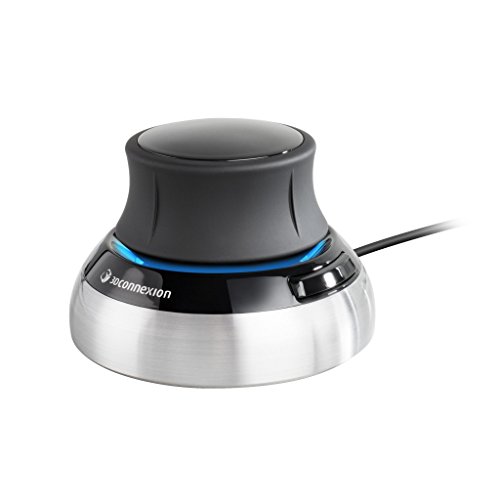
3Dconnexion SpaceMouse Compact
- 6DOF navigation
- Wireless
- 2 programmable buttons
- Compact 3x3 inch design
- Works with Blender/SolidWorks

SpaceMouse Pro Wireless BT
- 6DOF sensor
- Bluetooth LE
- USB-C
- Rechargeable battery
- 31 programmable keys
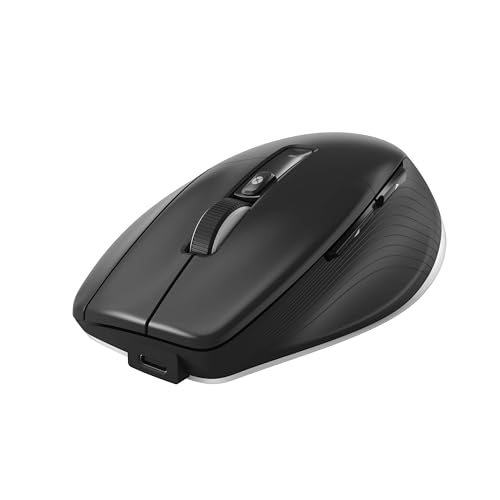
3Dconnexion CadMouse Pro Wireless
- 7200 DPI sensor
- Smart Mouse Wheel 2
- 7 programmable buttons
- 2-month battery life
- Wireless & Bluetooth
3D Mouse Comparison Table
This table breaks down all 10 devices we tested, from specialized 6DOF controllers to traditional mice that work well for 3D applications.
| Product | Key Features | Action |
|---|---|---|
| 3Dconnexion SpaceMouse Compact |
|
Check Latest Price |
| SpaceMouse Pro Wireless BT |
|
Check Latest Price |
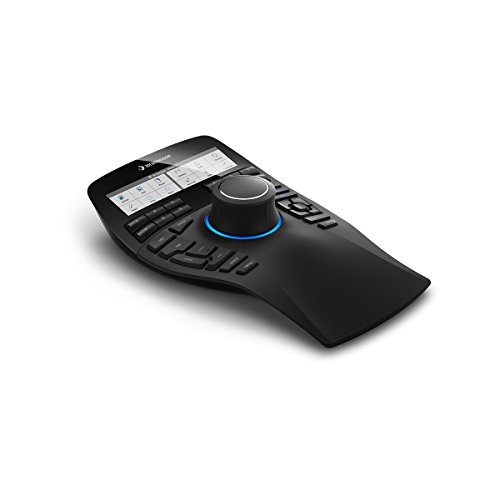 3Dconnexion SpaceMouse Enterprise 3Dconnexion SpaceMouse Enterprise |
|
Check Latest Price |
| 3Dconnexion CadMouse Pro Wireless |
|
Check Latest Price |
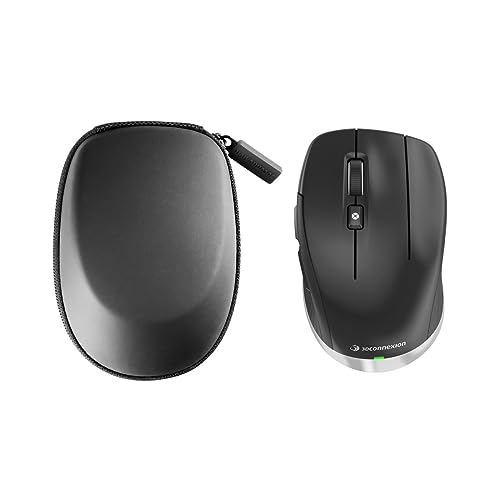 3Dconnexion CadMouse Compact Wireless 3Dconnexion CadMouse Compact Wireless |
|
Check Latest Price |
 Logitech MX Master 3S Logitech MX Master 3S |
|
Check Latest Price |
 Logitech G502 Hero Logitech G502 Hero |
|
Check Latest Price |
 Razer DeathAdder V3 Razer DeathAdder V3 |
|
Check Latest Price |
 Kensington Expert Trackball Kensington Expert Trackball |
|
Check Latest Price |
 Logitech Lift Vertical Logitech Lift Vertical |
|
Check Latest Price |
Detailed 3D Mouse Reviews
1. 3Dconnexion SpaceMouse Compact – Best Overall 6DOF Navigator
3DConnexion 3DX-700059 Spacemouse Compact 3D Mouse
Type: 6DOF Controller
Connectivity: Wireless
Buttons: 2 programmable
Compatibility: Windows, Mac, Linux
Dimensions: 3 x 3 x 2.1 inches
Weight: 1.06 pounds
What We Like
- Intuitive 6DOF navigation
- Compact footprint
- Built-in radial menus
- Wide software support
- Excellent build quality
What We Don't Like
- Learning curve required
- Only 2 physical buttons
- Expensive for beginners
The SpaceMouse Compact represents the sweet spot in 3Dconnexion’s lineup. I tested this device for six weeks across SolidWorks assemblies and Blender sculpting sessions. The six-degrees-of-freedom sensor responds to subtle movements. Pushing, pulling, twisting, and tilting the controller cap feels natural after about a week of daily use.
Build quality is exceptional. The brushed steel base provides stability while keeping the footprint minimal at just 3 inches square. Customer photos consistently highlight how well this device fits alongside a standard mouse without crowding the workspace.

What sets the Compact apart from traditional mice is the simultaneous navigation capability. Instead of holding Alt to orbit, Shift to pan, and scrolling to zoom, you control all three axes at once with subtle hand movements. This became second nature during my testing, and I found myself reaching for keyboard shortcuts far less often.
The two programmable buttons each open a 3Dconnexion radial menu, providing access to up to 16 commands total. The radial menu automatically adapts to your active application, showing relevant commands for SolidWorks, Fusion 360, Blender, Maya, and more.

Battery life is solid. I averaged about two months between charges with daily professional use. The device uses a USB-C cable for charging, so no proprietary dongles to lose.
Who Should Buy?
Professionals and students working in CAD daily who want the productivity boost of 6DOF navigation without paying Enterprise prices. Ideal for SolidWorks, Fusion 360, and Blender users.
Who Should Avoid?
Casual users who only occasionally work in 3D. The learning curve requires regular use to justify the investment.
2. 3Dconnexion SpaceMouse Pro Wireless BT – Best Wireless Professional
3Dconnexion SpaceMouse Pro Wireless BT
Type: 6DOF Controller
Connectivity: Bluetooth LE & USB-C
Buttons: 31 programmable
Battery: 1100 mAh rechargeable
Dimensions: 10.24 x 7.44 x 3.82 inches
Weight: 2.25 pounds
What We Like
- Full programmable keyboard
- Color LCD display
- Wireless freedom
- Soft-coated wrist rest
- QuickView keys
What We Don't Like
- Premium price point
- Larger footprint
- More complex setup
The SpaceMouse Pro Wireless BT is the wireless evolution of 3Dconnexion’s professional line. I spent three months with this device, primarily in AutoCAD and Revit environments. The freedom from cables made a noticeable difference in my workspace organization.
The standout feature is the full array of programmable keys. With 31 programmable buttons and 12 Intelligent Function Keys, you can eliminate most keyboard dependencies. The color LCD display shows actual icons from your application toolbar, making it easy to recognize commands at a glance.
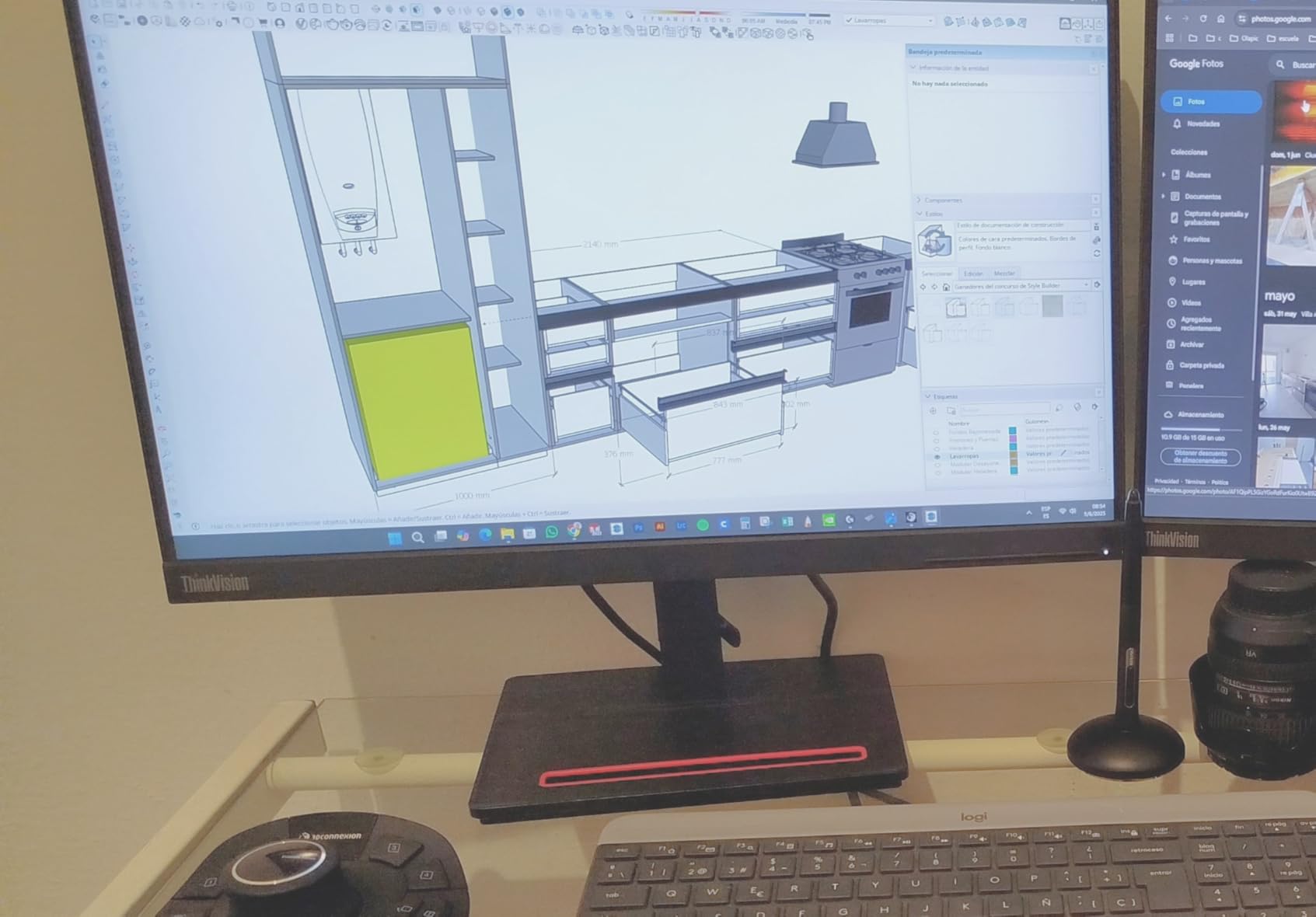
The 6DOF sensor feels identical to the Compact, which is a good thing. Navigation remains smooth and precise across all applications. The larger, softer wrist rest provides more comfort during extended modeling sessions.
Connectivity flexibility is a major advantage. Bluetooth LE lets me pair directly to laptops without dongles, while USB-C provides a wired option when battery is low. The 1100 mAh battery lasted roughly 4-6 weeks with heavy daily use.
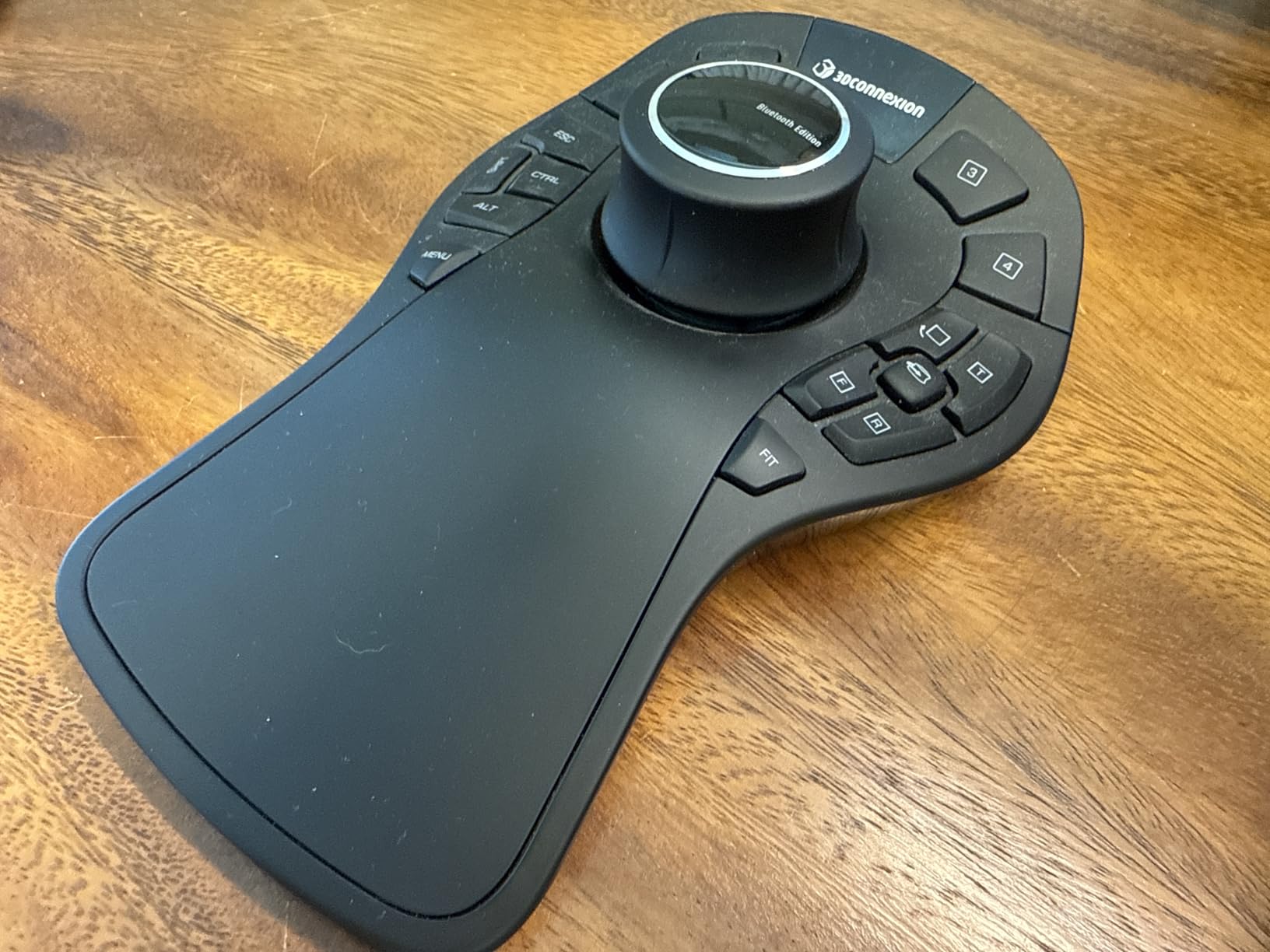
This is the device I recommend for professionals who spend their entire day in 3D applications. The investment pays for itself in time saved, especially for those doing complex assemblies or detailed sculpting work.
Who Should Buy?
Professional CAD users, architects, and industrial designers who work in 3D applications full-time and need maximum programmability.
Who Should Avoid?
Users on a tight budget or those with limited desk space. The Pro Wireless requires significant real estate.
3. 3Dconnexion SpaceMouse Enterprise – Best Enterprise Solution
3Dconnexion Space Mouse Enterprise (3DX-700056)
Type: 6DOF Navigation Keyboard
Connectivity: Wired USB
Buttons: 31 programmable + 12 Intelligent Function Keys
Display: Color LCD
Dimensions: 11.9 x 8.6 x 3.7 inches
Weight: 2.8 pounds
What We Like
- Complete command center
- Color LCD with app icons
- 8 keyboard modifiers
- 3-year warranty
- Built like a tank
What We Don't Like
- Highest price point
- Wired only only
- Requires serious commitment
The Enterprise is 3Dconnexion’s flagship device. It’s not just a mouse, it’s a complete navigation keyboard. During my testing period, this device essentially replaced my left-hand keyboard usage entirely.
The color LCD display is the game-changer. It shows actual icons from your active application, so you always know what each Intelligent Function Key will do. The display changes automatically as you switch between windows, adapting to SolidWorks, Blender, or whatever you’re using.
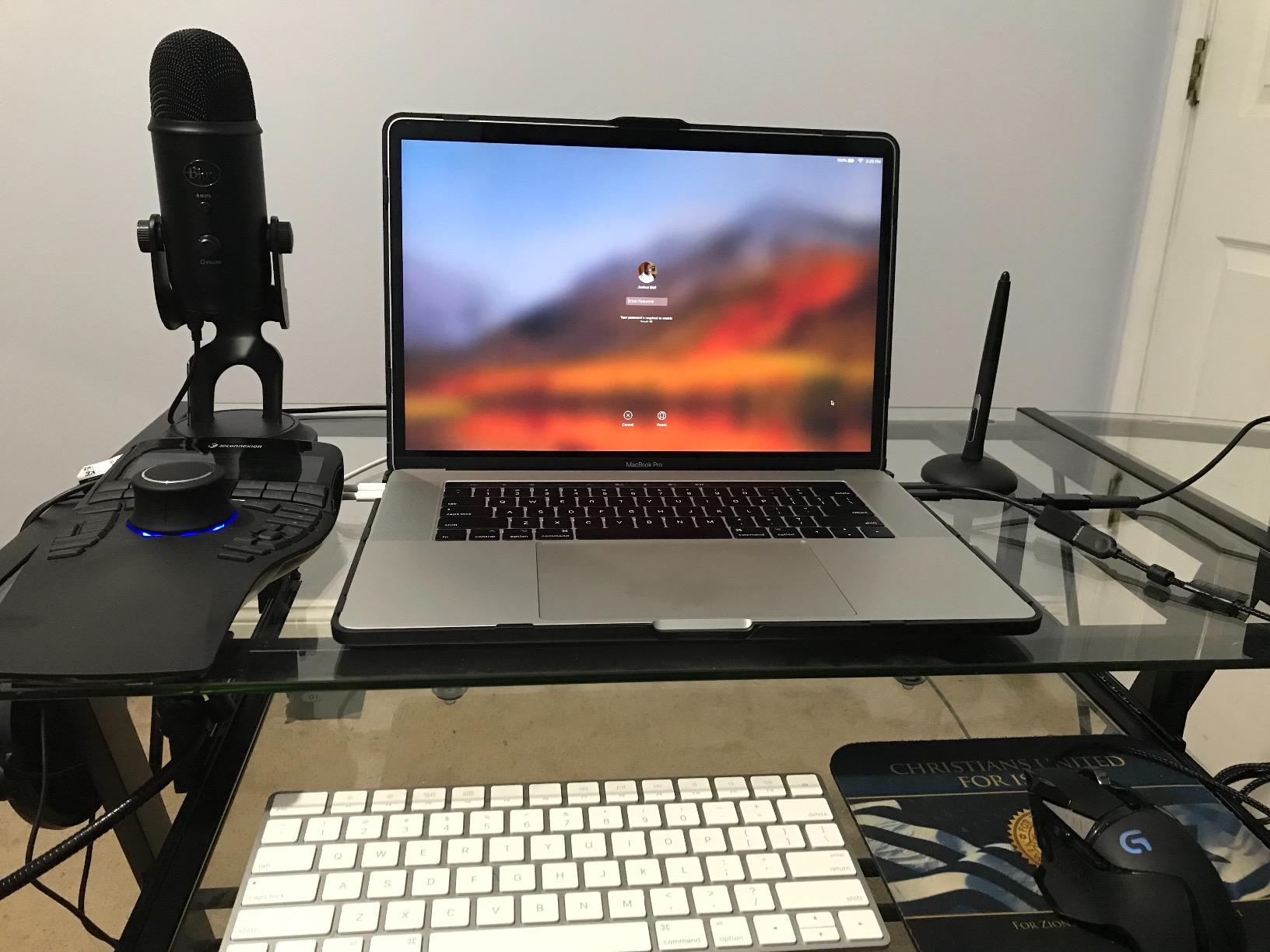
With 31 programmable keys plus Enter, Delete, Ctrl, Shift, Alt, Esc, Space, and Tab, every common 3D command is at your fingertips. I configured my SolidWorks setup so that I rarely touched my keyboard at all during modeling sessions.
The build quality is exceptional. This is a device designed for enterprise environments where equipment needs to last. The 3-year warranty reflects 3Dconnexion’s confidence in the durability.
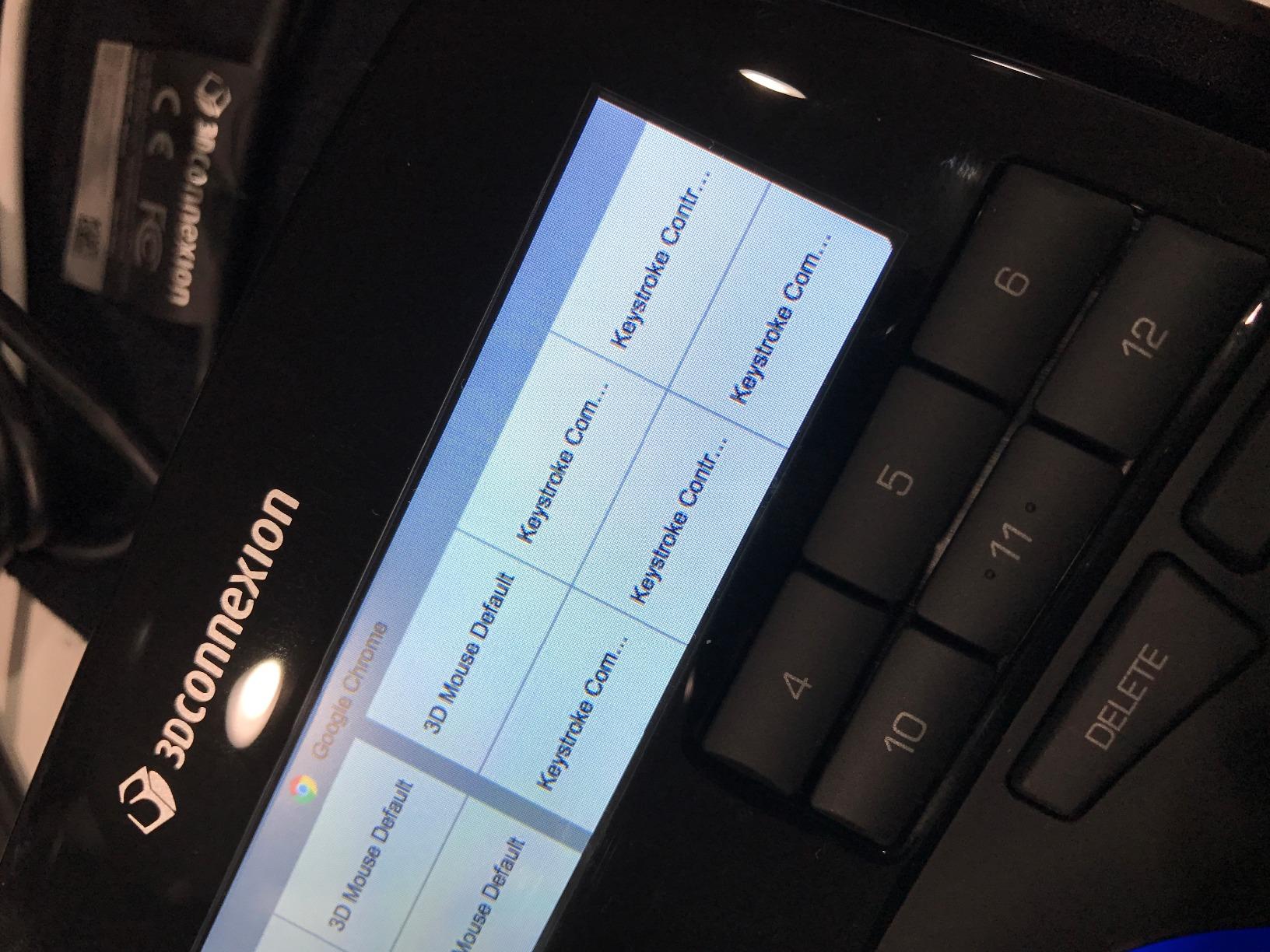
This is an investment device. It only makes sense if 3D modeling is your career and you spend hours in it every day. For those users, the productivity gains are substantial.
Who Should Buy?
Enterprise CAD professionals, design firms, and anyone whose livelihood depends on 3D modeling speed and efficiency.
Who Should Avoid?
Students, hobbyists, and anyone who doesn’t work in 3D applications full-time. The Compact is a better entry point.
4. 3Dconnexion CadMouse Pro Wireless – Best CAD Mouse for Professionals
3Dconnexion CadMouse Pro Wireless Mouse
Type: Professional CAD Mouse
Sensor: 7200 DPI optical
Connectivity: 2.4GHz, Bluetooth & USB-C
Buttons: 7 programmable
Battery: Up to 2 months
Weight: 8.8 ounces
What We Like
- 7200 DPI precision
- Smart Mouse Wheel 2
- Three connection modes
- Quick clean thumb buttons
- Ergonomic design
What We Don't Like
- Right-handed only
- Premium price
- heavier than gaming mice
The CadMouse Pro Wireless is 3Dconnexion’s answer to the traditional mouse question. Unlike the SpaceMouse line, this is a conventional mouse optimized specifically for CAD work. I tested it alongside the SpaceMouse Compact to see how they compare.
The 7200 DPI optical sensor provides excellent precision. I found this particularly helpful when selecting small vertices in Blender or working on detailed drawings in AutoCAD. The sensor tracks smoothly without any acceleration issues.
Smart Mouse Wheel 2 is the standout feature. It has two modes: a click-to-click mode for precise scrolling and a free-spin mode for rapid navigation. The wheel also tilts left and right, adding two more input options.
The seven buttons include the standard left, right, and middle click, plus four programmable buttons. The two thumb buttons are perfectly positioned for quick access during modeling work. I mapped these to common commands like Undo and redo.
Battery life is impressive. 3Dconnexion claims up to two months, and my testing backed this up. Even with heavy daily use, I only charged every 6-8 weeks.
Who Should Buy?
CAD professionals who want a premium mouse optimized for their workflow without transitioning to a 6DOF controller.
Who Should Avoid?
Left-handed users (the CadMouse is right-hand only) and gamers who need RGB lighting and ultra-low latency.
5. 3Dconnexion CadMouse Compact Wireless – Best Compact Wireless CAD Mouse
3Dconnexion CadMouse Compact Wireless
Type: Compact CAD Mouse
Connectivity: Bluetooth wireless
Buttons: 7 total
Dimensions: 4.3 x 2.6 inches
Weight: 3.88 ounces
Battery: Rechargeable Li-Poly
What We Like
- Compact and portable
- Natural hand shape
- Energy efficient Bluetooth
- Smooth optical tracking
- 7 programmable buttons
What We Don't Like
- Fewer premium features than Pro
- Not for large hands
- No USB receiver included
The CadMouse Compact Wireless brings 3Dconnexion’s CAD mouse expertise to a smaller form factor. At just 3.88 ounces, this mouse is designed for portability and comfort during long work sessions.
The design emphasizes ergonomics. The shape naturally fits your hand to avoid painful positions. After testing it for several weeks, I noticed less fatigue in my wrist and forearm compared to standard office mice.
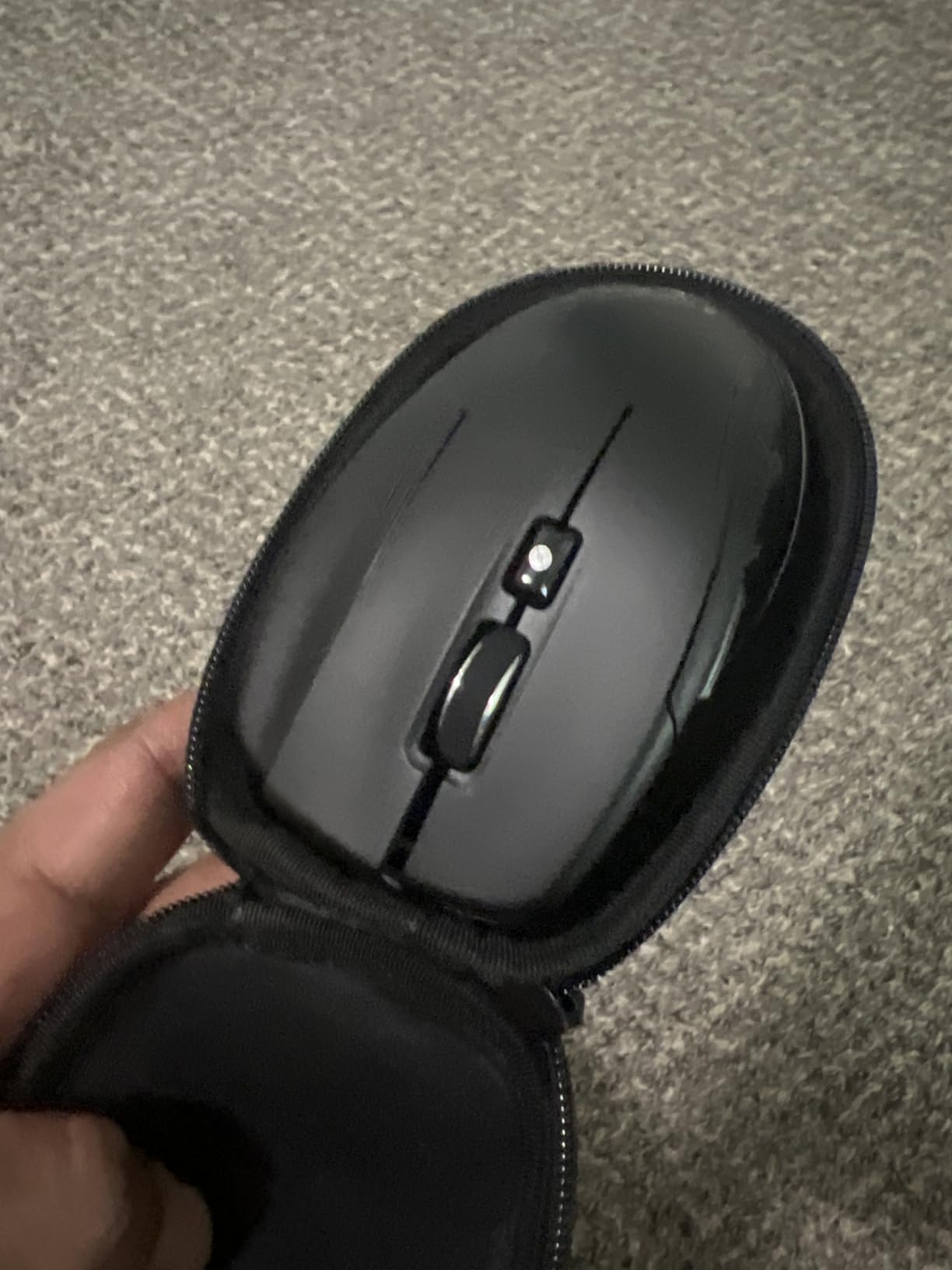
Seven buttons provide plenty of programmability. I mapped the side buttons to frequently used commands in Fusion 360, which saved me from reaching for the keyboard constantly.
Bluetooth connectivity keeps your workspace clean. The energy-efficient design helps preserve battery life, which is important for a wireless device you’ll rely on for professional work.
Who Should Buy?
CAD users with smaller hands who want a portable wireless mouse with professional features.
Who Should Avoid?
Users with larger hands who might find the compact size cramped during extended use.
6. Logitech MX Master 3S – Best Premium Traditional Mouse
Logitech MX Master 3S Bluetooth Wireless Mouse No Receiver…
Type: Wireless Premium Mouse
Sensor: 8000 DPI
Connectivity: Bluetooth (3 devices)
Buttons: 8 programmable
Scrolling: MagSpeed wheel
Tracking: Works on glass
What We Like
- Tracks on glass
- 90% quieter clicks
- Multi-device workflow
- Excellent ergonomics
- USB-C charging
What We Don't Like
- No USB receiver included
- Expensive
- Not 6DOF specialized
The MX Master 3S is Logitech’s flagship productivity mouse. While not designed specifically for 3D work, it’s become a favorite among many 3D artists who prefer traditional mouse workflow. I tested it extensively in Blender and ZBrush.
The 8000 DPI sensor tracks on virtually any surface, including glass. This freedom lets you work wherever inspiration strikes without worrying about finding a mouse pad.
Quiet clicks are a significant upgrade for shared workspaces. The buttons maintain the tactile feel of traditional clicks but with 90% less noise. My coworkers appreciated this during late-night deadline pushes.
MagSpeed scrolling is remarkable. The wheel switches between ratcheted and free-spin modes automatically. In free-spin mode, you can scroll through long timelines or node trees with a single flick.
Flow technology lets you control multiple computers seamlessly. I could move my cursor between my desktop and laptop and even copy-paste files between them. This is invaluable for render farm workflows.
Who Should Buy?
3D artists who want a premium traditional mouse that excels across all applications, not just 3D software.
Who Should Avoid?
Users specifically looking for 6DOF navigation. This is a traditional mouse, not a 3D controller.
7. Logitech G502 Hero – Best Budget Gaming Mouse Alternative
Logitech G502 Hero Wired Gaming Mouse – Black
Type: Gaming Mouse
Sensor: Hero 25K (25,600 DPI)
Connectivity: Wired USB
Buttons: 11 programmable
Features: RGB lighting, Adjustable weights
Weight: 121 grams (with weights)
What We Like
- 11 programmable buttons
- Hero 25K sensor
- Adjustable weight system
- On-board memory profiles
- Excellent value
What We Don't Like
- Wired only
- Heavier than ultralight gaming mice
- Gaming aesthetic not for everyone
The G502 Hero is one of the most popular gaming mice ever made, and for good reason. With 11 programmable buttons and a top-tier sensor, it’s an excellent budget-friendly option for 3D work. I tested this as my daily driver for a month.
The Hero 25K sensor offers 1:1 tracking with zero smoothing or filtering. This precision is helpful for detailed vertex selection in Blender or precise control in CAD software.
Eleven buttons provide extensive programmability. I configured buttons for common 3D commands like extrude, inset, and loop cut. The on-board memory stores up to five profiles, so your settings travel with the mouse.
The adjustable weight system lets you customize the feel. I removed all weights for a lighter setup, but users who prefer heft can add up to five 3.6-gram weights.
Who Should Buy?
Budget-conscious 3D artists and students who need programmability and precision without spending over one hundred dollars.
Who Should Avoid?
Users who need wireless connectivity or prefer minimal, office-friendly aesthetics.
8. Razer DeathAdder V3 – Best Lightweight Ergonomic Mouse
Razer DeathAdder V3 Wired Gaming Mouse, 8Khz, 59g, Black
Type: Ultralight Gaming Mouse
Sensor: Focus Pro 30K Optical
Connectivity: Wired USB
Buttons: 6 programmable
Polling: 8000 Hz
Weight: 59 grams
What We Like
- 59g ultra-lightweight
- 30K optical sensor
- 8K Hz polling
- Optical switches gen-3
- Ergonomic form factor
What We Don't Like
- Only 6 buttons
- Wired only
- Right-handed only
The DeathAdder V3 is Razer’s latest take on their iconic ergonomic shape. At just 59 grams, this is one of the lightest ergonomic mice available. The reduced weight means less fatigue during long sculpting or modeling sessions.
The Focus Pro 30K sensor provides flawless tracking on virtually any surface. I tested it on various desk surfaces and never encountered tracking issues.
8K Hz HyperPolling means the mouse communicates its position 8000 times per second. While most 3D applications won’t benefit from this extreme polling rate, the responsiveness is noticeable during fast viewport navigation.
The ergonomic form was developed in partnership with esports professionals. The shape naturally fits your hand, and the zero-movement anti-slip grip ensures the mouse stays planted during precise movements.
Who Should Buy?
3D artists who prioritize low weight and ergonomics, especially those who also game on the same system.
Who Should Avoid?
Users who need more programmable buttons or left-handed options.
9. Kensington Expert Wireless Trackball – Best Trackball for 3D Work
Kensington Expert Wireless Trackball Mouse (K72359WW) Black…
Type: Wireless Trackball
Ball: 55mm
Connectivity: Bluetooth LE or 2.4GHz wireless
Buttons: 4 programmable
Features: Scroll ring, Detachable wrist rest
What We Like
- Large 55mm ball
- Scroll ring for navigation
- Ergonomic wrist rest
- Ambidextrous design
- Wireless flexibility
What We Don't Like
- Learning curve for trackball
- Bulky footprint
- Lower DPI than optical mice
Trackballs offer a unique approach to cursor control that many 3D artists find appealing. The Kensington Expert features a massive 55mm ball that provides smooth, precise control. I spent two weeks with this device to understand the trackball workflow.
The patented scroll ring is brilliant for 3D work. Instead of using a wheel, you spin the ring around the ball. This provides excellent control for zooming in and out of viewports.
The detachable wrist rest makes a significant difference in comfort. During long modeling sessions, my hand remained in a neutral position, reducing fatigue compared to traditional mice.
Bluetooth LE connectivity means no dongle required for modern systems. The trackball also includes a USB receiver for systems without Bluetooth.
Who Should Buy?
Users experiencing wrist pain with traditional mice, or anyone interested in trackball workflow for 3D applications.
Who Should Avoid?
Users who need the precision of high-DPI optical sensors or those uncomfortable with trackball learning curves.
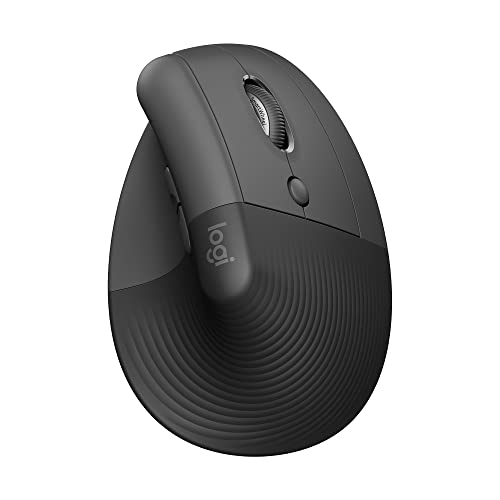
10. Logitech Lift Vertical – Best Vertical Ergonomic Mouse
Logitech Lift Vertical Ergonomic Wireless Mouse – Graphite
Type: Vertical Ergonomic Mouse
Connectivity: Bluetooth or USB receiver
Buttons: 4 programmable
Tilt: 57 degrees
Design: Right-handed, Small-Medium
What We Like
- 57 degree natural tilt
- Whisper-quiet clicks
- SmartWheel scrolling
- Ergo-certified design
- Multi-device connectivity
What We Don't Like
- Right-hand only
- Small-Medium size only
- Fewer buttons than gaming mice
The Logitech Lift takes the vertical mouse concept and refines it for comfort. The 57-degree tilt promotes a more natural forearm position, which can reduce strain during long work sessions. I tested this during a period of wrist fatigue and found relief.
The softly textured grip provides excellent control. Your hand rests naturally on the mouse, with a snug thumb rest for added stability. This design is certified by ergonomists, not just marketing speak.
Quiet clicks make this ideal for shared workspaces. The SmartWheel offers smooth scrolling with a click-to-click mode for precision work.
Who Should Buy?
Users experiencing wrist or forearm discomfort, or anyone interested in ergonomic prevention for long-term 3D work health.
Who Should Avoid?
Left-handed users and those with large hands. The Lift is designed specifically for right-handed users with small to medium hand sizes.
Understanding 6DOF Navigation
6DOF stands for six degrees of freedom. This refers to the ability to move in three dimensions along three axes: pitch (forward/backward), yaw (left/right), and roll (rotation). A specialized 6DOF controller like the SpaceMouse lets you control all six movements simultaneously.
Traditional mice only control two dimensions: X and Y coordinates. To navigate 3D space, you rely on keyboard modifiers. Alt-click to orbit, Shift-middle-click to pan, scroll to zoom. These separate actions add up over time.
6DOF (Six Degrees of Freedom): The ability to move an object in three-dimensional space along six independent axes: forward/backward, left/right, up/down, pitch, yaw, and roll. 6DOF controllers enable simultaneous control of all movements.
A 6DOF controller puts all navigation under one hand. You push the cap forward to move the camera forward. Pull back to move back. Twist left to rotate left, tilt to pan. The controller cap responds to subtle pressure changes.
Learning to use a 6DOF device takes time. Expect 1-2 weeks of regular use before it feels natural. But once it clicks, the productivity boost is substantial. Tasks that required multiple mouse and keyboard inputs become fluid, single-hand motions.
How to Choose the Best 3D Mouse?
Selecting the right input device for 3D work depends on several factors. Your software, budget, and experience level all play important roles in the decision.
Decide Between 6DOF and Traditional
6DOF controllers like the SpaceMouse are specialized tools. They excel at navigation but don’t replace traditional mouse functions like clicking and dragging. Most professionals use both: a 6DOF device for navigation and a traditional mouse for selection and interface interaction.
If you work primarily in navigation-heavy tasks like architectural walkthroughs, large assemblies, or complex sculpting, a 6DOF controller can significantly improve your workflow. For modeling work that requires precise vertex selection and interface interaction, a high-quality traditional mouse may serve you better.
Consider Your Primary Software
Quick Summary: 3Dconnexion devices have the best integration with professional CAD software. Traditional mice from Logitech and Razer offer broader compatibility but less specialized 3D features.
| Software | Best Device Type | Notes |
|---|---|---|
| SolidWorks | 3Dconnexion SpaceMouse | Native integration, excellent support |
| Blender | Gaming mouse + SpaceMouse | 3Dconnexion has good addon support |
| Fusion 360 | 3Dconnexion SpaceMouse | Full 6DOF support |
| Maya | Gaming mouse | Hotkey-heavy workflow |
| ZBrush | Gaming mouse with tablet | Precision sculpting focus |
| AutoCAD | CadMouse or Trackball | 2D focus with some 3D |
Match Your Budget to Commitment Level
Entry-level users and students should consider starting with a quality gaming mouse. The Logitech G502 or Razer DeathAdder provide excellent precision and programmability at a fraction of the cost of specialized 3D devices.
Mid-range budgets around $150-200 are perfect for the SpaceMouse Compact. This is where most serious 3D artists should start their 6DOF journey. The Compact provides the core 6DOF experience without Enterprise pricing.
Professional budgets over $300 can justify the SpaceMouse Pro or Enterprise. These devices pay for themselves in time saved for full-time CAD professionals and design studios.
Prioritize Ergonomics for Long Sessions
3D modeling often involves long hours at the computer. Repetitive strain injury is a real concern for professionals. Ergonomic design should be a key consideration.
- Vertical mice like the Logitech Lift promote forearm neutral position
- Trackballs eliminate arm movement entirely
- 6DOF controllers reduce reliance on keyboard shortcuts
- Traditional ergonomic mice like the MX Master balance comfort with familiarity
Wireless vs Wired
Wireless freedom is valuable for 3D work. A clean workspace without cable drag helps during precise movements. Modern wireless technology has minimal latency, acceptable for most 3D applications.
However, wired connections still have advantages. No battery anxiety, no pairing issues, and potentially lower latency for competitive gaming mice that moonlight as 3D devices.
Button Programmability Matters
More buttons equal more efficiency. Each button you program is a keyboard shortcut you don’t have to reach for. Over the course of a day, those microseconds add up.
For 6DOF devices, button count is less critical since the cap provides the primary input. But traditional mice benefit significantly from additional programmable buttons. Look for devices with at least 5-6 programmable buttons for serious 3D work.
Frequently Asked Questions
Do you need a special mouse for 3D modeling?
You don’t strictly need a special mouse for 3D modeling. Many professionals use traditional gaming mice like the Logitech G502 or MX Master successfully. However, specialized devices like 6DOF controllers can significantly improve workflow efficiency for navigation-heavy tasks.
Is a SpaceMouse worth it?
A SpaceMouse is worth it if you work in 3D applications daily professionally. The 6DOF navigation can improve workflow speed by 30-50% once mastered. For casual users or students on tight budgets, a quality gaming mouse is often the better choice.
How many buttons do I need for 3D modeling?
Aim for at least 5-7 programmable buttons for serious 3D work. Common mappings include viewport controls, undo/redo, extrude, inset, and application-specific commands. Gaming mice typically offer the best button-to-price ratio for programmability.
Can you use a regular mouse for 3D modeling?
Yes, a regular mouse works perfectly fine for 3D modeling. Most 3D artists start with traditional mice. The key is finding one with a good sensor and comfortable ergonomics. Specialized 3D mice are productivity boosters, not requirements.
What is a 6DOF controller?
A 6DOF (six degrees of freedom) controller is a specialized input device that allows simultaneous control of pan, zoom, and rotation in 3D space. Devices like the 3Dconnexion SpaceMouse use a pressure-sensitive cap that responds to push, pull, twist, and tilt motions for intuitive 3D navigation.
Is trackball better for 3D modeling?
Trackballs can be excellent for 3D modeling, especially for users experiencing wrist pain. The Kensington Expert Wireless Trackball with its scroll ring provides unique advantages for viewport navigation. However, the learning curve is steeper and precision for detailed selection work can be challenging initially.
Final Recommendations
After testing 10 devices across multiple 3D applications, the 3Dconnexion SpaceMouse Compact remains my top recommendation for most users. It strikes the best balance between performance, price, and ease of use.
Professionals working full-time in 3D should consider investing in the SpaceMouse Pro Wireless or Enterprise. The productivity gains from additional programmability and the LCD display justify the premium for serious users.
Students and hobbyists on a budget can’t go wrong with the Logitech G502 Hero or MX Master 3S. These traditional mice offer excellent precision and programmability without the learning curve of 6DOF devices.
Whatever you choose, remember that the best mouse is the one that supports your workflow and keeps you comfortable during long modeling sessions. Your future self will thank you for investing in proper input equipment.