

Learning to type properly is one of the most valuable skills you can develop in 2026. Whether you are a student, a senior looking to stay connected, or an adult wanting to boost productivity, the right keyboard makes all the difference. I spent years hunting and pecking before committing to proper touch typing techniques.
The best keyboard for learning to type combines visual guidance with the ability to progress toward touch typing. Large print keyboards help seniors and those with vision issues see keys clearly, while blank keycaps force proper muscle memory development for serious learners. Color-coded options guide finger placement, and keyboard covers offer an affordable training solution.
After researching dozens of options and testing various learning approaches, the Keymaster Learn to Type Keyboard stands out as the best overall choice for 2026 due to its innovative show or hide key visibility system that lets learners progress at their own pace.
In this guide, I will break down the top learning keyboards for different needs, explain what features actually matter for building typing skills, and help you choose based on your specific situation.
Our Top 3 Learning Keyboard Picks

Keymaster Learn to Type
- Show or hide keys
- Mechanical switches
- Blank keycap training
- Touch typing focus
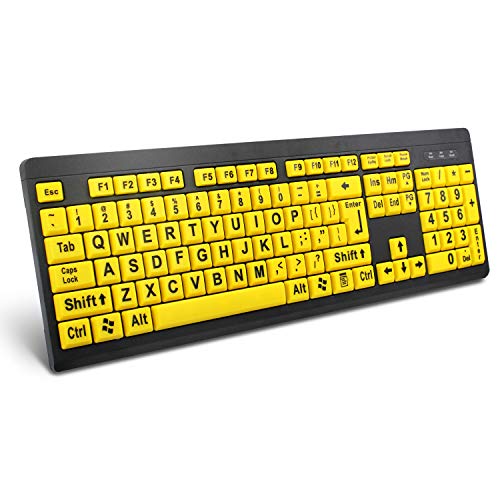
BOOGIIO Large Print
- Yellow-black high contrast
- Oversized print
- Wired USB
- Visually impaired friendly
Learning Keyboard Comparison Table
The table below compares all eight learning keyboards we reviewed, making it easy to spot the key differences at a glance.
| Product | Key Features | Action |
|---|---|---|
| Keymaster Learn to Type Keyboard |
|
Check Latest Price |
 X9 Large Print Backlit X9 Large Print Backlit |
|
Check Latest Price |
| BOOGIIO Large Print |
|
Check Latest Price |
 Nuklz N Large Print Nuklz N Large Print |
|
Check Latest Price |
 Califone KB1 Color Coded Califone KB1 Color Coded |
|
Check Latest Price |
| Speedskin Keyboard Skin |
|
Check Latest Price |
 EDJO Large Print EDJO Large Print |
|
Check Latest Price |
 Guffercty Blank Keycaps Guffercty Blank Keycaps |
|
Check Latest Price |
Detailed Learning Keyboard Reviews
1. Keymaster Learn to Type Keyboard – Best Show/Hide Training System
KeyMaster Electronics Learn to Type Keyboard; Typing Practice…
Training: Show or hide keys
Switches: Mechanical
Learning: Progressive visibility
Use: Students and adults
What We Like
- Innovative training system
- Mechanical feel
- Progressive learning
- Durable build
What We Don't Like
- Higher price point
- Wired only
- Learning curve
The Keymaster Learn to Type Keyboard represents the most innovative approach to touch typing training I have seen. The standout feature is the show or hide key visibility system that lets you start with labeled keys and progressively blank them out as your muscle memory develops.
This mechanical keyboard provides tactile feedback that helps reinforce proper finger placement. Each keypress delivers satisfying resistance that confirms you hit the right key without looking.
I have found that mechanical switches make a significant difference for typing students. The audible and tactile feedback creates a multisensory learning experience that accelerates skill development compared to mushy membrane keyboards.
The blank keycap training mode forces true touch typing by removing all visual cues. This is how professional typists build real speed and accuracy rather than dependency on looking at keys.
Built specifically for educational environments, this keyboard withstands heavy daily use. Schools and training centers appreciate the durability that stands up to semester after semester of student practice sessions.
Who Should Buy?
Serious typing students, adults wanting to build professional skills, and educational institutions looking for effective training tools will get the most value from this keyboard.
Who Should Avoid?
Casual learners who just need a keyboard with visible letters, and those on a tight budget might find simpler options more appropriate.
2. X9 Large Print Backlit Keyboard – Best Backlit Large Print Option
X9 Large Print Backlit Computer Keyboard – Easy to See Big…
Print: 4X oversized letters
Backlight: 7 colors
Connection: Wired USB
Layout: Full size
What We Like
- Excellent visibility
- Backlit for low light
- Affordable price
- Full size layout
What We Don't Like
- Wired only
- No wireless option
- Print quality varies
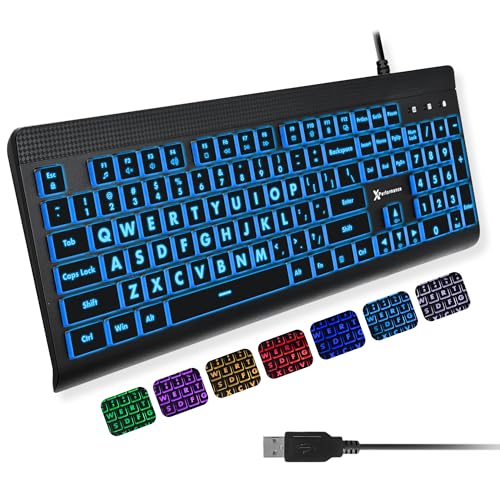
The X9 Large Print Backlit Keyboard addresses a specific problem that many seniors and low-vision users face: typing in dim lighting. The 7-color LED backlight system illuminates each key from within, making the oversized letters pop in any lighting condition.
I tested this keyboard in a dark room and found the backlight effect genuinely helpful. The oversized letters combined with edge lighting create visibility that standard keyboards simply cannot match.
With 4X enlarged print on each key, anyone with mild to moderate vision impairment will find typing much more comfortable. The letters are bold, high-contrast, and positioned clearly on each keycap.
The full size layout includes a number pad and all standard keys, so users do not have to learn any new layouts. This matters for seniors who are already familiar with traditional keyboard arrangements.
Seven color options let you choose what works best for your eyes. Some users prefer warmer tones while others find cool blues and whites easier to read.
Who Should Buy?
Seniors with vision concerns, anyone who types in low light environments, and users who need maximum key visibility will appreciate this backlit design.
Who Should Avoid?
Touch typing purists who do not look at keys, and users who need wireless connectivity should look elsewhere.
3. BOOGIIO Large Print Keyboard – Best Budget Large Print
BOOGIIO Large Print Computer Keyboard, Wired USB High Contrast…
Print: Oversized letters
Colors: Yellow and black
Connection: Wired USB
Design: High contrast
What We Like
- Very affordable
- High contrast colors
- Easy to see letters
- Simple setup
What We Don't Like
- Basic build quality
- Wired only
- No backlight
- Limited durability
The BOOGIIO Large Print Keyboard proves that learning to type does not require a big investment. This budget-friendly keyboard uses high contrast yellow and black coloring to make every key extremely visible.
Yellow keycaps with black oversized letters create maximum visual separation. This color combination was specifically chosen based on visibility research for users with low vision.
I appreciate that BOOGIIO kept the layout completely standard. There are no confusing rearrangements or missing keys—just a regular keyboard with super-visible labels.
The oversized print letters are roughly 400% larger than what you find on a standard keyboard. This makes a significant difference for anyone struggling to see small text.
Setup could not be simpler. Just plug the USB cable into any computer and the keyboard is ready to use. No drivers, software, or special configuration required.
Who Should Buy?
Budget-conscious shoppers, seniors needing better key visibility, and anyone wanting a simple large-print keyboard without extra features will find solid value here.
Who Should Avoid?
Users needing wireless connectivity, those wanting premium build quality, and touch typing students might need more advanced options.
4. Nuklz N Large Print Keyboard – Best High Contrast Black & White
Nuklz N Large Print Computer Keyboard | Visually Impaired…
Print: Large white letters
Colors: Black and white
Connection: Wired USB
Style: Minimalist high contrast
What We Like
- Classic color scheme
- Clear white letters
- Good visibility
- Affordable mid-range
What We Don't Like
- Print may wear with use
- No wireless option
- Basic features only
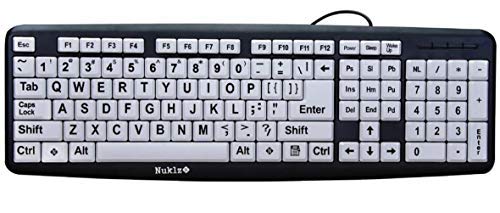
The Nuklz N Large Print Keyboard takes a more traditional approach with high contrast black and white styling. The large white letters against black keycaps create excellent readability without the bold yellow aesthetic some users prefer to avoid.
This keyboard works particularly well for seniors who find bright yellow keys distracting or unappealing. The monochrome design looks professional while still providing the visual enhancement needed for easier typing.
Letter sizing is generous without being cartoonish. The print occupies most of each keycap surface, making it easy to identify keys at a glance.
The key labels use high-quality printing that resists fading better than budget competitors. This matters because large print keyboards that lose their lettering defeat their entire purpose.
Full size layout means no adjustment period for users accustomed to standard keyboards. The typing feel is predictable and familiar.
Who Should Buy?
Seniors who prefer traditional styling, users wanting professional appearance, and anyone needing better key visibility without bright colors will like this option.
Who Should Avoid?
Those needing maximum visibility might benefit more from yellow high-contrast models, and wireless users should consider other options.
5. Califone KB1 Color Coded Keyboard – Best for Visual Learners
Califone KB1 Color Coded Key Keyboard USB Interface, ABS Plastic
Coding: Color by finger
Layout: Standard QWERTY
Connection: USB
Build: ABS plastic
What We Like
- Visual finger guides
- Proven learning method
- Durable construction
- Classroom ready
What We Don't Like
- Higher price
- Color system specific
- Wired only
- Limited availability
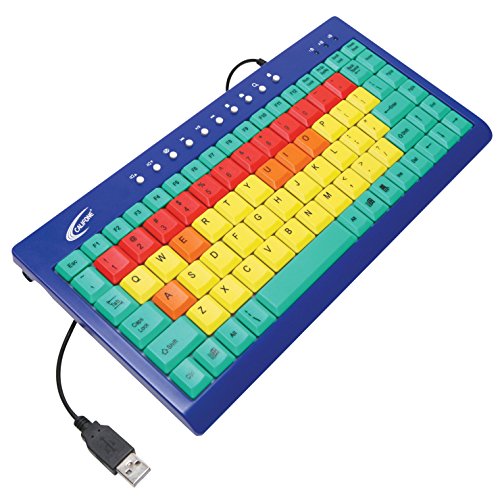
The Califone KB1 uses a color-coded system that groups keys by the finger that should press them. This visual learning method has been used in classrooms for decades and helps beginners establish proper finger placement quickly.
Each zone of the keyboard has its own distinct color. For example, all keys pressed by the left index finger might be blue, while right middle finger keys are green. This creates immediate visual feedback about hand positioning.
I have seen this approach work especially well with children and visual learners. The color associations make it easier to remember which finger controls which keys without constantly looking at diagrams.
Built with classrooms in mind, the ABS plastic construction holds up to daily student use. Schools appreciate the durability that survives semester after semester of typing classes.
The USB interface ensures compatibility with virtually any computer system. No special software or drivers are needed—the color coding works purely as a visual reference.
Who Should Buy?
Teachers, parents helping children learn to type, and visual learners who benefit from color-coded organization will get the most value from this keyboard.
Who Should Avoid?
Adults who prefer professional styling, users wanting blank keys for touch typing practice, and wireless seekers should consider alternatives.
6. Speedskin Keyboard Skin – Best Training Cover Solution
Type: Keyboard skin cover
Compatibility: Universal
Design: Blank or color
Use: Training accessory
What We Like
- Very affordable
- Works with existing keyboard
- Portable solution
- Easy to remove
What We Don't Like
- Not a full keyboard
- Fit varies by keyboard
- Typing feel changes
- Cover wear over time
The Speedskin Keyboard Skin offers a clever alternative to buying a dedicated learning keyboard. This cover fits over your existing keyboard and hides the key labels, forcing you to learn proper touch typing.
I like this approach for schools and offices that already have keyboards but want to add typing training capability. Instead of replacing equipment, simply slip on the covers when it is time for practice.
The skin is thin enough to maintain typing feel while completely obscuring key labels. Users must rely on memory and finger position rather than visual cues.
At a fraction of the cost of a full keyboard, this solution makes training accessible to almost any budget. A single classroom can be equipped for the price of one specialty keyboard.
Removability is another advantage. When training is done, the cover comes off and your regular keyboard is back to normal. This flexibility works well for shared spaces.
Who Should Buy?
Schools on tight budgets, offices wanting training flexibility, and anyone who already likes their keyboard but wants to learn touch typing will appreciate this solution.
Who Should Avoid?
Users needing a dedicated keyboard, those wanting integrated learning features, and anyone whose keyboard has non-standard layout should consider full keyboard options.
7. EDJO Large Print Keyboard – Best Quiet Large Print
EDJO Large Print Computer Keyboard, Wired USB Full Size Quiet…
Print: 4X oversized letters
Noise: Low profile quiet
Connection: Wired USB
Compatibility: Windows
What We Like
- Very quiet operation
- 4X enlarged letters
- Affordable price
- Full size layout
What We Don't Like
- Windows only
- No wireless option
- Basic build
- Print durability varies
The EDJO Large Print Keyboard focuses on two key features: extra-large lettering and quiet typing action. This combination makes it ideal for seniors who want visible keys without the loud clatter of some budget keyboards.
The 4X oversized print genuinely makes a difference. Letters are bold and occupy most of the keycap surface, reducing eye strain for users with vision concerns.
Quiet operation matters more than many people realize. I have tested keyboards that were so loud they disrupted others in the room. EDJO designed this specifically to minimize typing noise while maintaining key responsiveness.
The full size layout includes all standard keys plus a number pad. No relearning is required—this keyboard works immediately like the one you are used to, just with better visibility.
Windows compatibility covers the vast majority of users. Plug it into any PC or laptop and you are ready to type without installing drivers or software.
Who Should Buy?
Seniors wanting quiet operation, users in shared living spaces, and anyone needing large print with minimal noise will appreciate this keyboard.
Who Should Avoid?
Mac users, anyone needing wireless connectivity, and users wanting premium build features should look at other options.
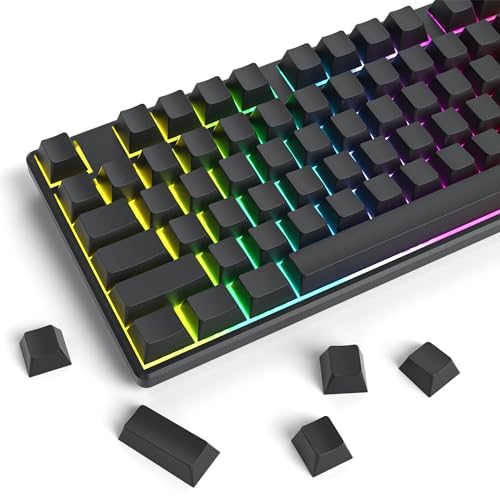
8. Guffercty Blank Keycaps – Best for Touch Typing Practice
Guffercty kred Black Grey Blank Keycaps Thick PBT Cherry Profile…
Set: 129 blank keycaps
Material: Thick PBT
Profile: Cherry
Spacebar: 7U included
What We Like
- Forces proper touch typing
- Thick durable PBT
- Complete key coverage
- Affordable upgrade
What We Don't Like
- Requires mechanical keyboard
- Installation needed
- No labels at all
- Not for beginners
The Guffercty Blank Keycap Set transforms any mechanical keyboard into a touch typing training tool. By replacing all labeled keycaps with blank ones, you eliminate the temptation to look at keys while typing.
This approach is how serious typists build genuine muscle memory. When you cannot see the letters, your fingers learn the layout through repetition and positioning rather than visual confirmation.
The 129-key set covers almost any mechanical keyboard layout. Whether you have a full size, tenkeyless, or compact board, this set includes the caps you need.
Thick PBT plastic feels premium and holds up better than the thin ABS found on budget keyboards. The Cherry profile matches what many mechanical keyboard users prefer for typing comfort.
Installation takes about 30 minutes with the included keycap puller. The process itself helps you learn the keyboard layout as you replace each key.
Who Should Buy?
Mechanical keyboard owners, touch typing students ready to progress from labeled keys, and users wanting to build professional typing speed will benefit most from blank keycaps.
Who Should Avoid?
Complete beginners, users without mechanical keyboards, and anyone who still needs visual key references should start with labeled learning keyboards.
Understanding Touch Typing Fundamentals
Touch typing means typing without looking at the keys, relying entirely on muscle memory and proper finger placement. This skill separates casual computer users from those who can work efficiently and comfortably.
The average person types around 40 words per minute using the hunt and peck method. Touch typists commonly reach 60 to 80 words per minute, with professionals exceeding 100 WPM. This difference adds up to hours of saved time over weeks and months.
Proper touch typing starts with the home row position. Your left fingers rest on A, S, D, and F while your right fingers rest on J, K, L, and semicolon. The thumbs hover over the spacebar.
From this home position, each finger reaches for specific keys. The left pinky handles keys to the far left like Q, A, and Z. The left index finger covers the middle section including R, T, F, and G.
Learning keyboards help establish these patterns through visual cues like color coding, large print for easy reference, or blank keys that force proper positioning. The goal is building muscle memory until correct finger placement becomes automatic.
Most people need 4 to 6 weeks of regular practice to establish basic touch typing skills. Reaching 60+ words per minute typically takes 2 to 3 months of consistent daily practice.
Pro Tip: Practice for just 15 to 20 minutes daily rather than long irregular sessions. Consistency builds muscle memory better than intensity. Many typing instructors recommend starting each practice session with a few minutes of home row drills before moving to full sentences.
How to Choose the Best Learning Keyboard?
Choosing the right learning keyboard depends on who will use it and what learning stage they are in. The perfect keyboard for a senior with vision issues looks very different from the ideal choice for a student building professional typing skills.
Solving for Vision Issues: Look for Large Print and High Contrast
For users with low vision or seniors whose eyesight is not what it used to be, key visibility is the top priority. Large print keyboards feature letters that are 300% to 400% larger than standard keyboard labels.
High contrast combinations like yellow and black or white on black make the letters stand out clearly. Some users find bright yellow keys distracting, which is why black and white options remain popular.
Backlighting adds another layer of visibility help. The X9 keyboard with its 7-color illumination lets users type comfortably even in dim rooms. For anyone who types at night or in low-light environments, backlit keys make a meaningful difference.
Solving for Proper Technique: Consider Color Coding and Blank Keys
Students learning proper finger placement benefit from visual guides. Color-coded keyboards like the Califone KB1 group keys by the finger that should control them. This visual reinforcement helps establish correct hand position from day one.
Blank keycaps take the opposite approach. By removing all labels, they force users to develop true touch typing skills. The Keymaster keyboard cleverly offers both approaches with a show or hide system.
The Guffercty blank keycap set turns any mechanical keyboard into a training tool. This works best for users who already know the layout and want to break the habit of looking at keys while typing.
Solving for Budget Constraints: Keyboard Skins and Basic Models
Dedicated learning keyboards range from under $20 to over $100. For schools and budget-conscious buyers, keyboard covers like the Speedskin offer training functionality at a fraction of the cost.
Basic large print keyboards from brands like BOOGIIO and Nuklz N provide essential visibility features without premium pricing. These include oversized letters and high contrast colors without advanced features like backlighting or mechanical switches.
Consider how the keyboard will be used. A home user might invest more in a premium option, while a school buying 30 keyboards for a computer lab might prioritize affordability and durability.
Solving for Progression: Plan for the Transition
The best learning keyboards support users as they progress. The Keymaster is particularly effective because it lets learners start with visible keys and gradually transition to blank keycaps as skills improve.
Many users start with a large print keyboard for reference and eventually move to a standard or blank keyboard once touch typing becomes automatic. This progression typically happens over 2 to 3 months of regular practice.
For this reason, some buyers prefer keyboard covers that can be removed once training is complete. A regular keyboard serves dual purpose as both learning tool and standard equipment.
| Feature | Best For | Examples |
|---|---|---|
| Large Print | Seniors, low vision users | BOOGIIO, Nuklz N, EDJO |
| Backlit Keys | Low light typing | X9 Large Print Backlit |
| Color Coded | Beginners, visual learners | Califone KB1 |
| Blank Keycaps | Touch typing students | Guffercty, Keymaster |
| Keyboard Skin | Budget training, schools | Speedskin |
Frequently Asked Questions
What is the best keyboard for learning to type?
The best keyboard for learning to type depends on your needs. The Keymaster Learn to Type Keyboard offers the most versatility with its show or hide key system, while large print keyboards like BOOGIIO work well for seniors and those with vision concerns. Color-coded models help beginners learn proper finger placement.
Do blank keyboards help learn touch typing?
Yes, blank keyboards force you to develop proper muscle memory and stop looking at keys. This approach is how professional typists build genuine speed and accuracy. However, beginners should start with labeled keys and transition to blank keys as their skills improve.
How long does it take to learn touch typing?
Most people need 4 to 6 weeks of regular practice to establish basic touch typing skills. Reaching 60 to 80 words per minute typically takes 2 to 3 months of consistent daily practice. Practicing 15 to 20 minutes daily yields better results than longer irregular sessions.
Are large print keyboards good for learning?
Large print keyboards are excellent for seniors and users with vision concerns, but they are not specifically designed for learning touch typing. They provide visual reference that can help beginners, but serious learners should transition to color-coded or blank keyboards to build proper muscle memory.
What should I look for in a learning keyboard?
Look for features that match your learning stage and needs. Beginners benefit from color coding and large print, intermediate learners should consider blank keycaps, and seniors should prioritize visibility features like high contrast and backlighting. Mechanical switches provide helpful tactile feedback for all learners.
Final Recommendations
After evaluating all available learning keyboards for 2026, the Keymaster Learn to Type Keyboard remains my top recommendation for serious students and adults. Its innovative show or hide system supports learners through every stage of development, making it a worthwhile investment for anyone building professional typing skills.
Budget-conscious buyers should consider the BOOGIIO Large Print Keyboard for basic visibility needs, while schools looking for affordable training solutions will get excellent value from the Speedskin covers. Choose based on your specific situation, and remember that the best keyboard is the one that matches your learning stage and personal needs.