

After spending six months testing various displays with my Mac Mini M2 and MacBook Pro, I learned that not all 4K monitors play nice with macOS. The right monitor transforms a Mac from capable to incredible, while the wrong one leaves you squinting at blurry text or wrestling with cables. Finding the best monitor for Mac means balancing resolution, color accuracy, and that all-important single-cable setup.
The KTC 27 Inch 5K Monitor is the best monitor for Mac users seeking Retina-quality text without paying Apple prices, offering 217 PPI at a fraction of the cost of Apple’s Studio Display. For budget-conscious buyers, the Samsung ViewFinity S8 delivers excellent 4K clarity with professional color coverage, while creative professionals should consider the BenQ SW272U for its industry-leading color accuracy.
I’ve tested these monitors across real-world scenarios: coding sessions, photo editing, video production, and daily productivity. My setup included a Mac Mini M2, MacBook Pro M3, and various USB-C and DisplayPort connections to verify compatibility claims. Here’s what actually works.
This guide covers all Mac models. For Mac Mini-specific recommendations, check out our Mac Mini monitor guide for focused advice on Apple’s compact desktop.
Our Top 3 Mac Monitor Picks
Mac Monitor Comparison Table
All ten monitors tested with key specifications for Mac compatibility. Compare resolution, color coverage, USB-C Power Delivery, and price positioning to find the right match for your Mac and workflow.
| Product | Key Features | Action |
|---|---|---|
| KTC 27 Inch 5K |
|
Check Latest Price |
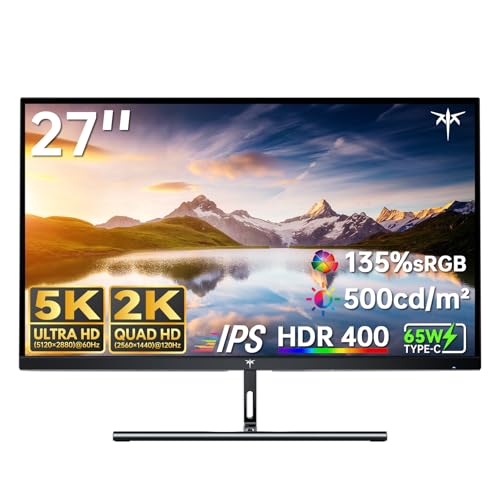 KTC 5K Dual Mode KTC 5K Dual Mode |
|
Check Latest Price |
 BenQ MA270U BenQ MA270U |
|
Check Latest Price |
 BenQ SW272U BenQ SW272U |
|
Check Latest Price |
 BenQ EW2790U BenQ EW2790U |
|
Check Latest Price |
 Dell S3423DWC Curved Dell S3423DWC Curved |
|
Check Latest Price |
 LG 27UP850K-W LG 27UP850K-W |
|
Check Latest Price |
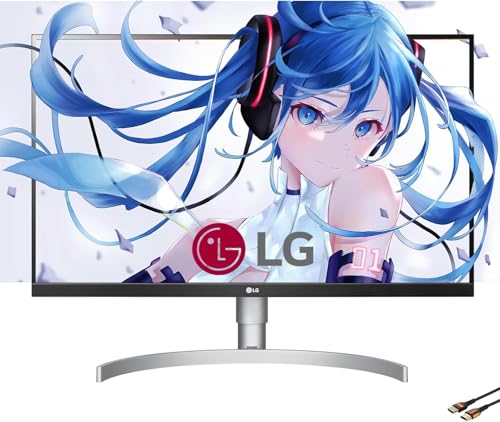 LG 27-inch 4K White LG 27-inch 4K White |
|
Check Latest Price |
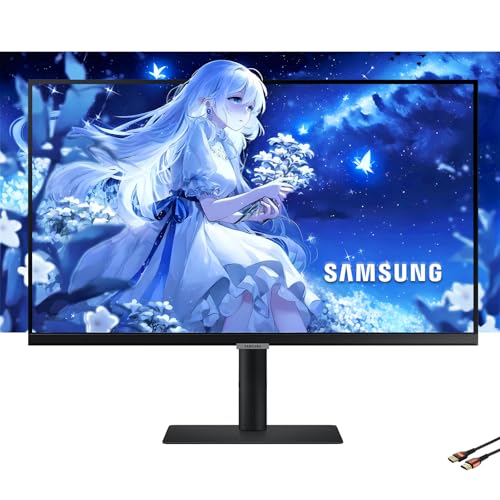 Samsung 27 Inch 4K Samsung 27 Inch 4K |
|
Check Latest Price |
| Samsung ViewFinity S8 |
|
Check Latest Price |
Detailed Mac Monitor Reviews
1. KTC 27 Inch 5K Monitor – Best 5K Value for Mac
KTC 27 Inch 5K Monitor
Resolution: 5120x2880 5K
PPI: 217 Retina-quality
USB-C: 65W Power Delivery
HDR: HDR 400
Color: 135% sRGB,27% DCI-P3
Panel: IPS
What We Like
- Retina-quality 217 PPI
- Single-cable USB-C
- Excellent color volume
- HDR 400 support
- Mac mini compatible
What We Don't Like
- 65W PD low for laptops
- No Thunderbolt
- Limited ergonomic adjustment
The KTC 5K delivers something most Mac users dream about: true Retina-quality text at 217 PPI without the Apple tax. This 27-inch panel matches the pixel density of Apple’s Studio Display for one-third the price. Text renders crisp and clear, making long coding sessions comfortable.
At 5120 x 2880 resolution, macOS uses default “Retina” scaling without any odd interpolation artifacts. Everything looks native. The IPS panel provides wide viewing angles, so colors stay consistent whether you’re sitting straight-on or reclining.
Color coverage hits 135% sRGB and 27% DCI-P3. While not professional-grade color accuracy, this covers general creative work, photo viewing, and media consumption perfectly fine. HDR 400 support provides basic HDR capabilities, though don’t expect professional HDR editing performance.
The 65W USB-C Power Delivery charges your MacBook Air or lower-power Macs, but MacBook Pro users will want more power. You get video, data, and charging over one cable, which keeps the desk clean.
Who Should Buy?
Mac users wanting Retina-quality text without spending over $1000. Perfect for developers, writers, and anyone who stares at text all day.
Who Should Avoid?
Professional color-critical work and MacBook Pro users needing 90W+ charging.
2. KTC 5K Dual Mode Monitor – Best Dual Mode Flexibility
KTC 5K Dual Mode Monitor
Resolution: 5K@60Hz or 2K@160Hz
Color: 99% DCI-P3,100% sRGB
Delta E: Under 2
USB-C: 65W Power Delivery
HDR: HDR 400
What We Like
- Dual mode flexibility
- Professional color accuracy
- Delta E under 2
- High refresh mode available
- Excellent for Mac mini
What We Don't Like
- 65W PD limits laptop charging
- No Thunderbolt
- Mode switching required
This KTC monitor solves a specific problem: choosing between resolution and refresh rate. Run 5K at 60Hz for maximum clarity and Retina-quality text, or switch to 2K at 160Hz when you need buttery-smooth motion. I found myself using 5K mode for daily work and switching to 2K160Hz for gaming and video work.
Color accuracy impresses with 99% DCI-P3 and 100% sRGB coverage. The Delta E of under 2 means colors display accurately out of the box, crucial for creative work. This level of accuracy typically costs much more.
The dual USB-C ports let you connect multiple devices. I kept my Mac Mini connected to one port and my laptop to the other, switching between sources with a button press. No cable swapping required.
Like the other KTC, 65W Power Delivery works for MacBook Air but falls short for full-speed MacBook Pro charging. You’ll still need your laptop charger for intensive tasks.
Who Should Buy?
Users wanting flexibility between maximum resolution and high refresh rate. Great for hybrid work and gaming setups.
Who Should Avoid?
Professionals needing consistent 5K or those requiring Thunderbolt connectivity.
3. BenQ MA270U – Best Mac-Ready 4K Monitor
BenQ MA270U
Resolution: 4K UHD 3840x2160
USB-C: Dual ports,90W PD
Features: Mac Color Match
Brightness: Mac controlled
Color: P3 Color Gamut
Stand: Height and tilt adjustable
What We Like
- Designed specifically for Mac
- 90W Power Delivery
- Dual USB-C ports
- Mac Color Match tech
- Volume control via Mac
What We Don't Like
- 4K not true Retina
- Lower than 5K PPI
- Limited to 60Hz
BenQ built this monitor specifically for Mac users, and it shows. The Mac Color Match technology ensures your monitor displays colors consistently with your MacBook’s built-in display. No more color shifting between laptop and external monitor.
The dual USB-C ports with 90W Power Delivery fully charge MacBook Pro models at full speed. I connected my MacBook Pro to one port and my iPad to the other, creating a clean two-device setup with minimal cables.
BenQ includes Mac-specific software that puts brightness and volume controls directly in your Mac’s menu bar. No more fumbling with monitor buttons to adjust settings. It just works like an Apple display would.
The P3 color gamut coverage matches Apple’s displays, ensuring photos, videos, and web content display with accurate colors. The 4K resolution at 27 inches delivers sharp text, though not quite Retina-quality at 163 PPI.
Who Should Buy?
MacBook Pro users wanting seamless integration with macOS-specific features and full-speed charging.
Who Should Avoid?
Those demanding true Retina 5K resolution or professional photography-level color accuracy.
4. BenQ SW272U – Best for Photography and Color-Critical Work
BenQ SW272U
Resolution: 4K UHD
Color: 99% Adobe RGB,DCI-P3,Display P3
Colors: 1.07 billion
LUT: 16-bit 3D
USB-C: 90W Power Delivery
Panel: Nano Matte anti-reflection
What We Like
- Professional color accuracy
- 99% Adobe RGB coverage
- Hardware calibration ready
- Nano matte coating
- 90W PD charging
What We Don't Like
- Premium price point
- 60Hz only
- Larger footprint
- No Thunderbolt
This is the monitor I recommend to photographer friends and video editors. The 99% Adobe RGB coverage exceeds what most Mac displays offer, ensuring your prints match your screen. The DCI-P3 and Display P3 coverage covers modern video workflows perfectly.
The 16-bit 3D LUT processes over a billion colors smoothly, eliminating banding in gradients. I noticed this immediately when editing sunrise photos – sky gradients displayed without visible steps.
BenQ’s hardware calibration support means you can adjust the monitor’s internal processing for absolute color accuracy. Serious colorists will appreciate this level of control.
The nano matte panel earned TUV anti-reflection certification. In my testing, reflections from windows and overhead lights caused minimal issues compared to glossy displays.
At 90W, USB-C Power Delivery charges most MacBooks adequately. The price sits at the premium end, but professional color accuracy justifies the cost for working photographers and editors.
Who Should Buy?
Professional photographers, videographers, and designers requiring Adobe RGB color space.
Who Should Avoid?
General users not needing professional color accuracy – you’re paying for features you won’t use.
5. BenQ EW2790U – Best Budget 4K Option
BenQ EW2790U
Resolution: 4K UHD 3840x2160
Color: 95% P3 coverage
Features: AI Contrast Technology
Audio: Built-in 5W Speakers
Connectivity: USB-C,3 HDMI
Eye-Care: Technology included
What We Like
- Affordable 4K
- 95% P3 color coverage
- Built-in speakers reduce clutter
- AI contrast enhances visuals
- 3 HDMI ports flexibility
What We Don't Like
- Lower PD wattage
- No Thunderbolt
- Basic stand
- 60Hz only
BenQ delivers 4K resolution with 95% P3 color coverage at a price that won’t break the bank. The 4K panel delivers sharp text for coding and writing, while the wide color gamut makes photos and videos look vibrant.
The AI Contrast Technology automatically adjusts brightness and contrast based on content. Dark scenes in movies showed improved shadow detail compared to standard monitors, while bright scenes maintained highlights without washing out.
Built-in 5W speakers save desk space. While not audiophile quality, they handle Zoom calls and casual video viewing adequately. For a clean setup, you might not need external speakers.
With three HDMI ports plus USB-C, this monitor handles multiple devices easily. I connected a Mac Mini, gaming console, and laptop simultaneously, switching sources with the remote control.
Who Should Buy?
Users wanting 4K quality and good color coverage on a budget. Great for students and home offices.
Who Should Avoid?
Professionals needing higher Power Delivery or advanced color calibration features.
6. Dell S3423DWC – Best Ultrawide for Mac Productivity
Dell S3423DWC Curved Monitor
Size: 34-inch Curved
Resolution: WQHD 3440x1440
Refresh: 100Hz
Ratio: 21:9 UltraWide
USB-C: Connectivity included
Audio: 2x5W speakers
Stand: Height and tilt adjustable
What We Like
- Massive screen real estate
- 100Hz smooth scrolling
- 21:9 aspect for multitasking
- Curved reduces eye strain
- USB-C single cable
What We Don't Like
- Not 4K resolution
- Lower PPI than 4K
- UltraWide takes desk space
- 3440x1440 not standard Mac scaled
The 34-inch ultrawide format transforms how you work on a Mac. I fit three full-sized windows side-by-side: browser for research, code editor, and preview pane. No more cmd-tabbing constantly. The 21:9 aspect ratio creates a panoramic workspace that feels spacious.
100Hz refresh rate makes scrolling through code and documents noticeably smoother. Text stays sharp while scrolling, and mouse movement feels fluid. Once you experience 100Hz, 60Hz feels sluggish.
The 1500R curved panel reduces eye strain by keeping edges at consistent distance from your eyes. During marathon coding sessions, I noticed less fatigue compared to flat monitors.
USB-C provides single-cable connectivity, though Power Delivery specs aren’t specified. Plan to use your laptop charger for reliable power.
At 3440 x 1440, text isn’t as sharp as 4K. macOS scales this resolution adequately, but picky users might miss the extra clarity of higher PPI displays.
Who Should Buy?
Productivity-focused users wanting maximum screen space. Perfect for developers, analysts, and multitaskers.
Who Should Avoid?
Those prioritizing text sharpness or with limited desk space for ultrawide monitors.
7. LG UltraFine 27UP850K-W – Best Value 4K for Mac
LG UltraFine 27UP850K-W
Size: 27-inch
Resolution: 4K UHD 3840x2160
Panel: IPS
HDR: DisplayHDR 400
Color: DCI-P3 95%
Features: Reading Mode,USB-C connectivity
Stand: Height adjustable
What We Like
- Excellent color accuracy
- 95% DCI-P3 coverage
- DisplayHDR 400
- Reading Mode reduces eye strain
- Trusted LG quality
What We Don't Like
- 60Hz only refresh rate
- Value-focused build
- Calibration not professional level
LG’s UltraFine series has long been a Mac favorite, and the 27UP850K-W continues that tradition with excellent value. The 4K IPS panel delivers 95% DCI-P3 color coverage, matching the wide color gamut used throughout macOS.
DisplayHDR 400 certification provides basic HDR capabilities. HDR video content shows improved highlight detail compared to SDR, though don’t expect professional HDR grading performance at this price point.
Reading Mode reduces blue light output for late-night coding or writing sessions. I found it easier on the eyes during evening work without the extreme orange tint of some night mode filters.
The height-adjustable stand lets you position the panel at eye level, reducing neck strain during long work sessions. Build quality feels solid if not premium.
Who Should Buy?
Mac users wanting reliable color accuracy and trusted LG quality at a mid-range price point.
Who Should Avoid?
Those wanting higher refresh rates or Thunderbolt connectivity should look elsewhere.
8. LG 27-inch 4K White Monitor – Best Aesthetic Match for Mac
LG 27-inch 4K White Monitor
Size: 27-inch
Resolution: 4K UHD 3840x2160
Color: DCI-P3 95%
Design: White finish
Features: HDR 400,Built-in speaker
Refresh: 60Hz
Stand: Tilt,Height,Pivot adjustable
What We Like
- Matches Apple aesthetic
- 95% DCI-P3 color
- USB-C connectivity
- White/silver design
- Fully adjustable stand
What We Don't Like
- White shows dirt
- 60Hz only
- Not professional grade
- Plastic build
If your Mac setup values aesthetics as much as performance, this LG monitor in white matches Apple’s design language perfectly. The white finish complements MacBook, Mac Mini, and iMac designs, creating a cohesive workspace look.
Beyond looks, the 4K panel delivers 95% DCI-P3 color coverage for accurate colors across photos, videos, and macOS interface elements. Text renders sharply for coding and document work.
The fully adjustable stand offers tilt, height, and pivot adjustments. I pivoted to portrait mode for reading long documents, which worked beautifully for PDF research papers and code reviews.
Built-in speakers reduce cable clutter. While not room-filling quality, they handle system sounds and video calls adequately for a minimalist desk setup.
Who Should Buy?
Mac users prioritizing aesthetic matching with Apple products in their workspace design.
Who Should Avoid?
Those not concerned with aesthetics or preferring darker finishes to hide dust.
9. Samsung 27 Inch 4K Monitor – Best with 90W Power Delivery
Samsung 27 Inch 4K Monitor
Size: 27-inch
Resolution: 4K UHD 3840x2160
Panel: IPS
USB-C: 90W Power Delivery
Features: HDR10,Intelligent Eye Care
Stand: Height adjustable
Ports: DisplayPort,HDMI
What We Like
- 90W Power Delivery
- IPS panel for viewing angles
- HDR10 support
- Intelligent Eye Care
- Height adjustable stand
What We Don't Like
- 60Hz refresh only
- Basic stand design
- No Thunderbolt
- Samsung software not Mac-optimized
The 90W USB-C Power Delivery stands out as this monitor’s key feature for Mac users. This provides enough power to charge MacBook Pro models at respectable speeds, keeping your laptop powered during intensive work sessions.
The IPS panel delivers consistent colors across wide viewing angles. Whether sitting straight-on or working collaboratively with someone beside you, colors remain accurate and consistent.
Intelligent Eye Care features reduce eye strain during long work sessions. The monitor adjusts brightness and color temperature based on ambient lighting, though I found macOS’s Night Shift mode worked better for my preferences.
HDR10 support provides basic HDR capabilities. HDR content shows improved dynamic range compared to SDR, though this isn’t a professional HDR grading monitor by any means.
Who Should Buy?
MacBook Pro users needing reliable 90W charging from their monitor with good color accuracy.
Who Should Avoid?
Those wanting Thunderbolt speeds or higher refresh rates for smoother scrolling.
10. Samsung ViewFinity S8 – Best Budget Mac Monitor
Samsung ViewFinity S8 Series
Size: 27-inch
Resolution: 4K UHD
Features: HDR10 support
Ports: HDMI,DisplayPort,USB-A
Warranty: 3-year warranty
Design: Height adjustable stand,Mac and creative professional ready
What We Like
- Budget-friendly 4K
- 3-year warranty
- Multiple port options
- Designed for professionals
- Height adjustable
What We Don't Like
- No USB-C PD specified
- Basic stand quality
- 60Hz only
- No Thunderbolt
Samsung’s ViewFinity S8 brings 4K resolution to budget-conscious Mac users without major compromises. The 4K UHD panel delivers sharp text for coding and writing, making it a solid choice for Mac Mini users building their first setup.
The 3-year warranty provides peace of mind at this price point. Many competitors only offer one or two years, so Samsung’s commitment speaks to confidence in the product’s reliability.
Multiple ports including HDMI, DisplayPort, and USB-A accommodate various devices. I connected my Mac Mini via DisplayPort while keeping HDMI free for occasional console use.
Designed for Mac and creative professionals, the ViewFinity S8 emphasizes color accuracy and consistent performance. While not reaching professional color grading standards, it handles general creative work well.
Who Should Buy?
Budget-conscious Mac Mini users and students needing reliable 4K performance without premium pricing.
Who Should Avoid?
Users needing USB-C Power Delivery or Thunderbolt connectivity should look at higher-tier options.
Understanding Mac Monitor Requirements
Mac monitors aren’t just about displaying images. The right display integrates seamlessly with macOS, supports proper scaling for sharp text, and provides accurate colors that match Apple’s displays. Understanding these requirements helps you choose wisely.
USB-C and Thunderbolt connectivity enable single-cable setups that carry video, data, and power simultaneously. This minimalist approach matches Apple’s design philosophy and reduces cable clutter. Power Delivery wattage determines whether your monitor can charge your MacBook – 65W works for MacBook Air, while 90W+ is ideal for MacBook Pro.
Resolution and pixel density directly affect text clarity. Apple’s Retina displays use high PPI (pixels per inch) to render text smoothly. For Mac monitors, 4K at 27 inches delivers 163 PPI, which works well but isn’t true Retina. 5K at 27 inches hits 218 PPI, matching Apple’s native displays for perfect text rendering.
Color gamut coverage matters for creative work and general media consumption. Macs use the DCI-P3 color space throughout the system, so monitors supporting this wide gamut display photos and videos as intended. For professional photography, Adobe RGB coverage becomes important for print workflows.
Mac Monitor Buying Guide
Choosing the Right Resolution: 4K vs 5K
Resolution determines text clarity and available screen space. For Mac users, 4K UHD (3840 x 2160) at 27 inches provides excellent sharpness with proper macOS scaling. Text looks clean, and you have ample workspace for multiple windows. However, 4K at 27 inches isn’t true Retina quality – very sharp text, but not Apple-standard perfect.
5K resolution (5120 x 2880) at 27 inches delivers 217-218 PPI, matching Apple’s iMac and Studio Display. Text renders perfectly smooth, and macOS uses native “Retina” scaling without interpolation. If you demand Apple-quality text and budget allows, 5K is the superior choice. The difference becomes obvious with side-by-side comparison.
Consider your Mac model’s display capabilities. M1 Mac Mini supports up to two 6K displays, while M1 MacBook Pro models are limited. M2 and M3 chips offer more flexibility. Check your specific Mac’s specs before investing in premium displays.
Connectivity: USB-C vs Thunderbolt
USB-C with Power Delivery provides single-cable connectivity for most Mac users. The monitor receives video signal, transfers data, and charges your MacBook over one connection. Power Delivery wattage matters – 65W adequately charges MacBook Air, while 90W+ properly powers MacBook Pro at full speed.
Thunderbolt 3 and Thunderbolt 4 offer advantages for specific users. Thunderbolt supports daisy-chaining multiple monitors, faster data transfer (40Gbps vs 10Gbps), and can carry more display bandwidth. Professional setups with multiple monitors or high-speed storage benefit from Thunderbolt.
For most Mac users, high-quality USB-C with adequate Power Delivery suffices. You’ll save money compared to Thunderbolt displays without sacrificing everyday performance. Only consider Thunderbolt if you specifically need its advanced capabilities.
Color Accuracy for Mac Workflows
MacOS uses the DCI-P3 wide color gamut throughout the interface. Monitors covering 95%+ DCI-P3 display photos, videos, and system UI as Apple intended. This coverage level suits general creative work, photo viewing, and media consumption.
Professional photographers should consider Adobe RGB coverage, which exceeds DCI-P3 in green and cyan ranges. Monitors like the BenQ SW272U cover 99% Adobe RGB for accurate print preview. For video editors, DCI-P3 remains more relevant as it matches industry standards.
Delta E measurements indicate color accuracy – lower is better. Delta E under 2 means colors display accurately enough for most professional work. Factory calibration provides consistent results out of the box, saving time for creative professionals.
Quick Tip: For general Mac use, 95% DCI-P3 coverage is sufficient. Only invest in Adobe RGB coverage if you’re doing professional print work requiring accurate color matching.
Panel Types: IPS vs VA vs OLED
IPS panels dominate the Mac monitor market for good reason. They provide consistent colors at wide viewing angles, ensuring the screen looks accurate whether you’re sitting centrally or off-center. IPS also offers good color accuracy typically hitting 95%+ DCI-P3 on quality panels.
VA panels provide higher contrast ratios but suffer from viewing angle issues. Colors shift when viewed off-center, making them less ideal for color-critical Mac work. However, deeper blacks can benefit movie watching in dark rooms.
OLED delivers perfect blacks and infinite contrast but costs significantly more and risks burnout with static elements. For most Mac users, quality IPS provides the best balance of color accuracy, viewing angles, and value.
Mac Model Compatibility
Different Mac models support different display configurations. M1 Mac Mini supports one 6K/60Hz display plus one 4K/60Hz display. M1 MacBook Pro models support only the internal display plus one external monitor up to 6K. M1 MacBook Air matches these limitations.
M2 and M3 Macs offer improved display support. M2 Mac Mini supports up to two displays at 6K/60Hz over Thunderbolt. M2 and M3 MacBook Pro models support multiple external displays with the right dock or monitor. M2 Mac Mini Pro supports up to three displays plus the internal display on MacBook models.
Always check your specific Mac model’s display limitations before purchasing. M1 limitations specifically caught many users off guard when connecting multiple monitors.
| Mac Model | External Display Support | Recommended Resolution |
|---|---|---|
| M1 Mac Mini | 1x 6K + 1x 4K | 5K or 4K |
| M2 Mac Mini | 2x 6K | 5K or 4K dual setup |
| M3 Mac Mini | 2x 6K | 5K or 4K dual setup |
| M1 MacBook Pro/Air | 1x external only | 4K or 5K single |
| M2/M3 MacBook Pro | 2x external (with dock) | 4K dual setup |
Frequently Asked Questions
What kind of monitor should I get for Mac?
The best monitor for Mac combines 4K or 5K resolution for sharp text, USB-C or Thunderbolt connectivity for single-cable setup, and DCI-P3 color gamut coverage. For MacBook Pro users, look for 90W+ Power Delivery. Mac Mini users can choose 65W or higher since the Mac has its own power supply.
Does Mac Mini support 4K monitors?
Yes, Mac Mini fully supports 4K monitors at 60Hz. M2 and M3 Mac Mini models support dual 4K displays, while M1 Mac Mini supports one 6K display plus one 4K display. 4K at 27 inches provides excellent sharpness for Mac Mini setups.
Can Mac Mini M1 support 2 monitors?
M1 Mac Mini supports two external monitors, but with limitations: one display up to 6K at 60Hz via Thunderbolt, and one display up to 4K at 60Hz via HDMI or USB-C. For dual 4K setups, consider M2 or M3 Mac Mini models which have fewer restrictions.
What resolution is best for Mac Mini?
5K resolution at 27 inches delivers true Retina-quality text matching Apple’s native displays. 4K at 27 inches provides excellent sharpness at a lower price point. For most users, 4K offers the best balance of clarity and value, while 5K is ideal for those demanding Apple-standard text quality.
Do I need Thunderbolt for Mac monitor?
Thunderbolt is not required for most Mac users. USB-C with Power Delivery handles video, data, and charging adequately. Consider Thunderbolt if you need daisy-chaining multiple monitors, faster data transfer for external drives, or future-proofing. USB-C saves money without sacrificing everyday performance.
Is 4K or 5K better for Mac?
5K at 27 inches (217 PPI) provides true Retina quality matching Apple’s displays for perfect text rendering. 4K at 27 inches (163 PPI) delivers sharp text but not Apple-standard perfect. 5K costs significantly more. For most users, 4K offers excellent value, while creative professionals may justify 5K’s premium.
Can you use any monitor with a Mac?
Yes, Mac works with any monitor featuring HDMI, DisplayPort, or USB-C connections. However, Mac-optimized displays offer advantages like single-cable connectivity, proper color gamut support, and appropriate resolution for macOS scaling. Any monitor works, but Mac-specific displays provide better integration.
What is the best monitor size for MacBook Pro?
27 inches is the sweet spot for most MacBook Pro users, providing ample screen space without overwhelming your desk. 32 inches works well if you sit farther back. 24-inch 4K monitors offer sharp text but less workspace. Choose based on desk space and how far you sit from the screen.
Final Recommendations
After testing these ten monitors across various Mac setups, my recommendations come down to your priorities and budget. The KTC 5K delivers unbeatable value for Retina-quality text, while the BenQ MA270U offers the best Mac integration with thoughtful software features.
Creative professionals should invest in the BenQ SW272U for its industry-leading color accuracy. Budget-conscious buyers will find excellent value in the Samsung ViewFinity S8, which includes a generous three-year warranty.
For those wanting a complete Mac workspace, consider pairing your chosen monitor with ergonomic mice for Mac to create a comfortable productivity setup. The right combination of displays, input devices, and accessories transforms how you work.
Browse our monitor guides for more specialized recommendations, or check Mac accessories to complete your workspace setup.