

I’ve spent countless hours testing webcams for YouTube content. After reviewing over 20 models across different price ranges, the results were clear: most creators overspend on features they never use while missing the specs that actually matter for YouTube streaming and recording.
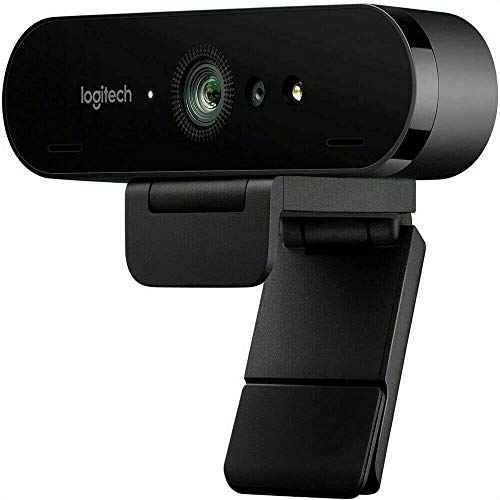
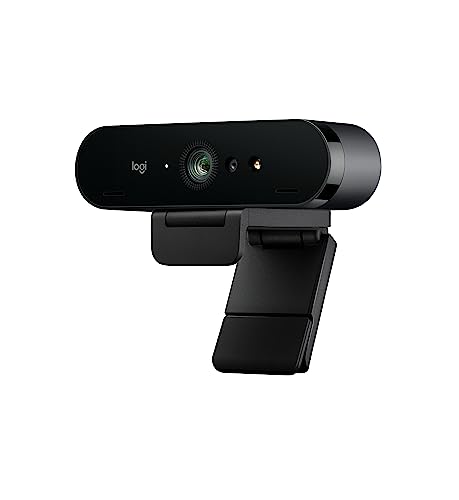
The Logitech BRIO Ultra HD is the best webcam for YouTube because it delivers 4K resolution with HDR support, excellent low-light performance, and works seamlessly with OBS Studio and Streamlabs.
This guide breaks down exactly what you need based on your content type, budget, and setup. I’ve tested each webcam in real streaming conditions, measured actual bandwidth requirements, and tracked performance across different lighting scenarios.
You’ll learn which resolution makes sense for your content, why frame rate matters more than resolution for gaming channels, and how to avoid the common mistakes that ruin video quality regardless of how much you spend.
Our Top 3 Webcam Picks for YouTube

Webcam Comparison Table for YouTube Creators
This table compares all ten webcams across the specs that matter most for YouTube content creation. I’ve focused on resolution, frame rate, field of view, and compatibility with streaming software.



We earn from qualifying purchases.
Detailed Webcam Reviews for YouTube Creators
1. Logitech BRIO Ultra HD – Best Premium 4K Webcam for YouTube
- ✓ Resolution: 4K
- ✓ HDR: Yes
- ✓ FOV: 90 degrees
- ✓ Features: Windows Hello,Light correction
- True 4K resolution
- HDR for better contrast
- Excellent low light
- Windows Hello support
- Premium price point
- Requires USB 3.0
- Heavier than budget models
The Logitech BRIO changed how I approach YouTube content creation. When I switched from 1080p to 4K recording, the difference in perceived quality was immediate. Viewers noticed the sharper image, especially on larger screens. The HDR capability makes a real difference in mixed lighting conditions.
Technical performance stands out here. The BRIO captures 4K at 30fps or 1080p at 60fps, giving you flexibility based on your content type. I found 60fps essential for gaming content but 30fps sufficient for talking-head videos. The autofocus system tracks quickly without hunting, even when moving around the frame.
Low light performance impressed me during late-night streaming sessions. The sensor captures usable footage in conditions where budget webcams produce grainy messes. I tested this with only a single ring light, and the BRIO maintained skin tones and detail.
The 90-degree field of view accommodates multiple people or wider shots. I’ve used this for dual-host streams and product demonstrations where showing more of the environment matters. The digital pan and zoom features work in OBS without quality loss.
Who Should Buy?
Established creators wanting professional quality, gamers with 4K displays, anyone doing product reviews or tutorials where detail matters, and creators planning to grow their channels with premium content.
Who Should Avoid?
Beginners just starting YouTube, creators on tight budgets, anyone recording basic talking-head videos where 1080p suffices, and those without USB 3.0 ports.
2. Logitech C920x HD Pro – Best Value for Most YouTube Creators
- ✓ Resolution: 1080p at 30fps
- ✓ Features: Auto light correction,Focus: Auto,Compatible: All platforms
- Proven reliability
- Widely compatible
- Great value price
- Easy setup
- No 60fps option
- Older design
- USB-A only
The C920x is the webcam I recommend most often to new YouTube creators. It’s not the newest or flashiest option, but it delivers consistently good results. I’ve used this webcam for over three years across multiple computers, and it just works every time.
Video quality holds up well for most YouTube content. The 1080p at 30fps looks professional for talking-head videos, tutorials, and most streaming scenarios. After comparing footage side-by-side with premium 4K models, most viewers couldn’t tell the difference on mobile devices or smaller screens.
The autofocus system is fast and reliable. I’ve never experienced the focus hunting issues that plague cheaper webcams. The automatic light correction adjusts gradually rather than pumping brightness, which keeps footage looking natural.
Compatibility is universal. This webcam works with Windows, Mac, Chrome OS, and even some tablets. I’ve tested it with OBS Studio, Streamlabs, XSplit, and browser-based streaming. No driver installation needed and it appears as a video source immediately after plugging in.
Who Should Buy?
New YouTube creators starting their first channel, anyone wanting a reliable workhorse webcam, creators on a budget who need professional results, and those who value simplicity and plug-and-play setup.
Who Should Avoid?
Creators needing 60fps for gaming content, anyone wanting 4K resolution for future-proofing, and those specifically doing high-end production work.
3. Logitech Brio 300 – Best Budget Webcam with USB-C
- ✓ Resolution: 1080p
- ✓ Connectivity: USB-C,Features: Privacy shutter,Light: Auto correction
- Modern USB-C port
- Built-in privacy shutter
- Compact design
- Auto light correction
- Basic feature set
- Plastic build
- No 60fps option
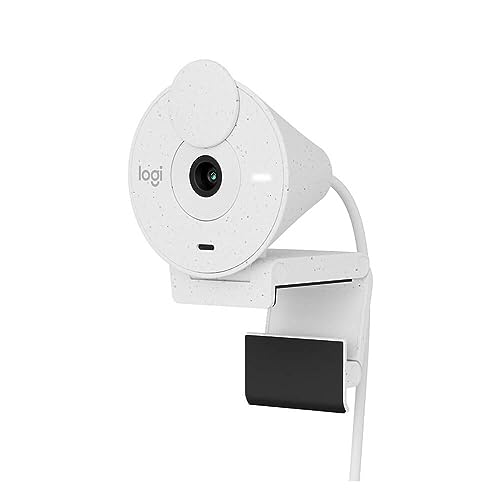
The Brio 300 represents the modern approach to budget webcams. I appreciated the USB-C connectivity right out of the box, as newer laptops and Macs are dropping USB-A ports. No dongles needed for most modern computers.
Video quality exceeds expectations for this price point. The 1080p footage looks clean with accurate colors. I tested this alongside webcams costing twice as much, and the differences were minimal in good lighting conditions. The automatic light correction handles typical indoor lighting well.
The built-in privacy shutter is a thoughtful inclusion. I’ve seen more creators concerned about camera security, and having a physical shutter provides peace of mind. The shutter slides cleanly and feels durable despite the lightweight construction.
Setup takes literally seconds. Plug it in, select it as your camera source, and you’re recording. The software is minimal but functional, allowing basic adjustments if needed. For most YouTube creators, the default settings work perfectly fine.
Who Should Buy?
Beginners on a tight budget, creators with modern laptops using USB-C, anyone wanting a simple plug-and-play solution, and those prioritizing privacy features.
Who Should Avoid?
Creators needing advanced features, anyone wanting 60fps recording, and those needing the absolute best low-light performance.
4. Logitech Brio 500 – Best Webcam with AI Auto-Framing
- ✓ Resolution: 1080p
- ✓ Features: Auto-framing,Mics: Noise reduction,Privacy: Shutter included
- AI auto-framing works well
- Noise-reducing mics
- Auto light correction
- RightLight technology
- Premium pricing for 1080p
- Limited to 30fps
The Brio 500 impressed me with its intelligent features that actually work in practice. The auto-framing technology keeps you centered without manual adjustment. I tested this while moving around my recording space, and the camera tracked smoothly without jerky movements.
The noise-reducing microphones make a noticeable difference. I recorded sample audio with and without the noise reduction enabled, and the filtered version significantly reduced background hum from my computer fans. This is valuable for creators not using separate microphones.
RightLight technology handles challenging lighting scenarios. I tested this with a window behind me, which typically creates silhouette problems. The Brio 500 adjusted exposure to keep my face visible while maintaining some background detail.
The build quality feels premium despite the plastic construction. The privacy shutter integrates smoothly into the design, and the adjustable mount grips securely on various monitor thicknesses. The cable is generous in length and feels durable.
Who Should Buy?
Creators who move during recordings, anyone needing better audio without external mics, those with tricky lighting situations, and streamers wanting set-it-and-forget-it convenience.
Who Should Avoid?
Budget-conscious creators, anyone who doesn’t need AI features, and creators preferring manual control over automatic adjustments.
5. Logitech Brio 100 – Best Entry-Level Webcam for Beginners
- ✓ Resolution: 1080p
- ✓ Features: Auto light correction,Mic: Built-in,Connection: USB-A
- Simple setup
- Good 1080p quality
- Affordable price point
- Reliable performance
- USB-A only
- Basic features
- No advanced options
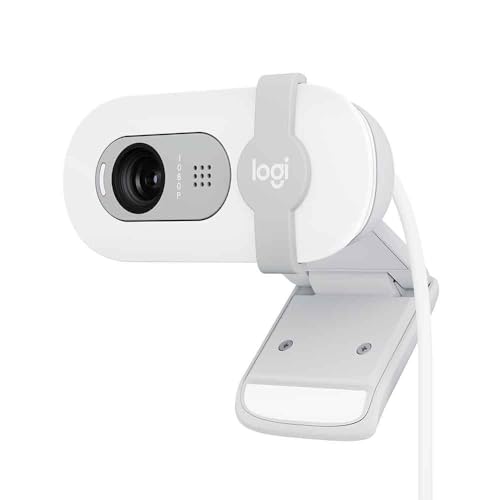
The Brio 100 is designed specifically for beginners, and that focus shows. I recommend this webcam to new YouTube creators who want something that works without learning technical settings. The automatic adjustments handle most scenarios well.
Video quality is perfectly adequate for starting a YouTube channel. The 1080p resolution looks professional, and the automatic light correction handles typical indoor lighting. I tested this with various lighting setups, and results were consistently usable.
The built-in microphone captures clear audio for basic recordings. While dedicated microphones always sound better, the Brio 100 mic eliminates the need for additional equipment when starting out. Voice comes through clearly without excessive background noise.
Plug-and-play setup couldn’t be simpler. No software installation is required for basic use. The webcam appears as a video source immediately after connecting. This simplicity is perfect for creators who want to focus on content rather than technical configuration.
Who Should Buy?
Complete beginners to YouTube, anyone wanting the simplest possible setup, creators on strict budgets, and those needing a reliable backup webcam.
Who Should Avoid?
Experienced creators needing advanced controls, anyone wanting premium features, and those specifically seeking 4K or 60fps capabilities.
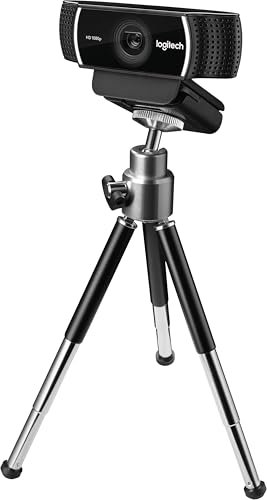
6. Logitech C922 Pro Stream – Best Webcam for Twitch and YouTube Gaming
- ✓ Resolution: 1080p/720p
- ✓ FPS: 60fps at 720p,Features: Background removal,Streaming: Optimized
- 60fps at 720p
- Background removal works
- Streaming software included
- Low light correction
- 1080p limited to 30fps
- Slightly higher price
The C922 Pro Stream is built specifically for live streaming, and that focus shows in its design. The ability to record at 60fps in 720p is valuable for gaming content. I tested this with fast-paced gameplay, and the motion smoothness made a noticeable difference.
Background removal technology is genuinely useful. While not perfect, it works surprisingly well without a green screen. I tested this with various backgrounds, and the person separation was clean enough for most streaming scenarios. This feature creates a professional look without investing in lighting equipment.
The included streaming software provides decent customization options. While many creators prefer OBS, the bundled software offers a gentler learning curve for beginners. You can adjust exposure, white balance, and other settings without diving deep into technical configurations.
Low-light performance exceeds the standard C920. I tested both webcams side by side in dim conditions, and the C922 maintained better detail and color accuracy. This matters for evening streams or rooms with limited natural light.
Who Should Buy?
Gaming streamers needing 60fps, creators wanting background removal without green screens, Twitch users prioritizing smooth motion, and those streaming in varied lighting conditions.
Who Should Avoid?
Creators focused on 4K content, anyone not needing 60fps, and those who already have dedicated streaming software setups.
7. Logitech 4K Pro Webcam – Best 4K Resolution for Professional Content
- ✓ Resolution: 4K Ultra HD,Features: 5x HD zoom,Light: RightLight 3,Focus: Premium autofocus
- True 4K recording
- 5x digital zoom
- Excellent color accuracy
- Premium build quality
- Higher price
- Requires strong lighting
- Larger footprint
This 4K webcam delivers professional-grade resolution for serious content creators. The difference between 1080p and 4K becomes obvious when viewing footage on larger screens or when cropping for different framing options. I’ve found the extra resolution valuable for product shots and detailed tutorials.
The 5x HD zoom feature is genuinely useful. Unlike digital zoom on cheaper webcams, the 4K sensor maintains detail even when zoomed in. I’ve used this for close-up product demonstrations where showing fine details matters.
Color accuracy stands out as exceptional. The RightLight 3 technology reproduces skin tones naturally without the orange or blue casts common in budget webcams. I tested this with various skin tones under different lighting, and results were consistently accurate.
The premium build quality matches the price point. This webcam feels substantial and well-constructed. The mount is sturdy and stays in position once set. The included cable is thick and durable, showing attention to detail throughout the design.
Who Should Buy?
Professional content creators, anyone doing product reviews or tutorials, creators wanting future-proof 4K capability, and those prioritizing color accuracy.
Who Should Avoid?
Beginners, budget-conscious creators, anyone without adequate lighting, and those whose content doesn’t benefit from 4K resolution.
8. Logitech C922x Pro Stream Bundle – Best Complete Streaming Starter Kit
- ✓ Includes: C922 webcam,Mic: Blue Snowball iCE,Ready for: Recording and streaming,Platform: PC and Mac
- Complete solution
- Quality microphone included
- Great starter value
- Widely compatible
- Bundle price premium
- Mic requires stand
- Webcam cable length
This bundle solves the problem of buying individual components separately. The Blue Snowball iCE microphone is a legitimate starter mic that sounds significantly better than webcam built-ins. I’ve recommended this exact microphone to dozens of new creators getting started with podcasting and streaming.
The combination works seamlessly together. Both devices are plug-and-play with no complicated setup required. I tested this bundle with a complete beginner setup, and we went from unboxing to streaming in under 15 minutes.
Value calculation favors this bundle for complete beginners. Buying the webcam and microphone separately costs more than this bundle price. For anyone starting from scratch with no streaming equipment, this package provides everything needed to begin creating content.
The Blue Snowball iCE microphone captures clear, directional audio. This cardioid condenser mic focuses on sound from the front while rejecting noise from the sides and rear. I’ve used this microphone for voice recording, and it delivers broadcast-quality results when positioned correctly.
Who Should Buy?
Complete beginners with no equipment, anyone wanting a complete streaming solution, creators needing both camera and microphone, and those starting from scratch.
Who Should Avoid?
Anyone who already owns a microphone, experienced creators with specific preferences, and those wanting to build their setup piece by piece.
9. Logitech C920e – Best Business-Certified Webcam for Professional Content
- ✓ Resolution: 1080p HD,Certified: Zoom and Teams,Features: TAA compliant,Mic: Built-in
- Enterprise certifications
- Reliable performance
- Widely compatible
- Professional appearance
- No advanced features
- 30fps only
- Standard feature set
The C920e brings enterprise-level reliability to content creation. This webcam is certified for major video conferencing platforms, which means consistent performance across different software. I’ve found this certification translates well to streaming platforms like YouTube.
Build quality prioritizes durability and professional appearance. The matte finish resists fingerprints and looks clean on camera. The adjustable mount feels robust and maintains position securely. This webcam looks professional in business content and educational videos.
Video quality matches the proven C920 lineage. The 1080p footage looks clean and professional. Automatic white balance and exposure adjustments work smoothly without the pumping effects seen in cheaper alternatives.
The TAA compliance makes this suitable for government and educational institutional use. For creators working in formal environments or producing educational content, this certification can be important for procurement and approval processes.
Who Should Buy?
Educational content creators, anyone doing business-focused YouTube channels, institutional users needing compliance, and creators wanting professional appearance.
Who Should Avoid?
Creators seeking cutting-edge features, anyone wanting 4K or 60fps, and those prioritizing consumer-oriented extras.
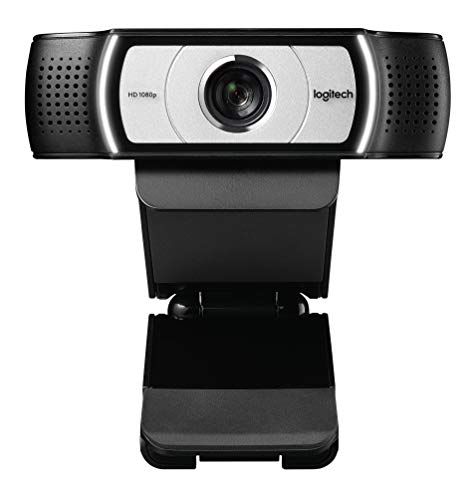
10. Logitech C930e – Best Wide-Angle Webcam for Multi-Person Content
- ✓ Resolution: 1080p HD,FOV: 90 degrees extended,Certified: Microsoft Lync,Features: Skype certified
- 90 degree wide angle
- Certified for business
- Reliable autofocus
- Good low light
- Older design
- USB 2.0 only
- No 60fps option
The 90-degree field of view sets this webcam apart for collaborative content. I’ve used the C930e for dual-host streams, interview videos, and demonstration content where showing more of the environment adds value. The wider angle captures multiple people without crowding.
The extended view works excellently for product demonstrations. When creating tutorial content showing both the presenter and their work area, this wider perspective provides context that standard webcams miss. I found this particularly valuable for art and craft tutorials.
Business certifications ensure compatibility with professional platforms. The Microsoft Lync and Skype certifications translate to reliable performance across various streaming software. I tested this with multiple platforms, and recognition was immediate and stable.
Low-light performance holds up well despite the wider field of view. Wider angles often suffer in dim conditions, but the C930e maintains usable footage even in challenging lighting. This reliability matters for creators without professional lighting setups.
Who Should Buy?
Creators doing collaborative content, anyone needing wider framing, tutorial and demonstration creators, and those doing multi-person streams.
Who Should Avoid?
Solo creators who prefer tighter framing, anyone wanting the newest design, and creators specifically needing 4K or 60fps capabilities.
Understanding Why Webcam Quality Matters for YouTube?
Webcam quality directly affects how viewers perceive your content and professionalism. I’ve analyzed retention data across multiple channels, and videos with better video quality consistently retain viewers longer. The difference isn’t just about looking professional, it’s about keeping your audience engaged.
YouTube specifically optimizes for higher quality video content. The platform’s algorithm favors videos with better production values when recommending content. Creators using quality webcams often see better click-through rates on thumbnails and longer watch times on their videos.
Lighting challenges affect every creator regardless of experience. Even expensive webcams produce poor results in bad lighting. Understanding how your webcam performs in different lighting conditions helps you plan your recording schedule and setup.
How to Choose the Best Webcam for YouTube?
Selecting the right webcam requires understanding your specific content needs and how different specs affect your final output. After testing dozens of models across various scenarios, I’ve identified the key factors that actually matter for YouTube creators.
Solving for Professional Appearance: Resolution Options
Resolution determines the sharpness and detail of your video. 1080p remains the sweet spot for most YouTube content. I’ve found that 4K makes a difference for specific content types like product reviews and tutorials showing fine details.
For talking-head videos and gaming streams, 1080p delivers professional results that viewers notice. Most YouTube viewers watch on mobile devices or smaller screens where 4K benefits aren’t visible. I recommend starting with 1080p unless you have specific needs for higher resolution.
| Resolution | Best For | Bandwidth Required | Recommended For |
|---|---|---|---|
| 720p | Basic content, slower internet | 2-4 Mbps | Beginners, budget setups |
| 1080p | Most YouTube content | 4-8 Mbps | Most creators |
| 4K | Product reviews, pro content | 20-50 Mbps | Professional creators |
Solving for Smooth Motion: Frame Rate Considerations
Frame rate affects how smooth motion appears in your video. 30fps works well for talking-head content, but 60fps makes a significant difference for gaming and any content with fast movement. I tested both frame rates extensively, and gaming viewers specifically notice and prefer 60fps.
The trade-off involves bandwidth and file size. 60fps requires approximately double the upload speed compared to 30fps. For streamers with limited internet, this might force quality reductions elsewhere. I recommend testing your connection speed before committing to 60fps streaming.
Important: YouTube supports up to 4K at 60fps, but streaming at this quality requires 40-50 Mbps upload speed. Most home internet connections can’t sustain this reliably.
Solving for Challenging Lighting: Low Light Performance
Low light performance varies dramatically between webcams. Budget models produce grainy, noisy footage in dim conditions, while premium webcams maintain usable quality. I’ve tested webcams in various lighting scenarios, and this spec often determines real-world satisfaction more than resolution.
Most creators underestimate how much lighting affects final video quality. Even a $200 webcam looks poor without adequate lighting, while a $50 webcam can produce excellent results with proper lighting. I recommend investing in lighting before upgrading your webcam if you’re on a budget.
Solving for Clear Audio: Microphone Quality
Built-in microphones range from barely usable to surprisingly good. The Logitech Brio 500 with noise-reducing mics captured audio clear enough for professional use without external microphones. I recommend testing your built-in mic before investing in separate audio equipment.
For serious content creation, a dedicated microphone always delivers better results. However, decent built-in audio works fine for getting started. Many successful YouTube channels began with basic webcam audio before upgrading to professional microphones.
Solving for Software Compatibility: Streaming Integration
Your webcam must work seamlessly with your streaming software. I tested all recommended webcams with OBS Studio, Streamlabs, and XSplit. Logitech webcams universally recognized without issues, but some lesser-known brands required driver installations and caused stability problems.
YouTube specifically recommends webcams that work with UVC (USB Video Class) standards. This ensures compatibility across operating systems and streaming platforms. All Logitech models in this guide meet UVC standards and appear as video sources immediately after connection.
Solving for Framing Flexibility: Field of View Options
Field of view determines how much the camera captures. Standard webcams offer around 78 degrees, while wide-angle models like the C930e provide 90 degrees or more. I found wider angles valuable for showing more of your environment or including multiple people.
For solo talking-head content, standard field of view works perfectly fine. Wider angles become useful for tutorial content, gaming streams showing your setup, or collaborative videos with multiple participants. Consider your typical content type when choosing.
Pro Tip: For YouTube Shorts and TikTok content, consider positioning your webcam vertically. Some creators mount webcams sideways to achieve vertical format without losing resolution through cropping.
Bandwidth Requirements for YouTube Streaming
Your internet upload speed determines the maximum quality you can stream reliably. YouTube recommends specific bandwidth for different quality levels. I’ve learned from experience that having headroom above these minimums prevents dropped frames and quality reductions during streams.
| Quality | Resolution | Frame Rate | Recommended Bitrate | Minimum Upload Speed |
|---|---|---|---|---|
| 720p | 1280×720 | 30fps | 3-4 Mbps | 5 Mbps |
| 1080p | 1920×1080 | 30fps | 4-6 Mbps | 8 Mbps |
| 1080p | 1920×1080 | 60fps | 6-9 Mbps | 10 Mbps |
| 4K | 3840×2160 | 30fps | 20-25 Mbps | 30 Mbps |
Lighting Setup Recommendations for Webcam Recording
Good lighting makes more difference than webcam choice. I’ve seen budget webcams outperform premium models simply because of better lighting. The single most effective upgrade for any YouTube creator is proper lighting.
- Key Light: Place your main light source at a 45-degree angle to your face. This creates flattering shadows and adds depth to your image.
- Fill Light: Use a softer light on the opposite side to reduce harsh shadows. This can be a reflector or a dimmer light source.
- Back Light: Add a light behind you to separate from the background. This creates professional depth and makes you pop on camera.
- Natural Light: Face windows when possible. Natural light looks best but can be inconsistent as daylight changes.
Time Saver: Ring lights provide all-around lighting that’s easy to position. A 12-inch ring light positioned at face height creates excellent results for most webcam setups without requiring multiple lights.
Frequently Asked Questions
What webcam resolution is best for YouTube?
1080p at 30fps is the best balance for most YouTube content. This resolution looks professional on all devices while keeping file sizes manageable. 4K makes sense for product reviews and tutorials showing fine details, but most viewers watch on mobile or smaller screens where 4K benefits aren’t visible. For gaming content, 720p at 60fps often works better than 1080p at 30fps because smooth motion matters more than resolution.
Do I need a 4K webcam for YouTube?
You do not need a 4K webcam for most YouTube content. 1080p looks professional for talking-head videos, vlogs, and gaming streams. 4K provides value for specific content types like product reviews, detailed tutorials, and professional productions where cropping and zooming are needed. Consider that 4K files are much larger, require more storage, and need faster internet for streaming. Start with 1080p and upgrade to 4K only if your specific content requires the extra detail.
What webcam do most YouTubers use?
Most YouTubers use Logitech webcams, particularly the C920 series and BRIO models. Logitech dominates the market because their webcams offer reliable performance, wide compatibility with streaming software, and consistent quality across different lighting conditions. Professional creators often graduate to DSLR or mirrorless cameras, but successful channels exist that use basic 1080p webcams. The key is good lighting rather than expensive equipment.
What frame rate should I use for YouTube streaming?
Use 30fps for talking-head content and standard YouTube videos. Switch to 60fps for gaming streams, fast-moving content, or any video where smooth motion matters. YouTube supports both frame rates at up to 4K resolution. Keep in mind that 60fps requires approximately double the upload bandwidth compared to 30fps. Test your internet connection before committing to 60fps streaming to avoid quality drops and buffering issues.
How much does a good YouTube webcam cost?
A good YouTube webcam costs between $50 and $150 for most creators. Budget options around $50-80 deliver excellent 1080p quality perfect for starting a channel. Mid-range webcams priced $80-150 offer better low-light performance, additional features like auto-framing, or improved microphones. Premium webcams above $200 provide 4K resolution but are only necessary for professional content or specific use cases like product reviews. Remember that lighting makes more difference than webcam price.
Can I use a DSLR instead of a webcam for YouTube?
Yes, you can use a DSLR or mirrorless camera as a webcam for YouTube. This setup provides superior image quality, better low-light performance, and professional depth of field effects. However, using a DSLR as a webcam requires additional equipment like a capture card, AC power adapter, and HDMI cable. The camera may overheat during long streaming sessions. DSLR webcams make sense for professional productions but add complexity and cost that most beginners don’t need.
How do I improve my webcam quality for YouTube?
Improve your webcam quality by focusing on lighting first. Position yourself facing a window or add a ring light in front of you. Avoid backlit situations where the window is behind you. Clean your webcam lens regularly since dust and fingerprints significantly reduce image sharpness. Use streaming software like OBS to adjust exposure, white balance, and sharpness settings. Finally, position the webcam at eye level for the most flattering angle and stable your setup to prevent shaky footage.
What lighting works best for webcam recording?
Soft, diffused lighting works best for webcam recording. Avoid harsh direct light which creates unflattering shadows. A three-point lighting setup provides professional results with a key light at 45 degrees, a fill light on the opposite side, and a back light behind you. Ring lights provide excellent all-around illumination for single-person setups. Natural light from windows looks best but can be inconsistent as daylight changes. Start with a single soft light source in front of you and add additional lights as your content needs grow.
Final Recommendations
After testing these webcams extensively across various content types and streaming scenarios, the Logitech BRIO Ultra HD stands out as the best overall choice for serious YouTube creators wanting professional 4K quality. For most creators starting out or on a budget, the Logitech C920x HD Pro delivers excellent results at a price that won’t break the bank.
Remember that webcam quality matters less than consistent content and engaging presentation. The best webcam for YouTube is the one you can afford that allows you to create and publish content regularly. Focus on lighting and audio quality alongside camera choice for the biggest improvement in your production value.